
About cookies on this site Our websites require some cookies to function properly (required). In addition, other cookies may be used with your consent to analyze site usage, improve the user experience and for advertising. For more information, please review your options. By visiting our website, you agree to our processing of information as described in IBM’sprivacy statement. To provide a smooth navigation, your cookie preferences will be shared across the IBM web domains listed here.
Tutorial
Deploy MCP Composer on IBM Cloud Code Engine using Docker
Learn how to containerize MCP Composer and deploy it on IBM Cloud Code Engine for AI tool orchestration
On this page
Integrating different tools and data sources is a key challenge in the world of AI and large language models (LLMs). The Model Context Protocol (MCP) helps solve this by providing a standard way to manage and interact with AI tools.
The MCP Composer builds on MCP to act as a central controller. It makes it easier to register tools, handle authentication, and route requests to the right service.
In this tutorial, learn how to deploy MCP Composer as a Docker container on IBM Cloud Code Engine. Using Docker and Code Engine together gives you a reliable and scalable way to manage your AI tool orchestration.
What is MCP Composer?
MCP Composer is a FastAPI-based application that helps manage multiple MCP servers and tools. It allows you to register tools and servers at runtime using JSON configurations and acts as a smart controller to route tool requests to the right server.
It hides the complexity of protocols, authentication, and routing so you can focus on using your tools effectively.
Key features
Dynamic tool registration: Register new MCP tools automatically at startup or through an API.
Server management: Add or remove MCP member servers as needed.
Unified access: Access all tools from different servers through one interface.
MCP Composer supports many tool types including REST (OpenAPI), GraphQL, CLI tools, SDKs, and even nested MCP servers, making it a flexible option for AI tool orchestration.
Create a Docker image for MCP Composer
Docker makes it easy to package your application with all its dependencies so it runs the same in any environment.
A basic Dockerfile you can use for MCP Composer follows:
Dockerfile
# Use a Python image with uv pre-installed
FROM ghcr.io/astral-sh/uv:python3.12-bookworm-slim

# Install the project into `/app`
WORKDIR /app

# Copy from the cache instead of linking since it's a mounted volume
ENV UV_LINK_MODE=copy

# Install the project's dependencies using the lockfile and settings
RUN --mount=type=cache,target=/root/.cache/uv \
    --mount=type=bind,source=uv.lock,target=uv.lock \
    --mount=type=bind,source=pyproject.toml,target=pyproject.toml \
    uv sync --locked --no-install-project --no-dev

# Then, add the rest of the project source code and install it
# Installing separately from its dependencies allows optimal layer caching
COPY . /app
RUN --mount=type=cache,target=/root/.cache/uv \
    uv sync --locked --no-dev

# Place executables in the environment at the front of the path
ENV PATH="/app/.venv/bin:$PATH"
ENTRYPOINT []
CMD ["uv", "run", "test/test_composer.py"]
Make sure to replace main:app with the correct path to your FastAPI application instance.
Deploy MCP Composer on IBM Cloud Code Engine
IBM Cloud Code Engine is a fully managed platform that runs your containerized applications without the need to manage infrastructure. It supports web apps, APIs, background jobs, and more.
Prerequisites
Make sure you have the following:
IBM Cloud account: An active account is required.
IBM Cloud CLI: Install the CLI and these plug-ins:
code-enginecontainer-registry(Optional)
container-service
Docker Desktop: Installed and running on your machine.
Container Registry namespace: Create a namespace in IBM Cloud Container Registry to store your Docker image.
Deployment steps
Step 1. Build the Docker image
Open a terminal and go to your MCP Composer project directory. Then, build your Docker image using the following command.
Replace your-container-registry/your-namespace and mcp-composer with your actual values. You can also use a custom tag instead of latest.
docker build -t your-container-registry/your-namespace/mcp-composer:latest .
Step 2. Test the Container locally (Optional)
You can test your container locally before deploying it to IBM Cloud Code Engine.
docker run --rm -p 9000:9000 \
  --name mcp-composer your-container-registry/your-namespace/mcp-composer:latest
Replace your-container-registry and your-namespace with your actual values. This helps confirm that the application runs correctly in your local setup.
Step 3. Log in to IBM Cloud and Container Registry
First, log in to your IBM Cloud account. Then, log in to the IBM Cloud Container Registry.
ibmcloud login --sso   # Select account and region if multiple are available

# If a resource group is not selected, select it using:
ibmcloud resource groups
# Then, target the selected resource group with:
ibmcloud target -g <resource group>

ibmcloud cr login
Step 4. Push the Docker image to IBM Cloud
Push the image that you built to your IBM Cloud Container Registry.
docker push your-container-registry/your-namespace/mcp-composer:latest
## for example:
# docker push us.icr.io/my-namespaces/mcp-composer:latest
Step 5: Create and select a Code Engine Project
If you do not have a Code Engine project yet, create one using this command:
ibmcloud ce project create --name my-mcp-composer-project
Then, select the project:
ibmcloud ce project select -n my-mcp-composer-project
Note: If you want to use kubectl to manage the project, add the --kubecfg flag to the command.
Step 6. Set up registry access for your project
In the IBM Cloud console:
Open Project settings and select Integration.
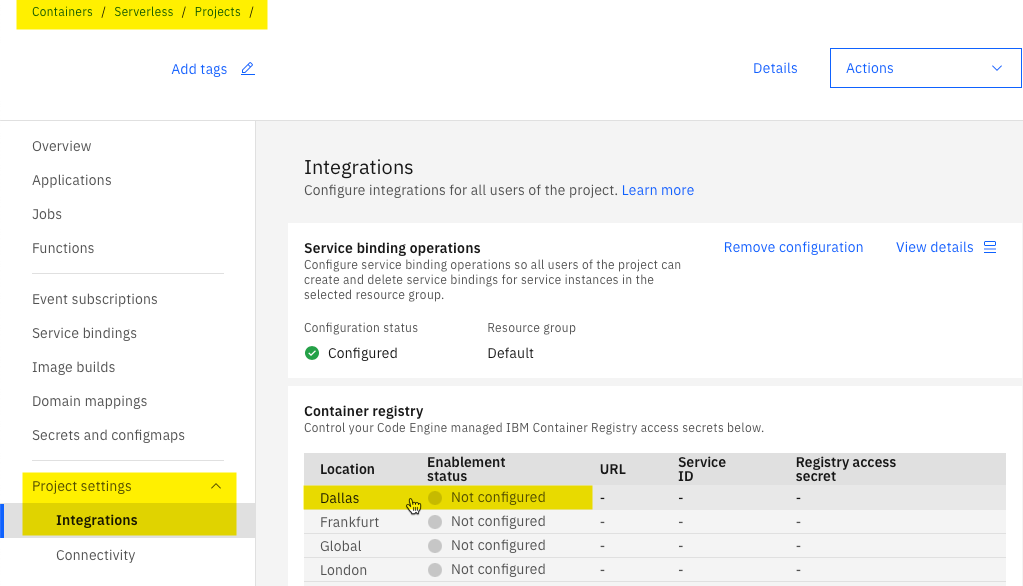
Click your Container Registry location.
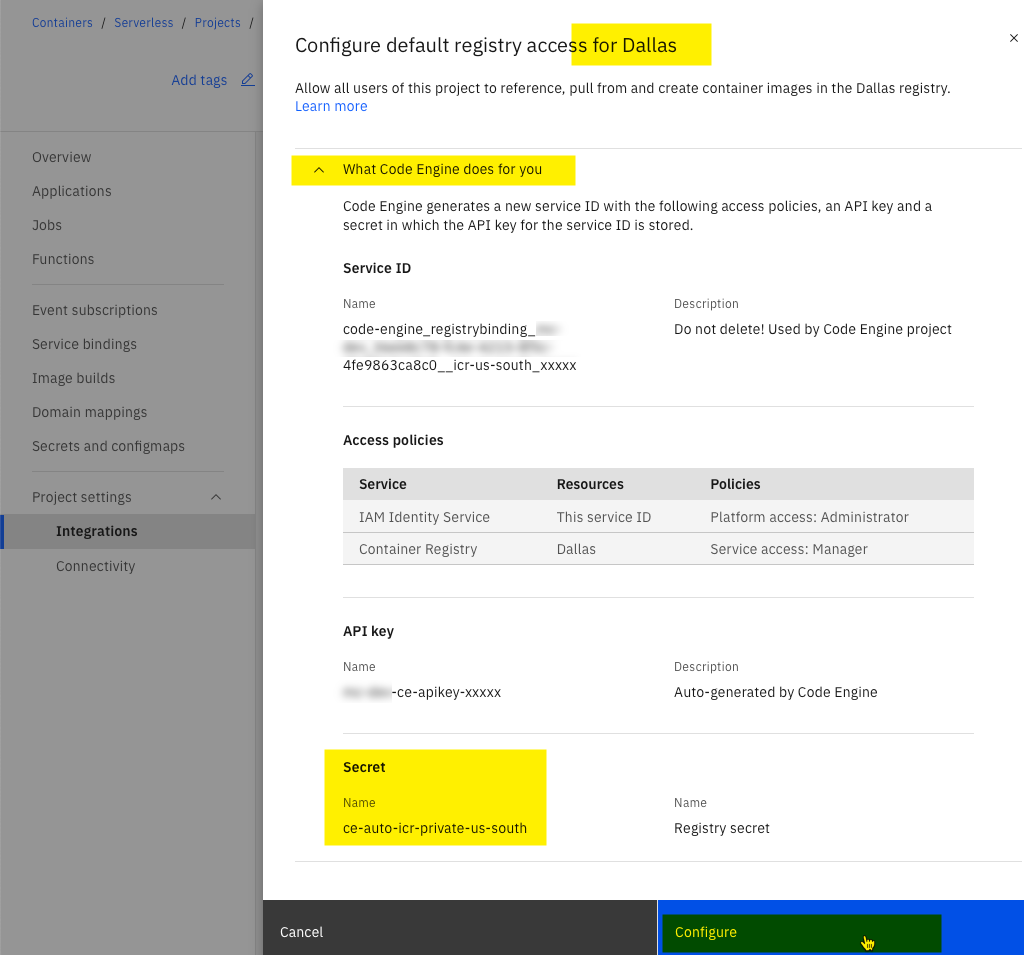
Click Configure to create a registry access secret.

Make a note of the secret name. You will need it in the next step.
Step 7. Deploy the App to Code Engine
Use the following command to deploy your Docker image to IBM Cloud Code Engine. Replace the your-container-registry/your-namespace and your-container-registry-secret-name with your actual values.
ibmcloud ce app create --name mcp-composer-app \
  --image private.your-container-registry/your-namespace/mcp-composer:latest --port 9000 \
  --registry-secret your-container-registry-secret-name
Step 8. Get the App url
After deployment, you can find the public url of your app with this command:
ibmcloud ce app get --name mcp-composer-app --output url
Test your deployment
After your MCP Composer app is live, you can test it by sending requests to its public url.
Use tools such as curl, Postman, or your own SDKs. For example, to list all registered tools, send a GET request to /tools.
Conclusion
Running MCP Composer on IBM Cloud Code Engine gives you a simple, scalable way to manage and orchestrate your AI tools.
With Docker and Code Engine, you can focus on building your solution without worrying about infrastructure. You can also explore other IBM Cloud services to add security, logging, and monitoring to your setup.
You are now ready to build a more connected and efficient AI workflow. Happy orchestrating!
Also, you might want to explore the MCP tools provided by IBM, which include reusable components and reference implementations that you can adapt for your own projects.