
About cookies on this site Our websites require some cookies to function properly (required). In addition, other cookies may be used with your consent to analyze site usage, improve the user experience and for advertising. For more information, please review your options. By visiting our website, you agree to our processing of information as described in IBM’sprivacy statement. To provide a smooth navigation, your cookie preferences will be shared across the IBM web domains listed here.
Tutorial
Develop agents with no code using watsonx Orchestrate
A hands-on guide for developing a multi-agent system in watsonx Orchestrate with no code that can communicate with the agents on various channels
IBM watsonx Orchestrate is a no-code, low-code, and pro-code agent orchestration platform that allows both business and technical users to create, test, and deploy intelligent agents. With support for multi-agent orchestration, these agents can work together, share context, and assign tasks to each other, while integrating with your existing systems to reduce manual work and improve efficiency.
IBM watsonx Orchestrate is a unified platform for multi-agent orchestration across IBM and third-party agents. It has a growing catalog of over 100 prebuilt agents and 400 tools. Learn more about watsonx Orchestrate and its multi-agent orchestration capabilities in this beginner’s guide.
In this step-by-step tutorial, you will learn how easy it is to develop agents using watsonx Ochestrate with no code. Knowledge workers can develop agents that can increase their productivity without any coding expertise in a web browser.
You will create a supervisor agent called Earning Report Analyzer that manages the entire earnings analysis workflow. It will take assistance from two specialized agents that will extract, analyze, and summarize data from official investor relations documents for two companies. The supervisor agent will determine which company or companies a user’s inquiry refers to, send targeted queries to the correct specialized agents, and consolidate their responses into a unified, well-cited response. For the sake of this tutorial, Company A will be PepsiCo and Company B will be Coca-Cola. The use of company names in this tutorial, including PepsiCo and Coca-Cola, is purely for illustrative purposes.
Additionally, you will learn how to expose the agent to WhatsApp, but the same approach can be applied to other channels as well, making it easy for end-users to interact with your agents.”
Agentic AI architecture of the multi-agent system
The following figure explains the architecture of the multi-agent system you will build.
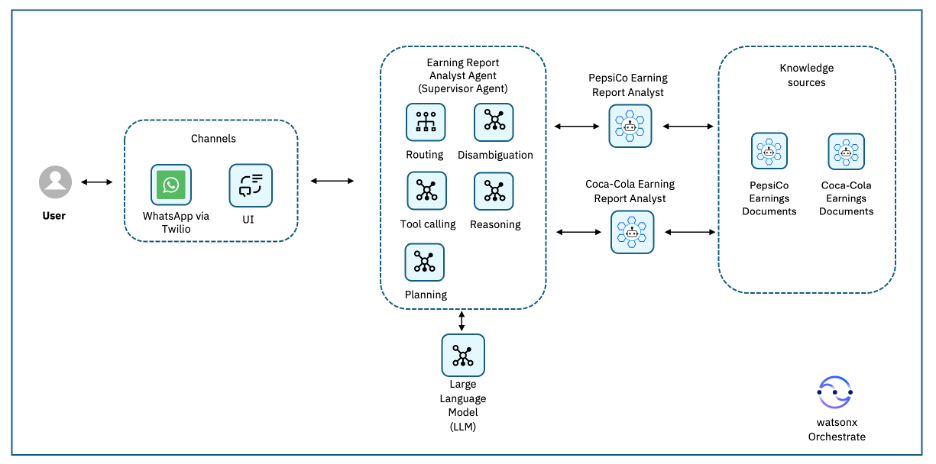
The agentic AI architecture for this solution follows a multi-agent orchestration pattern using watsonx Orchestrate. Watsonx Orchestrate handles agent execution, reasoning, delegation, and integration with communication channels.
The flow is as follows:
User interaction channels. Users can interact with the system through multiple channels. In this tutorial, we focus on these channels:
- WhatsApp via Twilio, allowing real-time messaging from any mobile device.
- Web UI, which is a browser-based chat interface within watsonx Orchestrate.
Earning Report Analyst agent (Supervisor agent). This agent is the main entry point for user requests. It performs:
- Routing: Determining which specialized agents should handle a request.
- Disambiguation: Clarifying company names, time periods, or metrics if the request is vague.
- Tool calling: Invoking specific tools or APIs if required for the analysis.
- Reasoning and planning: Breaking down complex queries into smaller tasks, sequencing them, and combining the results.
Specialized agents. We include two domain-specific agents that handle the company-level analysis:
- PepsiCo Earning Report Analyst agent, which analyzes PepsiCo earnings reports and transcripts.
- Coca-Cola Earning Report Analyst agent, which analyzes Coca-Cola earnings reports and transcripts.
Knowledge sources. Each specialized agent has its own knowledge bases that contain public financial documents such as including quarterly and annual earnings releases, press releases, and investor presentations. They can be extended with enterprise data sources if needed. The agents use a curated set of documents that are stored in watsonx Orchestrate’s knowledge system, which is based on watsonx.data Milvus vector database. These knowledge bases support retrieval-augmented generation (RAG), which allow the agents to produce accurate, source-cited responses.
A Large language model (LLM). The agents use an LLM to interpret user input, plan multi-step workflows, and consolidate results from multiple agents into a single, coherent answer. Each specialized agent also uses the LLM for language-related tasks, such as understanding queries, extracting relevant information from documents, and generating clear, well-structured responses. In this tutorial, we use llama-3.2-90B-Vision-Instruct from Meta as the LLM.
Consider this sample workflow:
- A user sends a WhatsApp message asking to compare PepsiCo and Coca-Cola’s Q2 2025 earnings.
- The Earning Report Analyst agent detects that both companies are involved.
- It routes the PepsiCo part of the query to the PepsiCo Earning Report Analyst agent and the Coca-Cola part to the Coca-Cola Earning Report Analyst agent.
- Each specialized agent retrieves relevant data from its knowledge base, processes it, and returns structured findings.
- The Earning Report Analyst agent merges these findings into a unified, well-cited response and sends it back to the user via WhatsApp.
Prerequisites
A free trial instance of watsonx Orchestrate SaaS:
Learn more about registering for the trial instance and getting logged in to watsonx Orchestrate in their docs:
Download publicly available investor documents
For the sake of this tutorial, you are going to use publicly available documents. Download these earning documents from the PepsiCo web site:
- Q2 2025 Press release (PDF)
- Q2 2025 Transcript and Remarks (PDF)
- Q2 2020 Press release (PDF)
- Q2 2020 Transcript and Remarks (PDF)
Also, download these earning documents from the Coca Cola Company web site:
- Q2 2025 Earning release (HTML page)
- Q2 2025 Transcript (PDF)
- Q2 2020 Earning release (HTML page)
- Q2 2020 Earning Transcript (PDF)
Steps
- Create the Company A Earning Report Analyst agent
- Create the Company B Earning Report Analyst agent
- Create the Earning Report Analyst agent (Supervisor agent)
- Test the agents
- Expose the agent on WhatsApp
- Test the agent from WhatsApp
Step 1. Create the Company A Earning Report Analyst agent
In this step, you are going to create the first agent, the Company A Earning Report Analysis agent.
You are going to create the agent, supply it with the required knowledge documents, and then deploy it.
- Open watsonx Orchestrate.
- On the watsonx Orchestrate home page, click Create new agent to access the Agent Builder.
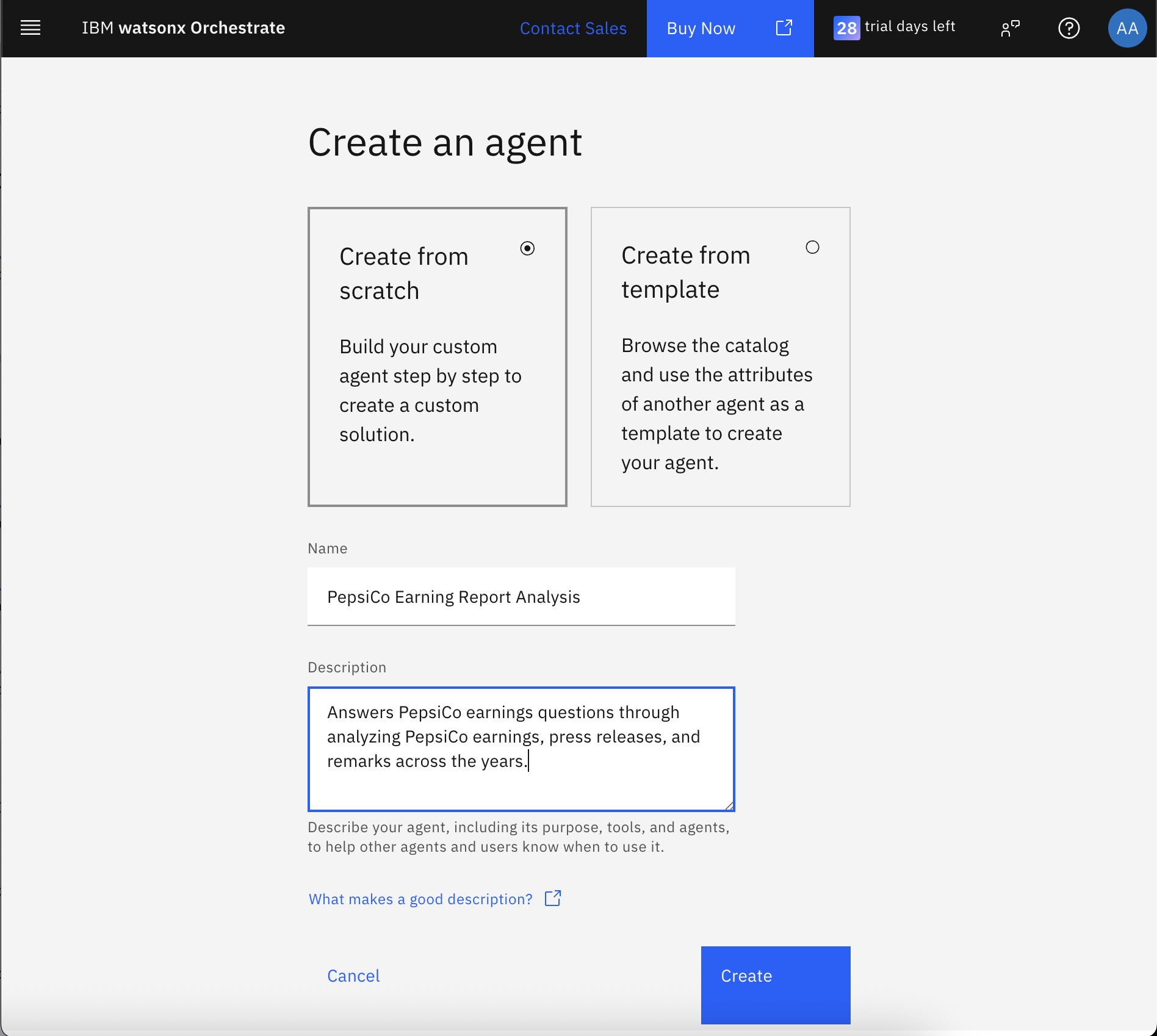
Fill the name and description of the agent as follows. The description is not optional, as it outlines the scope of the agent and makes it easy for other agents and users to know when to interact with this agent.
- Name: PepsiCo Earning Report Analyst
Description: Answers PepsiCo earnings questions through analyzing PepsiCo earnings, press releases, and remarks across the years.
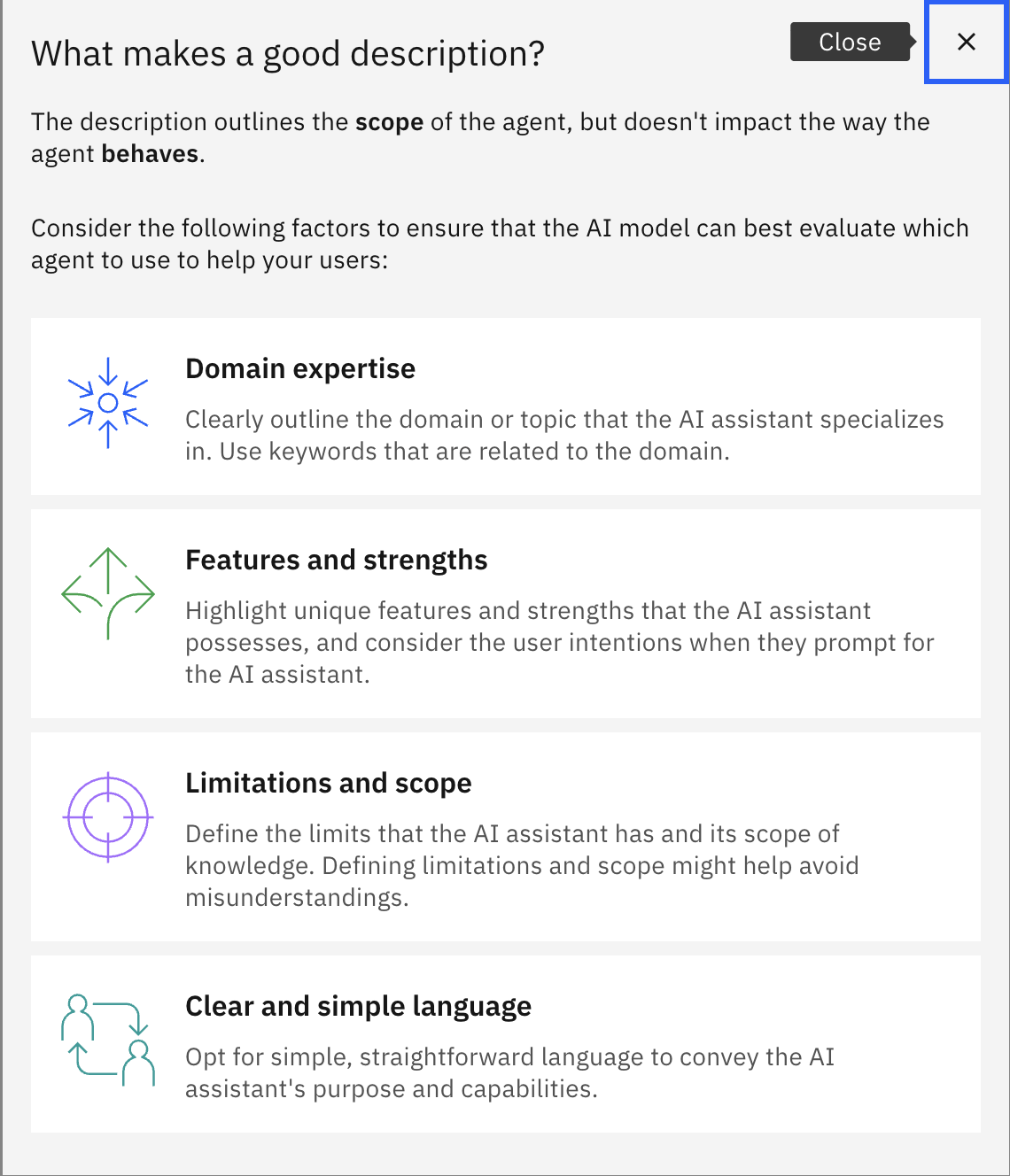
Optionally, Click the What makes a good description? You can learn more about the best practices for writing an agent description in this getting started document.
Click the Create button to create the agent and start filling the additional details to configure the agent.
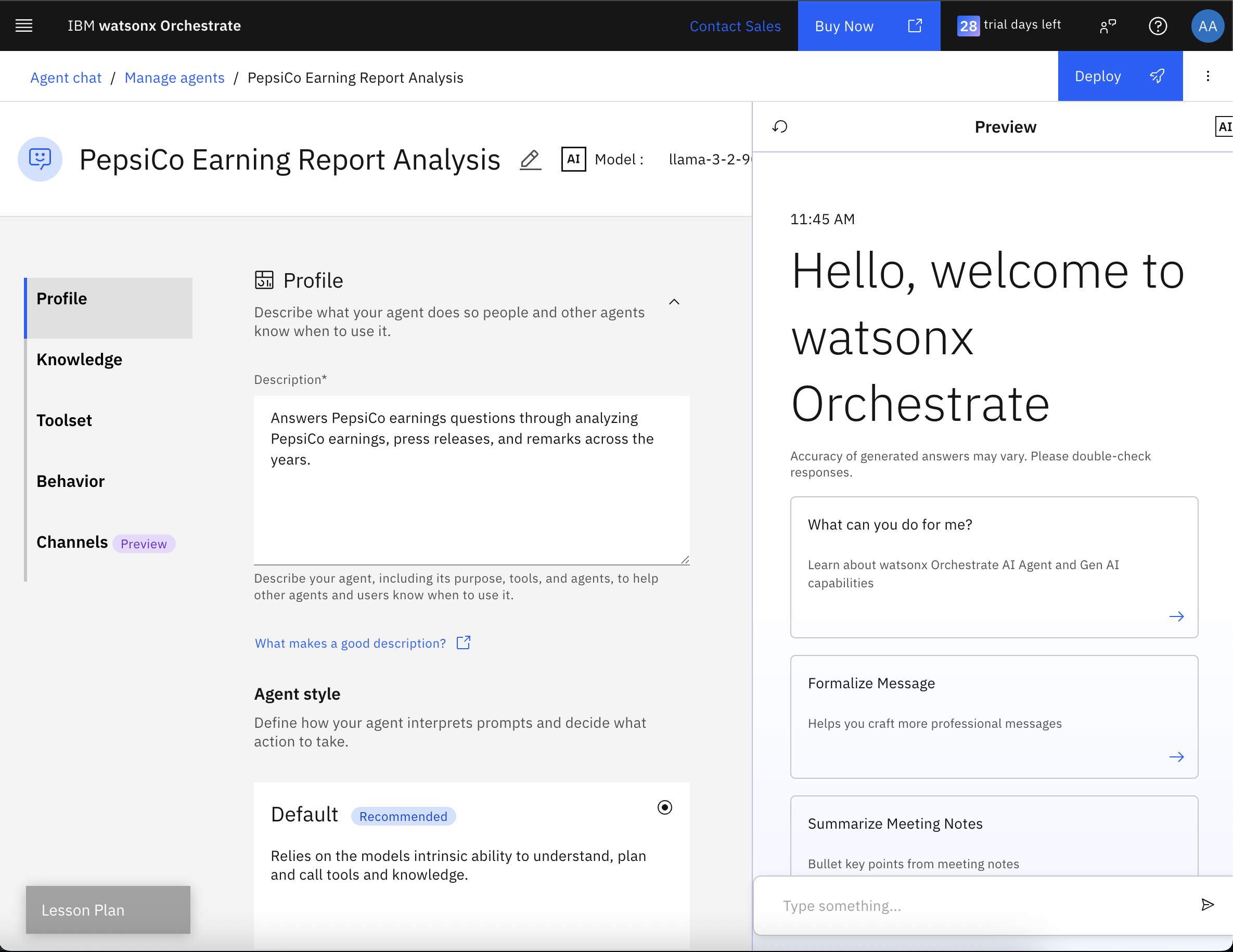
You will start configuring your agent with these main sections.
- Model: Choose the appropriate model for your agent. In this agent, you will use
llama-3-2-90b-vision-instruct. - Profile: Describes your agent's purpose including what your agent does so people and other agents know when to use it. Also, define how your agent interprets prompts and decide what action to take, and configure voice interaction when needed.
- Knowledge: Provides the specific knowledge your agent needs to accomplish its goals allowing to implement RAG (Retrieval Augmented Generation), supporting different knowledge sources including Milvus, elasticsearch, Custom service, or uploading the documents directly. In this tutorial, you are going to upload documents directly.
- Toolset: Add tools and other agents to help your agent take necessary action. Tools give your agent access to your organization's tool to help it accomplish tasks. Tools can be prebuilt tools in the watsonx Orchestrate catalog, tools developed earlier and imported into the instance, external tools that you imported, MCP tools, or new tools that you create using the Flow Editor. Agents identify the agents that your agent can delegate tasks to. In this tutorial, you will delegate tasks to different agents.
- Behavior: Defines how and where your agent should react to requests and respond to users. You specify what your agent should do, how it should respond and any restrictions it should follow
- Channels: Connect your agent to the channels your team uses to communicate. In this tutorial, you are going to connect to a WhatsApp channel.
- Model: Choose the appropriate model for your agent. In this agent, you will use
Go to the Knowledge section, and click the Edit knowledge settings button.
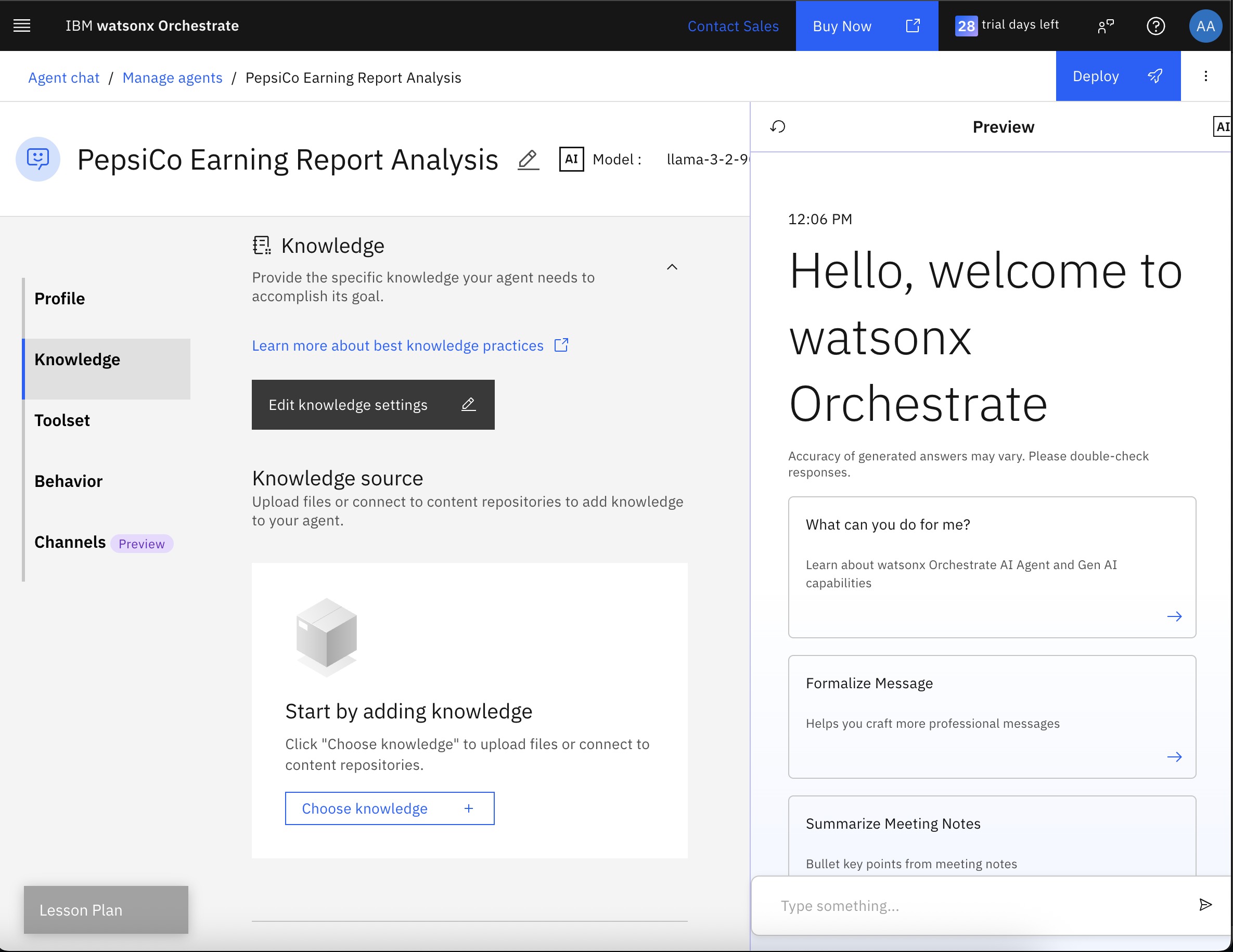
You can customize how your agent interacts with knowledge:
- Retrieval confidence threshold: Before response is generated, this setting checks the confidence of the retrieved citations.
- Generated response length: This setting affects the average response length. Depending on user input, variations from the selected length may occur.
- Response confidence threshold: After response is generated, this setting checks the confidence of the generated citations.
Citations: How many citations should be displayed to the user in the chat referencing the actual content in the document, ranging from None to All.
Leave the default settings, and click Save.
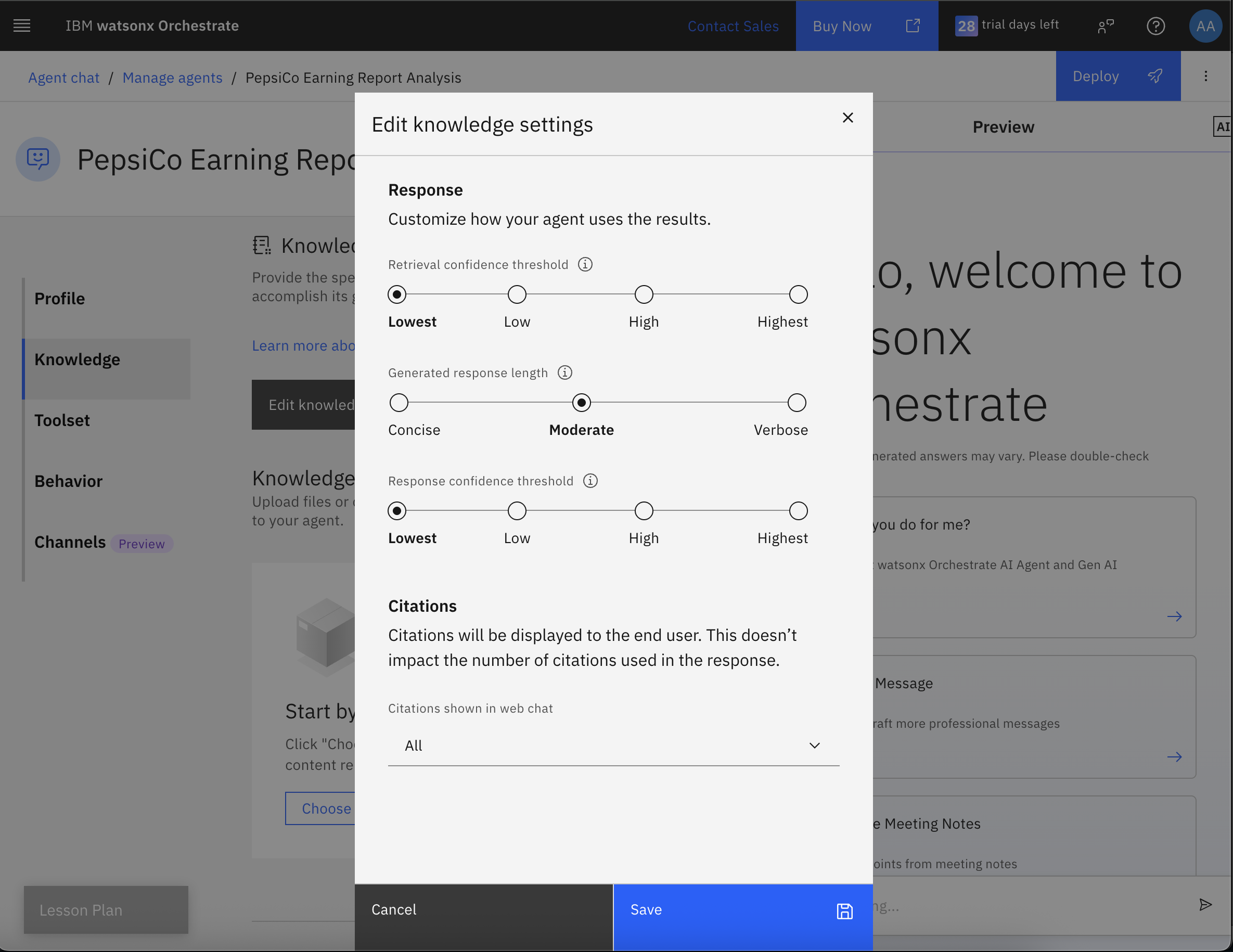
Click Choose knowledge to start adding the knowledge. You can connect to Milvus (for example on watsonx.data), elasticsearch, custom service, or upload documents natively within watsonx Orchestrate. Select Upload files, and then click Next.
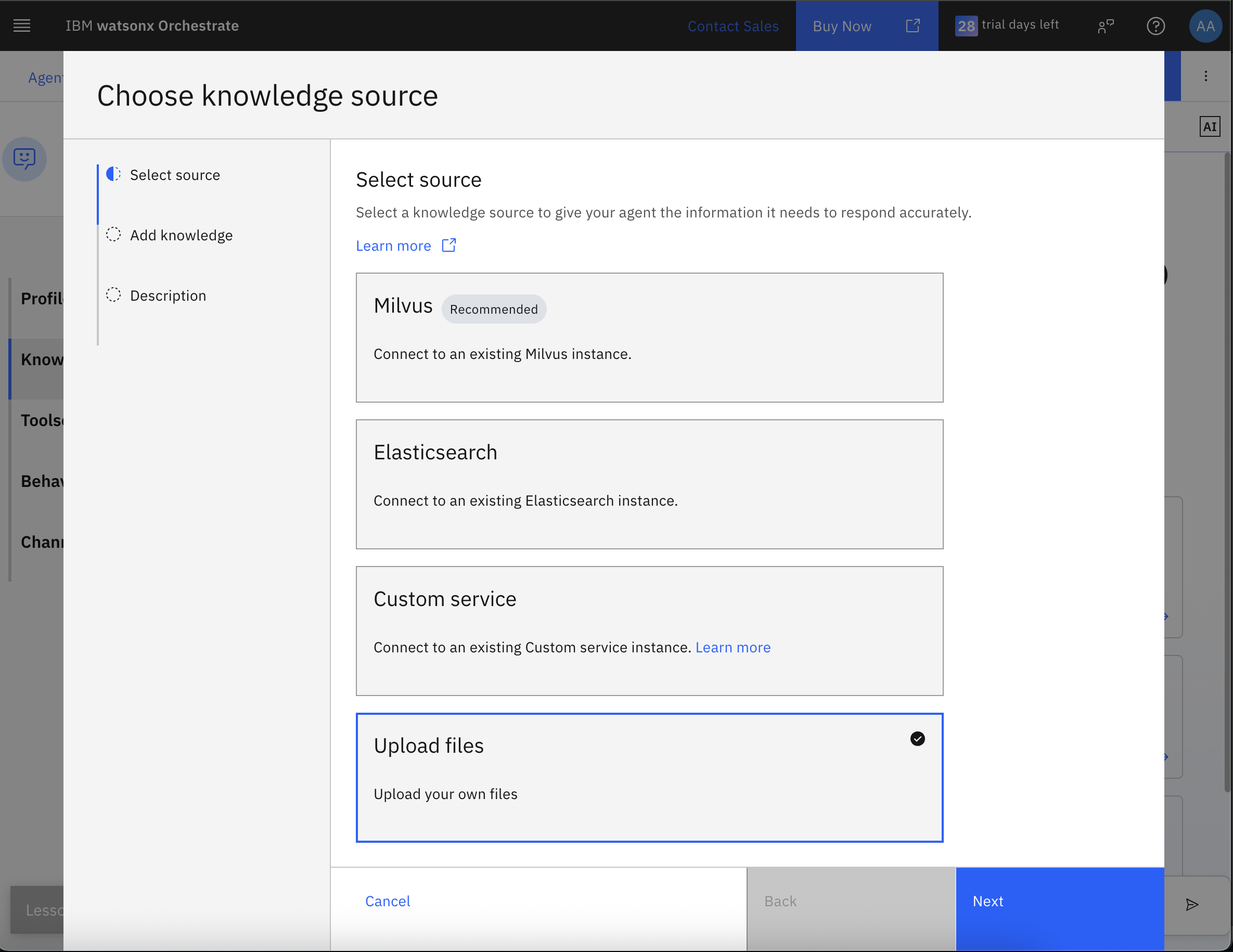
Drag the files that you downloaded earlier for PepsiCo earning reports, and then click Next.
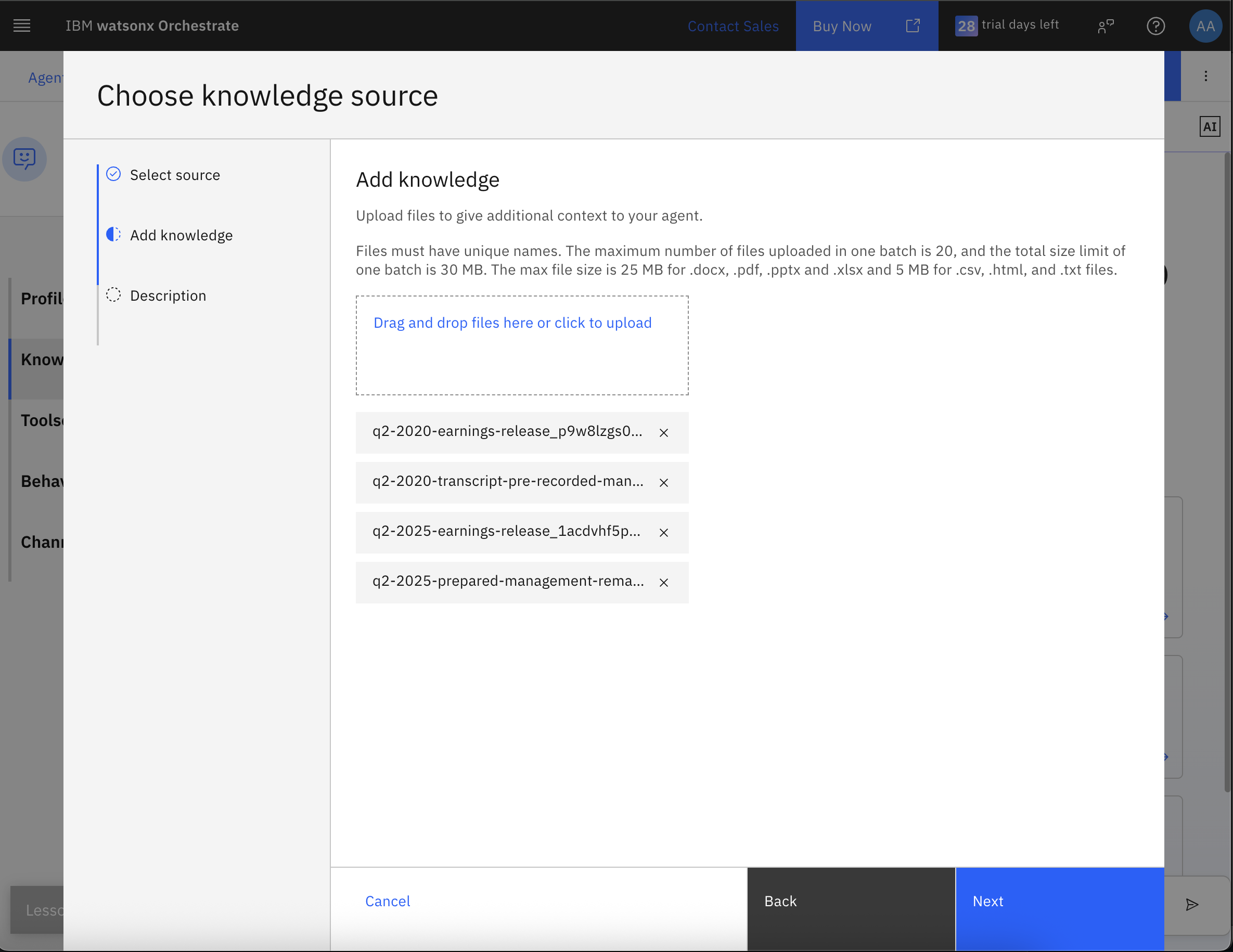
Provide a knowledge description so that the agent knows when to use them, and then click Save. This will upload the documents and save the configuration. Use the following description:
These documents include PepsiCo’s press releases and earnings call transcripts from different years, providing both the official financial results and the accompanying management commentary for multi-period analysis.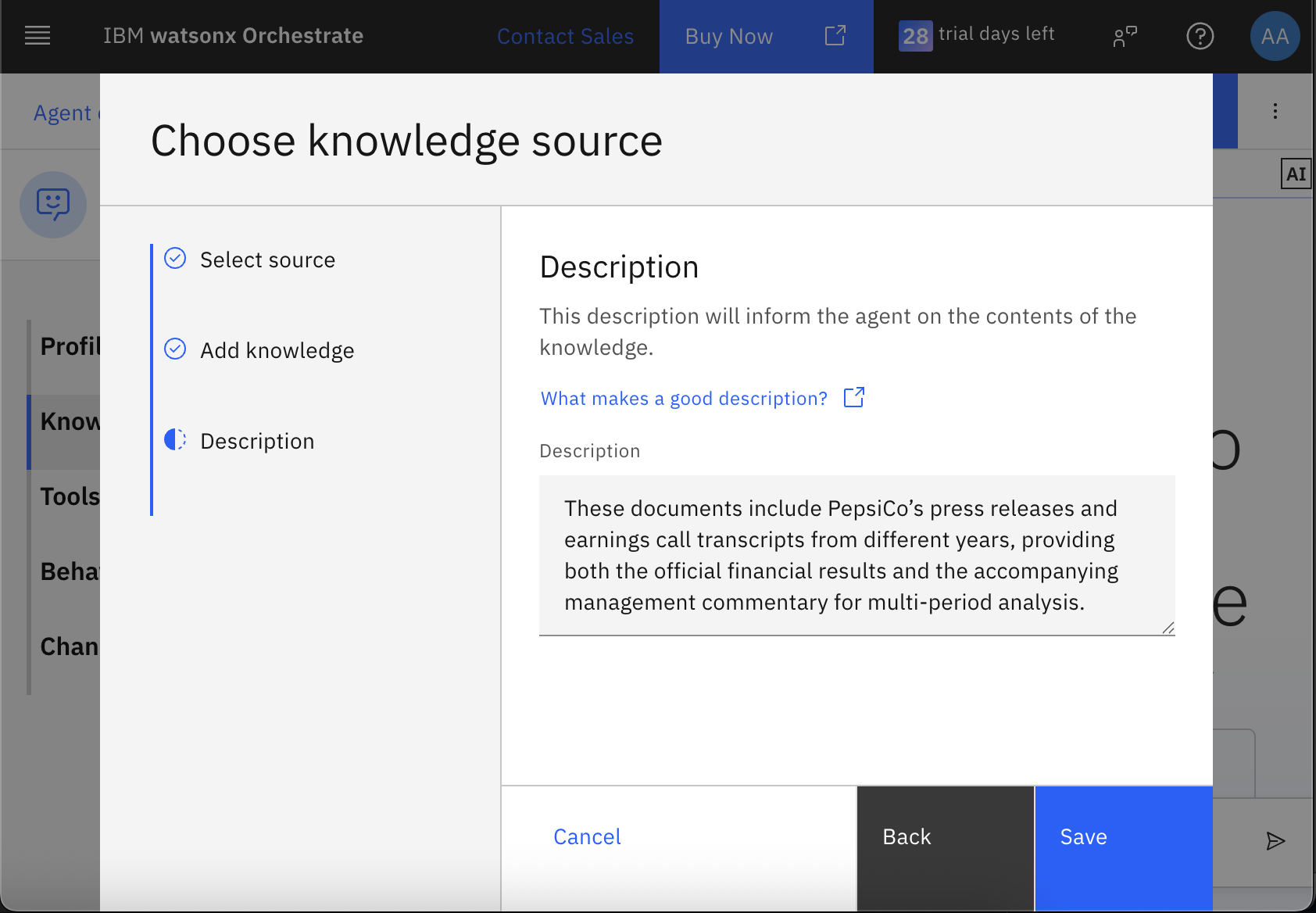
Go to the Behavior section to define how and where your agent should react to requests and respond to users, specify what your agent should do, how it should respond, and any restrictions it should follow. Add this to the Instructions:
Respond to user questions about PepsiCo’s financial performance by extracting accurate data from all relevant documents in its knowledge, including the Q2 2025 press release, Q2 2025 earnings call transcript, Q2 2020 press release, and Q2 2020 transcript. Always check for data and commentary across multiple periods when making comparisons. Provide clear, concise answers that combine quantitative figures from press releases with qualitative context from transcripts, citing the exact source document and date for each point. When a query involves trends or changes over time, compare figures from both historical and current documents to highlight key drivers. Avoid speculation or unsupported forecasts.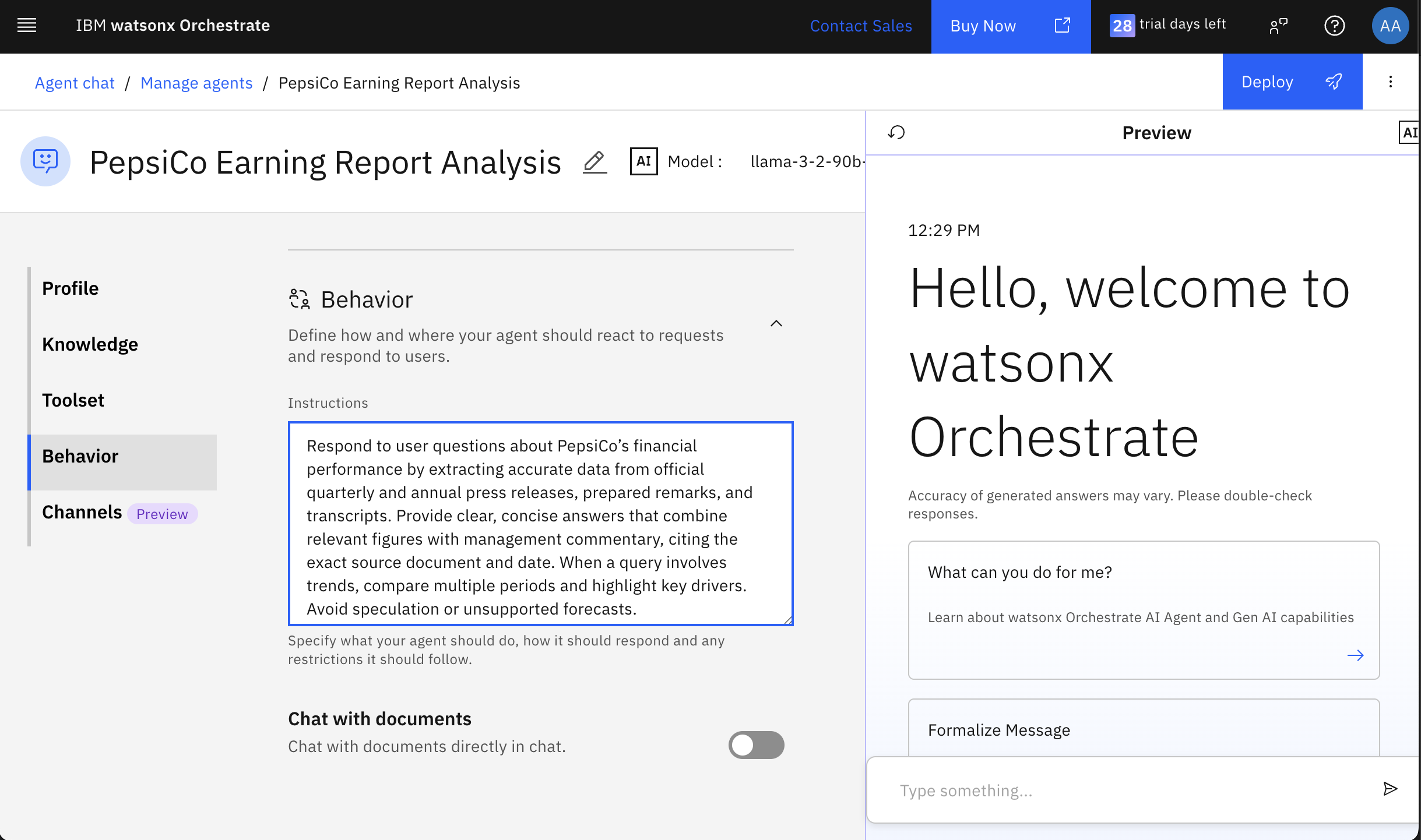
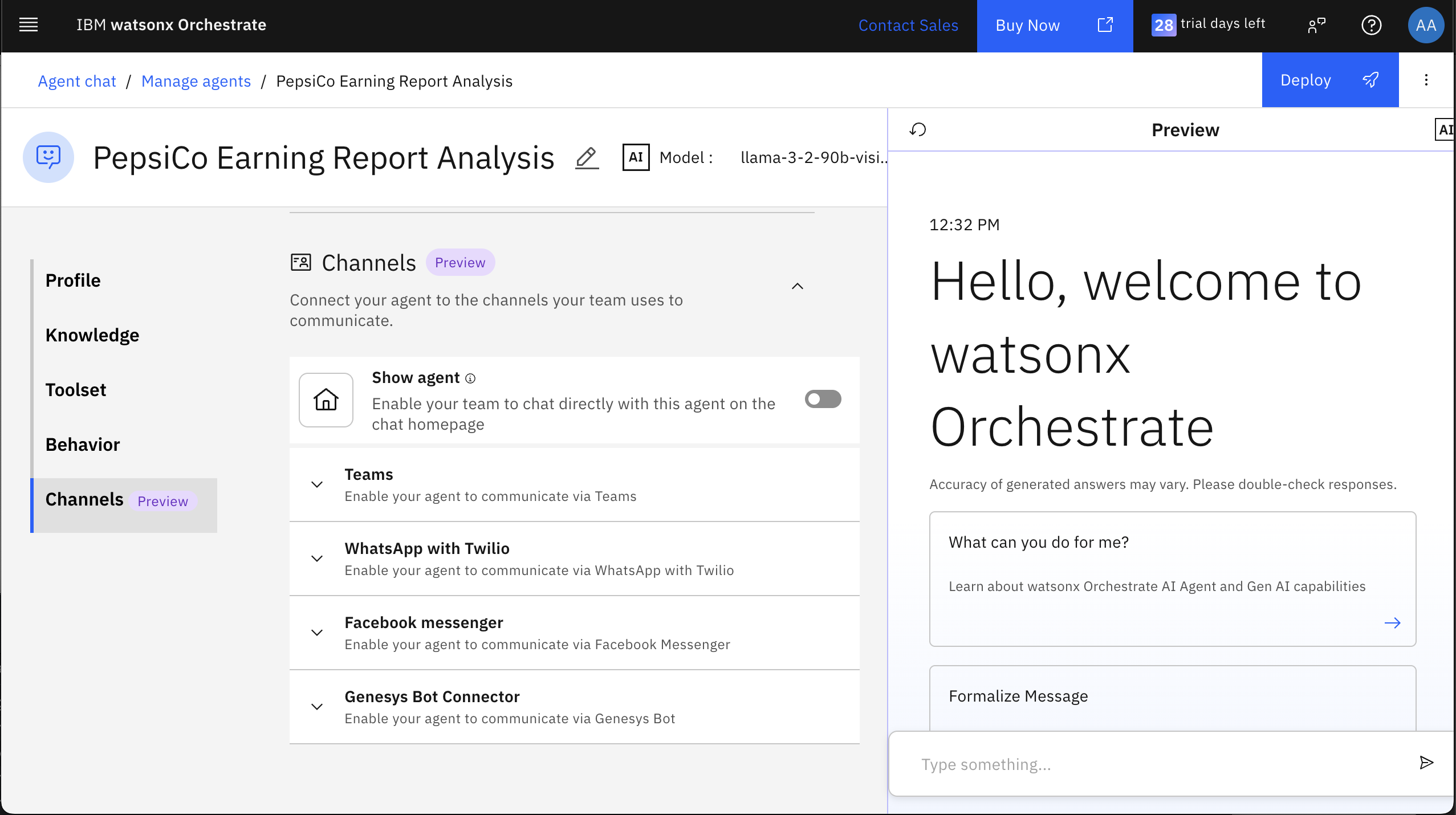
Expand the Channels section, and toggle Show Agent off to disable people from interacting directly with this agent. This agent will be a supporting agent and will be called from another agent that you will create later.
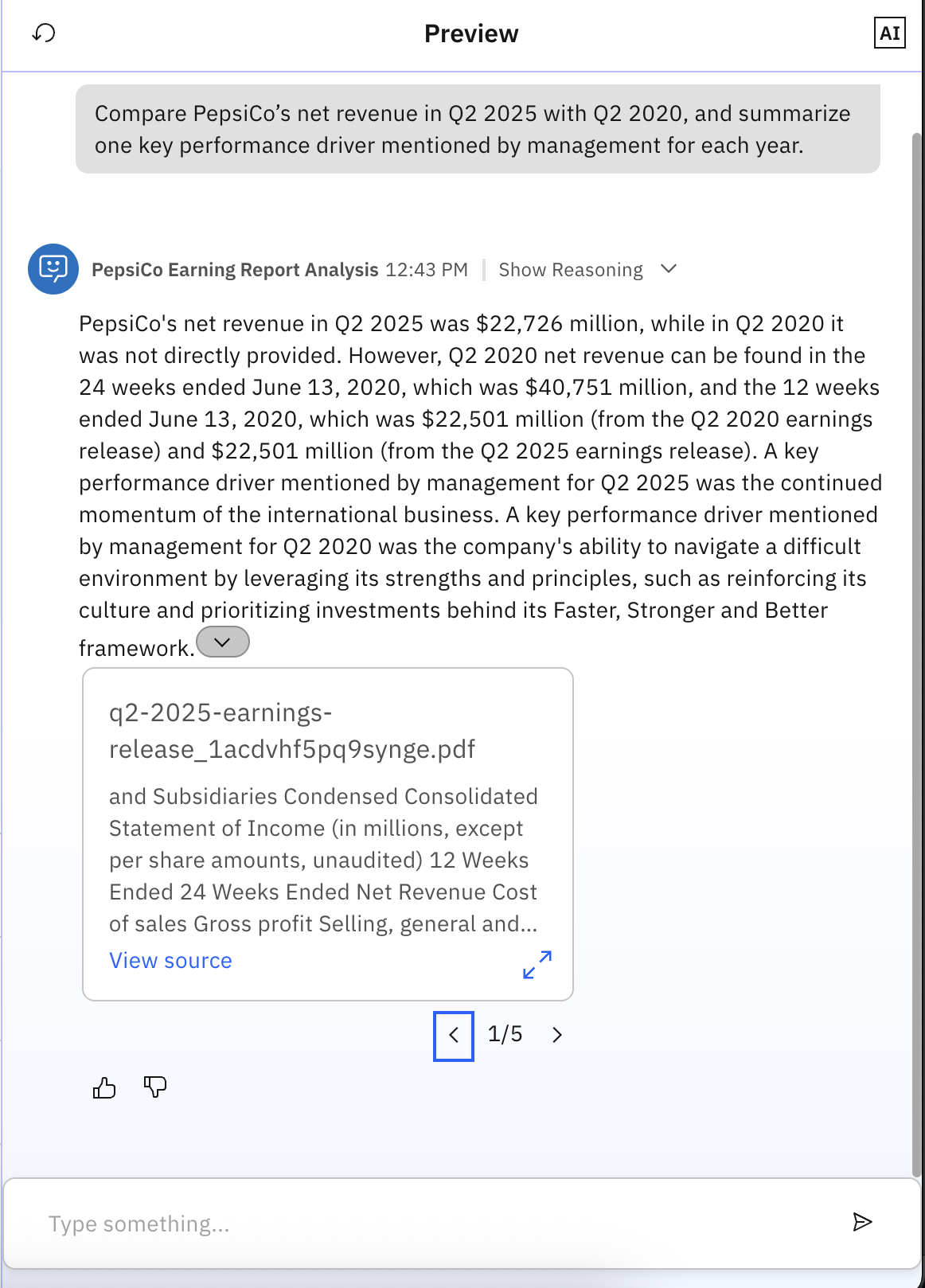
Test the agent behavior before deploying it. In the right pane, write the following inquiry:
Compare PepsiCo’s net revenue in Q2 2025 with Q2 2020, and summarize one key performance driver mentioned by management for each year.Then, click Send.
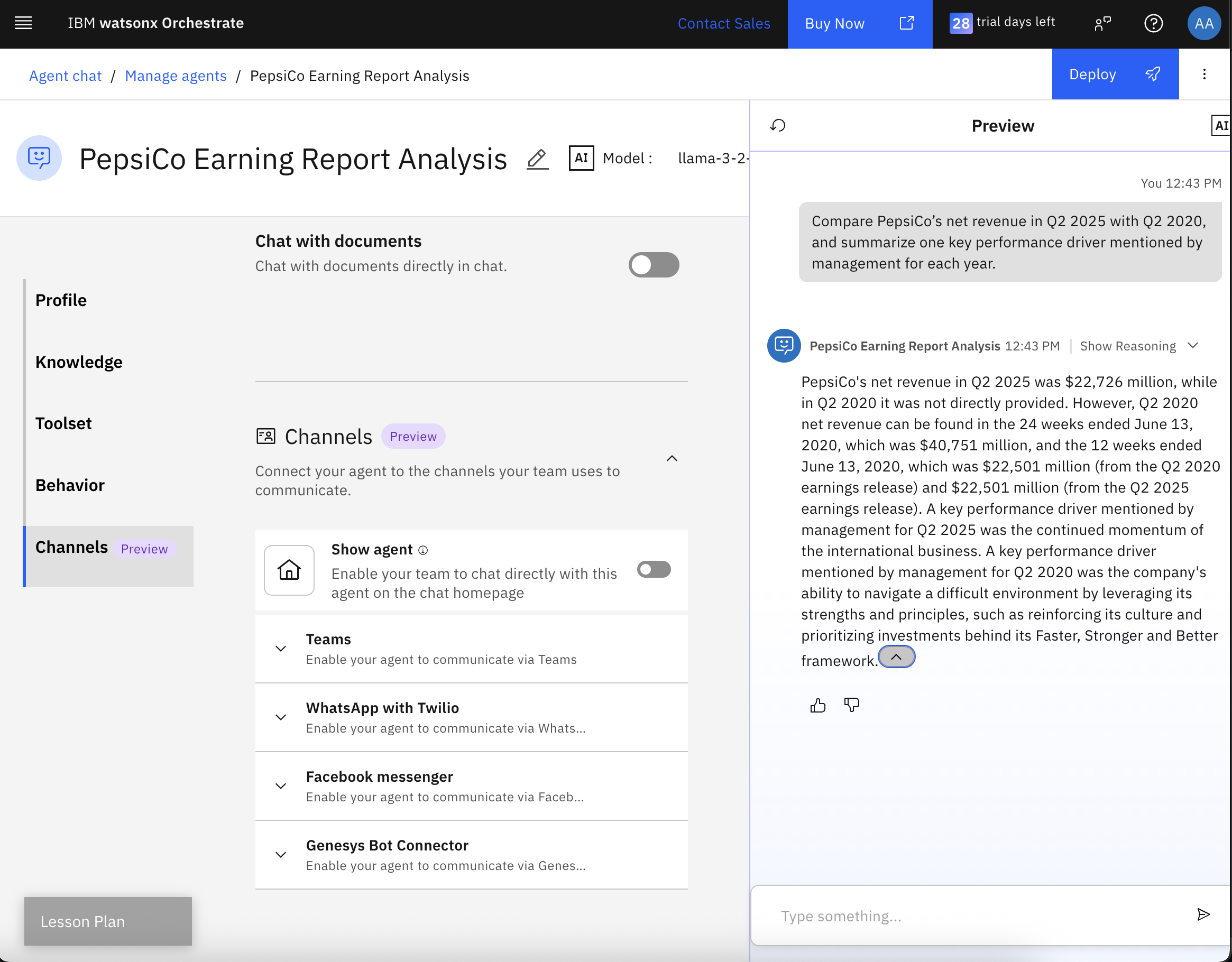
Observe the agent response, and then click the ^ icon to show the citations. Notice that the agent formulated the response based on the details provided in several documents. The citations give you confidence that the agent is not hallucinating.
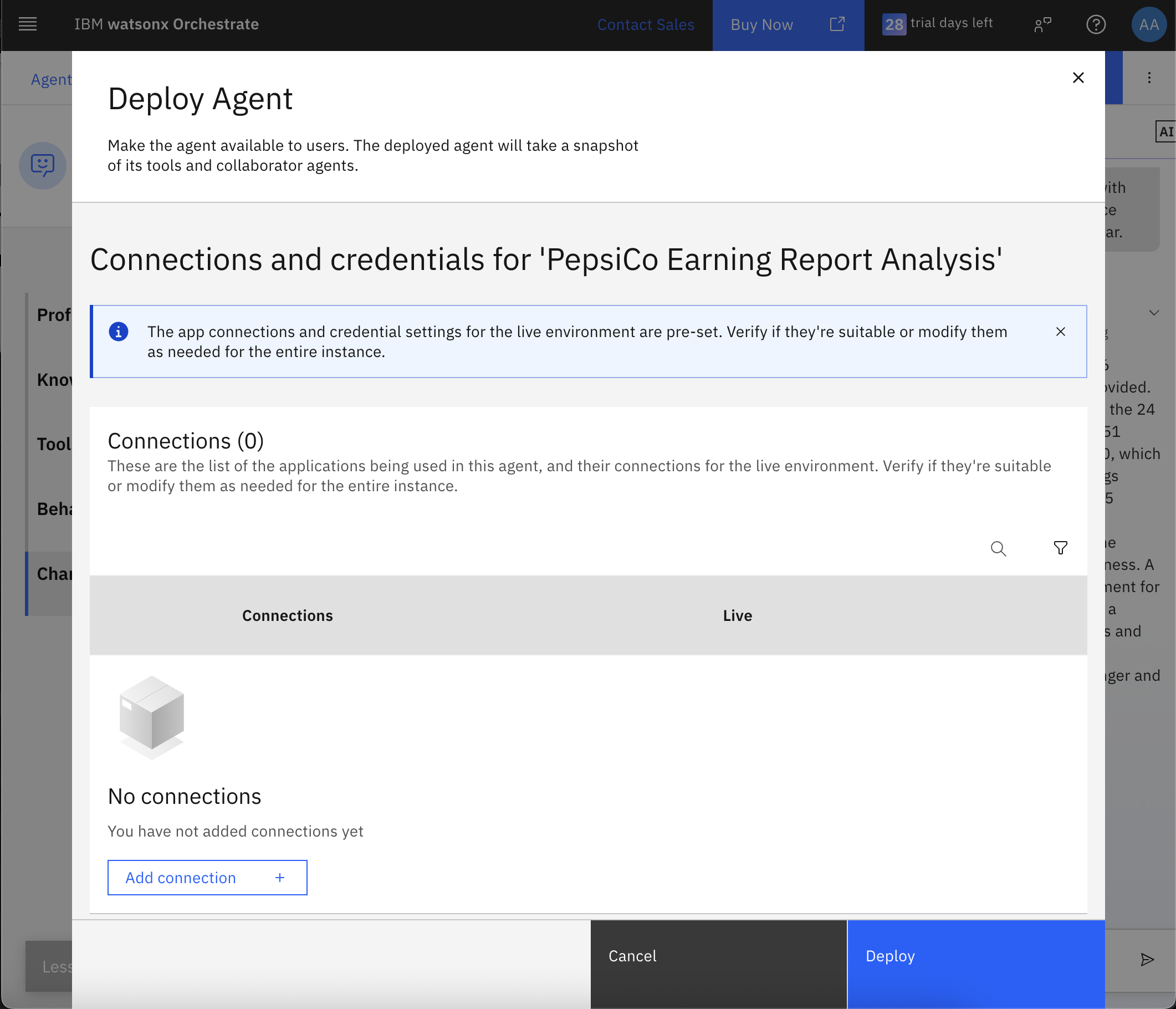
Click Deploy. A window opens to allow you to configure any external connections. Since there are no external applications that you are connecting to in this agent, click Deploy to deploy the agent.
Step 2. Create Company B’s Earning Report Analyst Agent
In this step, you are going to follow the same steps to create the second agent on watsonx Orchestrate for Company B Earning Report Analysis. For the sake of this tutorial, you are going to use Coca-Cola as Company B, thus the name of the second agent will be Coca-Cola Earning Report Analyst.
You are going to create the agent, supply it with the required knowledge documents, and deploy it.
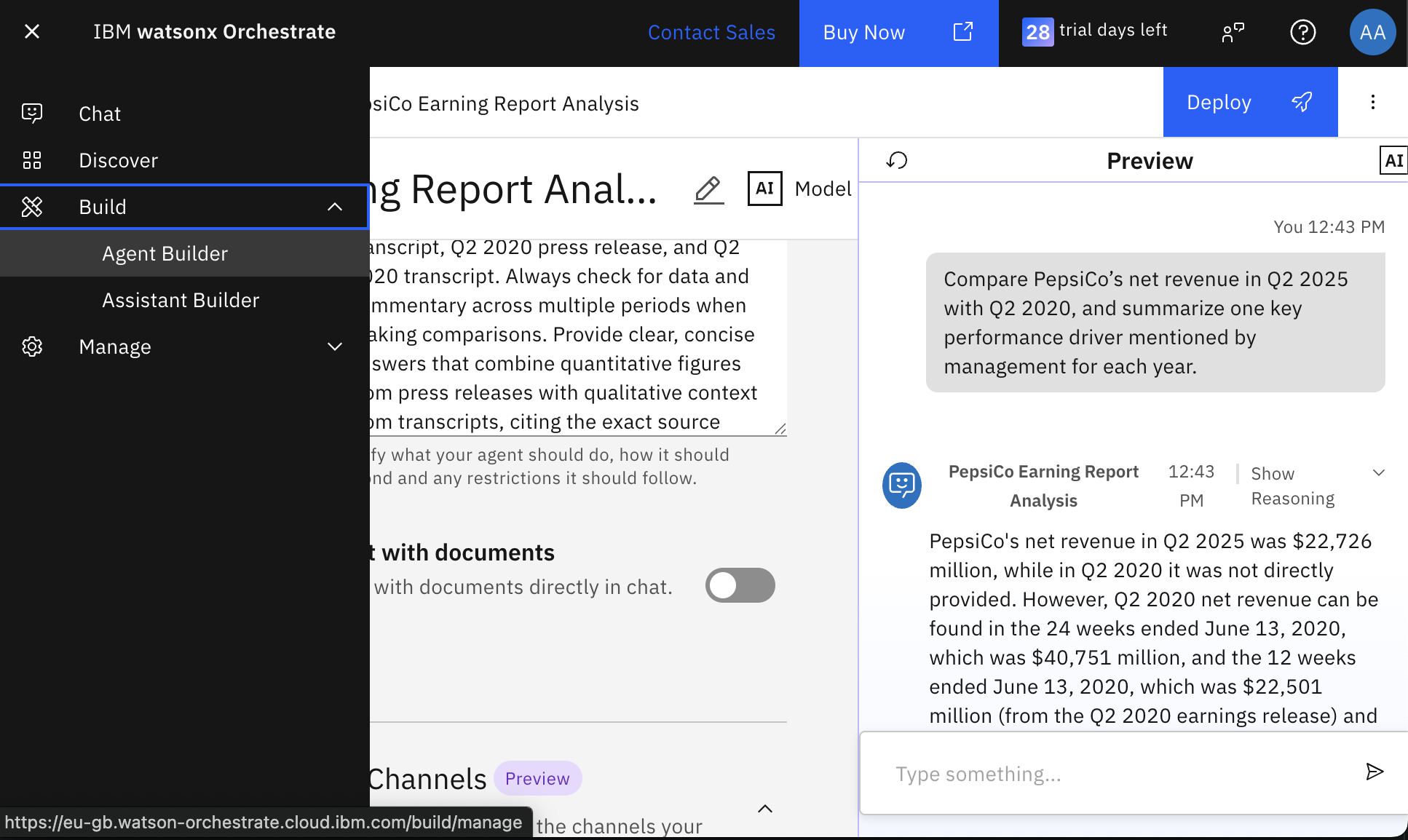
In watsonx Orchestrate, open the hamburger menu, and then in the Build menu, select Agent Builder.
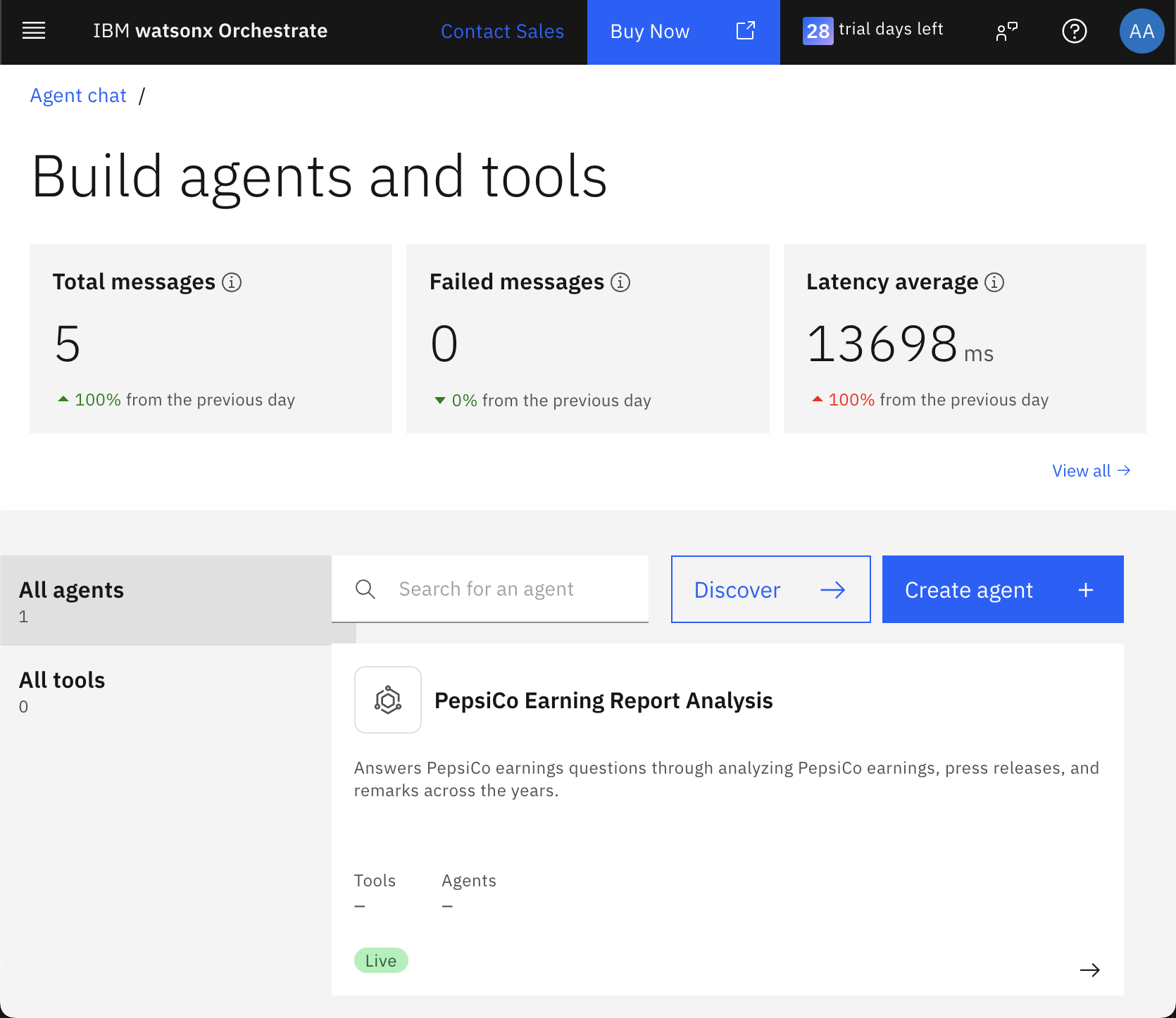
This page shows all the agents developed so far.
Click Create agent.
Fill the name and description of the agent:
- Name: Coca-Cola Earning Report Analyst
- Description: Answers Coca-Cola earnings questions through analyzing Coca-Cola earnings, press releases, and remarks across the years.
Click Create to create the agent and start filling the additional details to configure the agent.
Go to the knowledge section, and then click Choose knowledge to start adding the knowledge. Select Upload files, and then click Next.
Drag the files that you downloaded earlier for Coca-Cola earning reports, and then click on Next.
Provide description of the knowledge, so that the agent knows when to use them. Use this description:
These documents include Coca-Cola’s press releases and earnings call transcripts from different years, providing both the official financial results and the accompanying management commentary for multi-period analysis.Then, click Save. This will upload the documents and save the configurations.
Go to the Behavior section to define how and where your agent should react to requests and respond to users. Add this to the Instructions:
Respond to user questions about Coca-Cola’s financial performance by extracting accurate, relevant data from all available sources in its knowledge**,** including the Q2 2025 earnings release (HTML), Q2 2025 earnings call transcript (PDF), Q2 2020 earnings release (HTML), and Q2 2020 earnings call transcript (PDF). Always consult multiple documents when a query involves comparisons across years or requires both quantitative and qualitative insights. Use the earnings releases as the primary source for financial figures, and use transcripts to provide management’s explanations, strategic context, and forward-looking statements. When making comparisons, align definitions for metrics between periods, highlight changes, and clearly cite the exact source document and date for each data point.Expand the Channels section, and toggle Show Agent off to disable people from interacting directly with this agent. This agent (as well as the first agent) will be two supporting agents that will called from another agent that you will create later.
Test the agent behavior before deploying it. In the right pane, write the following inquiry, and then click Send.
Compare Coca-Cola’s primary growth driver in Q2 2025 with its primary growth driver in Q2 2020, and explain how each was influenced by market conditions at the time.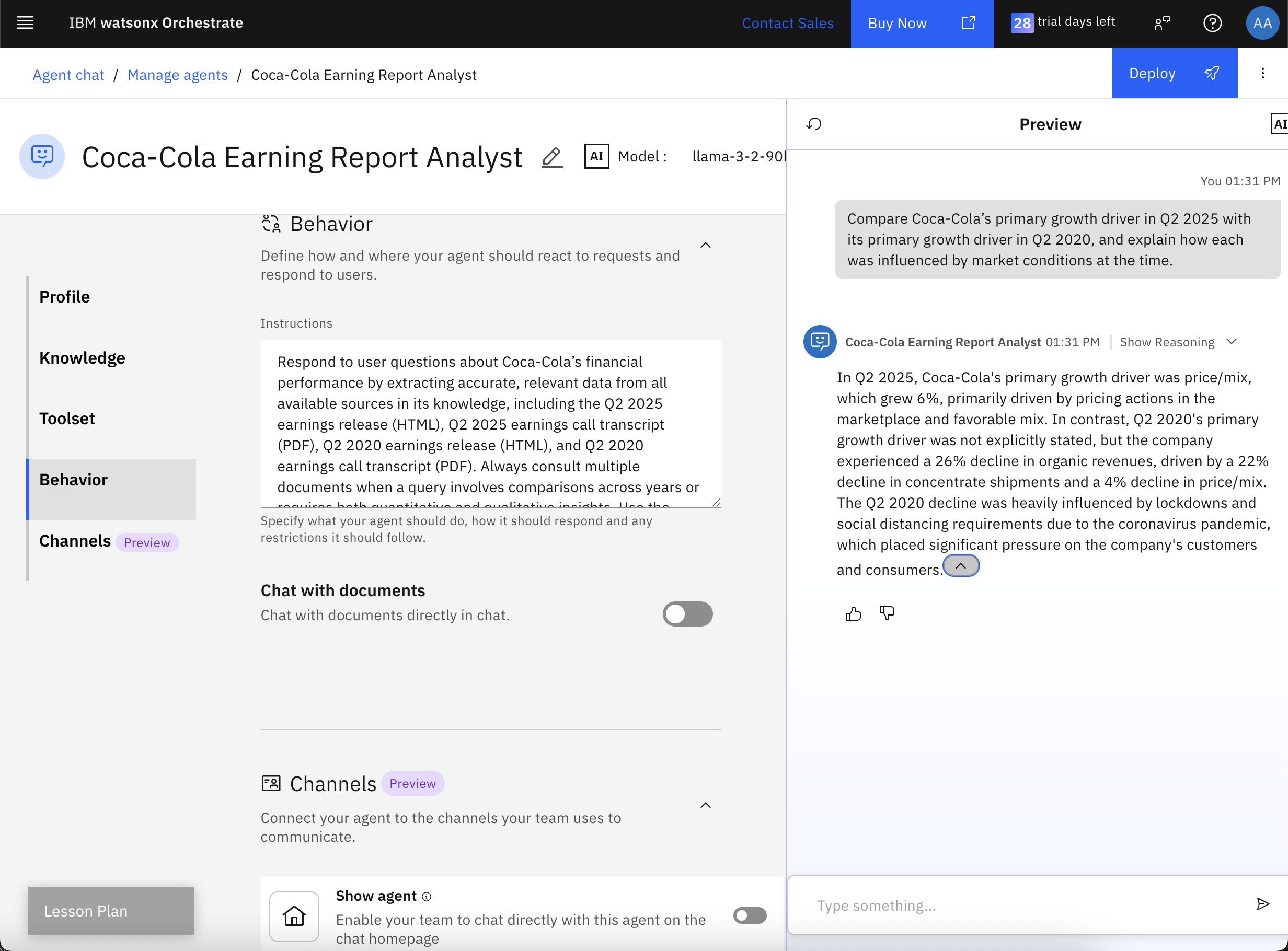
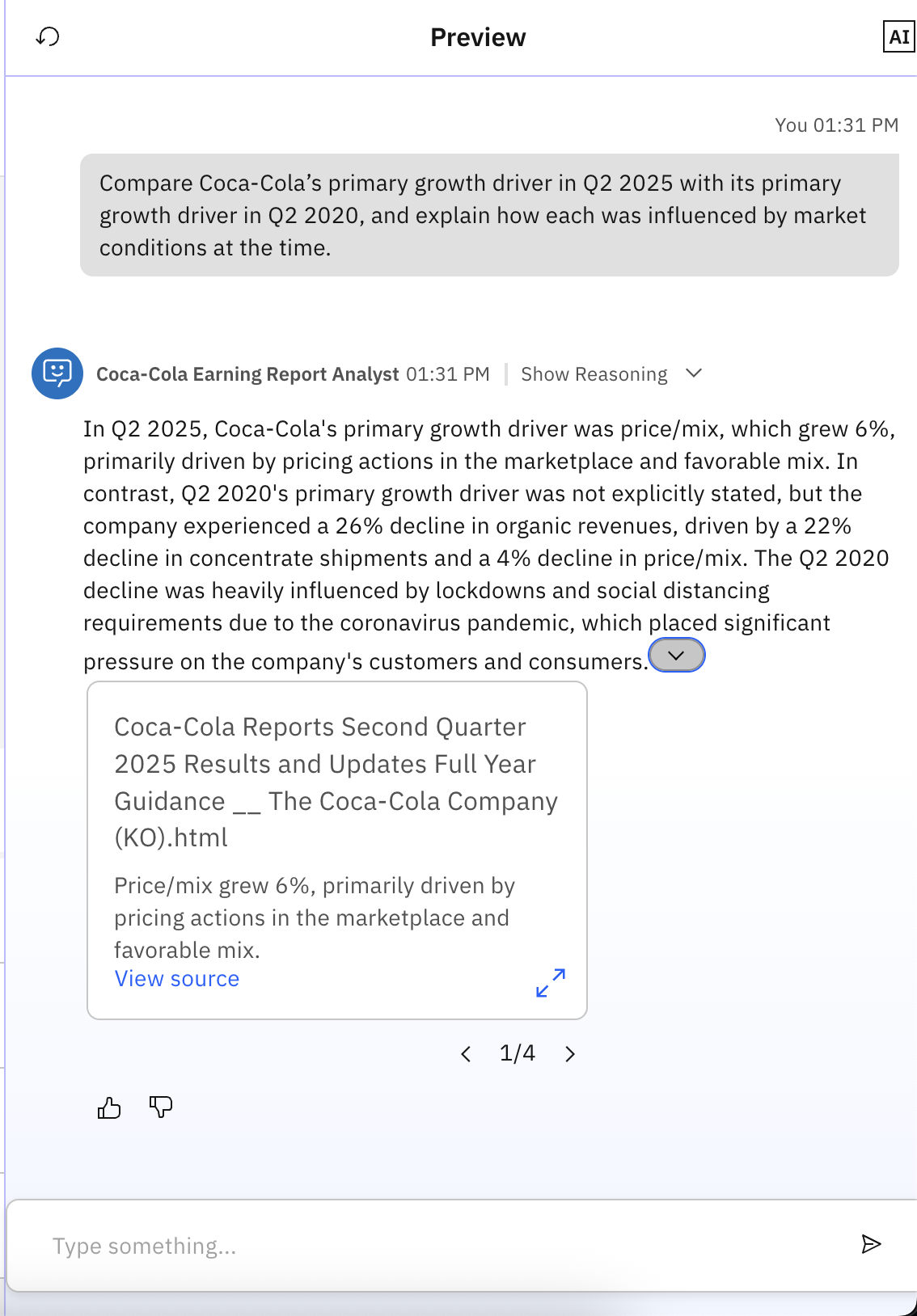
Observe the agent response, and then click ^ to show the citations. Notice that the agent formulated the response based on the details provided in several documents including PDFs and HTML pages.
Click Deploy. A window opens to allow you to configure any external connections. Since there are no external applications you are connecting to in this agent, click Deploy to deploy the agent with the defaults.
Step 3. Create Earning Report Analyst Agent
In this step, you are going to create a supervisor agent called “Earning Report Analyst Agent”. This agent can delegate tasks to the other agents, “Company A Earning Report Analyst” and “Company B Earning Report Analyst.” For the purpose of this tutorial, Company A is PepsiCo and Company B is Coca-Cola. In watsonx Orchestrate, open the hamburger menu, and then in the Build menu, select Agent Builder. This shows all the agents developed so far.
Click Create agent.
Fill in the name and description of the agent:
- Name: Earning Report Analyst Agent
- Description: This agent is responsible for routing user requests about company earnings to the appropriate specialized agent, coordinating multi-company or multi-period queries, and consolidating results into a unified response.
Click Create to create the agent and start filling the additional details to configure the agent.
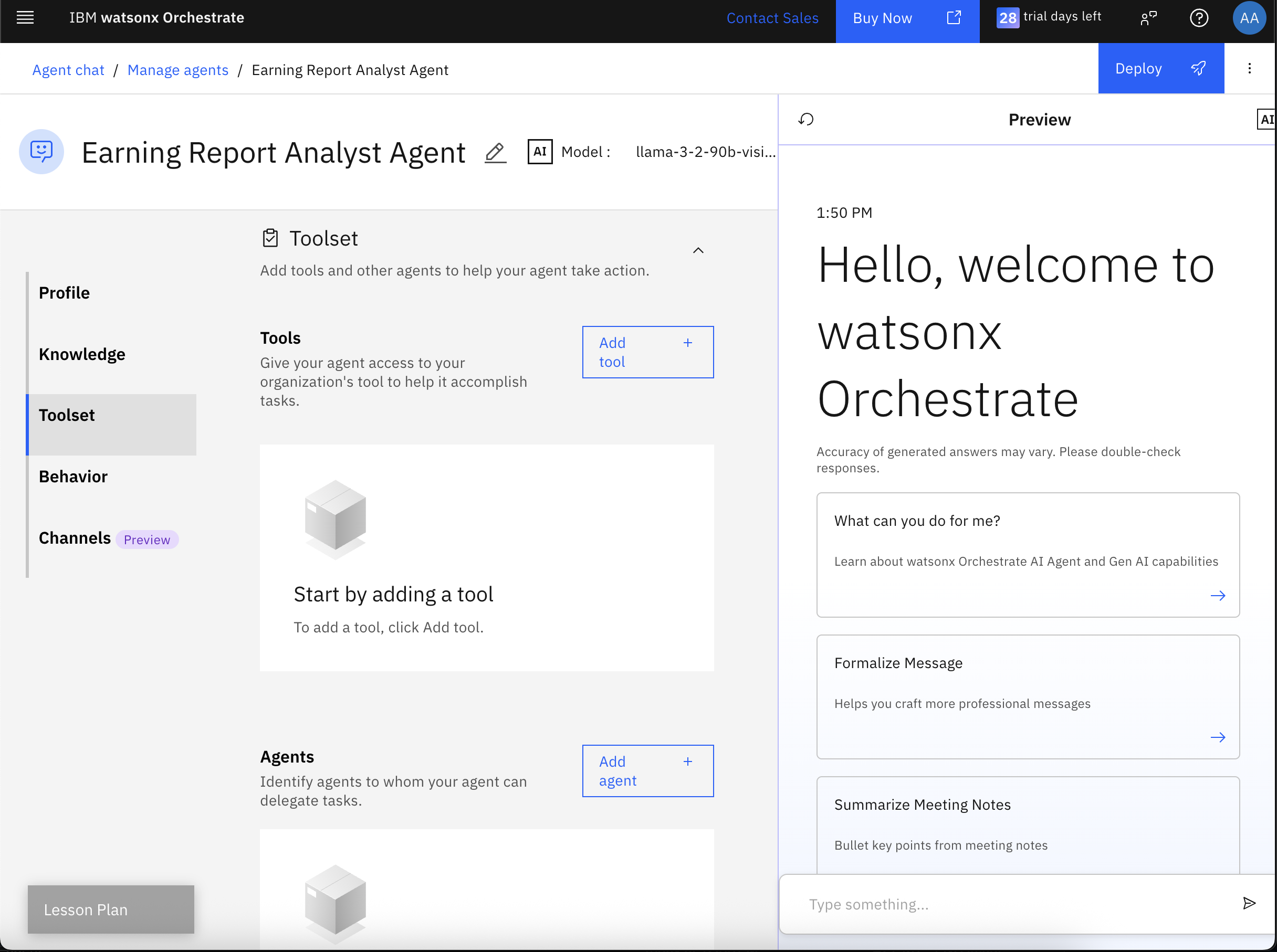
Go to the Toolset section, and click Add agent to specify which agent can this agent delegate tasks to.
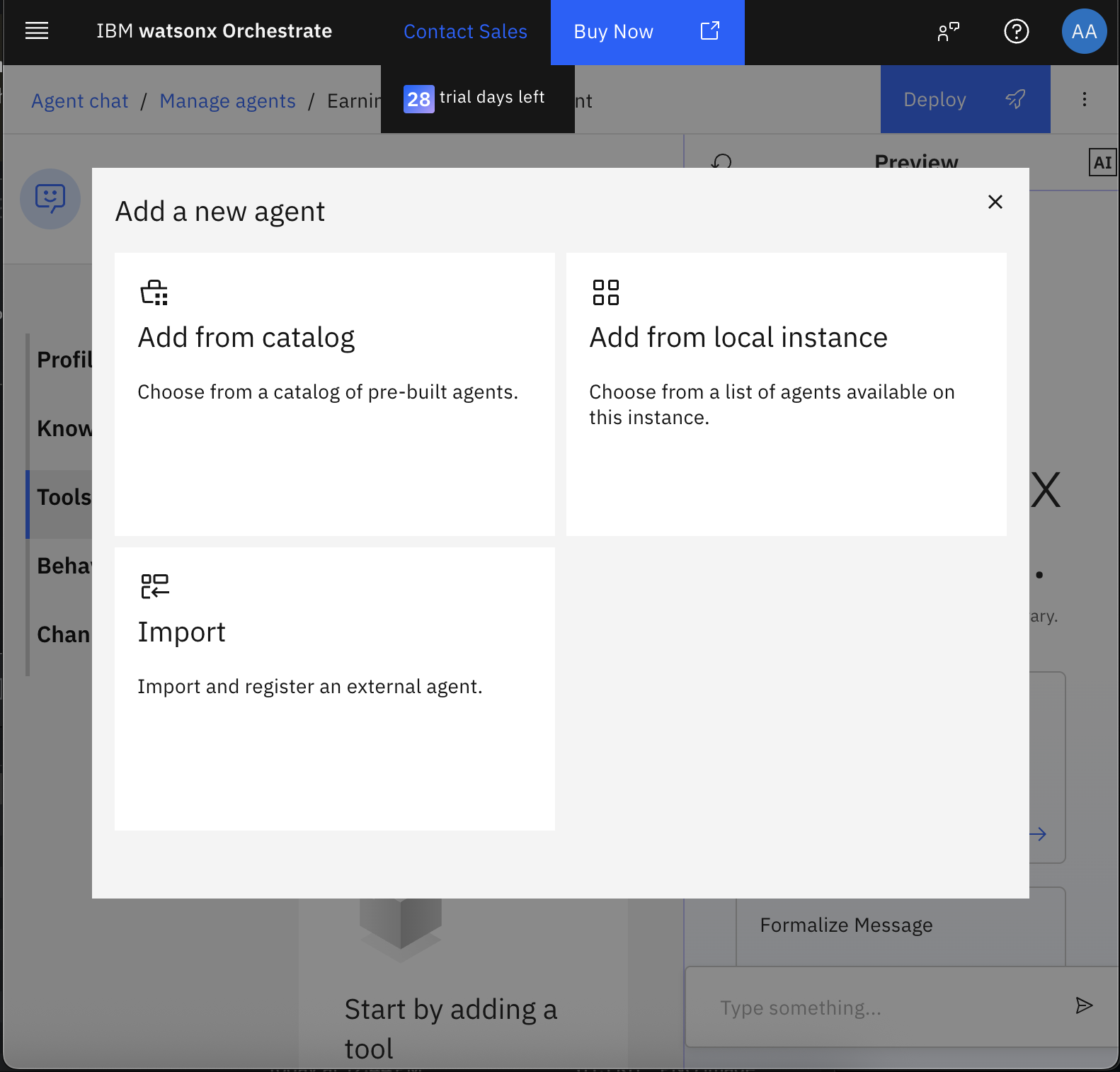
Select Add from local instance.
 .
. Select
Coca-Cola Earning Report AnalystandPepsiCo Earning Report Analyst, and then click Add to agent.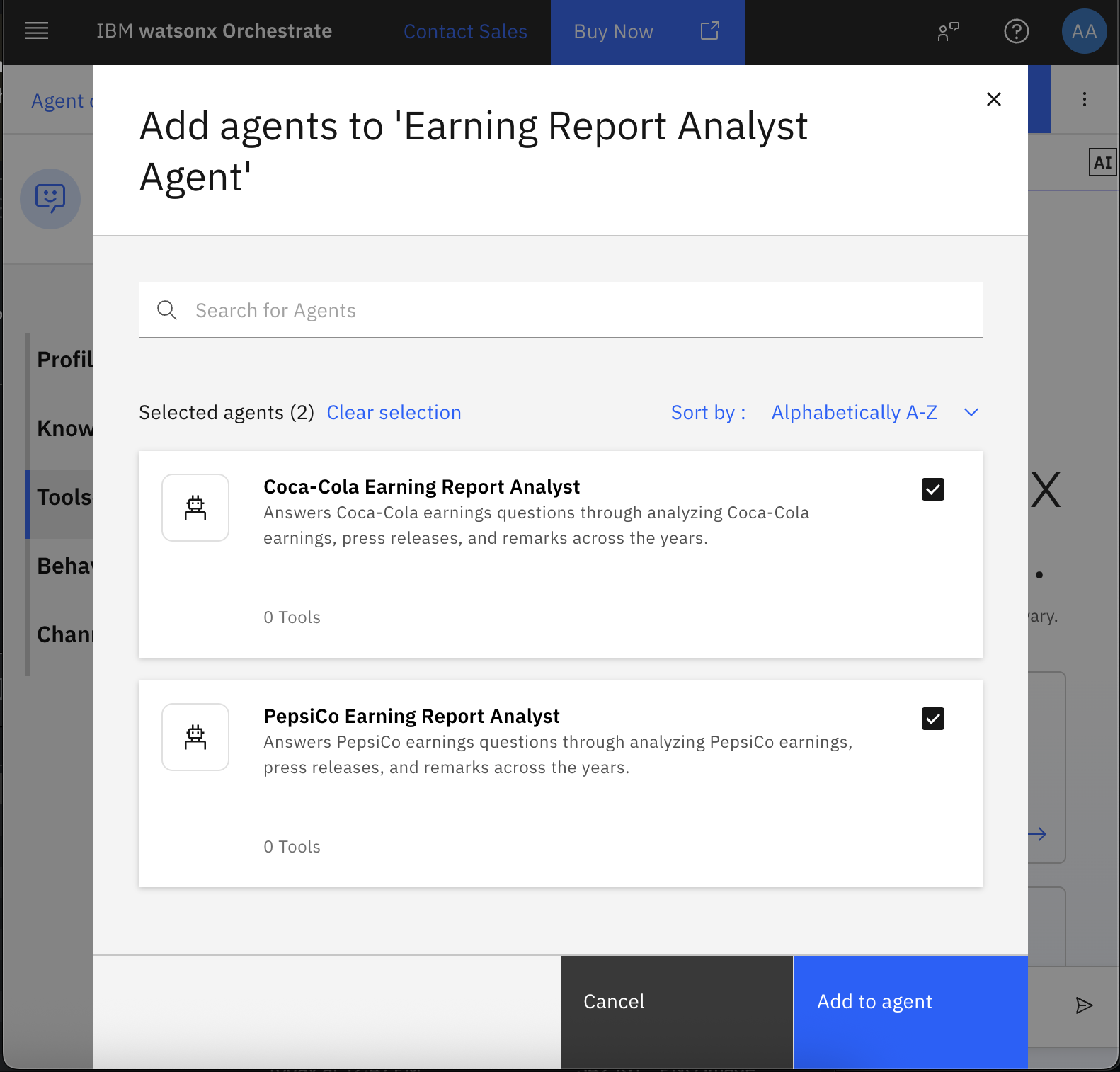 .
. Go to the Behavior section to have this agent delegate the tasks to the specialized agents. Add this to the Instructions:
- Delegate all Coca-Cola earnings-related questions to the Coca-Cola Earning Report Analyst agent. - Delegate all PepsiCo earnings-related questions to the PepsiCo Earning Report Analyst agent. - For queries involving both companies, send the relevant parts of the request to each agent, then compile their responses into a single, well-structured, and clearly cited answer.Expand the Channels section, and then keep the Show Agent toggle on to enable people to interact directly with this agent.
Test the 3 agents’ behavior before deploying it. In the right pane, write the following inquires.
Query the Coca-Cola Company agent:
Compare Coca-Cola’s primary growth driver in Q2 2025 with its primary growth driver in Q2 2020, and explain how each was influenced by market conditions at the time.Query the PepsiCo agent:
Compare PepsiCo’s net revenue in Q2 2025 with Q2 2020, and summarize one key performance driver mentioned by management for each year.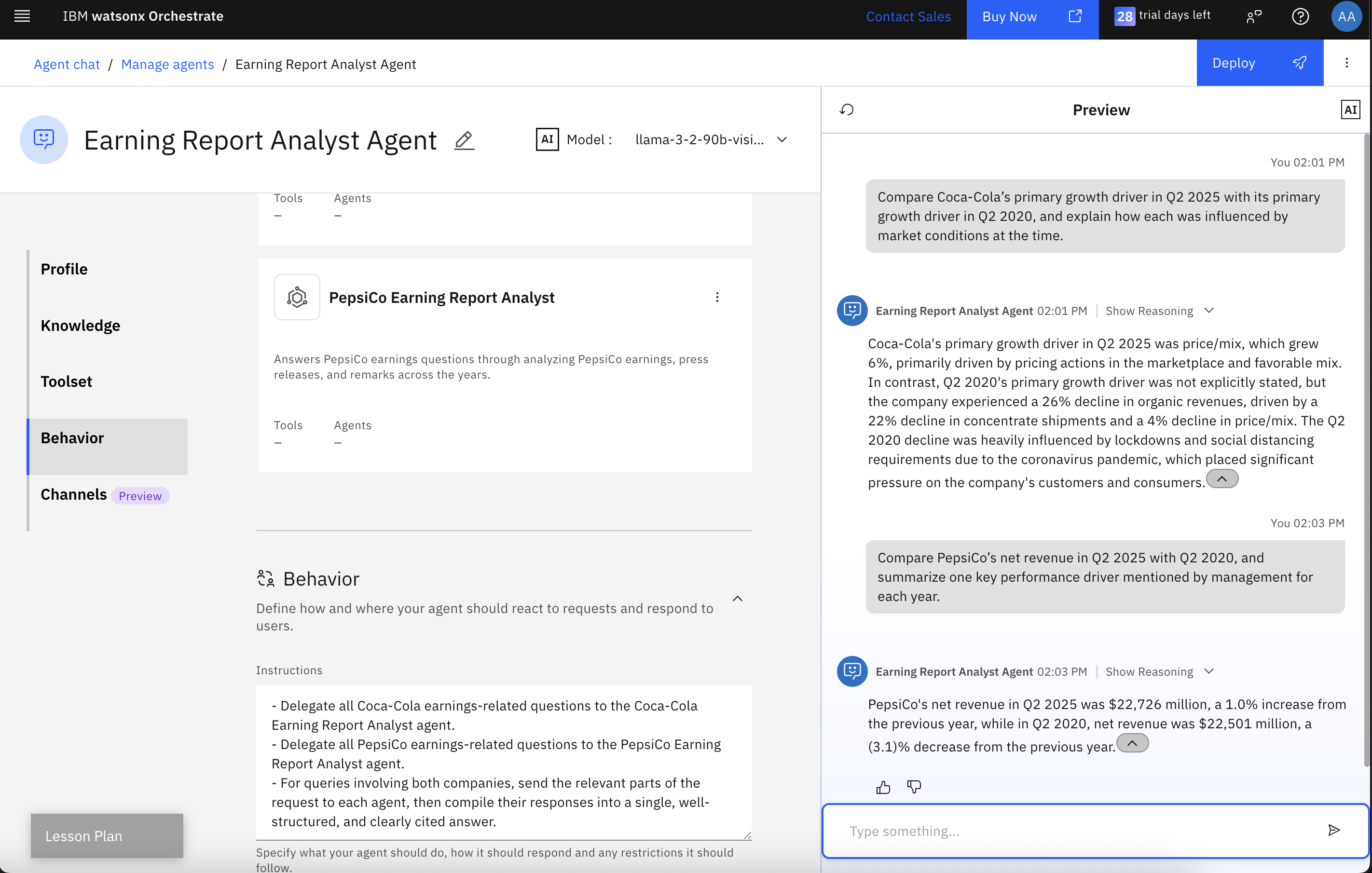
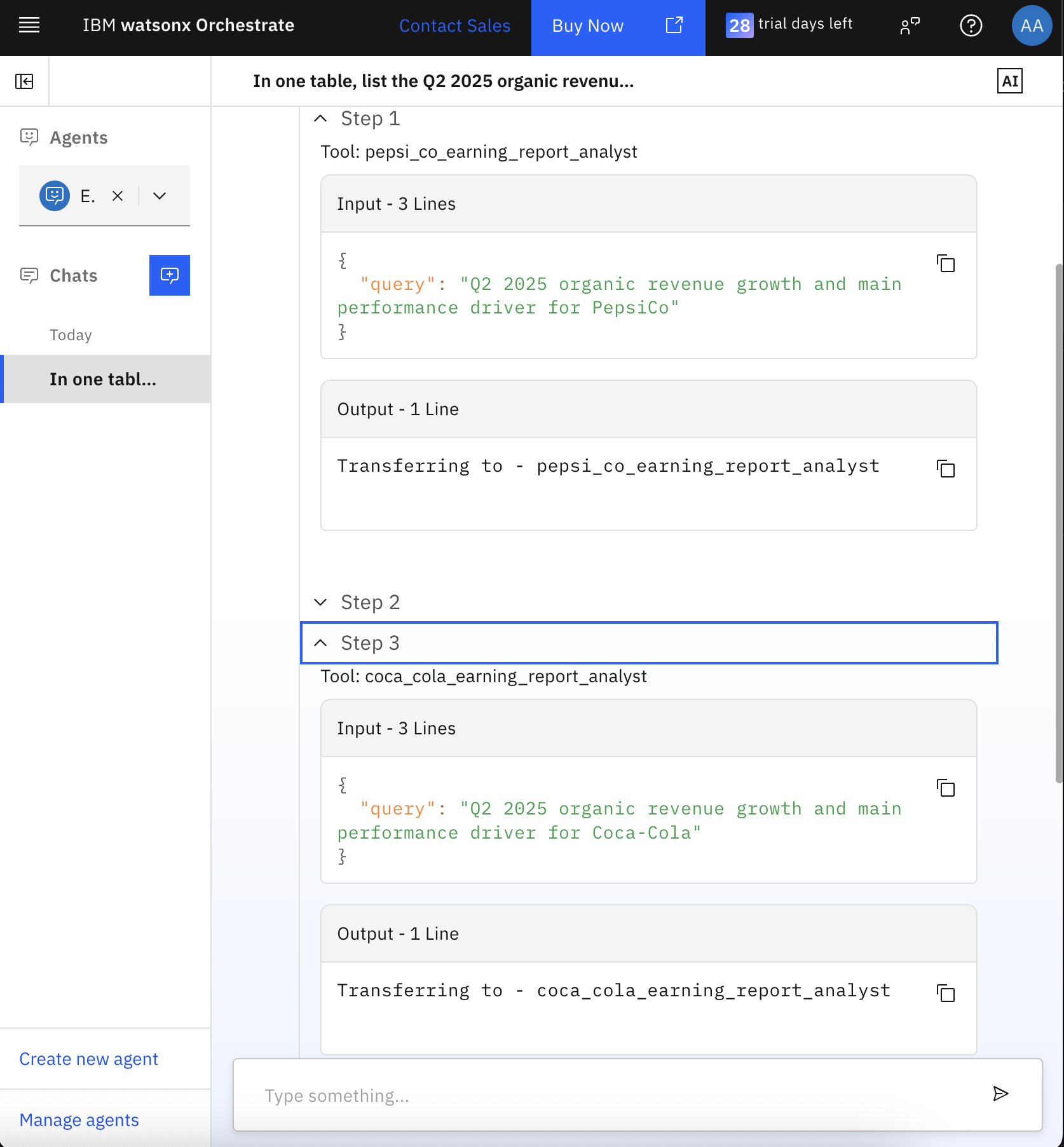
Observe the agent reasoning, and then click Show reasoning to see how the supervisor agent dynamically delegated requests to the different agents.
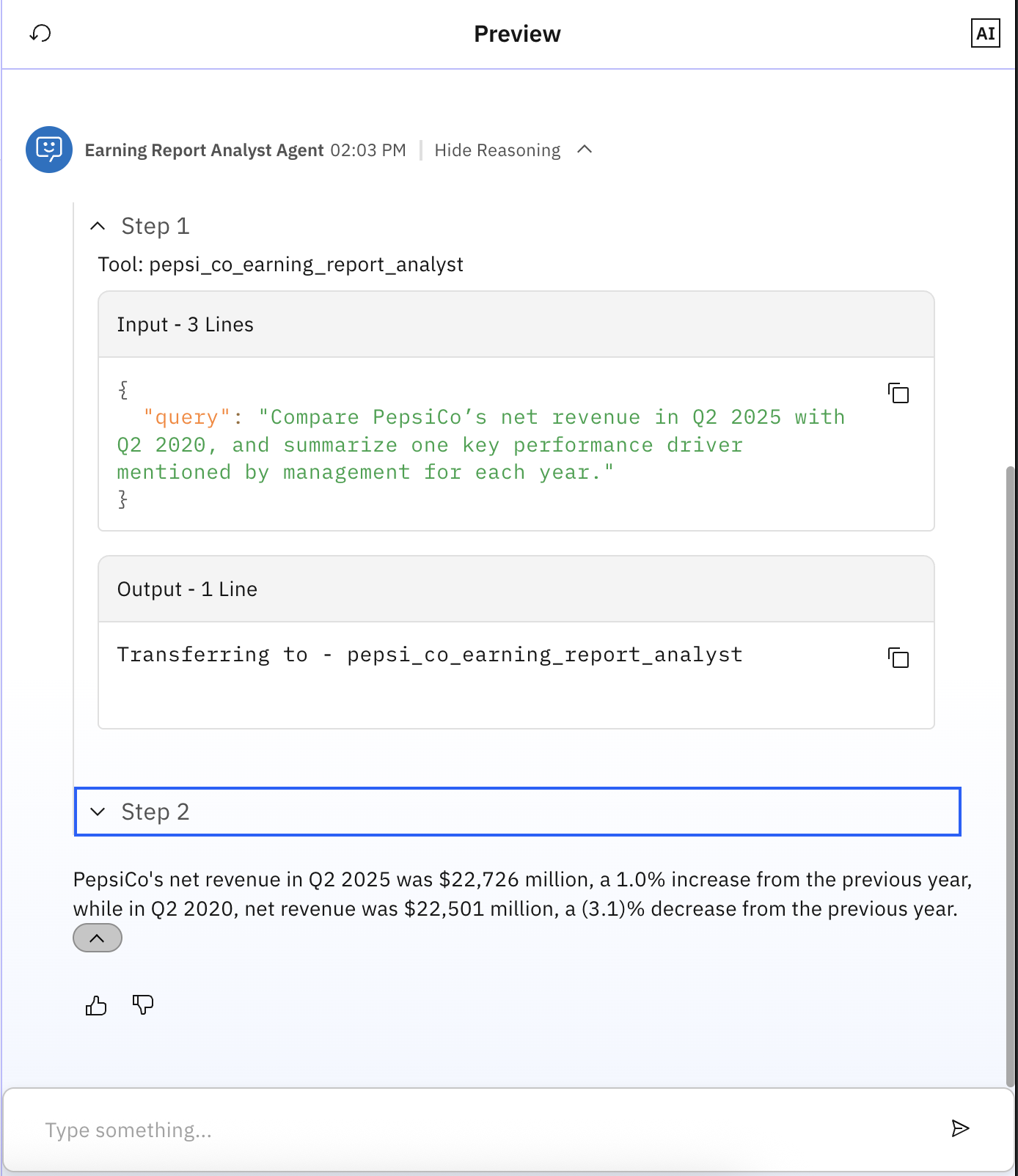
Click Deploy. A window opens to allow you to configure any external connections. Since there are no external applications that you are connecting to in this agent, click Deploy with the defaults to deploy the agent.
Step 4. Test the agents
In this step, you will use the watsonx Orchestrate chat interface to test the agents.
In watsonx Orchestrate, open the hamburger menu, and then select Chat.
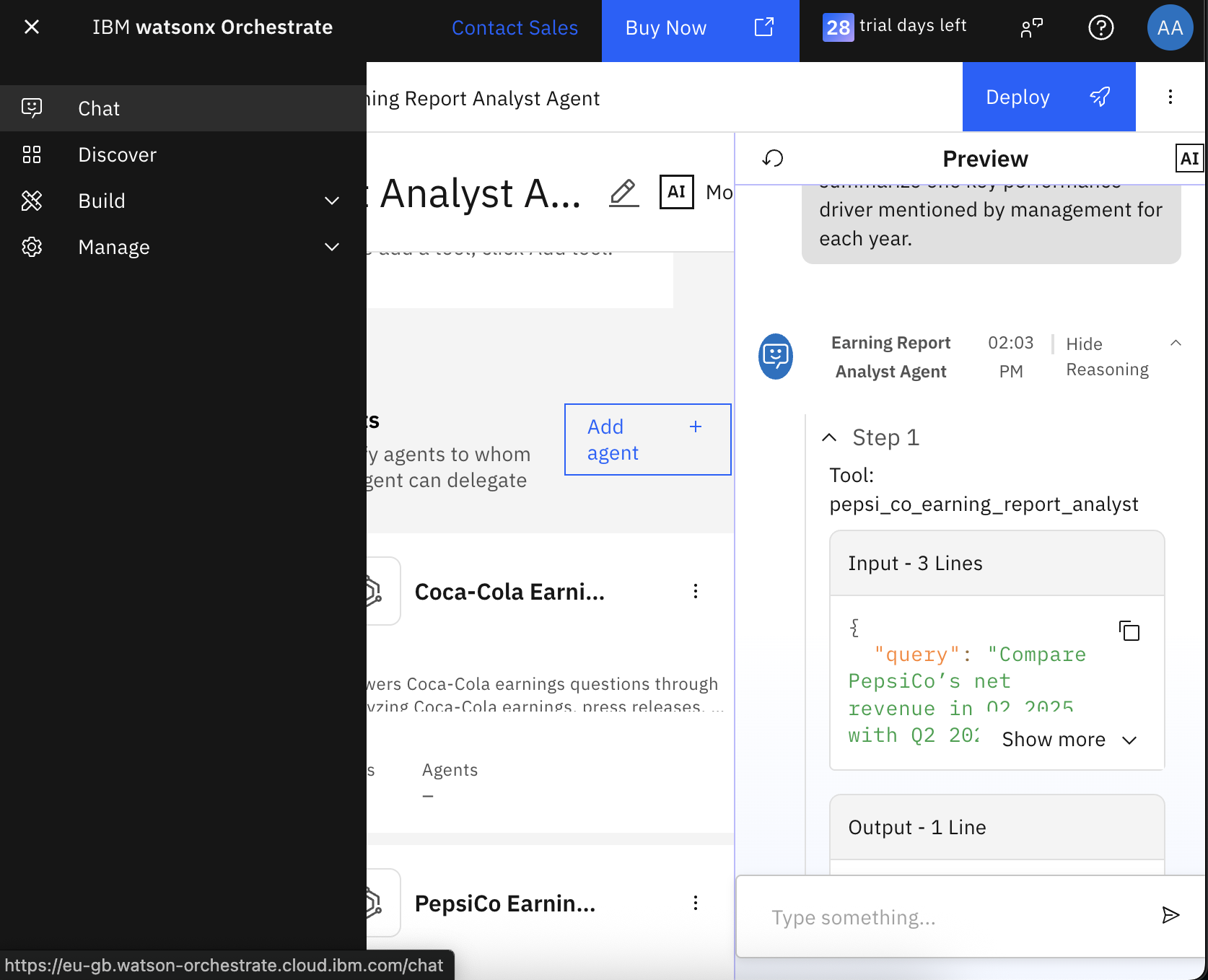
Select Earning Report Analyst Agent from the Agents drop down menu to chat with this agent. Notice that this is the only agent shown in the menu since the other two agents are supporting agents.
Write the following inquiry which will make the
Earning Analyst Agent, delegate tasks to the 2 specialized agents (Pepsi Earning Analyst, andCoca-Cola Earning Analyst), collects their responses, combines them into a single comparative answer, and then uses its LLM capability to convert the format.In one table, list the Q2 2025 organic revenue growth and main performance driver for PepsiCo and Coca-Cola, using both companies’ earnings releases and transcripts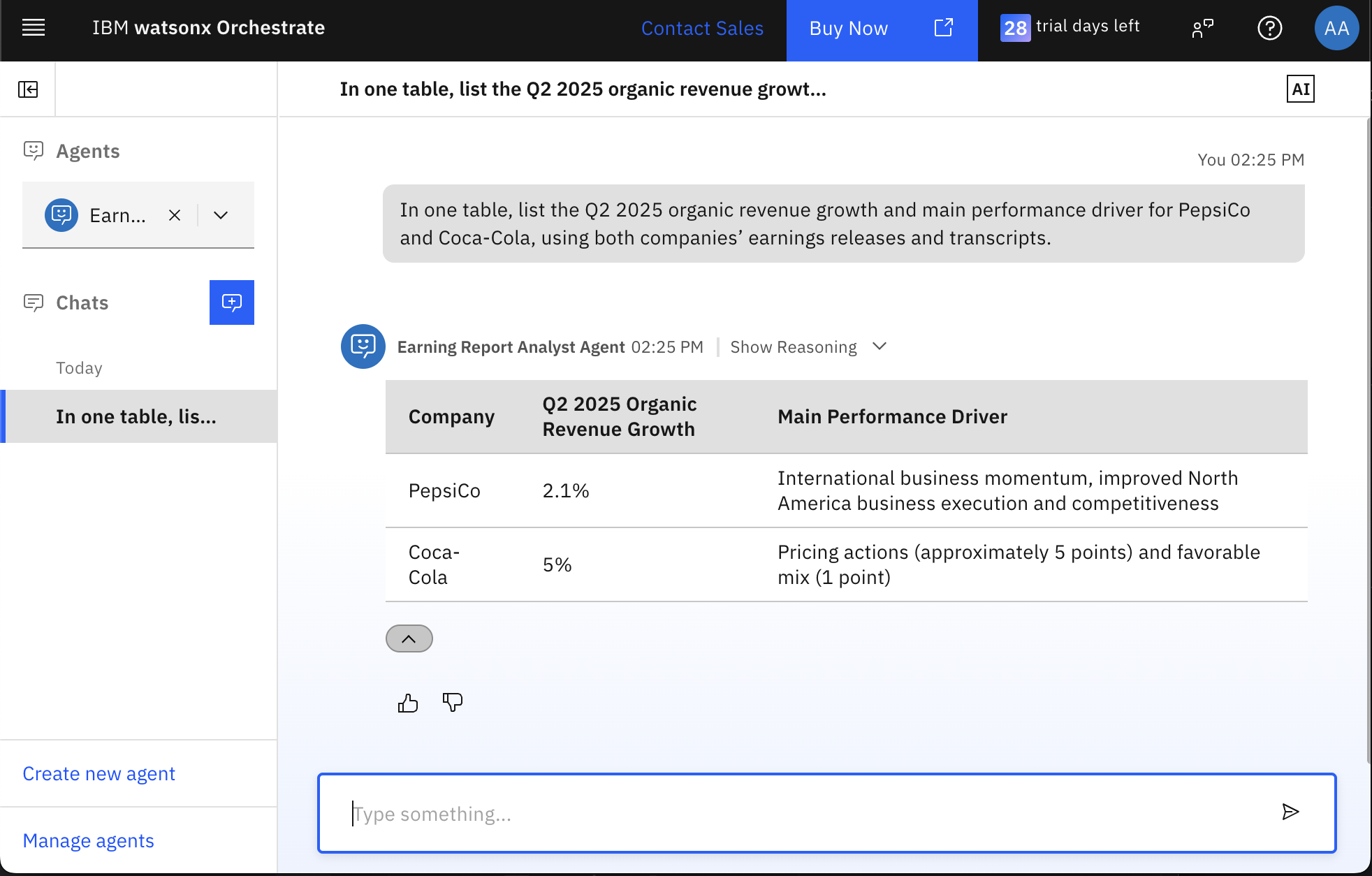
Click on Show Reasoning to observe the multi-agent orchestration
Step 5. Expose the supervisor agent on WhatsApp
Now that your agents are ready, you are going to make them available on WhatsApp. You will use Twilio’s WhatsApp Sandbox for testing.
- Sign in to Twilio or create an account at Twilio.
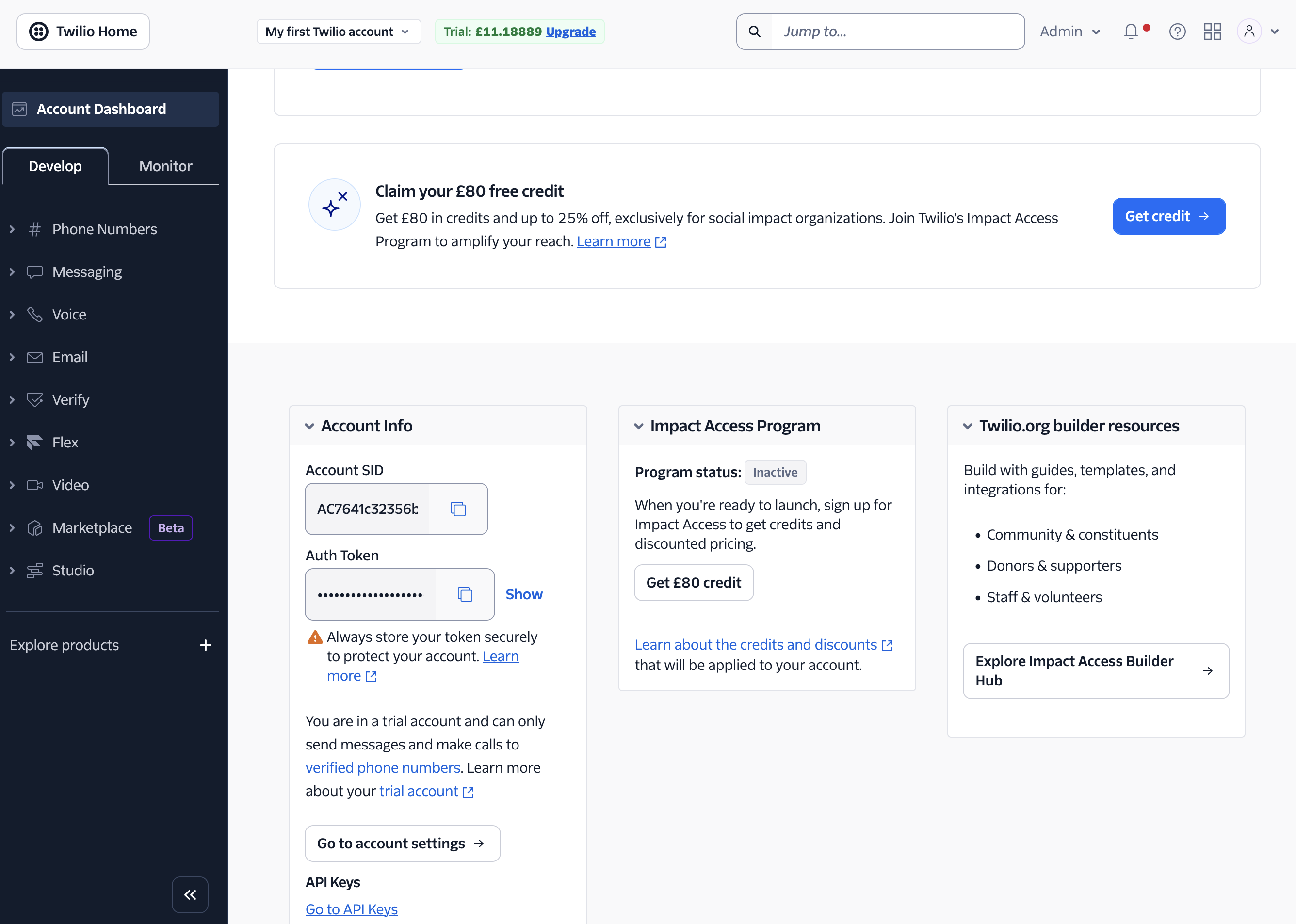
From the Twilio Console page, copy your Twilio Account SID and Auth Token. In the Account Info section, copy your Account SID (it starts with AC) and the Auth Token.
Create the WhatsApp with Twilio channel in watsonx Orchestrate. In watsonx Orchestrate, open your agent
Earning Report Analyst Agentand go to the Channels section.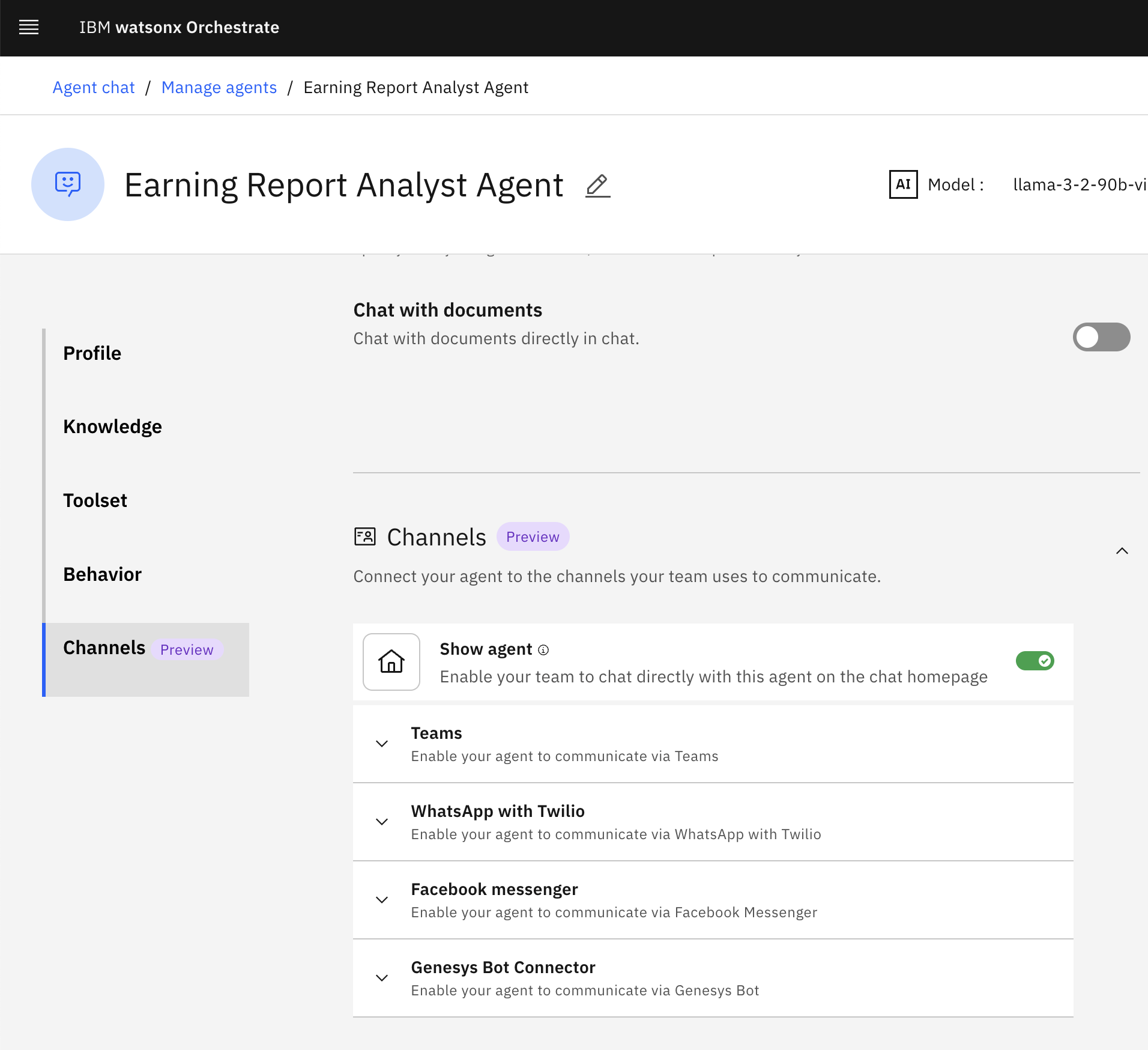
Click WhatsApp with Twilio, choose Live, and then click Create New.
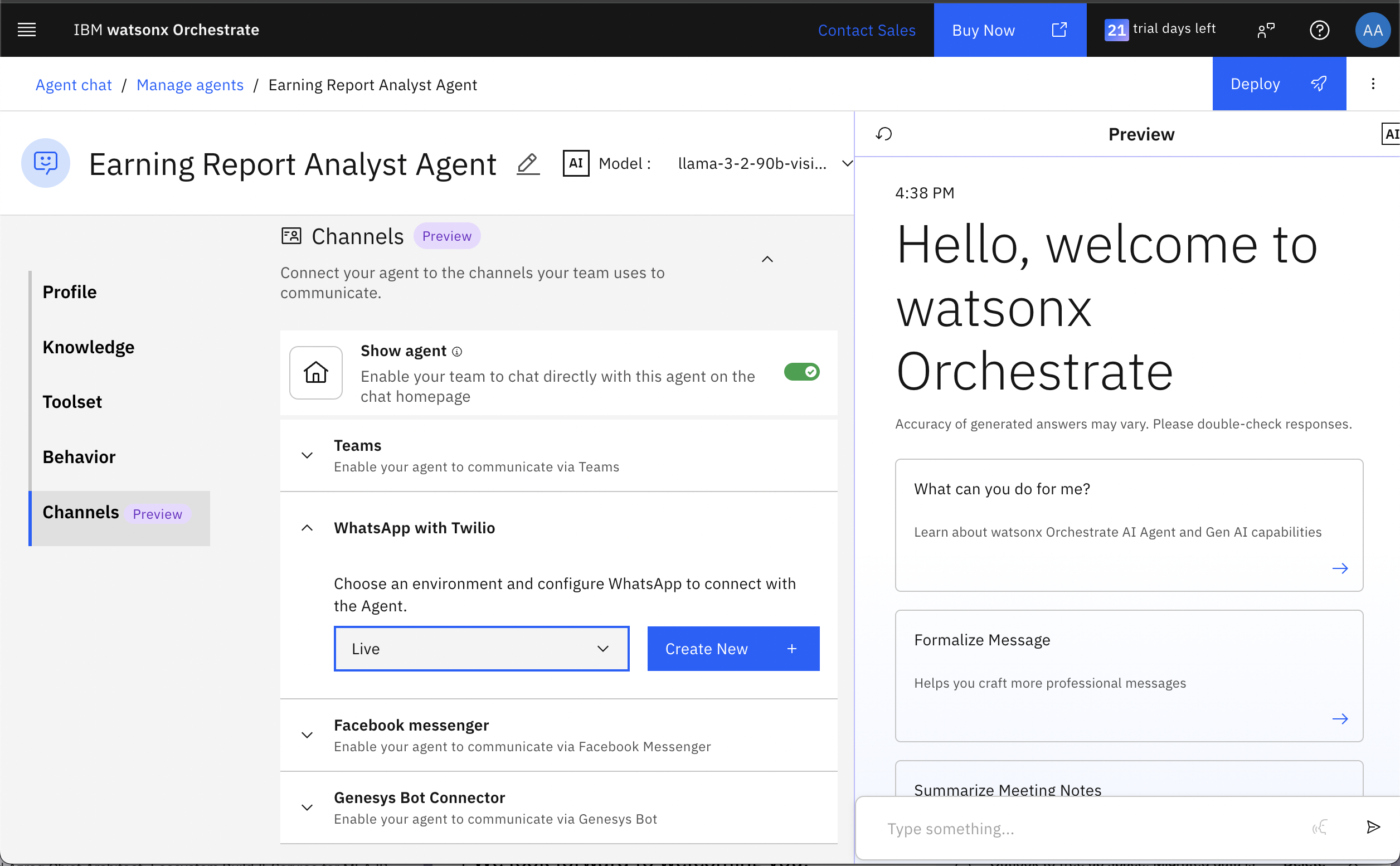
In the Configure Whatsapp with Twilio – Live wizard, click on Next to start filling the configurations. Fill in these details:
- Name: WhatsApp Twilio Integration.
- Description: WhatsApp Twilio Integration.
- Account SID: paste from Twilio that you copied earlier.
- Auth Token: paste from Twilio that you copied earlier.
On the next screen, watsonx Orchestrate shows a Webhook URL. This is the address Twilio will send incoming WhatsApp messages to. Copy the Webhook URL. Click Finish so the channel status changes from Draft to Active.
Important: If the channel stays in Draft, watsonx Orchestrate won’t respond to messages. You’ll just get Twilio’s “You said…” echo.
Go to Twilio to configure it to use the watsonx Orchestrate Webhook. In the Account Dashboard left panel, click Messaging, Try it out, and then click Send a WhatsApp message.
Click Sandbox settings to connect it to the watsonx Orchestrate webhook, paste your watsonx Orchestrate Webhook URL into the When a message comes in field, keep the method as
Post, and then click Save.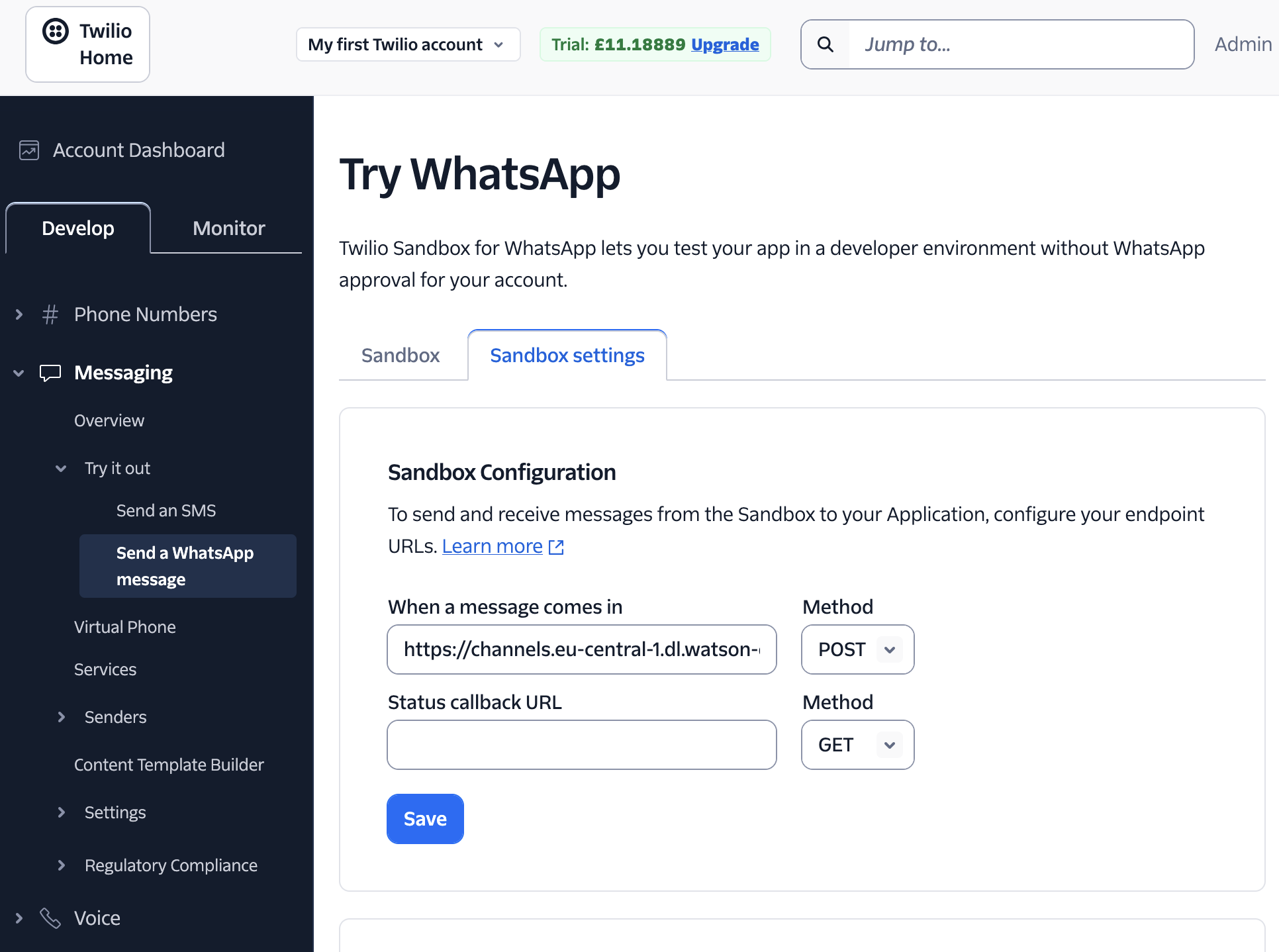
Step 6. Test the agent from WhatsApp
Now you are going to see the agent you developed in action.
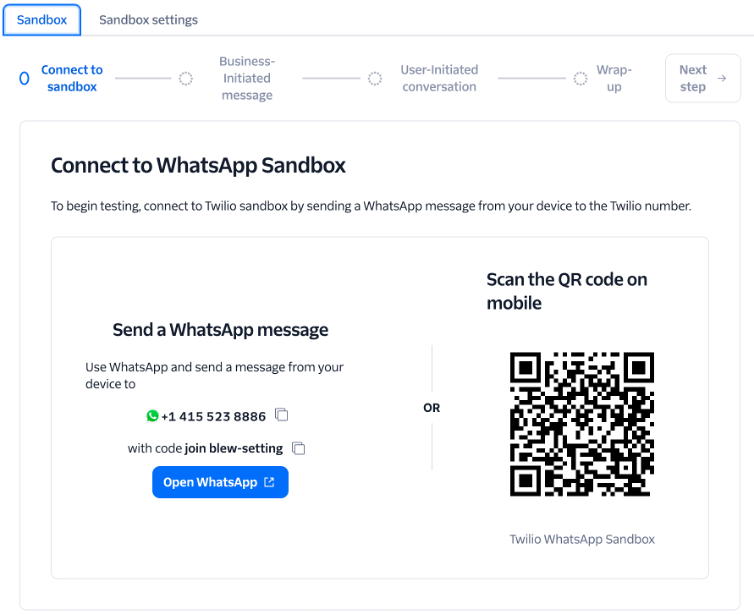
Join the Twilio Sandbox from your phone. In Twilio Sandbox Settings, follow the join instructions by sending a join code like “join your-code” to the sandbox number.
Send a test message. From WhatsApp, send a simple greeting such as “hello” to the sandbox number. You can also try a more complex request, such as: “Compare PepsiCo net revenue in Q2 2025 with Q2 2020.”
Check the response. If everything is set up correctly, the agent in watsonx Orchestrate will process the message and send a reply.
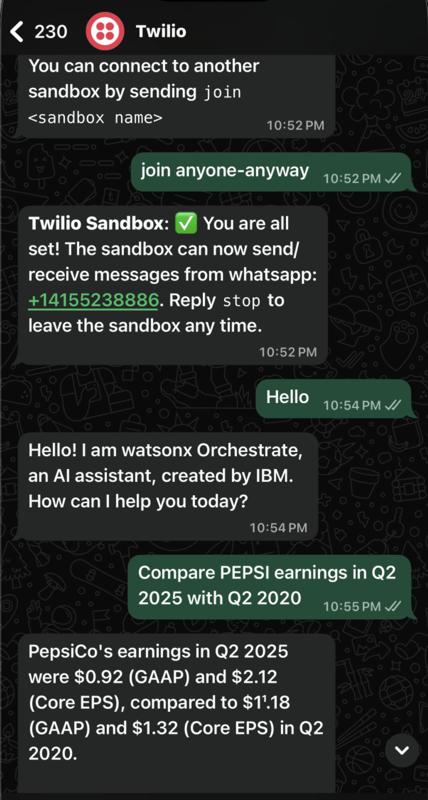
If you receive the Twilio “You said…” echo, check that:
- The channel in watsonx Orchestrate is marked Active.
- The webhook URL in Twilio matches the one from watsonx Orchestrate.
- The agent is linked to the WhatsApp channel.
Summary and next steps
In this tutorial, you learned how to create agents in IBM watsonx Orchestrate without writing any code, design specialized agents for specific tasks, and build a supervisor agent to coordinate their work. You explored how to provide agents with targeted knowledge sources, configure their behavior, and deploy them for testing within the Orchestrate interface. You also connected an agent to WhatsApp using Twilio and tested conversations directly from a mobile device. By following these steps, you have developed the skills to design, connect, and deploy intelligent multi-agent solutions that can operate across multiple channels.
From here, you can extend the solution by adding more agents for different companies or business functions, connecting to other channels such as Slack, Microsoft Teams, or web applications, expanding the knowledge base with more documents and data sources, and integrating tools for additional actions like generating reports or triggering workflows. The approach outlined in this tutorial can be applied to many scenarios where structured information retrieval, multi-agent collaboration, and user-friendly access are important.
Acknowledgments
This tutorial was produced as part of the IBM Open Innovation Community initiative: Agentic AI (AI for Developers and Ecosystem).
The authors deeply appreciate the support of Ela Dixit and Michele Corbin for the guidance and expertise on reviewing and contributing to this tutorial.