
About cookies on this site Our websites require some cookies to function properly (required). In addition, other cookies may be used with your consent to analyze site usage, improve the user experience and for advertising. For more information, please review your options. By visiting our website, you agree to our processing of information as described in IBM’sprivacy statement. To provide a smooth navigation, your cookie preferences will be shared across the IBM web domains listed here.
Tutorial
Update stand-alone enterprise baseboard management controller (eBMC) firmware through IBM AIX and Linux
A guide to update firmware directly through the operating system
IBM Power servers support firmware updates directly from the operating system on stand-alone enterprise baseboard management controller (eBMC) systems, allowing users to update system firmware without a Hardware Management Console (HMC). This method is especially effective for IBM Power10 and IBM Power11 scale-out servers running with default operating system such as IBM AIX, Red Hat Enterprise Linux (RHEL), or SUSE Linux Enterprise Server (SLES).
This tutorial explains the prerequisites, validation checks, and the step-by-step procedure required to safely perform firmware updates from IBM AIX and Linux operating systems.
Supported hardware platforms
Always verify the machine type and model before downloading firmware. The supported hardware platforms include:
IBM Power10
- 9105-22B (2S2U ioSCM – single-core feature only)
- 9105-41B (1S4U ioSCM)
- 9105-42A (2S4U)
- 9028-21B (single-core feature; no virtual hosting)
IBM Power11
- 9824-22A (2S2U, DCM or ioSCM – 2×4-core feature)
- 9824-42A (2S4U DCM)
Mandatory prerequisites
Users must make sure that the following prerequisites are met before performing firmware update through the OS.
In the BMC GUI, make sure that the firmware data displayed on the page shows a valid expiration date. Firmware updates will be blocked if the access key set date has expired.
Make sure to fulfill the following system resource requirements:
- Linux (RHEL/SUSE): Minimum 2 GB swap.
- AIX: Sufficient paging space.
- Disk space for:
- AIX: Minimum 200 MB to 500 MB of free space in /var (used for /var/update_flash_image).
- RHEL: Minimum 1 GB free in /var for temporary flash images.
- SUSE (Btrfs): Ensure adequate snapshot space. Btrfs is a copy-on-write file system; while snapshots are efficient, they grow as data changes. A minimum root partition of 16 GB to 32 GB is recommended to handle these updates safely.
Back up the system.
Before initiating the firmware update, ensure you have a recovery point. Even with redundant boot sides, a system-level backup is your final safety net.
In AIX: Create a bootable
mksysbof your root volume group (rootvg) using the following command:# mksysb -i /path/to/backup_fileIn Linux (RHEL/SUSE): Back up the critical configuration and application directories using the following command:
# tar -cvzf system_backup.tar.gz /etc /var /opt
Pre-firmware update validation
Before starting firmware update, users must resolve hardware or service processor errors.
check system health.
On the AIX system: Run the
errptcommand to generate the error log, which captures hardware, software, and operational issues.On the Linux system:
- dmesg: Run this command to troubleshoot hardware, drivers, and system boot issues.
- journalctl -xb: Run this command to view system logs specifically for the current boot session.
Verify the management mode.
- The BMC must be a stand-alone system with AIX/Linux operating system.
- Firmware updates cannot be initiated from the OS if the BMC is HMC-managed.
Verify firmware levels and boot side of the firmware image
By default, all the firmware update operation will be performed through the temporary side of the firmware image.
On the Linux or AIX operating system, run the following command to identify the current running side of the image.
lsmcode
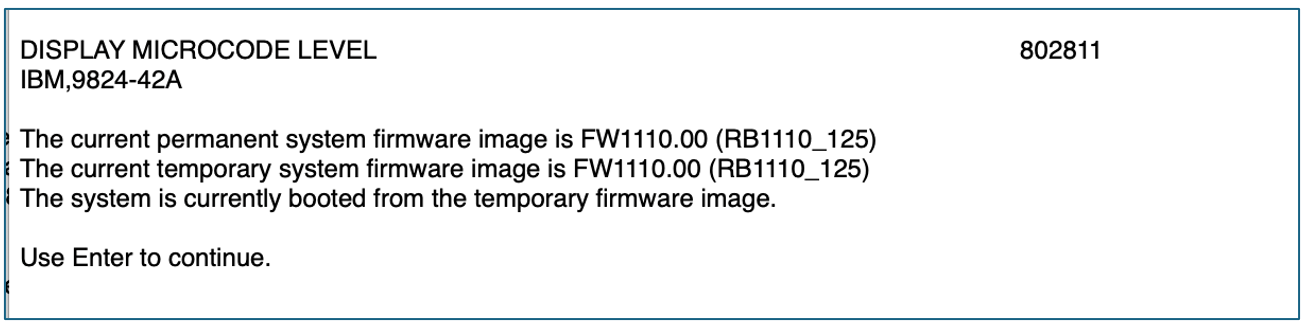
The different sides of the firmware image include:
- Temporary or the installed level: The version you are currently testing or just updated to.
- Permanent or the backup level: The known stable version.
- Booted or the activated side: This must match with the temporary side of the firmware image before starting an update.
Note: Linux users need to ensure that you have the ppc64-utils and lsvpd packages installed for the lsmcode command to work.
Fetch and extract the firmware update files
IBM distributes firmware as .tar archive files. For firmware updates performed directly through AIX or Linux, you must extract the archive to access the raw .img file.
To extract the firmware update files:
Download the package (for example, 01RB1110.tar) from IBM Fix Central.
Extract it to your server by running the following command:
tar -xvf 01RB1110.tarLocate the resulting .img file. The .img file is the only file that the firmware update tools will accept.
Firmware update using different operating systems
This section describes the firmware update procedure for the AIX and Linux operating systems.
Note: The firmware update through an OS is disruptive, and however during this update process, BMC undergoes auto reboot to activate a new image.
AIX
There are two ways to update the firmware through AIX.
Option 1:
Use AIX macros to perform firmware update.
- Run the
diagcommand as a root user to launch diagnostic operating instructions and press Enter. - On the FUNCTION SELECTION screen, select Task Selection (Diagnostics, Advanced Diagnostics, Service Aids, etc.) and press Enter.
- On the TASK SELECTION LIST screen, select Update and Manage System Flash and press Enter.
- On the UPDATE AND MANAGE FLASH screen, select Validate and Update System Firmware and press Enter.
- Select flash update image file and specify the path for the file.
- Press F7 to confirm the update. The system then stages the image and performs an automatic reboot to apply the update to the temporary side of the firmware image.
Option 2:
To perform the firmware update, run the update_flash command as a root user, pointing to the extracted .img file. The image activation occurs after BMC auto reboot.
/usr/sbin/update_flash -f /var/tmp/01RB1110.img
Linux
Run the update_flash command as a root user, pointing to the extracted .img file, on both SUSE Linux and RHEL operating systems for the BMC firmware update.
/usr/sbin/update_flash -f /var/tmp/01RB1110.img
Verify the new firmware level
After successfully updating the firmware, BMC auto reboots to activate the new image. During the process, you must confirm that the new firmware is active and that the server is running from the temporary side of the firmware image.
Run the lsmcode command on the operating system to know the current running side of the firmware image.
Conclusion
Managing IBM Power10 and Power11 infrastructure is more flexible with the ability to perform BMC firmware updates directly through the operating system. By mastering these OS-native tools, users can ensure that their systems stay secure and optimized without the need of an HMC. If you prioritize thorough pre-update validation and ensure that your environment meets the necessary resource requirements, you can maintain a resilient and high-performing Power ecosystem with confidence and ease.