
About cookies on this site Our websites require some cookies to function properly (required). In addition, other cookies may be used with your consent to analyze site usage, improve the user experience and for advertising. For more information, please review your options. By visiting our website, you agree to our processing of information as described in IBM’sprivacy statement. To provide a smooth navigation, your cookie preferences will be shared across the IBM web domains listed here.
Tutorial
Deploying Vault securely in a confidential environment
Learn how to build and run a IBM Vault Self-Managed for Z and LinuxONE container in the IBM Hyper Protect Container Runtime with HSM-based auto-unsealing using PKCS#11
IBM Vault Self-Managed for Z and LinuxONE (previously known as Hashicorp Vault for s390x) helps manage secrets like encryption keys, API tokens, and database passwords in a secure, central place. But this also makes it a key target for attackers.
IBM Hyper Protect Services uses IBM Secure Execution (IBM SEL) to protect the full compute lifecycle. IBM SEL is a Trusted Execution Environments (TEE) for Linux on IBM Z and LinuxONE that protects data even when it’s being processed in memory.
Vault stores secrets on disk using a Master Key. This key can be secured further with a Key Encryption Key (KEK) from a Hardware Security Module (HSM), allowing features like auto-unseal and seal wrapping.
Vault’s security can be made stronger by protecting the server itself, so that sensitive data is not exposed through insider threats or memory dumps.
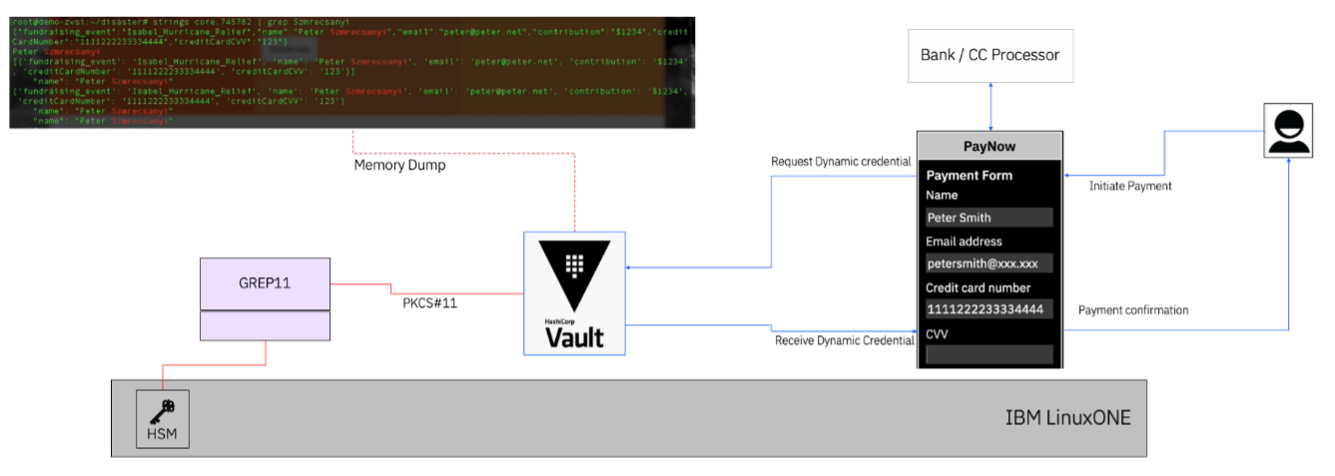
When Vault runs inside a Confidential Computing environment such as Hyper Protect Virtual Server (HPVS), it’s protected from memory inspection—even by someone with super-user access. This is possible because HPVS uses the Hyper Protect Container Runtime (HPCR) to secure workloads, as shown below:
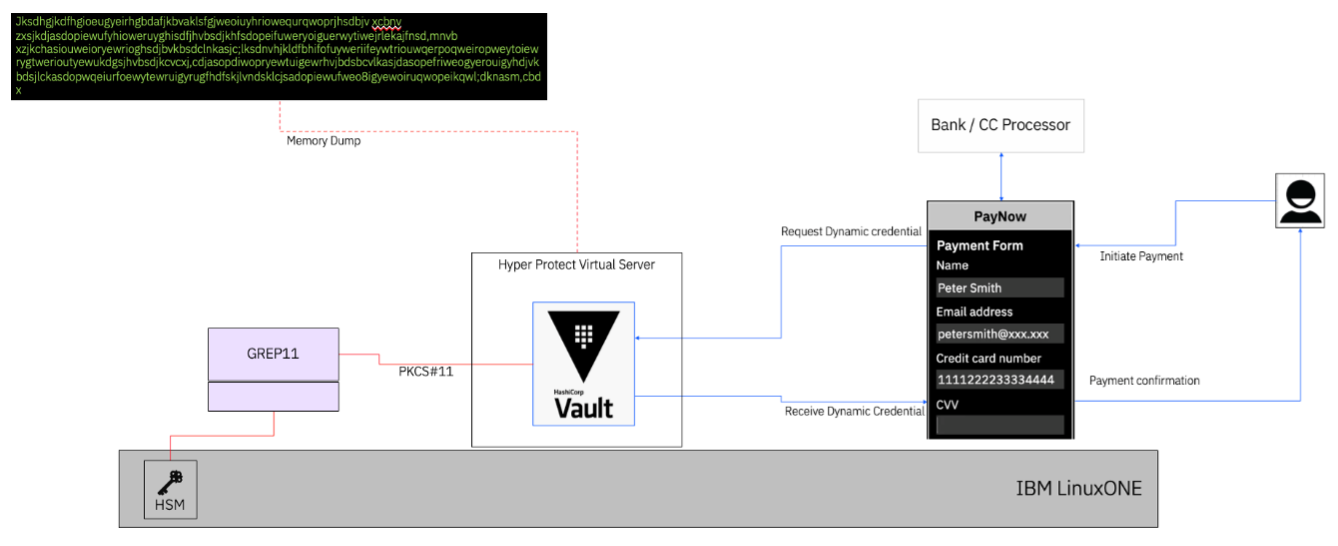
Besides protecting memory, HPVS ensures the containerized workload is built on an immutable contract and can be encrypted to keep it confidential.
This tutorial is divided into three parts:
Build a container image of Vault that accepts configuration through BASE64-encoded environment variables.
Set up Vault to run inside HPVS.
Use the Vault instance in HPVS with an external HSM (via GREP11) for the sealing and unsealing process.
Prerequisites
Basic knowledge of HPVS (setup steps like logging and contract definition are not covered here).
Basic knowledge of Vault.
Podman will be used instead of Docker (using
Containerfileto build images andpodman playYAML files instead ofdocker-compose.yaml).Access to an s390x server or VSI on LinuxONE to build images (cross-building for s390x is out of scope for this tutorial).
Access to a container registry (this tutorial uses IBM Cloud Container Registry (ICR) -
us.icr.io).IBM Vault Self Managed on IBM Z and LinuxONE can be downloaded from Passport Advantage - PID 5900BP2. Update the
Containerfilebased on the method you choose.Access to a GREP11 container with PKCS11 capability (similar to Hyper Protect Crypto Service on IBM Cloud with EP11 endpoints).
Part 1. Create a containerized Vault image that accepts BASE64-encoded environment variables
HPVS requires containerized workloads. In this step, we'll build a Vault image that reads configuration files created from BASE64 encoded environment variables. This makes it easy to reuse the image and HPVS contract without rebuilding the image every time configs change.
Build and push the image:
a. Log in to your s390x Linux VSI. Create and move into an empty directory. This will be your working folder.
b. Copy the vault_script.sh into this directory. This script generates Vault config files from BASE64 env vars and starts Vault.
c. Copy the Containerfile into the same directory. It creates a
/vault/datadirectory for RAFT, downloads the latest Vault binary for s390x, and copiesvault_script.shinto the image.d. Build the image using:
podman build . --tag {registry}/{image-name}:{version}Replace
{registry},{image-name}, and{version}with your values. (See sample output).e. Push the image using:
podman push {registry}/{image-name}:{version}Get the image URL with SHA-256 digest:
You’ll need the image’s SHA-256 digest for HPVS. Check the registry for the image’s digest. It will look like this:
{registry}/{image-name}@sha256:{sha256sum}Example for IBM Cloud Container Registry (ICR): ICR Sample
Get the ENV variables:
a. Copy the Vault config file vault-conf.hcl into your working directory. This file sets up Vault to enable the UI, listen on
http://0.0.0.0:8200, use the license file/vault/license.hclic, and useraftfor storage at/vault/data.Note: In a real deployment, especially in production, you should use TLS/HTTPS with signed certificates. This tutorial does not cover that setup.
b. Convert it to Base64:
base64 -iw0 vault-conf.hclYou’ll get output like this:
dWkgICAgICAgICAgICA9IHRydWUKY2x1c3Rlcl9hZGRyICA9ICJodHRwOi8vMTI3LjAuMC4xOjgyMDEiCmFwaV9hZGRyICAgICAgPSAiaHR0cDovLzAuMC4wLjA6ODIwMCIKZGlzYWJsZV9tbG9jayA9IHRydWUKbGljZW5zZV9wYXRoICA9ICIvdmF1bHQvbGljZW5zZS5oY2xpYyIKCnN0b3JhZ2UgInJhZnQiIHsKICAgIHBhdGggPSAiL3ZhdWx0L2RhdGEiCiAgICB2YXVsdF9ub2RlX25hbWUgPSAidmF1bHRfMSIgICAgICAgICAgICAjc2V0dGluZyB1cCBhIHVuaXF1ZSBub2RlX2lkIGZvciBlYWNoIHZhdWx0IG5vZGUKfQoKbGlzdGVuZXIgInRjcCIgewogIGFkZHJlc3MgICAgICAgPSAiMC4wLjAuMDo4MjAwIgogIHRsc19kaXNhYmxlICAgPSAxCn0KThis Base64 string will be used as the
confenvironment variable in your HPVS contract.c. Repeat the same process for your Vault license file. It will become the
licenseenvironment variable.(Optional) Test the vault image outside of HPVS.
a. Create or copy a vault.yaml file. This will be your
podman playfile, containing the Base64 values for your Vault config and license.b. Start the pod:
podman play kube vault.yamlCheck the sample output.
c. Check if Vault is running:
export VAULT_ADDR=http://127.0.0.1:8200/ ./vault statusCheck the sample output.
d. View logs with:
podman logs {pod ID or container ID}Check the sample output.
Part 2. Configure Vault to run in HPVS
We will only define the workload section of the contract (assuming you already have a working environment section).
Define the workload and start HPVS Guest:
Create a workload.yaml file as follows:
type: workload play: templates: - apiVersion: v1 kind: Pod metadata: name: zcatvault spec: securityContext: privileged: false containers: - name: {Prefix}vault image: {registry}/{image-name}@sha256:{sha256sum-chars} securityContext: privileged: false volumeMounts: - name: vault-data mountPath: /vault/data env: - name: conf value: dWkgICAgICAgICAgICA9IHRydWUKY2x1c3Rlcl9hZGRyICA9ICJodHRwOi8vMTI3LjAuMC4xOjgyMDEiCmFwaV9hZGRyICAgICAgPSAiaHR0cDovLzAuMC4wLjA6ODIwMCIKZGlzYWJsZV9tbG9jayA9IHRydWUKbGljZW5zZV9wYXRoICA9ICIvdmF1bHQvbGljZW5zZS5oY2xpYyIKCnN0b3JhZ2UgInJhZnQiIHsKICAgIHBhdGggPSAiL3ZhdWx0L2RhdGEiCiAgICB2YXVsdF9ub2RlX25hbWUgPSAidmF1bHRfMSIgICAgICAgICAgICAjc2V0dGluZyB1cCBhIHVuaXF1ZSBub2RlX2lkIGZvciBlYWNoIHZhdWx0IG5vZGUKfQoKbGlzdGVuZXIgInRjcCIgewogIGFkZHJlc3MgICAgICAgPSAiMC4wLjAuMDo4MjAwIgogIHRsc19kaXNhYmxlICAgPSAxCn0K - name: license value: **omitted** ports: - containerPort: 8200 hostPort: 8200 volumes: - name: vault-data hostPath: path: /mnt/data type: DirectoryOrCreate restartPolicy: Never volumes: test: mount: "/mnt/data" seed: "testing" auths: {registry}: password: {Registry-Password} username: {Registry-User}Important updates
Before starting, update the following in your contract:
{Prefix}— any prefix you want (for example,zcat){registry}— your container registry (for example,us.icr.io){image-name}— your image path and name (for example,zcat-hashicorp/vault-ent-nohsm){sha256sum-chars}— the SHA-256 checksum of your image (for example,f8c048a666a45ae1d124150673227c04e2e6c1f890ffaafe62724bd3f58a0367)Registry login credentials under the
auths:sectionBase64-encoded value of
vault-conf.hclfor theconfvariableBase64-encoded Vault license for the
licensevariableOnce updated, start your HPVS guest. See sample on-prem output. Then, Vault should launch successfully. See sample logging output.
Test Vault in HPVS.
a. Set the Vault address (replace with your HPVS IP if different) and check the Vault status:
export VAULT_ADDR=http://192.168.122.22:8200/ ./vault statusYou should see output similar to vault HPVS sample output.
b. To unseal Vault, run the following command:
./vault operator unsealYou should see output similar to vault HPVS unseal sample output, and logs similar to vault HPVS unseal log sample output.
Part 3. Configure Vault to use external HSM (via GREP11) for seal/unseal
To use GREP11 with Vault for sealing and unsealing, you’ll need a running GREP11 container with a database backend. To connect, gather the following:
Hostname, IP, or URL
Port (default: 9876)
CA certificate:
grep11-ca.pemClient certificate:
grep11-client.pem(signed by the above CA)Client key:
grep11-client.key
Note: If you don’t have access to an on-prem GREP11 container, you can use IBM Cloud Hyper Protect Crypto Services (HPCS). In that case, the
grep11client.yamlconfiguration file (used by the PKCS#11 library) will be different. Refer to the HPCS documentation for setup details.
Build Vault image with HSM and PKCS#11 support.
a. Log in to your
s390xLinux VSI, create a new empty directory, and switch into it. This will be your working directory.b. Add the new vault_script.sh to this directory. This script will generate config files from base64-encoded environment variables (for Vault and the PKCS#11 library) and start Vault.
c. Add the new Containerfile to the same directory. It is similar to the previous steps, but it also downloads the latest Vault HSM binary, downloads version 2.6.8 of the PKCS#11 library for s390x (update the link if a newer version is available), and copies the new vault_script.sh to the image (make sure the script is in the same directory).
d. Build the image using:
podman build . --tag {registry}/{image-name}:{version}Replace placeholders with your actual registry, image name, and version.
e. Push the image to your registry:
podman push {registry}/{image-name}:{version}Save the full image URL with its SHA256 digest, you'll need it later in your HPVS contract.
Configuration Files
a. The grep11client.yaml (for PKCS#11 Library) configures the PKCS#11 library to connect to your GREP11 container:
iamcredentialtemplate: &defaultiamcredential enabled: false endpoint: "https://iam.cloud.ibm.com" sessionauthtemplate: &defaultsessionauth enabled: false tokenspaceIDPassword: "12345678" tokens: 0: grep11connection: address: "{GREP11-Addr}" port: "9876" tls: enabled: true mutual: true cacert: "/etc/ep11client/certs/grep11-ca.pem" certfile: "/etc/ep11client/certs/grep11-client.pem" keyfile: "/etc/ep11client/certs/grep11-client.key" storage: # filestore: # enabled: true # storagepath: <GREP11-KeyStore> remotestore: enabled: true # localpostgres: # enabled: false # connectionstring: users: 0: # SO User name: "SO user" 1: # User name: "Normal user" tokenspaceID: "21DCABAA-BEC7-442A-8089-5BD9582CB7EB" 2: # Anonymous user name: "Anonymous" tokenspaceID: "B77CB96E-1D40-4530-8AA4-F96DDBEECD04" logging: loglevel: "trace" logpath: "/etc/ep11client/pkcs11.log"Notes:
Replace
{GREP11-Addr}with your GREP11 IP or hostname.If you're not using port
9876, update it.The
tokenspaceIDPasswordmust be an 8-digit number, and it must match thepinin Vault’s config (below).Each deployment should use different
tokenspaceIDUUIDs.
b. The vault-conf.hcl (Vault with HSM) is the Vault configuration using PKCS#11:
ui = true cluster_addr = "http://127.0.0.1:8201/" api_addr = "http://0.0.0.0:8200/" disable_mlock = true license_path = "/vault/license.hclic" storage "raft" { path = "/vault/data" vault_node_name = "vault_1" #setting up a unique node_id for each vault node } listener "tcp" { address = "0.0.0.0:8200" tls_disable = 1 } seal "pkcs11" { key_label = "vault-hsm-key" lib = "/usr/local/lib/pkcs11-grep11-s390x.so.2.6.8" slot = "0" mechanism = 0x1085 pin = "12345678" generate_key = "true" # token_label = "vaultpoc" hmac_key_label = "vault-hsm-hmac-key" }Note: Make sure the
pinmatches thetokenspaceIDPasswordingrep11client.yaml.To define the Workload section of contract for HPVS, create the workload.yaml file with the following content:
type: workload play: templates: - apiVersion: v1 kind: Pod metadata: name: zcatvault spec: securityContext: privileged: false containers: - name: {Prefix}vault image: {registry}/{image-name}@sha256:{sha256sum-chars} securityContext: privileged: false volumeMounts: - name: vault-data mountPath: /vault/data env: - name: grep11 value: {BASE64 of grep11client.yaml} - name: ca value: {BASE64 of grep11-ca.pem} - name: client value: {BASE64 of grep11-client.pem} - name: key value: {BASE64 of grep11-client.key} - name: conf value: {BASE64 of vault-conf.hcl} - name: license value: {BASE64 of license} ports: - containerPort: 8200 hostPort: 8200 volumes: - name: vault-data hostPath: path: /mnt/data type: DirectoryOrCreate restartPolicy: Never volumes: test: mount: "/mnt/data" seed: "testing" auths: {registry}: password: {Registry-Password} username: {Registry-User}Note: Make sure to update the following:
{Prefix}– any prefix you like to use{registry}– your container registry{image-name}– image name and path{sha256sum-chars}– SHA256 digest of your imageRegistry credentials in the
auths:sectionBase64-encoded values for:
grep11client.yaml→grep11grep11-ca.pem→cagrep11-client.pem→clientgrep11-client.key→keyvault-conf.hcl→confVault license →
license
Start your HPVS guest (sample on-prem output). The logs should show Vault started successfully (sample logging output).
a. Check Vault status.
./vault statusExpected output:
Key Value --- ----- Seal Type pkcs11 Recovery Seal Type n/a Initialized false Sealed true Total Recovery Shares 0 Threshold 0 Unseal Progress 0/0 Unseal Nonce n/a Version 1.19.1+ent.hsm Build Date 2025-03-06T18:16:09Z Storage Type raft Removed From Cluster false HA Enabled trueYou should see
Seal Typeaspkcs11.b. Initialize Vault.
./vault operator initThis will generate multiple recovery keys and a root token:
Recovery Key 1: qw3cFT+FZhmJWlO84wbLQuWAcsX/FRH96Xfiy0FYdunD Recovery Key 2: 2eMCBGXFo60rRoGOw1/Tny2CyIB7ktSLTbhlqvfxcxMG Recovery Key 3: s1Cn2LSFy6Ix8cw7yZyPtrTBssxz+TGlFWha3qQXlDDW Recovery Key 4: rbEfBMVq5DboCNni4ykbmB94yUUlgCPGKBuYluiHuMJ1 Recovery Key 5: ngtmQaV6Kr82nmjJdYYPmnCdDbTmu7MgaNWECj88HAjA Initial Root Token: hvs.PniWzjqonUqK3q6wQkfUdTKB Success! Vault is initializedThese values will differ each time. You can find more logging details.
c. Login and test Vault operations.
Login to Vault (as per the above sample):
./vault login token=hvs.PniWzjqonUqK3q6wQkfUdTKBSuccess! You are now authenticated. The token information displayed below is already stored in the token helper. You do NOT need to run "vault login" again. Future Vault requests will automatically use this token. Key Value --- ----- token hvs.PniWzjqonUqK3q6wQkfUdTKB token_accessor gL7k67gSck0PbFEEsIgIANwy token_duration ∞ token_renewable false token_policies ["root"] identity_policies [] policies ["root"]You should see a success message confirming you're authenticated.
Now you can test basic operations such as
vault operator seal,vault operator unseal, andvault status.Sample outputs for these commands are available at Vauly HSM seal-unseal output.
d. Auto-unseal on restart.
Vault with HSM should auto-unseal after a restart.
To test, seal Vault if it’s not already sealed, restart the HPVS guest. Once it’s back up, run:
./vault statusKey Value --- ----- Seal Type pkcs11 Recovery Seal Type shamir Initialized true Sealed false Total Recovery Shares 5 Threshold 3 Version 1.19.1+ent.hsm Build Date 2025-03-06T18:16:09Z Storage Type raft Cluster Name vault-cluster-c8c01c44 Cluster ID bcdf2373-95e7-3170-10d6-c45a5997b082 Removed From Cluster false HA Enabled true HA Cluster https://127.0.0.1:8201/ HA Mode active Active Since 2025-03-20T13:33:07.34429041Z Raft Committed Index 179579 Raft Applied Index 179579 Last WAL 68842You should see
SealedisfalseandSeal Typeispkcs11, confirming it auto-unsealed.Full logs of the restart and status are available at Vault HSM restart unsealoutput.
Conclusion
You have completed this 3-part tutorial. You learned how to:
Build a containerized IBM Vault Self-Managed for Z and LinuxONE image to run on HPVS.
Connect Vault to an HSM using PKCS#11.
Use environment variables to pass config data securely into your workload.
You're now set up to run Vault securely in a confidential environment.