
About cookies on this site Our websites require some cookies to function properly (required). In addition, other cookies may be used with your consent to analyze site usage, improve the user experience and for advertising. For more information, please review your options. By visiting our website, you agree to our processing of information as described in IBM’sprivacy statement. To provide a smooth navigation, your cookie preferences will be shared across the IBM web domains listed here.
Tutorial
Combine Groq, Anthropic, and Granite 4.0 Nano models in multi-agent workflows with watsonx Orchestrate
A hands-on guide for building multi-agent workflows that integrate high-speed inference, advanced reasoning, and summarization using Groq, Anthropic, and Granite 4.0 Nano models
On this page
There is no single model that solves every problem, and the real power of orchestration begins at that point. By orchestrating specialized AI agents, the watsonx Orchestrate platform enables developers to combine the strengths of multiple models and achieve optimal performance across diverse tasks.

The preceding overview diagram shows three key components that you will use in this tutorial: two model families and one fast, low-cost AI inference provider.
- Groq provides lightning-fast inference with up to five times lower latency, running on Groq’s Lightweight Processing Unit (LPU) infrastructure that supports highly parallelized and energy-efficient computations. In this tutorial, you will use the GPT OSS 120B model. Refer to the announcement IBM and Groq Partner to Accelerate Enterprise AI Deployment with Speed and Scale for more information.
- Anthropic delivers advanced, expert-level reasoning for complex, multi-step tasks. Powered by high-performance GPUs, the Claude Sonnet model enables large-scale inferencing with safety-aligned outputs, supporting nuanced decision-making and collaborative workflows. Refer to the announcement IBM and Anthropic Partner to Advance Enterprise Software Development with Proven Security and Governance for more information.
- IBM Granite 4.0 Nano models provide lightweight, on-device inferencing optimized for CPU execution. These models offer fast and efficient summarization and workflow automation even on everyday devices. In this tutorial, you will use a 350-million-parameter model.
Together, these technologies demonstrate how hybrid model orchestration delivers faster, smarter, and more sustainable AI agent behavior.
In this tutorial, learn how to:
- Create an agent that uses the GPT OSS 120B model on Groq LPU infrastructure through watsonx Orchestrate to answer queries.
- Create an agent that uses the Claude Sonnet 4.5 model to enable watsonx Orchestrate agents to perform context-aware inferencing and sophisticated multi-step reasoning.
- Create a tool that summarizes content by using the lightweight IBM Granite 4.0 Nano models.
Architecture of Groq, Anthropic, and Granite 4.0 Nano models in multi-agent workflows
The following image shows the architecture of the sample multi-agent system for this tutorial.
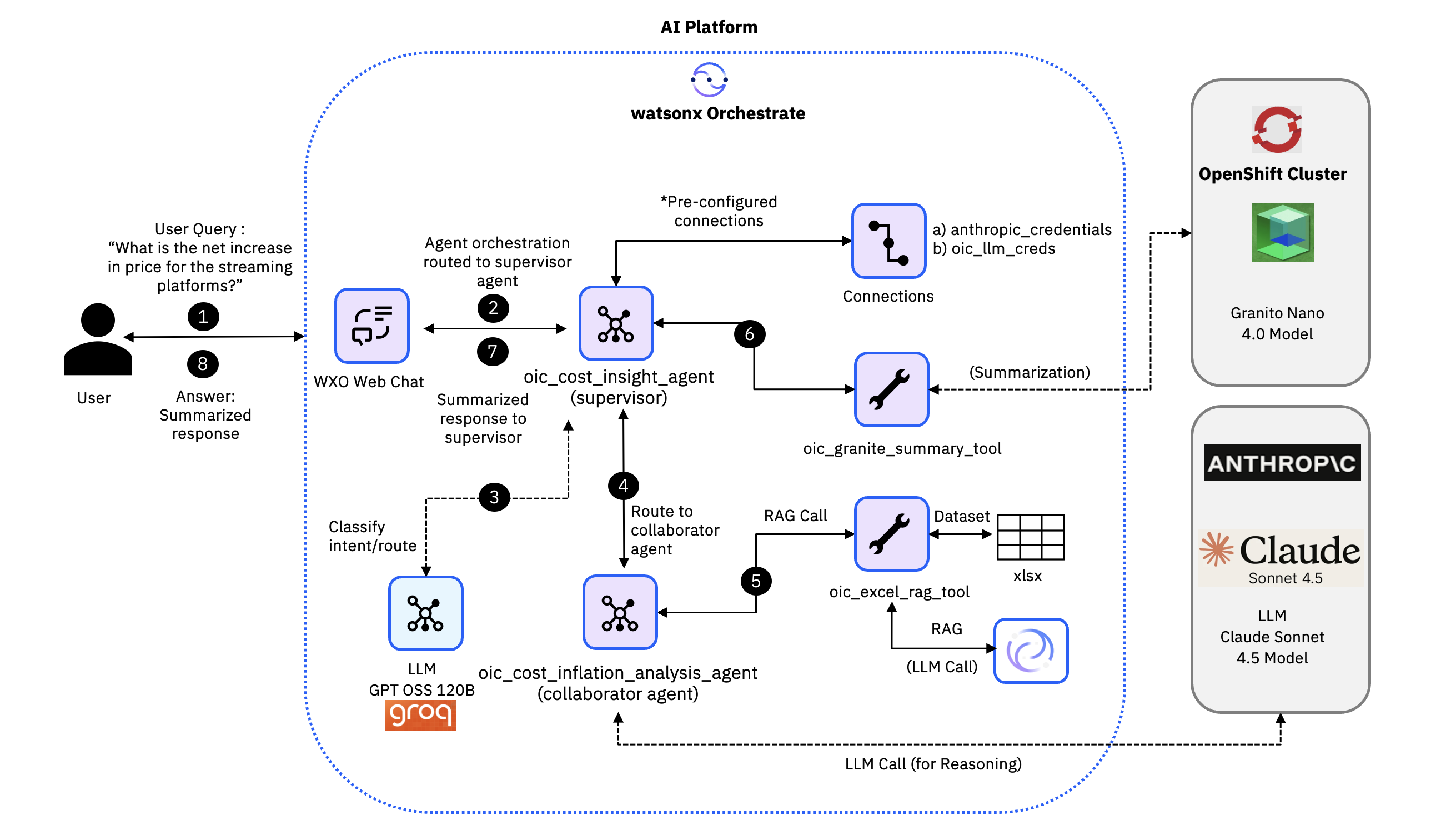
The following sequence describes how the agentic workflow processes a user query from start to finish:
- The user enters a question through the watsonx Orchestrate web chat interface. For example, What is the net increase in price for the streaming platforms?.
- The supervisor agent (
oic_cost_insight_agent) uses the GPT-OSS-120B model running on Groq LPU hardware to generate the initial reasoning. - The supervisor agent selects the collaborator agent (
oic_cost_inflation_analysis_agent) for detailed cost-impact reasoning. No external tools are invoked at this stage. - The collaborator agent (
oic_cost_inflation_analysis_agent) uses the Claude Sonnet 4.5 model to support advanced reasoning to conduct detailed cost-impact analysis, identify pricing patterns, compute numerical differences, and produce reasoning outputs. - The collaborator agent performs retrieval augmented generation (RAG) on the Excel dataset by invoking the RAG tool (
oic_excel_rag_tool). The RAG tool embeds the dataset, retrieves the most relevant rows, constructs context blocks, and might call the large language model (LLM) for retrieval-guided reasoning. The RAG tool returns a detailed, data-grounded analysis that includes both raw reasoning and retrieved context. - The supervisor agent receives the output from the collaborator agent and passes it to the tool (
oic_granite_summary_tool). The summary tool invokes the Granite 4.0 Nano model that is running on Red Hat OpenShift with vLLM to convert the long reasoning output into a concise and user-friendly summary. - The Granite 4.0 Nano model generates the final summary.
- The supervisor agent returns the Granite model generated summary to the watsonx Orchestrate web chat interface.
Note: Preconfigured connections such as anthropic_credentials and oic_llm_creds route the model calls. The Granite model runs on Red Hat OpenShift with vLLM for fast summarization. The GPT-OSS-120B model executes on Groq LPU infrastructure. The Claude Sonnet model is available through the Anthropic connection whenever the workflow requires advanced reasoning.
Prerequisites
- This tutorial assumes that you have a functioning local environment with the watsonx Orchestrate Agent Development Kit (ADK) version 1.12 or later. Refer to the Getting Started with watsonx Orchestrate ADK tutorial if you do not have an active instance of watsonx Orchestrate. This tutorial has been tested and verified with watsonx Orchestrate ADK version 1.14.
- Python version 3.11. Later versions should work, but this tutorial has been tested with Python 3.11.
- An active account on Anthropic.
- A Red Hat OpenShift environment or any Kubernetes environment. You can use the Try Red Hat OpenShift option to get access to an Red Hat OpenShift environment.
- A trial instance of watsonx.ai.
Note: For this tutorial, you will use the GPT OSS 120B model available in watsonx Orchestrate on Groq LPU infrastructure.
Step 1. Import the Claude Sonnet model using the AI Gateway
By integrating the Claude Sonnet model from Anthropic into watsonx Orchestrate, you equip your AI agents with nuanced decision-making capabilities and expert-level inferencing.
Download the code from GitHub repository or clone the repository:
git clone https://github.com/IBM/oic-i-agentic-ai-tutorials/Open the repository in Visual Studio Code or any editor of your choice, and navigate to the i-oic-cost-inflation-analysis-agent folder. This folder will serve as the working directory for the next steps.
Log in to the Anthropic Console and create an API key for accessing the Anthropic models. If you need to add credit to the accounnt, the console will prompt you to enter payment details. Then, you can proceed to create the API key.
a. Click the API Keys option in the navigation.
b. Click Create Key.
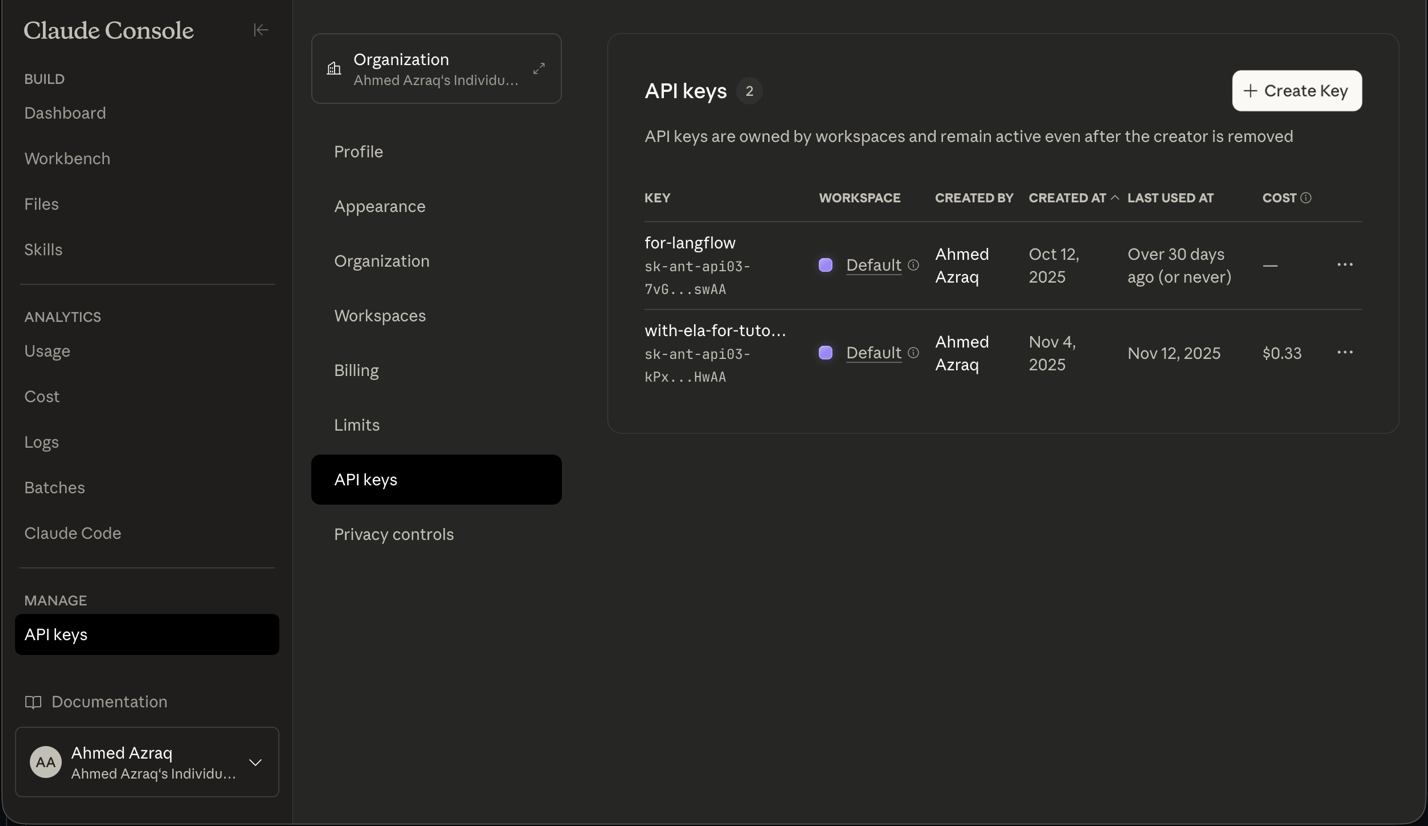
c. Enter a name for the new API key and click Add.
d. Click Copy Key to copy the generated API key.
Make a note of the API key that you created in the previous step.
Replace the value of ANTHROPIC_API_KEY in the following command with the API key that you copied and then run the commands to import the claude_connections.yaml file and validate the connections that watsonx Orchestrate creates in both the draft environment and the live environment.
### Anthropic credentials orchestrate connections import \ --file connections/claude_connections.yaml orchestrate connections set-credentials -a anthropic_credentials --env draft -e "api_key=anthropic_api_key" orchestrate connections set-credentials -a anthropic_credentials --env live -e "api_key=anthropic_api_key" orchestrate connections listA green checkmark indicates successful validation.


Confirm that your current directory is the i-oic-cost-inflation-analysis-agent folder.
cd i-oic-cost-inflation-analysis-agentReview the anthropic-claude.yaml file. Ensure that the app_id value in the YAML file matches the name of the credentials you specified in step 5.
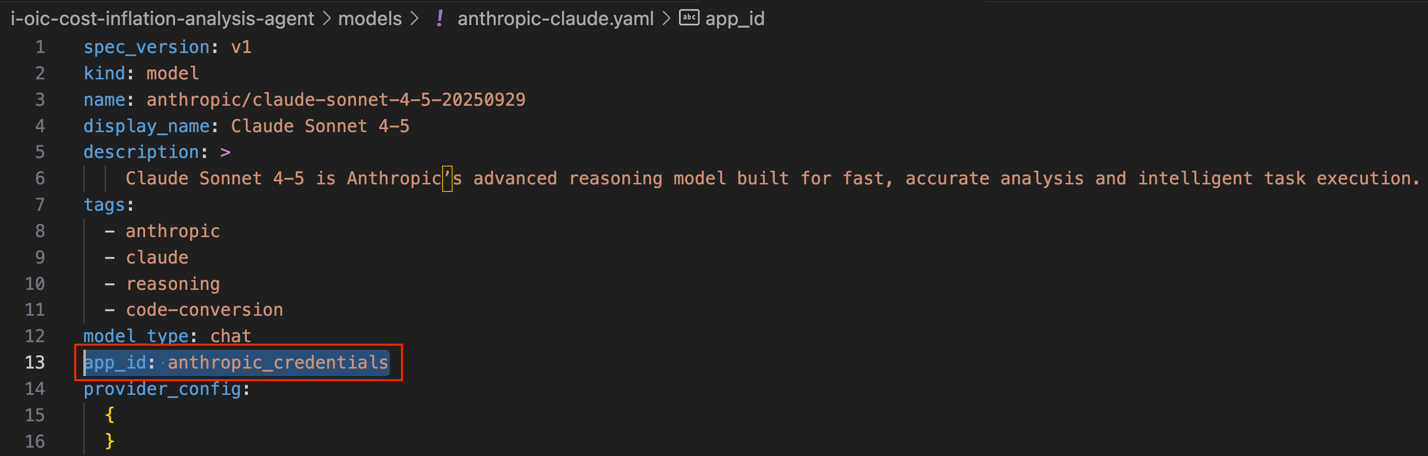
Enter the following commands to import the model and to confirm that the model has been successfully imported into the watsonx Orchestrate Agent Development Kit (ADK).
## Import Models

 orchestrate models import --file models/anthropic-claude.yaml --app-id anthropic_credentials

 orchestrate models list
The Claude Sonnet 4.5 model (claude-sonnet-4-5-20250929) is successfully imported into the watsonx Orchestrate environment.
Step 2. Deploy the Granite 4.0 Nano model on Red Hat OpenShift using vLLM
The Granite 4.0 Nano 350-million-parameter model acts as the primary inference engine for your AI agent, enabling fast, on-demand reasoning throughout the tutorial.
Log in to your Red Hat OpenShift cluster in the terminal.
oc loginCreate a namespace for the vLLM deployment and switch to it:
oc create ns vllm oc project vllmAssign a privileged security context constraint (SCC) to the vLLM pod:
oc adm policy add-scc-to-user privileged -z default -n vllmClone the GitHub repository that contains the YAML deployment files:
git clone https://github.com/smalleni/s-ai/Add a persistent volume claim (PVC) to retain the models downloaded from the Hugging Face library.
a. Edit the storageClassName on line 6 of the s-ai/openshift/vllm/pvc.yaml file to specify an available Read-Write-Once (RWO) storage class.
b. Apply the pvc.yaml file to the Red Hat OpenShift cluster.
cd s-ai/openshift/vllm oc apply -f pvc.yamlConfirm that the PVC has been successfully bound.
oc get pvc
Create a secret file named secret.yaml to store your Hugging Face API token.
a. Encode your Hugging Face token in base64 and update the secret.yaml file with this value.

b. Apply the secret.yaml file to the Red Hat OpenShift cluster.
oc apply -f secret.yamlUpdate the deployment YAML file (vllm.yaml) with the following changes.
a. Update the image field to docker.io/ahmedazraq/vllm:latest to serve the Granite 4.0 Nano model from Hugging Face. Optionally, adjust the CPU and memory resources in the YAML file. For example, cpu: 8 and memory: 16Gi.
b. Update the spec.containers.args field to instruct vllm to serve the Granite 4.0 Nano model.
vllm serve ibm-granite/granite-4.0-350m --port 8001This change ensures that the deployment uses the most recent vLLM image, which now supports serving the Granite 4.0 Nano model.
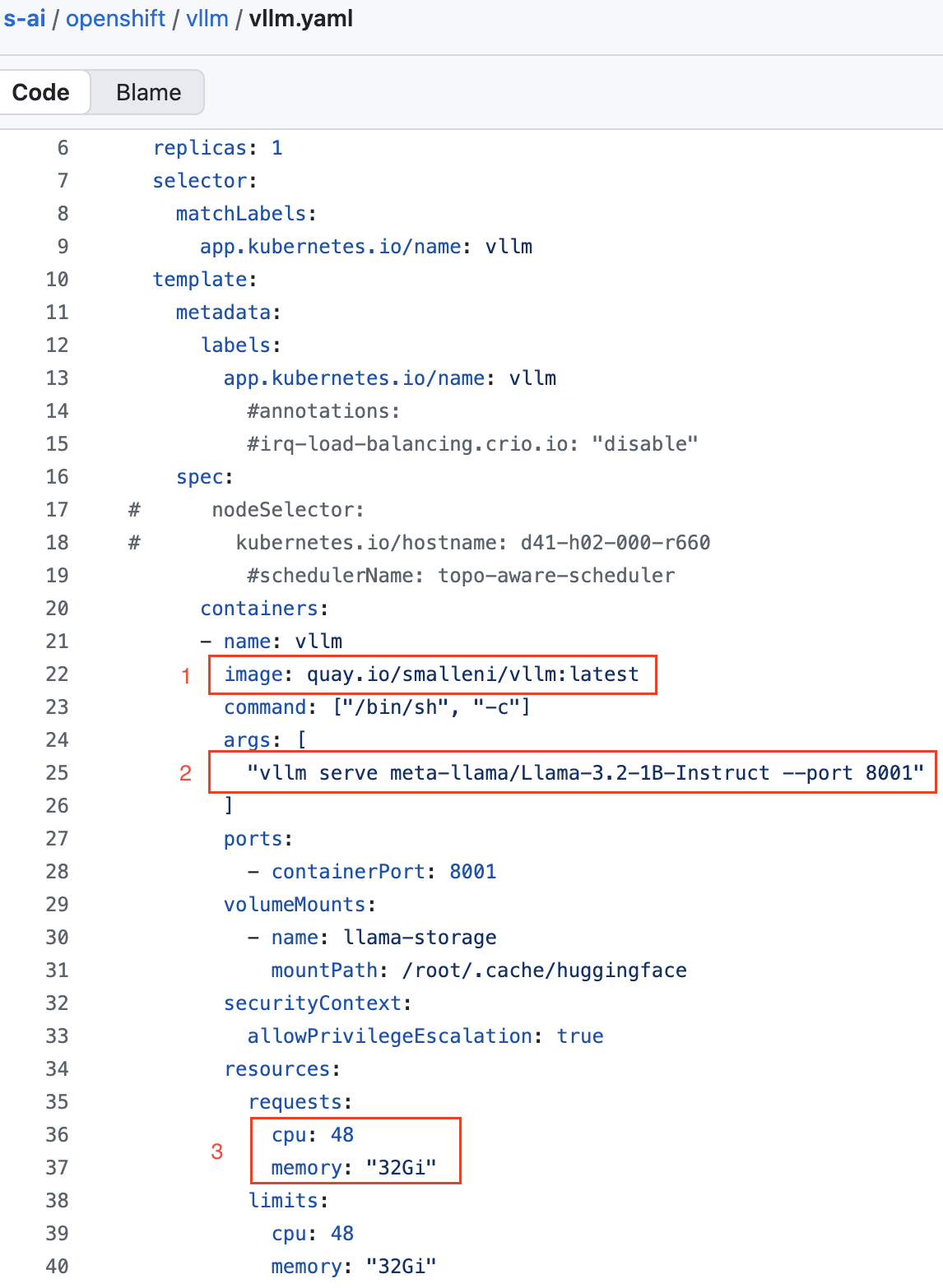
Deploy the vLLM server on the Red Hat OpenShift cluster and wait for the pod to reach the Running state.
oc apply -f vllm.yaml
 oc get po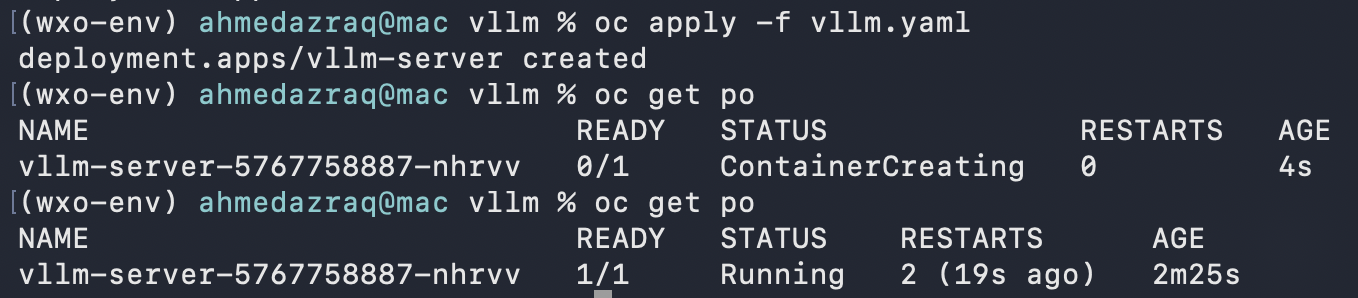
Apply the service and the route configuration so that watsonx Orchestrate can access the vLLM endpoint.
oc apply -f svc.yaml oc apply -f route.yamlExport the Red Hat OpenShift route to an environment variable.
export VLLM_ROUTE_OCP="$(oc get route sai-vllm -o jsonpath='{.spec.host}')"Display the value of VLLM_ROUTE_OCP and copy it for use in the next step.
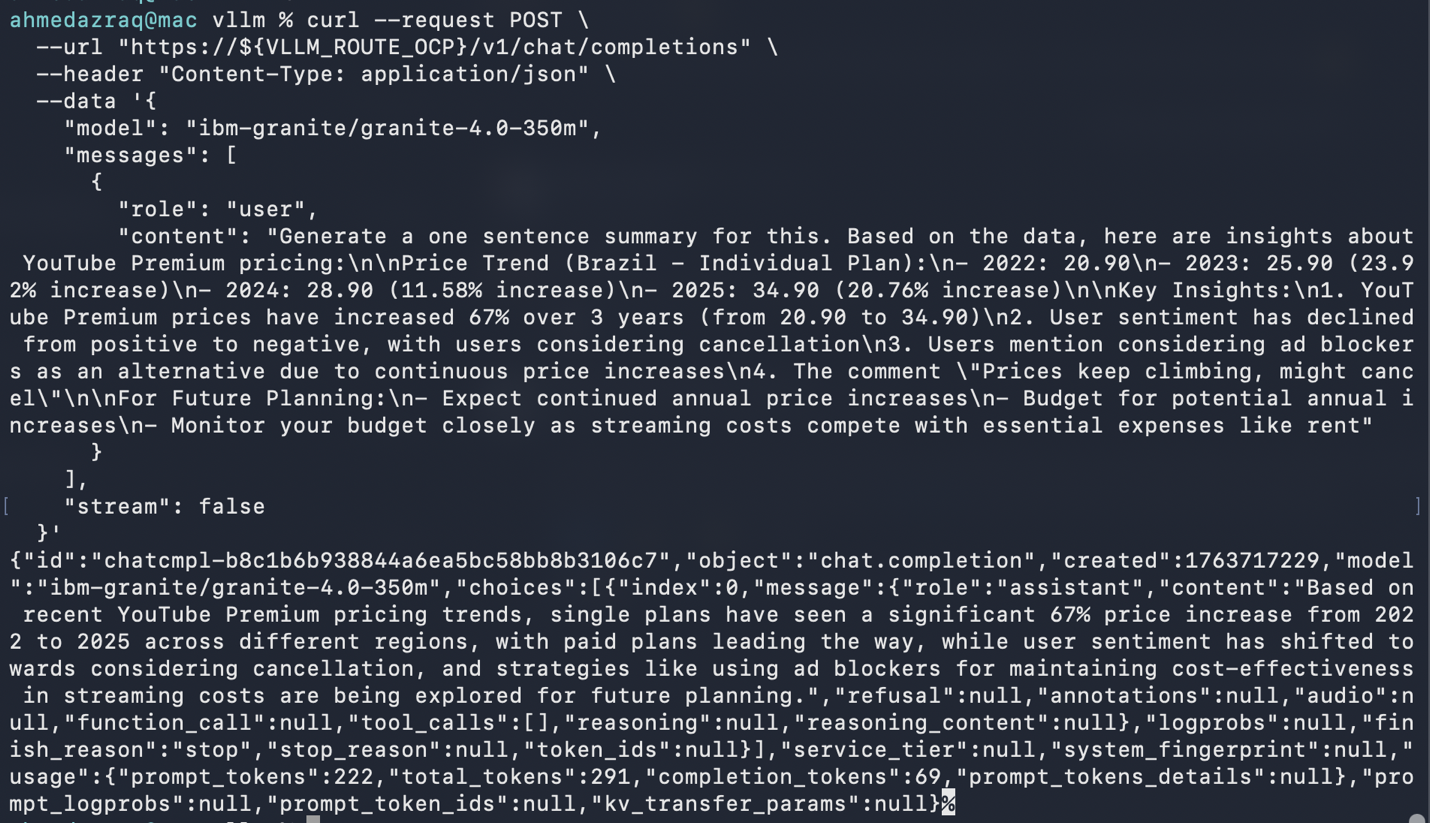
echo $VLLM_ROUTE_OCPTest the Granite 4.0 Nano model by sending a prompt to the vLLM endpoint.
curl --request POST \ --url "https://${VLLM_ROUTE_OCP}/v1/chat/completions" \ --header "Content-Type: application/json" \ --data '{ "model": "ibm-granite/granite-4.0-350m", "messages": [ { "role": "user", "content": "Generate a one sentence summary for this. Based on the data, here are insights about youtube Premium pricing:\n\nPrice Trend (Brazil - Individual Plan):\n- 2022: 20.90\n- 2023: 25.90 (23.92% increase)\n- 2024: 28.90 (11.58% increase)\n- 2025: 34.90 (20.76% increase)\n\nKey Insights:\n1. youtube Premium prices have increased 67% over 3 years (from 20.90 to 34.90)\n2. User sentiment has declined from positive to negative, with users considering cancellation\n3. Users mention considering ad blockers as an alternative due to continuous price increases\n4. The comment \"Prices keep climbing, might cancel\"\n\nFor Future Planning:\n- Expect continued annual price increases\n- Budget for potential annual increases\n- Monitor your budget closely as streaming costs compete with essential expenses like rent" } ], "stream": false }'The following image shows the values that need to be changed.
Step 3. Create a Python tool that uses the Granite 4.0 Nano model
Create a tool that uses the Granite 4.0 Nano model to summarize the answer provided as input. The model is deployed in a Red Hat OpenShift cluster and is accessible through an API endpoint.
- Open the oic_granite_summary_tool.py file. This summary tool makes an API call to the Granite model and returns the summarized output.
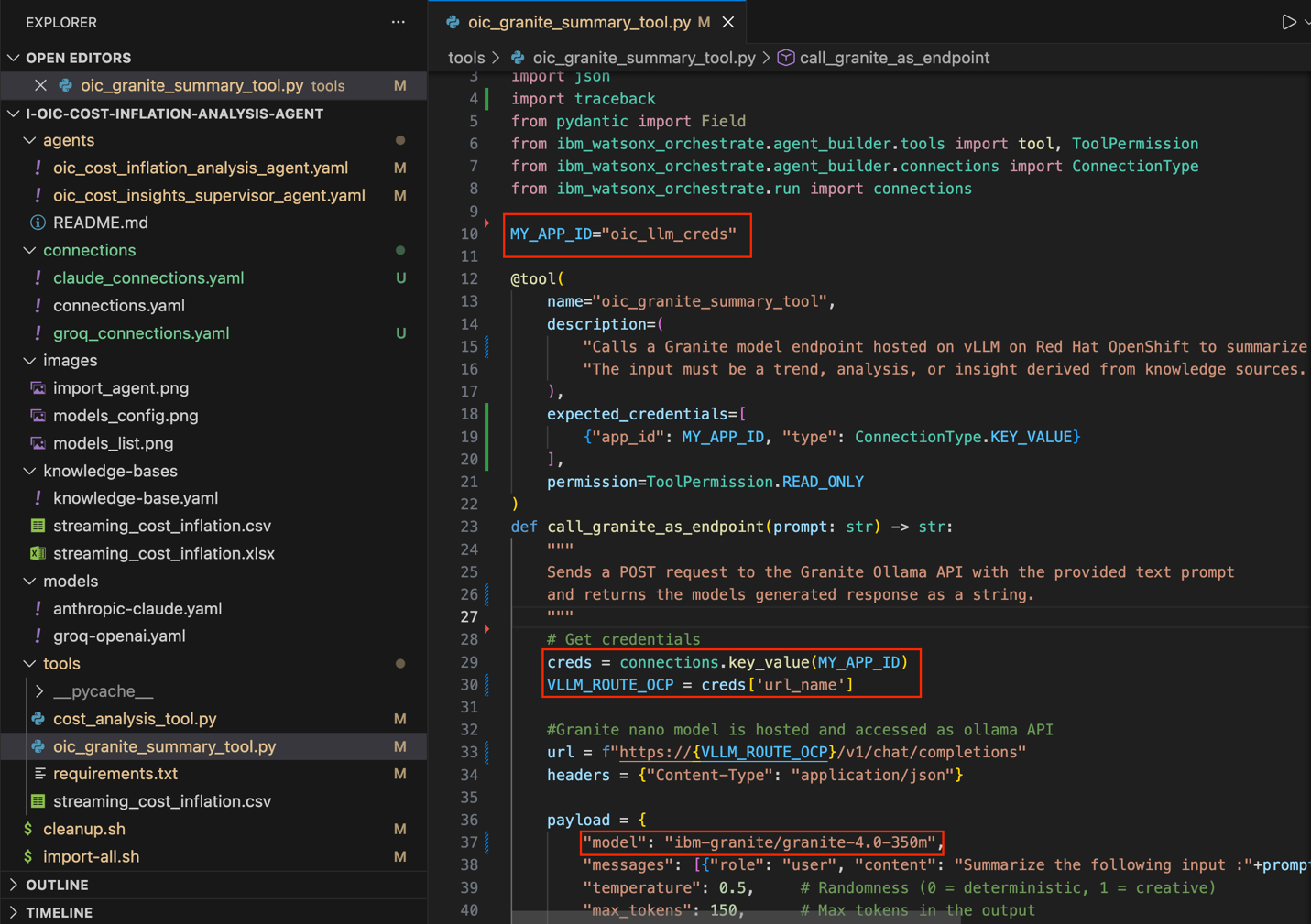
When you build Python tools that use external connections, you must declare the required connection in the expected_credentials array in the @tool decorator.
a. Use MY_APP_ID="oic_llm_creds" as the application identifier.
b. The credentials are of type Key Value. The credential set must include a key named url_name that contains the hostname of the application where the Granite 4.0 Nano model (granite-4.0-350m) is deployed.
Note: The Granite 4.0 Nano model is not currently supported on the watsonx.ai platform. In the future, if out-of-the-box support becomes available, you can reference the model directly in the agent specification YAML file.
c. Import the summary tool by using the watsonx Orchestrate Agent Development Kit (ADK).
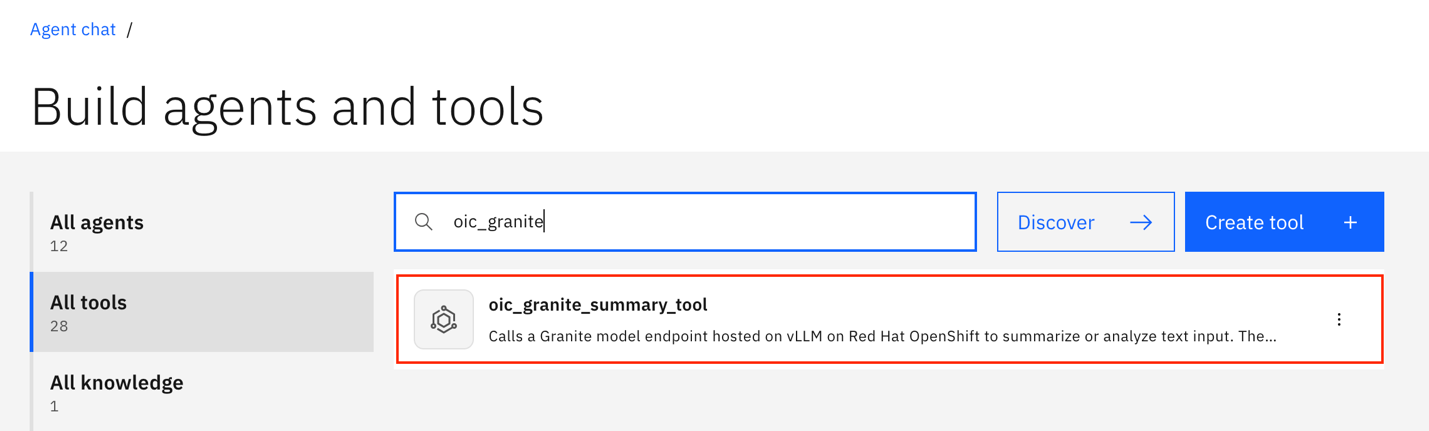
orchestrate tools import -k python -f tools/oic_granite_summary_tool.py -r tools/requirements.txtd. Log in to the watsonx Orchestrate user interface to verify that the oic_granite_summary_tool tool appears in the tool catalog.
i. Click Manage agents.
ii. Click All tools. You should see the oic_granite_summary_tool entry in the list.
Step 4. Build a Python tool that applies RAG over an Excel dataset
Create a Python tool that uses the watsonx Orchestrate Agent Development Kit (ADK) framework to perform retrieval augmented generation (RAG) over an Excel dataset. The tool embeds the Excel data, retrieves the most relevant rows based on the user query, and produces a context-aware answer. This RAG workflow provides precise, data-grounded responses by combining Excel-based retrieval with large language model reasoning.
- Open the oic_excel_rag_tool.py file. This RAG tool sends an API request to the watsonx model and returns the generated output.
The oic_excel_rag_tool.py file uses watsonx embedding models and watsonx slate models. Therefore, the tool requires additional credentials,
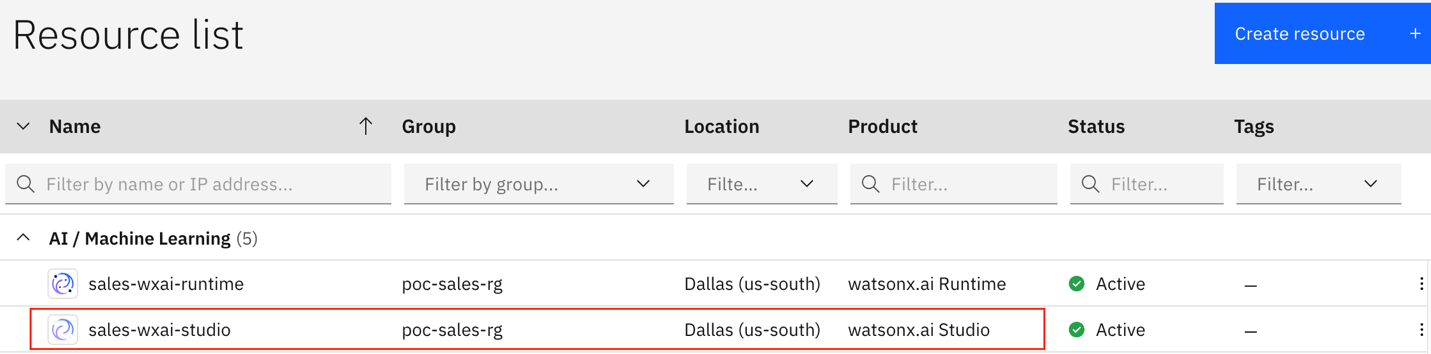
WATSONX_APIKEYandPROJECT_ID, which you can retrieve from watsonx.ai. To get thePROJECT_ID, complete the following procedure:a. Log in to IBM Cloud, navigate to the Resource list, and click the watsonx.ai service.
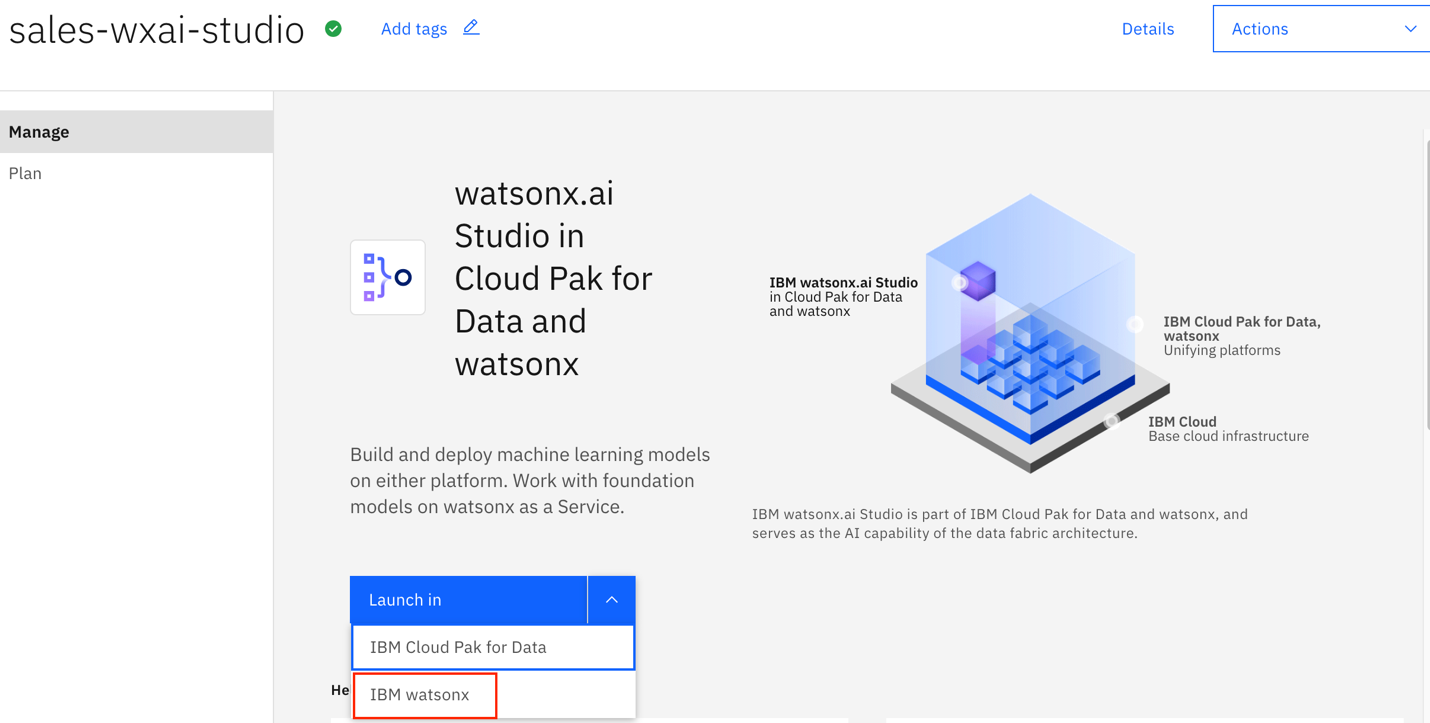
ii. Launch the watsonx.ai workspace.
iii. Open the Project, navigate to the Project Details page, and copy the value of Project ID.

For this tutorial, you will use the default embedding model named ibm/slate-30m-english-rtrvr-v2.
You will use streaming_cost_inflation.xlsx as the dataset for the RAG tool. The current tool implementation supports Excel files. You can modify the implementation to support PDF files, CSV files, and other formats.
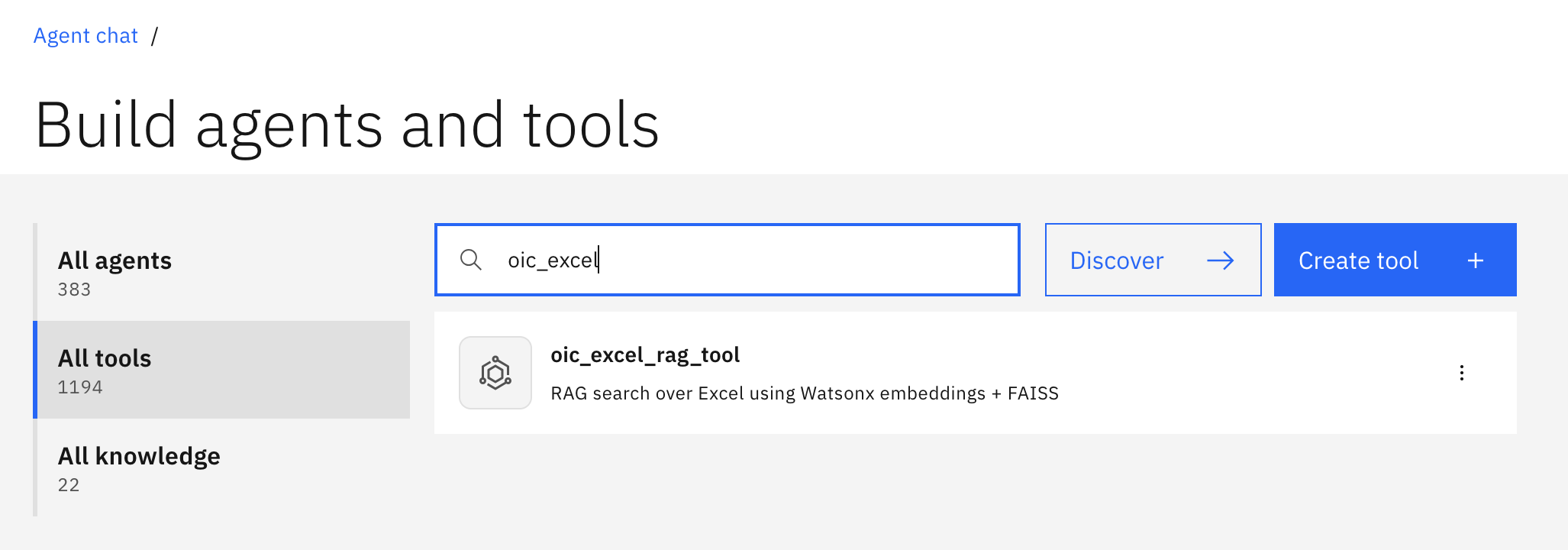
Ensure that you are in the tools directory. Run the following commands in the VS Code terminal, and then verify that the oic_excel_rag_tool has been imported into the watsonx Orchestrate tool catalog.
orchestrate tools import \ -k python \ -f oic_excel_rag_tool.py \ -p . \ -r requirements.txt \ --app-id anthropic_credentialsLog in to the watsonx Orchestrate user interface to view the oic_excel_rag_tool in the tool catalog.
a. Click Manage agents.
b. Click All tools, and you should see the oic_excel_rag_tool.
Step 5. Import the agents to watsonx Orchestrate
Import the following two agents into watsonx Orchestrate to demonstrate the usage of Groq models and Anthropic models.
oic_cost_insights_supervisor_agent (Supervisor Agent): This agent orchestrates the complete cost insight workflow. The agent uses the GPT OSS 120B model running on Groq LPU infrastructure, which is integrated into watsonx Orchestrate, to perform real-time reasoning, aggregate insights from collaborator agents, and generate concise executive summaries on cost trends, cost drivers, and cost anomalies.
oic_cost_inflation_analysis_agent (Collaborator Agent): This agent specializes in cost inflation diagnostics using the Claude Sonnet 4.5 for detailed inferencing and contextual analysis. The agent examines historical and regional price fluctuations, identifies abnormal inflation patterns, and explains the contributing factors in natural language for downstream summarization.
Import both agents using the watsonx Orchestrate ADK. Import the agents in the same sequence because the first agent functions as the collaborator agent for the second agent.
Confirm that your current directory is the i-oic-cost-inflation-analysis-agent folder and run the following commands in the terminal to import the oic_cost_inflation_analysis_agent and the oic_cost_insights_supervisor_agent YAML files.
## Import Agents orchestrate agents import --file agents/oic_cost_inflation_analysis_agent.yaml orchestrate agents import --file agents/oic_cost_insights_supervisor_agent.yamlLog in to the watsonx Orchestrate user interface to view the recently imported agents.
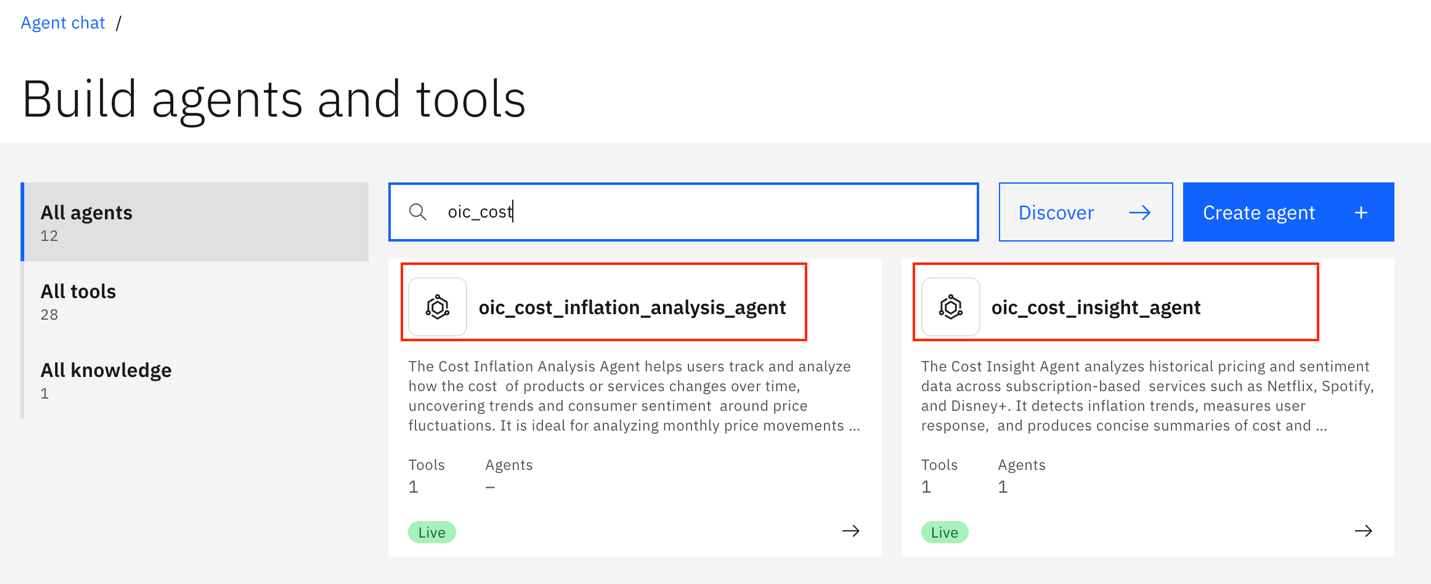
Next, test and validate the imported agents.
Review the configuration of the collaborator agent in the watsonx Orchestrate user interface.
a. Click oic_cost_inflation_analysis_agent in the Agent Catalog.
b. Validate each section of the agent. You can update or modify the agent instructions as needed.
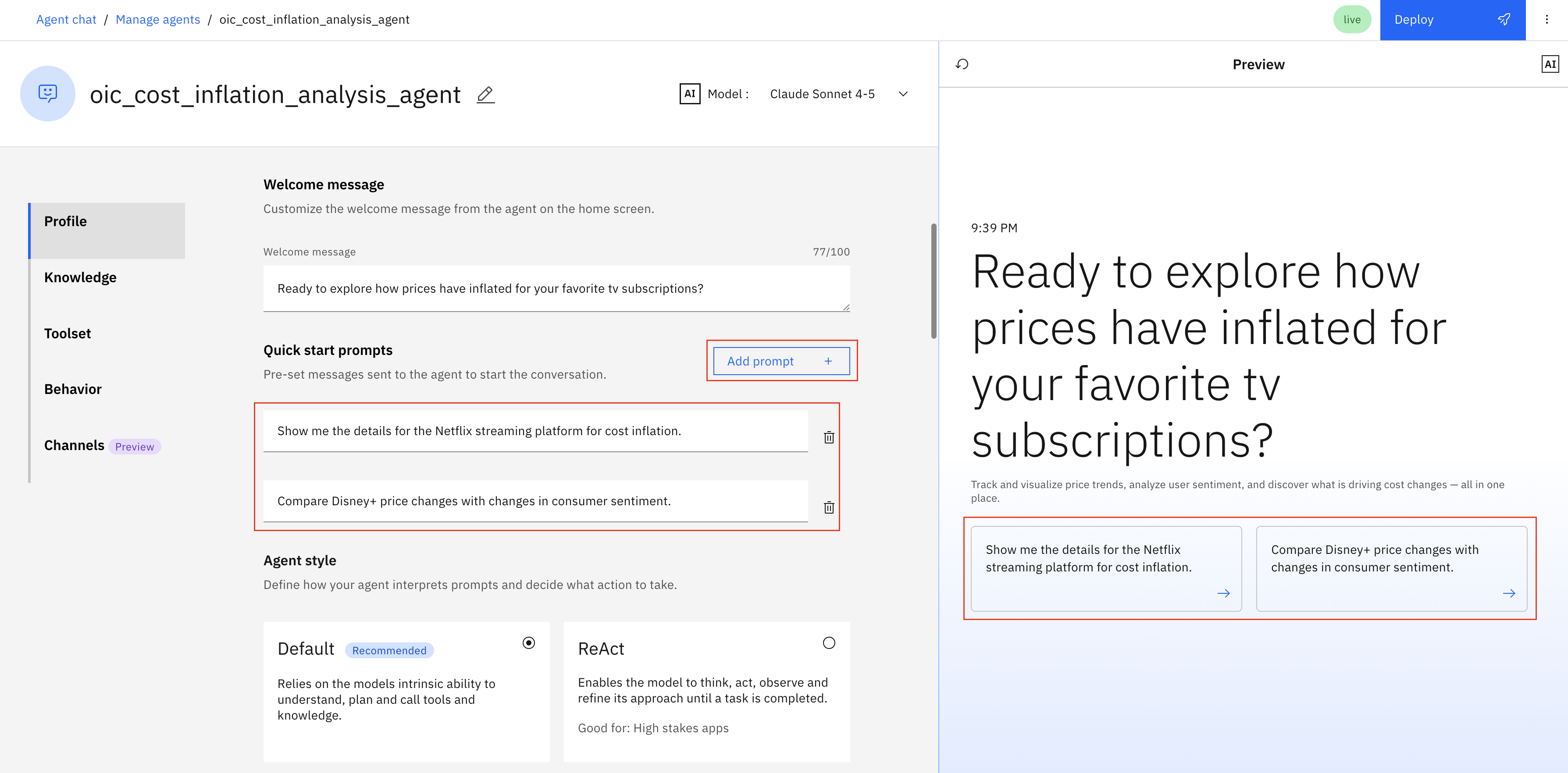
c. Add the following Quick Starter prompts:
Show the price history for Netflix, Disney+, and HBO subscriptions.
Compare Disney+ price changes with changes in consumer sentiment.
d. On the right-side panel, you can view the changes that are shown in the starter instructions.
e. Validate that the model selected at the top of the page is Claude Sonnet 4-5, which you imported in the previous steps.
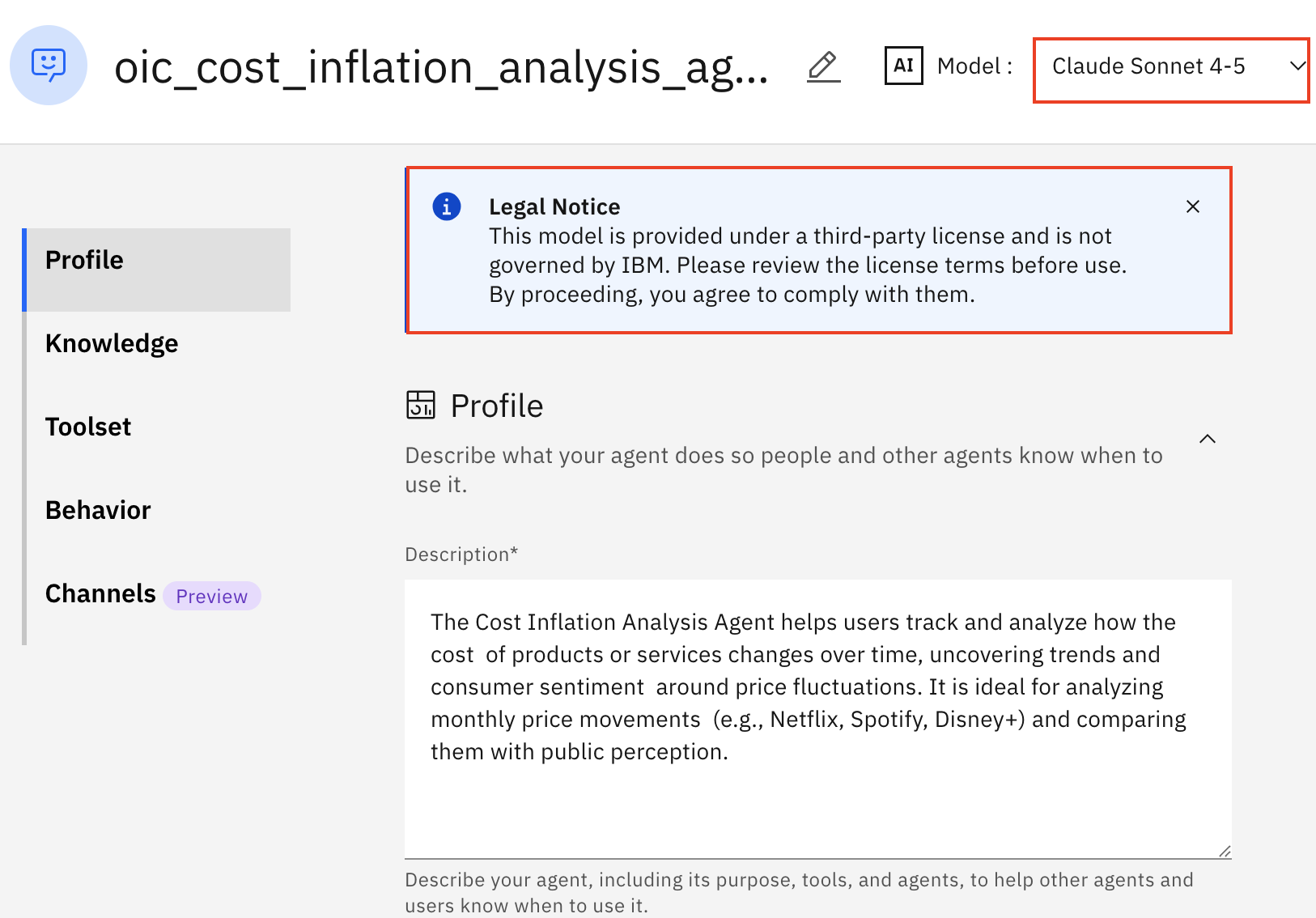
Note: A legal statutory notice about the usage of third-party LLMs is shown. No action is required because this notice is only for your information.
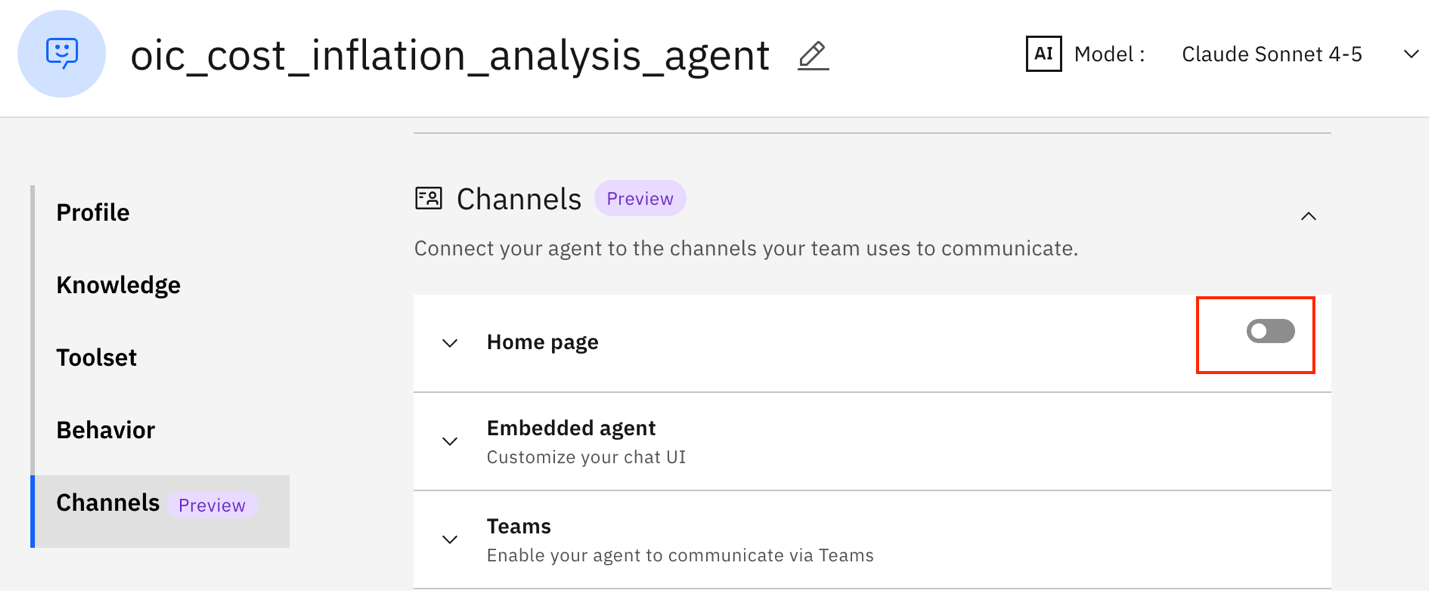
f. Scroll down to the Channels section and toggle the Home Page option to Off. This agent functions as a collaborator agent and should not appear in the chat interface.
g. Test the agent by entering the instruction, Compare Disney+ price changes with changes in consumer sentiment, in the chat window.
h. Review the response generated by the agent. After verification, click Deploy.

Review the configuration of the supervisor agent in the watsonx Orchestrate user interface.
a. Search for the oic_cost_insight_agent supervisor agent in the Agent Catalog (Manage Agents → Search). Click the agent entry to open it in the Agent Builder.
b. Update the configuration to use the model deployed on Groq for inference.
i. Validate the AI Model field. It should display Groq OpenAPI GPT OSS 120B in the menu. This model will be used for inference for all incoming conversations.
ii. Scroll down to the Toolset section. You should see the oic_granite_summary_tool mapped as a tool and the oic_cost_inflation_analysis_agent mapped as a collaborator for this agent.
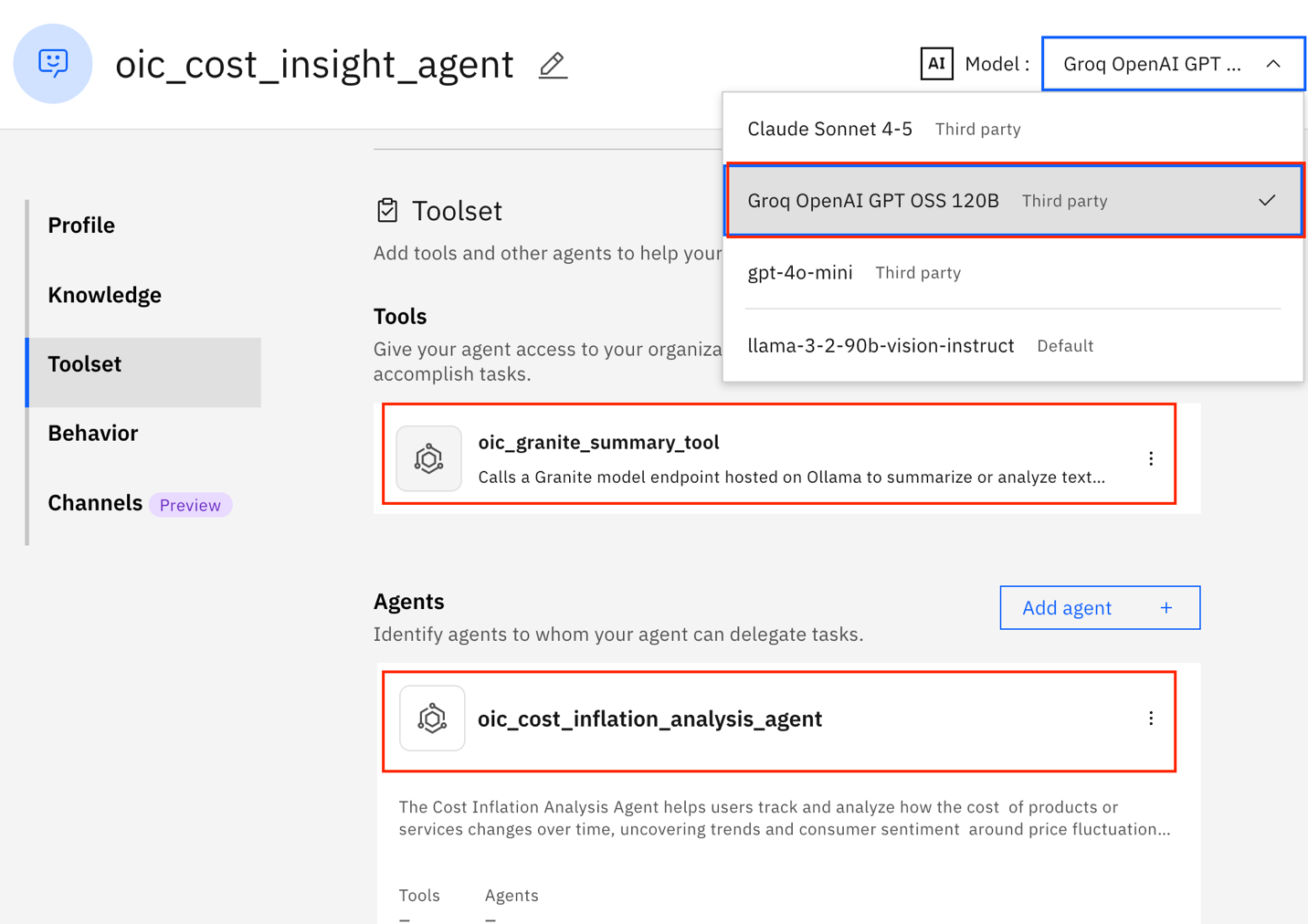
iii. Update the starter prompts. These prompts will be used for the final testing of the agent.
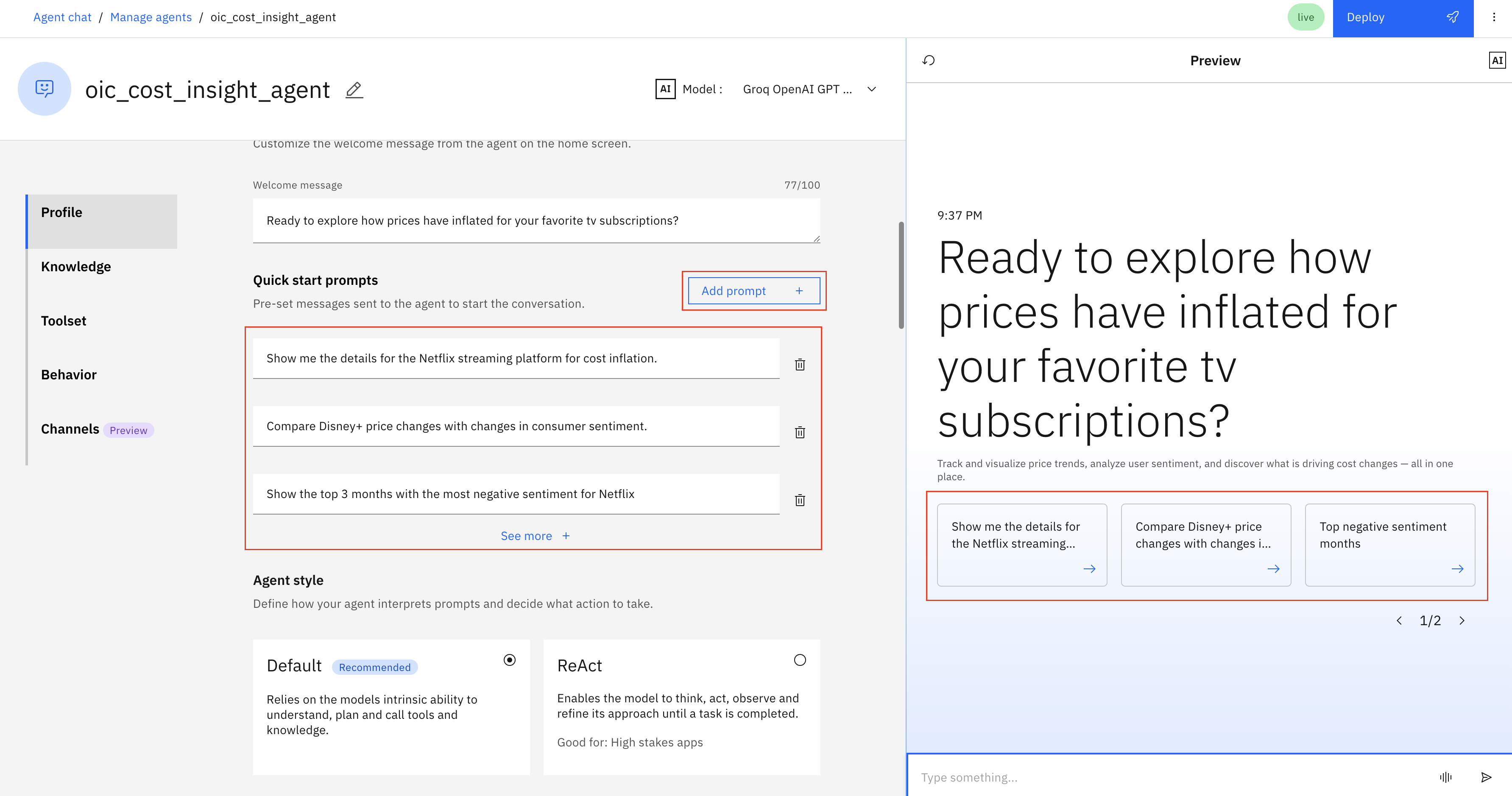
iv. In the Channels section, ensure that the Home Screen option is enabled. This setting makes the agent visible on the landing screen in the agent selection list.
v. If you make any configuration changes, deploy the agent. Then, go to the chat interface, select the agent from the list, and the chat interface should appear.

Step 6. Validate all components in watsonx Orchestrate
Validate the oic_cost_insight_agent supervisor agent to confirm that all components of the end-to-end orchestration execute as expected. You will test how multiple AI models collaborate to deliver actionable insights.
Run test queries
In the chat interface, enter the following test queries in the conversation pane:
- What is the net increase in price for the streaming platforms?
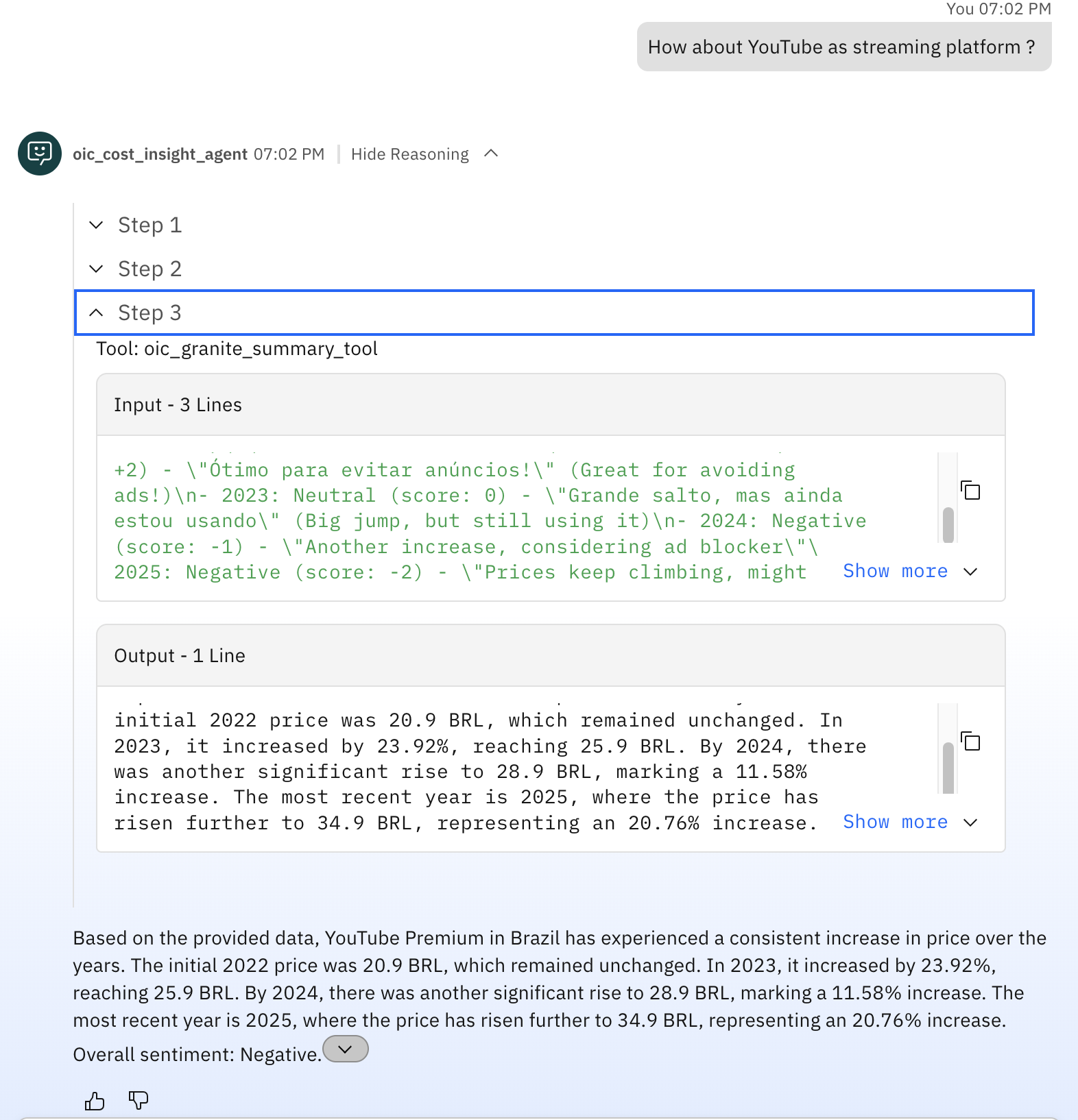
- What is the net price change for youtube as a streaming platform?
- What are the customer sentiments for Netflix and Disney+?
Review the detailed, step-by-step reasoning chain for the query What is the net increase in price for the streaming platforms? to understand how the system processes the request and generates the final response.
a. In the first step, the oic_cost_insight_agent supervisor agent routes the query to its oic_cost_inflation_analysis_agent collaborator agent.
Note: For this query, the agent uses the GPT OSS 120B (via Groq) model to perform deep reasoning and cost-impact analysis. This large-scale model identifies pricing patterns, computes changes across streaming platforms, and generates actionable insights from both structured and unstructured data.
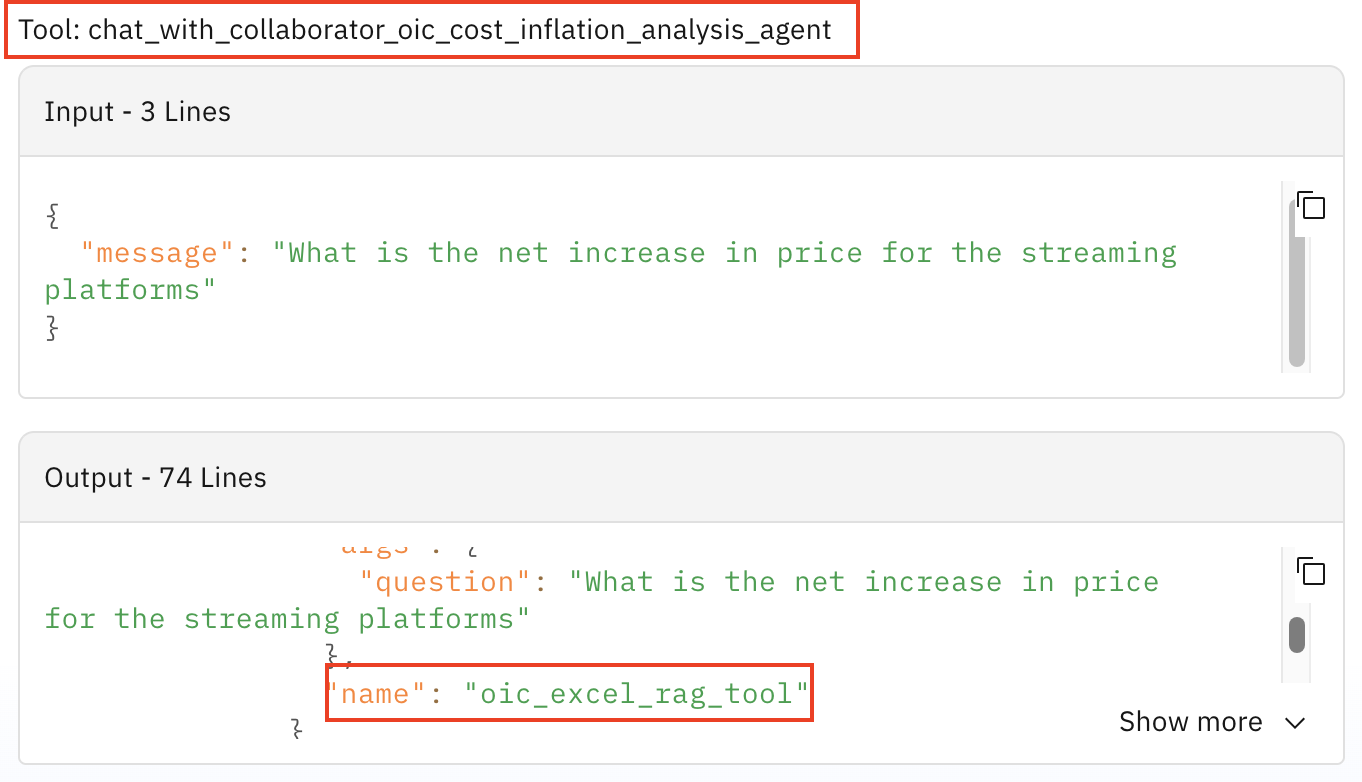
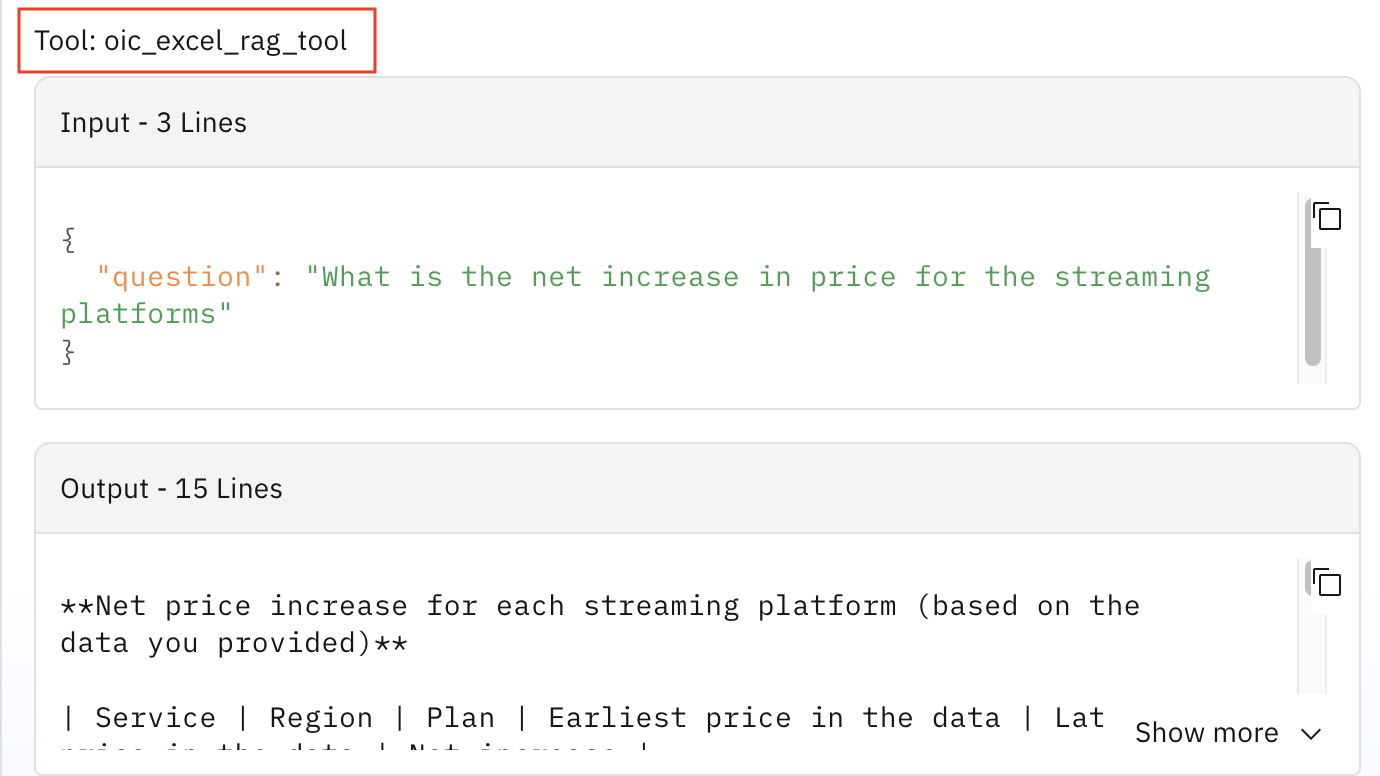
b. In the next step, the oic_cost_inflation_analysis_agent collaborator agent evaluates the tools that are required to process the query. The agent then calls the oic_excel_rag_tool to access the knowledge base, perform reasoning, and generate a detailed response.
Note: The Anthropic Claude Sonnet 4-5 (claude-sonnet-4-5-20250929) model contributes to context comprehension and natural language refinement. For this query, the collaborator agent reuses the response from the initial reasoning step instead of making a new reasoning call. This approach improves processing efficiency and reduces unnecessary model invocations.
c. In the final step, the oic_cost_insight_agent supervisor agent receives the completed response from the oic_cost_inflation_analysis_agent collaborator agent. The supervisor agent then calls the oic_granite_summary_tool to generate a summarized output. These steps are defined in the agent’s behavior and can be customized as needed.
Note: The Granite 4.0 Nano model performs both summarization and sentiment analysis. It condenses complex reasoning outputs into clear, concise summaries and interprets tone, emotion, and user intent in customer feedback, while maintaining high processing speed and cost efficiency.
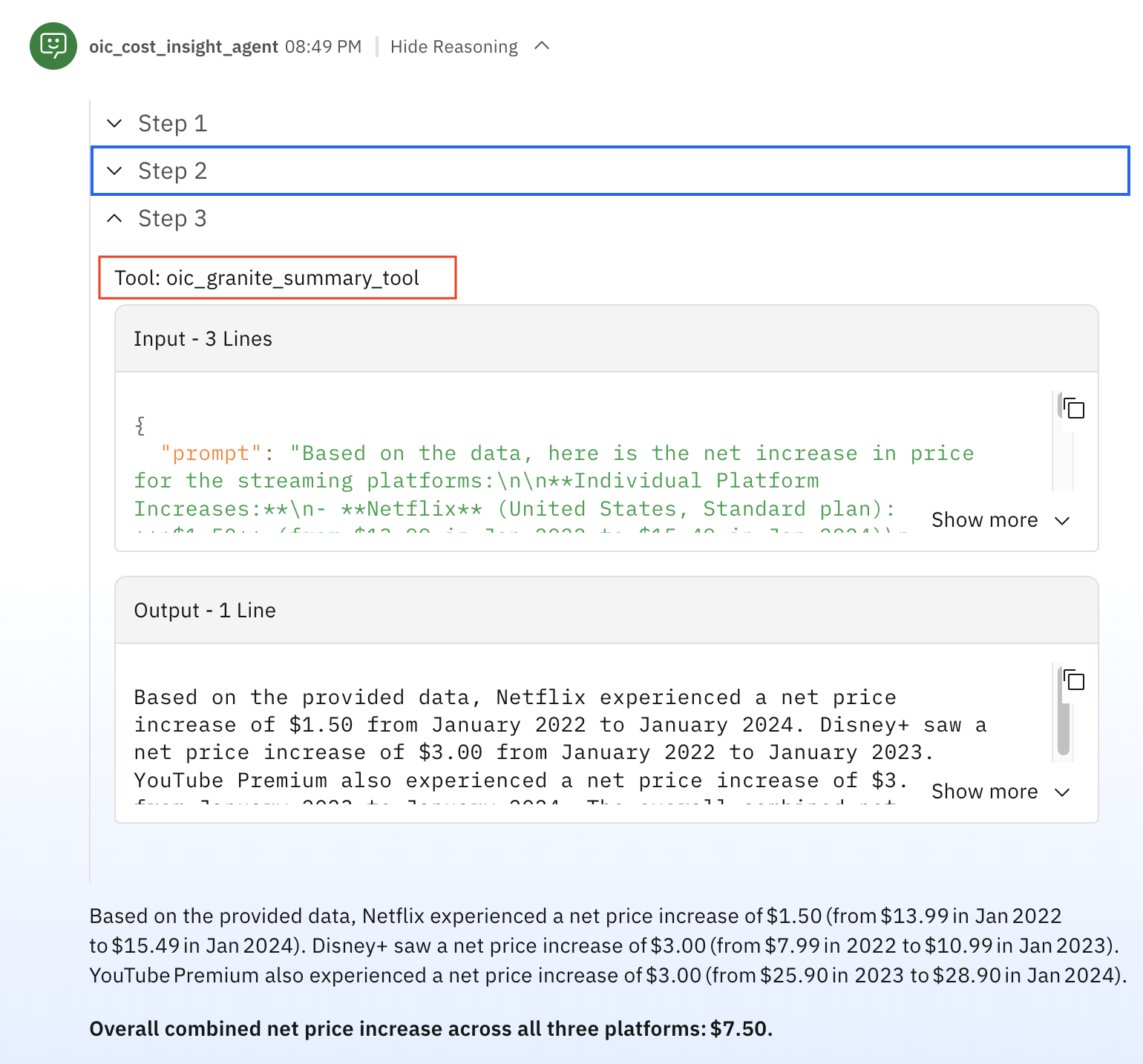
Note: The oic_granite_summary_tool summarization tool uses the Granite 4.0 Nano model to interpret and summarize customer sentiments in multiple languages. The tool provides a balanced and language-agnostic evaluation of customer feedback. The original dataset contains comments in multiple languages, and the tool automatically handles this multilingual data.

Summary and next steps
In this tutorial, you created a multi-agent system that demonstrates how combining the GPT OSS 120B model running on Groq LPU infrastructure with the Claude Sonnet 4-5 model delivers powerful intelligent workflows. The Granite 4.0 Nano model complements these models by summarizing outputs and generating clear, actionable insights.
Together, these models illustrate the synergy between high-speed inference, advanced reasoning, and collaborative agent workflows in an agentic AI system.
As you move forward, consider checking the other published tutorials on watsonx Orchestrate.
Acknowledgments
This tutorial was produced as part of the IBM Open Innovation Community initiative: Agentic AI (AI for Developers and Ecosystem).
The authors deeply appreciate the support of Gabe Goodhart, Eric Marcoux, Naveen Narayan, Ranjan Jena, Sagar N, Moises Dominguez, and Bindu Umesh for reviewing and contributing to this tutorial.