
About cookies on this site Our websites require some cookies to function properly (required). In addition, other cookies may be used with your consent to analyze site usage, improve the user experience and for advertising. For more information, please review your options. By visiting our website, you agree to our processing of information as described in IBM’sprivacy statement. To provide a smooth navigation, your cookie preferences will be shared across the IBM web domains listed here.
Tutorial
Analyze legal documents without building a complex RAG pipeline
Build a contract research agent in watsonx Orchestrate to research contracts stored in Box using Box AI's MCP Server
On this page
Previously, to use LLMs to review contracts, you had to set up a RAG workflow to parse documents, chunk pages into passages, vectorize passages into a vector database, and then integrate that RAG workflow into a query pipeline.
Now, with BOX AI’s MCP Server that provides over 25 MCP tools, you can simply upload your documents into Box to initiate automated processing, and then query against your documents. No RAG pipeline is necessary. Then, if you connect that MCP server into watsonx Orchestrate, you can quickly build an agentic contract research assistant to easily search contracts and extract useful metadata.
In this tutorial, you learn how to set up BOX AI’s MCP Server and create4 that Contract Research agent.
Architecture
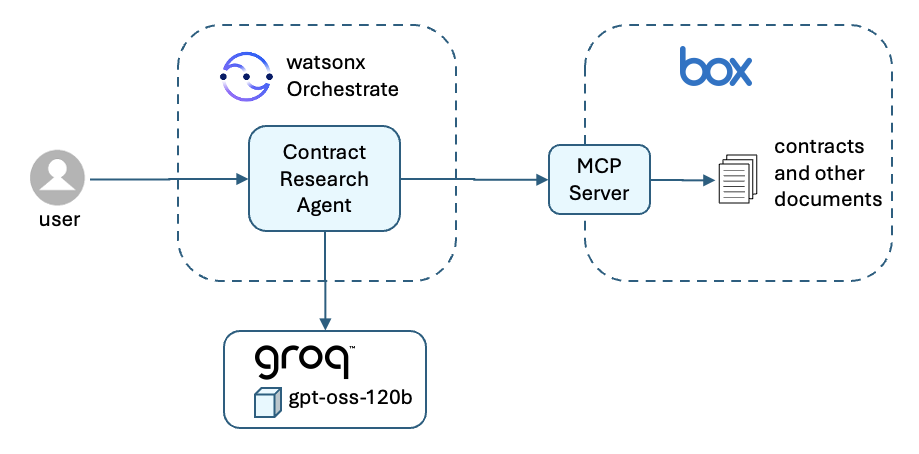
Here's a simplified architecture of the solution that you will build during this tutorial.
Prerequisites
Admin or developer access to a Box instance. Sign up at Box's developer site.
A watsonx Orchestrate instance. Sign up for a free trial version of watsonx Orchestrate.
A dataset of contracts or other documents. Download the CUAD dataset on Hugging Face if you need a comprehensive dataset.
Steps
- Upload your contracts to Box
- Obtain OAuth 2.0 access credentials for your Box instance
- Create the MCP server connection between Box and watsonx Orchestrate
- Create your agent in watsonx Orchestrate
- Deploy and test your agent
Rather than provide dozens of screenshots throughout this tutorial, I've captured the most complex steps of configuring and using Box and watsonx Orchestrate as a set of video walkthroughs.
Step 1. Upload your contracts to BOX
For this tutorial, you will use the Contract Understanding Atticus Dataset (CUAD) of 510 commercial legal contracts which can be downloaded from the Hugging Face CUAD dataset. The CUAD dataset provides a sufficiently complex dataset to tests the capabilities of both the watsonx Orchestrate agent plus the Box AI MCP server.
Upload this CUAD dataset to your BOX account.
Here are some of the questions we will ask our contract research agent:
- How many contracts are in each legal category?
- Which companies have reseller agreements?
- What is the date of the most recent distributor agreement and who are the parties involved?
- In the Allied eSports license agreement, what are the annual minimum guaranteed payments required from Zynga?
- Summarize the Joint Venture agreement with Accelerated Technologies.
- For the Dragon Systems outsourcing agreement, what are the payment terms and who from Dragon Systems agreed to it.
If you use your own dataset of contracts or other documents, you’ll need to upload those documents to BOX and use similar questions to these ones.
Step 2. Obtain your Box access credentials
To configure the Box AI MCP Server in watsonx Orchestrate, you must first create a Box platform app with OAuth 2.0 user authentication, obtain the associated client_id and client_secret, and set this redirect URL for the IBM Cloud zone in the US South. If you are hosting in a different IBM Cloud zone, then update the "us-south" part of the following URL with your own zone:
IBM Cloud (us-south): `https://us-south.watson-orchestrate.cloud.ibm.com/mfe_connectors/api/v1/agentic/oauth/_callback`
During the OAuth 2.0 user authorization process, watsonx Orchestrate opens a browser window and sends the user to Box's authorization endpoint. This redirect URL is used by Box's authorization server to call back to watsonx Orchestrate with an authorization code. You will learn more about this process in the next step, when creating the connection to Box's MCP server.
Video 1: Configure your Box platform app.
Step 3. Create an MCP server connection
Watsonx Orchestrate uses connections to manage the credentials and configuration for connecting to data and compute sources. Connections can be created using either Team or Member credentials. Team credentials are set once for everyone while Member credentials are set individually when users login via a Chat window.
For the initial setup, Team credentials are often used for shared development and testing. Later, after testing is completed, you will switch to Member credentials so that users connecting to the agent will securely access only their own files stored on Box.
Use these URLs to configure your connection to Box:
Token URL:
https://www.box.com/api/oauth2/tokenAuthorization URL:
https://www.box.com/api/oauth2/authorize
In an OAuth 2.0 connection flow, the authorization URL and token URL represent the two distinct phases of granting and receiving access. The user is sent to Box's authorization URL in a browser window to get the user's permission to access their data. After the user authorizes Box to allow access to their data, Box's authorization server calls the redirect URL (defined in the earlier steep) with a temporary authorization code. Watsonx Orchestrate then sends this temporary authorization code plus your application's private credentials (client secret that you obtained earlier) to prove its identity to the token URL to exchange for an access token. Your agent then uses this access token when making tool calls against the Box AI MCP Server.
Video 2: Configure an OAuth2 connection between Box and watsonx Orchestrate.
Step 4. Create your agent in watsonx Orchestrate
Now that you have an authenticated connection between your Box MCP Server and watsonx Orchestrate, you can proceed to build your contract research agent. For this agent, we will only focus on these three configuration steps:
- Profile
- Behavior
- Toolkit
An agent's Profile is a high-level description of the agent, while its Behavior contains critical information that defines how your agent will respond to input and output. For example, how the contracts are organized in Box, guidance on responding to a user's request, and rules such avoiding hallucination and what to do if the user's request cannot be answered with the documents available.
Use the following text provided for copy-pasting into your Agent setup screens during the video walkthrough.
Agent Name:
Contract Research Agent
Profile description:
This agent researches and reviews contracts stored on Box.
Quick start prompts:
How many contracts are in each category?

Which companies have reseller agreements?

What is the date of the most recent distributor agreement and who are the parties involved?
Behavior:
contract organization:

- The commercial legal contracts are organized into folder by topic.
- Each contracts file names will contain useful information like dates and parties involved.
- Contract file names will show named parties and dates but do not assume the file names completely represent the content.
- File names may not directly correspond to the dates and parties involved in a contract so always read the contract contents for accurate party and date details.

responses:

- Respond with brief answers in natural language but use tables and other formatting techniques to best organize responses to questions.
- Always cite the document name in which information was found
- When possible, cite the section heading and page in which information used in generating the answer was found.

rules:

- Create a task list when considering how to answer each user question as answering questions will often require multiple calls to the same of different tools.
- Only respond with information provided within the contract. Do not fabricate any information.
- If the information required to answer any question cannot be found in the contract, reply with this fact and ask the question to be rephrased.And don't forget to import your toolkit. During Toolkit import workflow, you will need to enter the Box MCP server's endpoint: `https://mcp.box.com`.
As for which MCP tools to import, experiment to learn what's required to answer your own questions, however these are the recommended MCP tools to import:
- get_folder_details
- search_files_keyword
- get_file_content
- extract_structured_from_fields
- list_folder_content_by_folder_id
- get_file_details
- ai_qa_single_file
- ai_qa_multi_file
- ai_extract_freeform
Video 3: Build your agent in watsonx Orchestrate.
Step 5. Deploy and test your agent
Your Draft agent is now ready to deploy into Live production. When you do, you must remember to change your Live OAuth 2.0 connection credentials from Team to Member so that each user separately logs in and can view only their own documents.
You might have noticed that the CUAD dataset includes a ground truth of 13,000 labels against 41 types of legal clauses, which were manually identified by experienced lawyers. Now that your agent is complete, explore the dataset and investigate using this dataset for more complex queries.
Video 4: Deploy agent to production and test functionality.
Conclusion
In this tutorial, you learned how to build a fully operational Contract Research agent using watsonx Orchestrate, Model Context Protocol (MCP), and Box. Your agent can respond to natural-language requests by invoking MCP tools to research contracts (or any document) located on Box. By using watsonx Orchestrate as the agent orchestrator and connecting into Box's MCP Server, you now have a reusable architectural pattern so that you can integrate any MCP Server and build more advanced agents.
Next steps
For next steps, consider the complete range of questions that your customers can ask of their documents. Execute these requests to observe how the agent responds and then update the Behavior section of your agent to improve the accuracy of responses.
You can also research the range of open source MCP Servers, and then integrate these additional MCP Servers into watsonx Orchestrate to expand on your agent's available tools and the variety of tasks it can complete.
Learn more about using MCP and watsonx Orchestrate to create agentic AI solutions in this tutorial, “Connecting to MCP tools with watsonx Orchestrate.” And, if you're interested in IBM's new AI coding companion, IBM Bob, then explore this tutorial, "Using IBM Bob to build watsonx Orchestrate agents and MCP tools."