
About cookies on this site Our websites require some cookies to function properly (required). In addition, other cookies may be used with your consent to analyze site usage, improve the user experience and for advertising. For more information, please review your options. By visiting our website, you agree to our processing of information as described in IBM’sprivacy statement. To provide a smooth navigation, your cookie preferences will be shared across the IBM web domains listed here.
Tutorial
Configure custom alerts from Maximo Monitor to external systems
Integrate custom alerts in Maximo Monitor for seamless communication with external systems
Maximo Monitor is a robust asset management monitoring tool designed to provide a comprehensive solution for monitoring various business processes. However, there are instances where extending its capabilities to integrate with other systems becomes necessary. In this tutorial, we'll explore how to create a custom function in Maximo Monitor that sends alerts to external systems using REST calls.
This custom function enables organizations to configure high or low alerts and URLs to external systems, allowing them to receive notifications when alerts are generated in Maximo Monitor. Such integration proves particularly beneficial when external systems need to respond to the alerts generated in Maximo Monitor. For example, organizations using ServiceNow for incident management can configure the custom function to send alerts to ServiceNow, subsequently triggering the appropriate incident management processes.
Prerequisites
To follow this tutorial, you need:
- Python 3.9.x installation
- A GitHub account and familiarity with GitHub's interface for repository management.
- Access to a Maximo Monitor instance where you intend to configure and deploy the custom function.
Step 1. Clone the custom function to your system
Begin by creating an empty directory on GitHub. This directory will serve as the repository for storing the custom function, which you will clone in the following steps. Ensure you push this directory to GitHub, as it will be used to install the custom function in Maximo Monitor.
Next, clone the
maximodirectory from the GitHub repository into a folder on your local machine by using the following command:git clone https://github.com/ibm-build-lab/maximo.git- Make a copy of the
masmonitor-external-notificationdirectory from the clonedmaximodirectory to the newly created GitHub directory. This directory will contain the custom function that you'll be working with.
Step 2. Update the Credentials file
The Credentials file serves as the configuration where you need to input all the required details and API keys for connecting to the database and IoT application.
Contact your administrator to get the necessary database credentials. These credentials will be used to establish a connection to the database.
Get the IoT
apiKeyandapiToken. For instructions, see IBM Maximo Application Suite APIs. These keys are required to connect to the IoT application.If your instance uses a self-signed certificate, get the certificate file for both DB2 and IoT connections. Refer to the Credentials file for detailed instructions.
After the credentials are updated, push the code to your GitHub repository. However, exercise caution not to include the credentials file when pushing to GitHub to maintain security.
Step 3. Test and register the custom function
To test and register the function, use the Maximo custom function Notebook available in the provided directory. The Jupyter notebook contains code designed for testing, registering, and unregistering the function.
Execute the code within the notebook to test the functionality of the custom function. Ensure that it generates the desired output as per your requirements.
After the function produces the desired output, proceed to register it. This step allows you to integrate the custom function into Maximo Monitor.
After successful registration, you can use the custom function within Maximo Monitor, leveraging its capabilities to enhance your monitoring processes effectively.
Step 4. Configure the custom function in Maximo Monitor
After the custom function is successfully registered, follow the steps below to integrate it into Maximo Monitor:
Access your Maximo Monitor instance.
From the left navigation menu, click on the
Monitormenu option.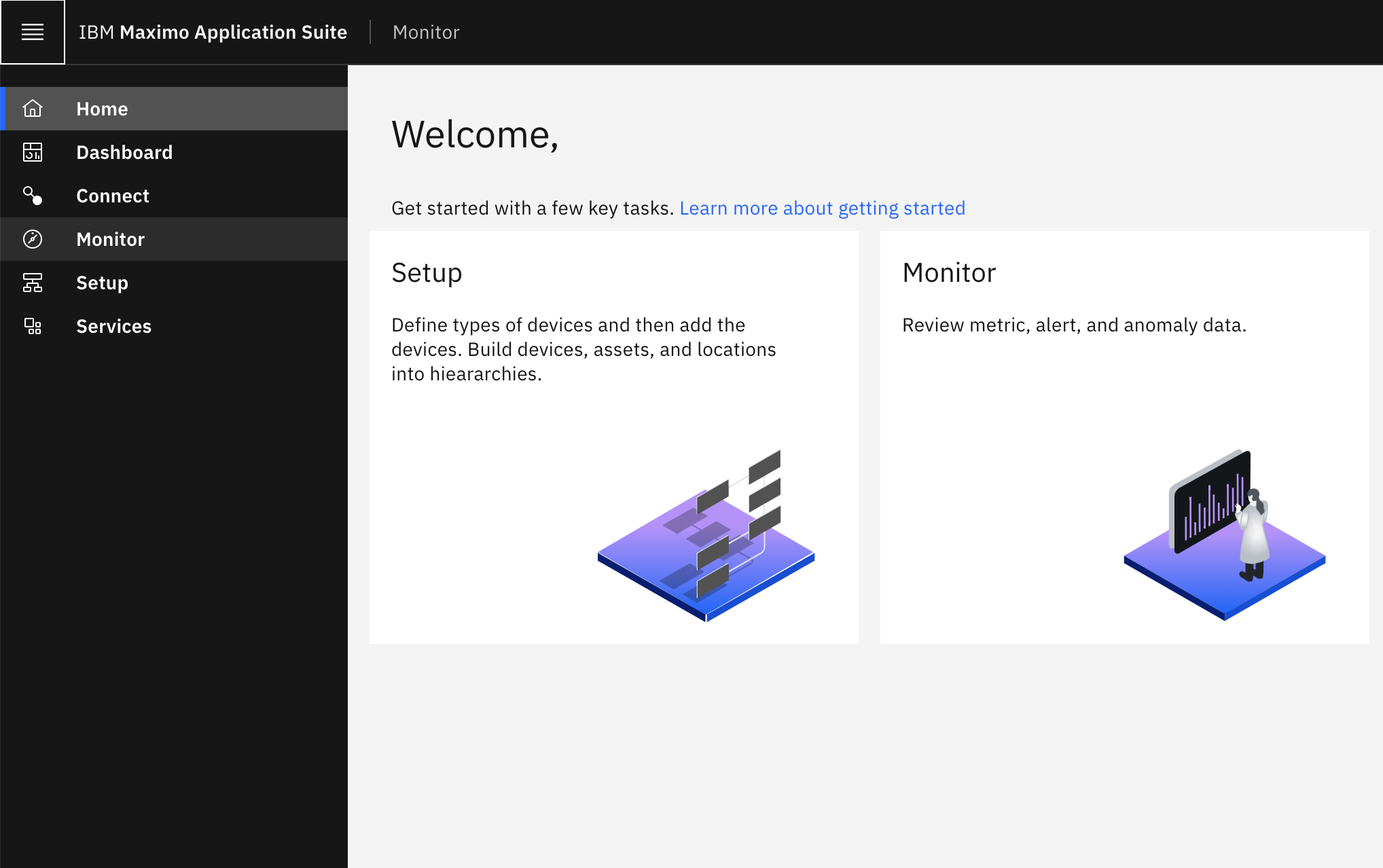
In the Monitor interface, navigate to the
Devicestab and choose the specific devices to which you want to add the custom function.Click on the
Setupbutton located at the top-right corner. You will be redirected you to the setup screen corresponding to the device type you selected.
Within the setup screen, click on
Create metricspecifically for Batch data metric (calculated).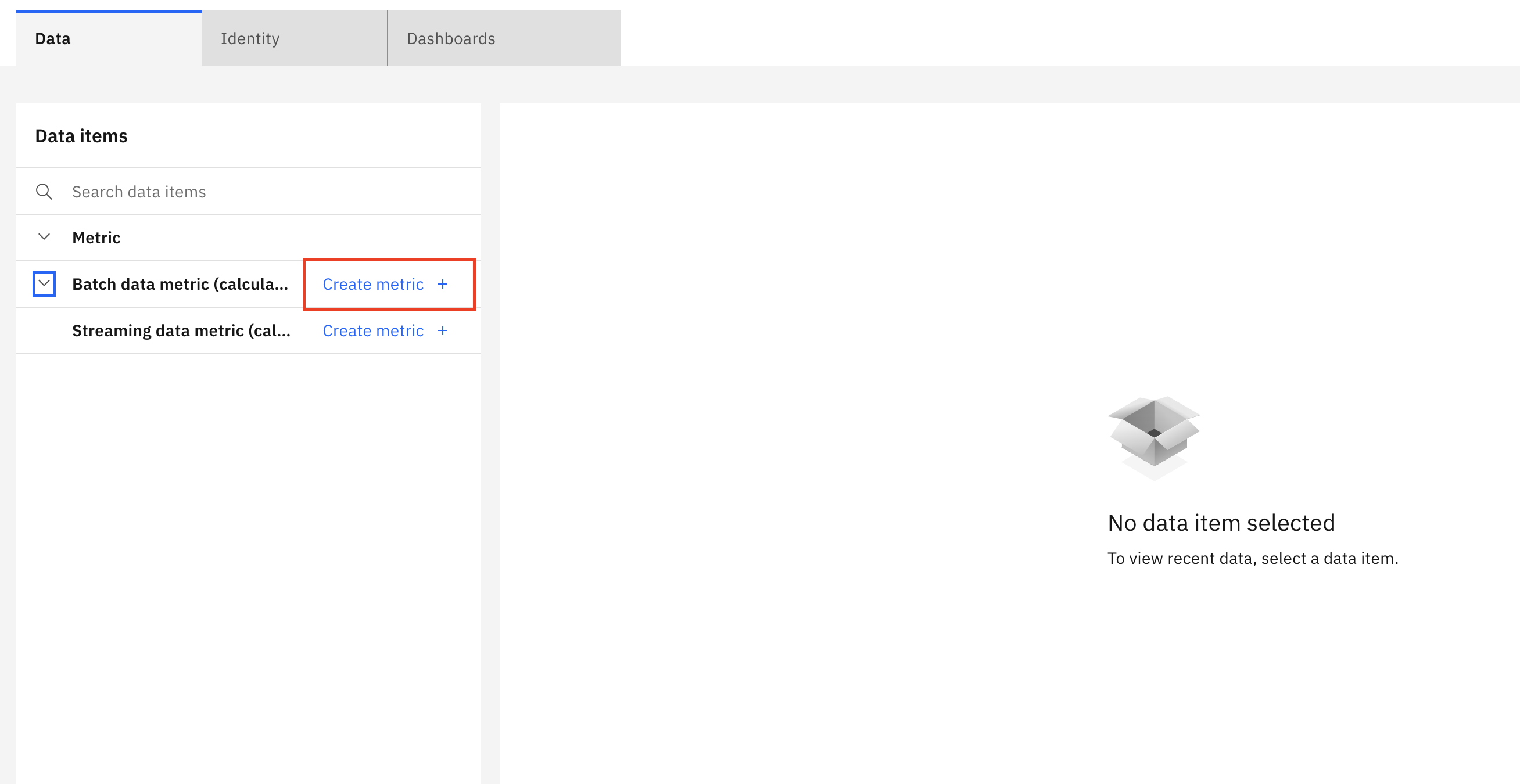
A dialog box containing the in-built functions will appear. Search for
SendNotificationto locate the registered custom function. Select the function and clickSelectto proceed.
In the function configuration screen, specify the desired scope of the function. By default, it is set to apply to all devices of the selected type. Proceed by clicking
Next.In this configuration screen, specify the following parameters. Then, click
Nextto proceed.input_item: Name of the metric on which the function must operate.high: The upper threshold value for which an alert should be generated.low: The lower threshold value for which an alert should be generated.Note: You must set a value for either the high or low alert value; having both will be considered a high alert.
owner: Name of the user to whom the alert should be assigned in the external system.url: The URL of the external system where the REST call will be made.headers(optional): This parameter consists of optional key-value pairs in JSON format. It is used if the external system requires authentication.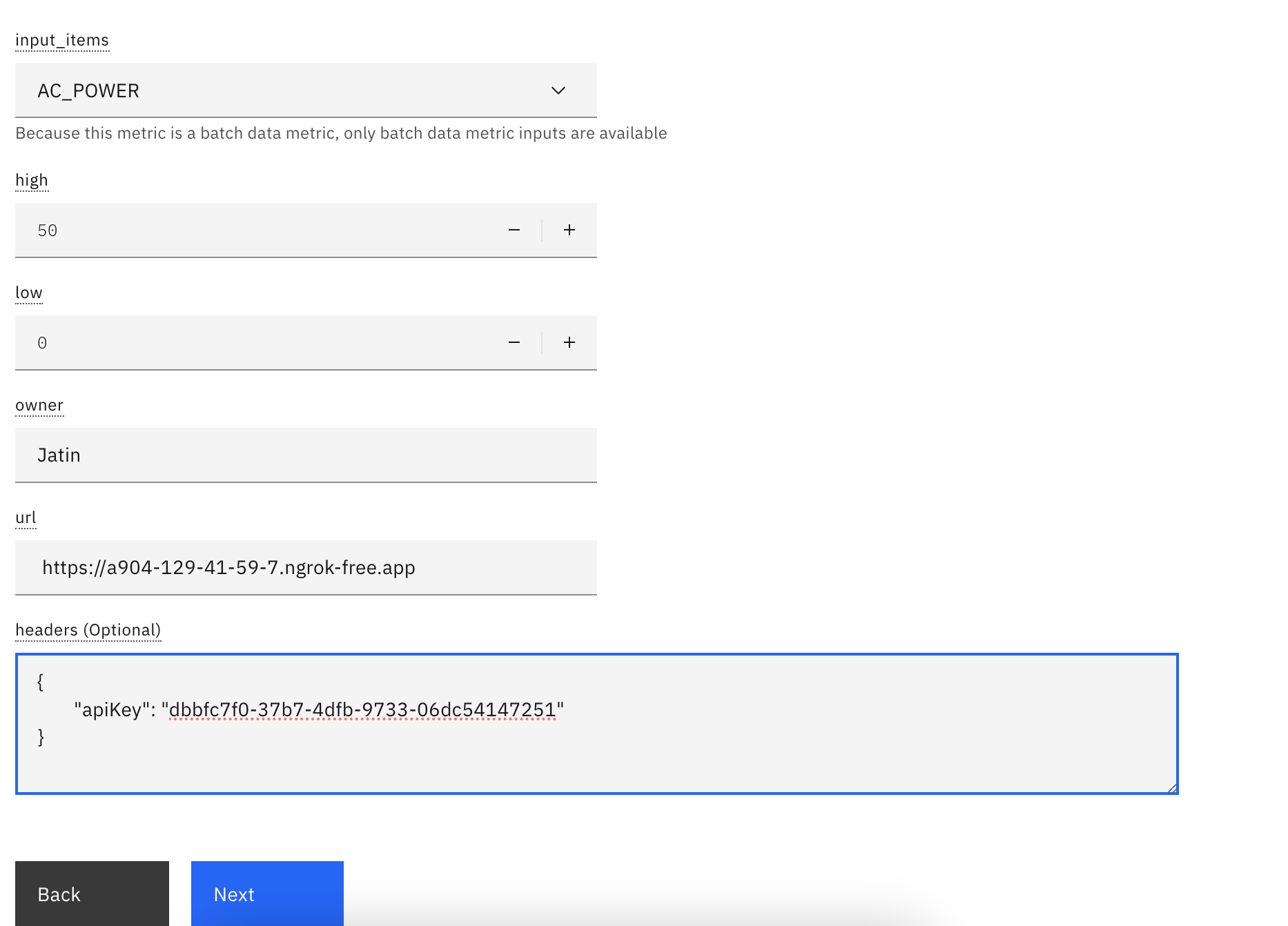
Specify a name for the alert and click
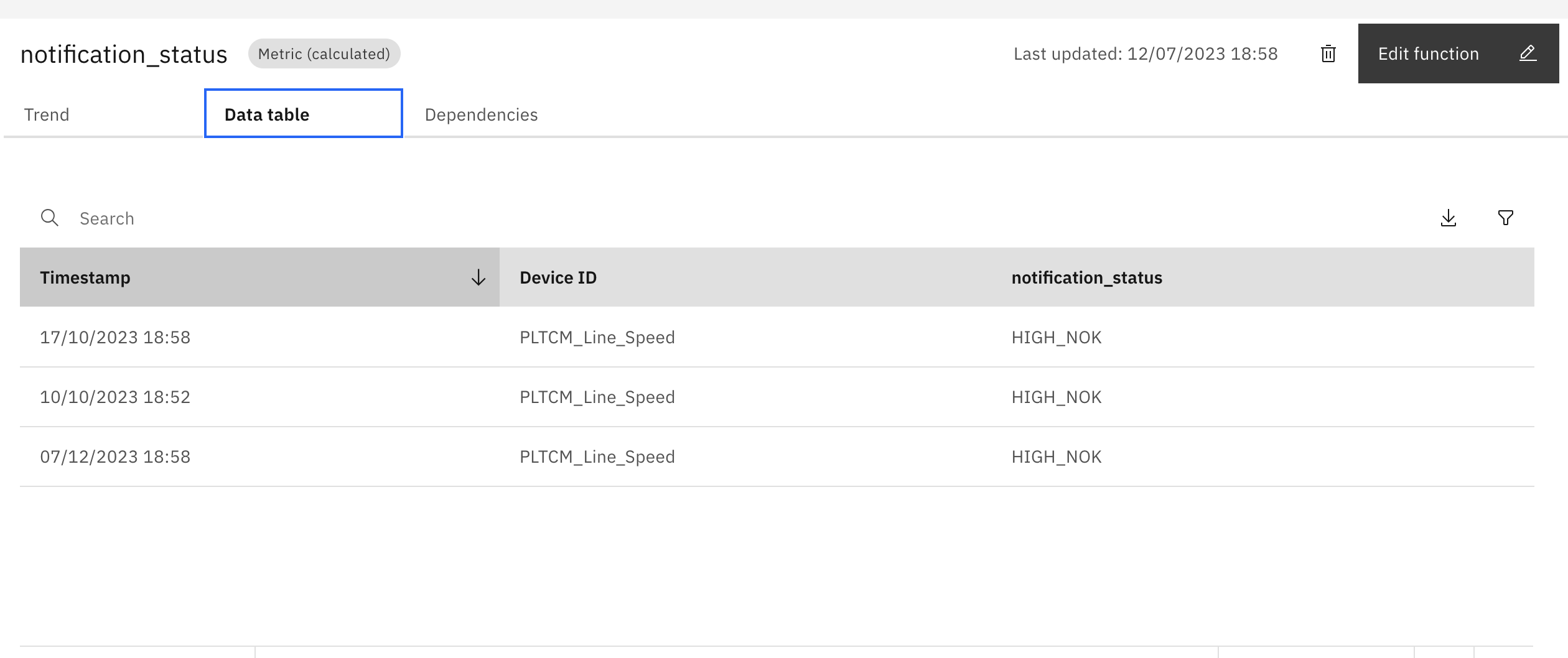
Createbutton to complete the configuration process.Allow approximately 5 minutes for the job to run and generate an output.
To view the output, navigate back to the setup screen and click on
Batch data metric (calculated). Locate and click on the specific alert you have created to view its details and results.
Summary
This tutorial outlined the process of extending the capabilities of Maximo Monitor, an asset management monitoring tool, through the integration of custom functions that send alerts to external systems via REST calls. By configuring these custom functions, organizations can seamlessly receive notifications in external systems when alerts are generated within Maximo Monitor, enhancing overall operational efficiency. From cloning the custom function to updating credentials and configuring parameters within Maximo Monitor, the tutorial provided a comprehensive guide for seamless integration.