
About cookies on this site Our websites require some cookies to function properly (required). In addition, other cookies may be used with your consent to analyze site usage, improve the user experience and for advertising. For more information, please review your options. By visiting our website, you agree to our processing of information as described in IBM’sprivacy statement. To provide a smooth navigation, your cookie preferences will be shared across the IBM web domains listed here.
Tutorial
Build Linux distribution as a Microsoft Windows screen saver
Generate marketing novelties with your brand logo
Introduction
This tutorial describes how to build Linux distributions as screen savers for Microsoft Windows, with your choice of boot screen and wallpaper. The intent of this tutorial is to construct items containing your logos which can be distributed as marketing novelties. Most businesses have controls as to when their logos can be used, so be sure to get the permission you need.
All required software and data are available as open source resources and is accessible on the public internet.
Prerequisites
Make sure that the following prerequisites are fulfilled before you start building Linux distributions as screen savers for Microsoft Windows:
Hardware: A PC running Microsoft Windows 10 or a later version, which is capable of running Windows Subsystem for Linux 2 (WSL2). WSL2 runs only on some CPUs and requires a BIOS setting to enable virtualization.
Internet: An internet connection with the need to download up to 10 GB of data in all cases, and up to 100 GB of data if you choose to download all the source code.
Editor: Inkscape (an open source item available for Linux, Apple Mac, and Microsoft Windows) or commercial products such as the ones sold by Adobe to edit the required Scalable Vector Graphic (SVG) files.
For the purpose of this tutorial, I have set up a screen saver with a Debian logo. For details, refer https://www.debian.org/logos/ . Also, refer to a video from the screen saver kicking in to the point where you can watch the kstars at: https://www.youtube.com/watch?v=J7Jc7uPmLx8
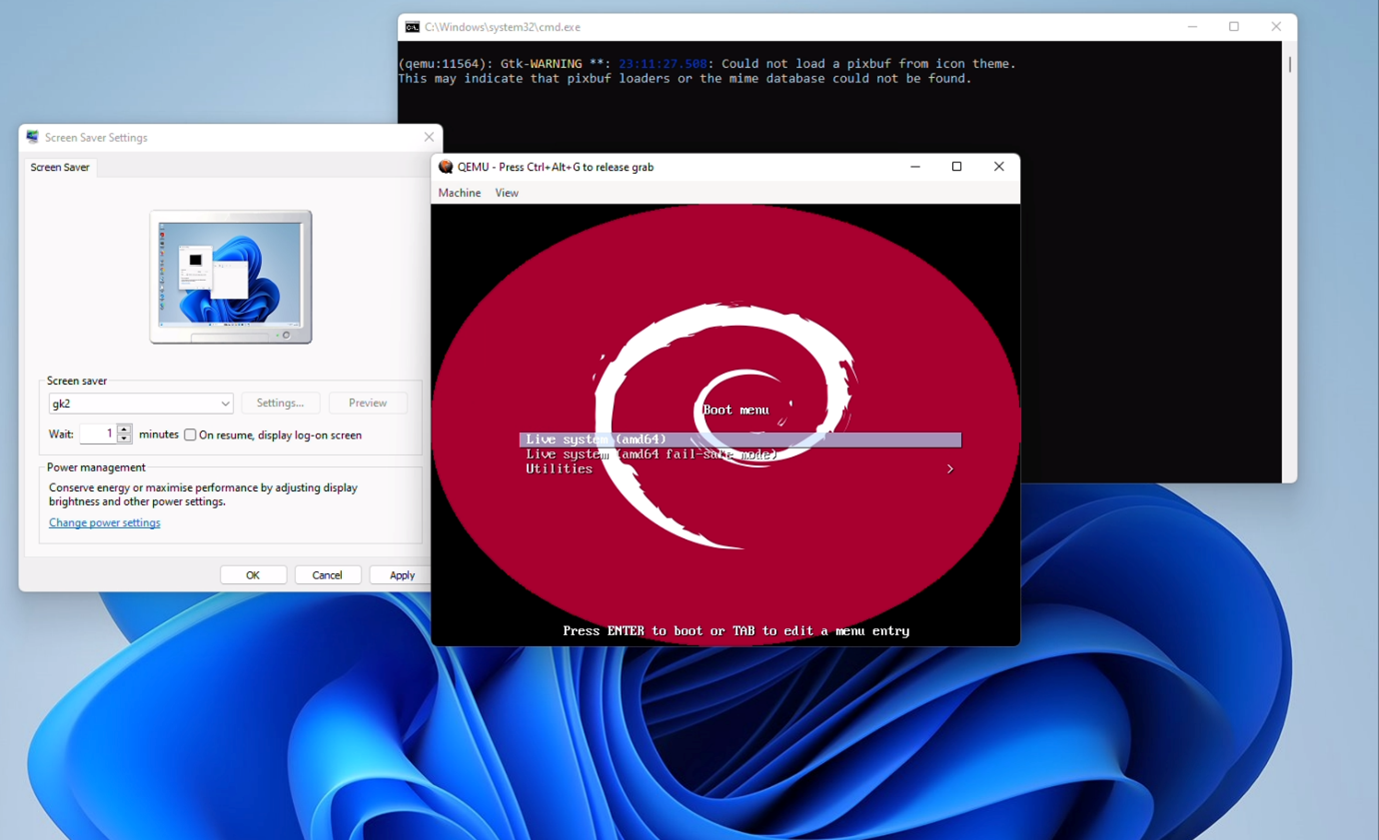
Build Linux as Windows screen saver
Perform the following steps to build Linux distribution as a Microsoft Windows screen saver:
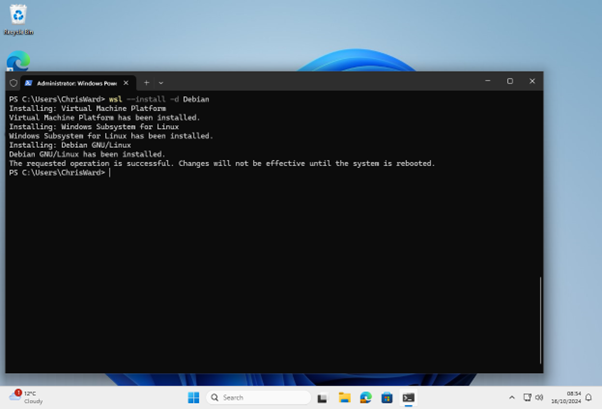
Install WSL2 with Debian.
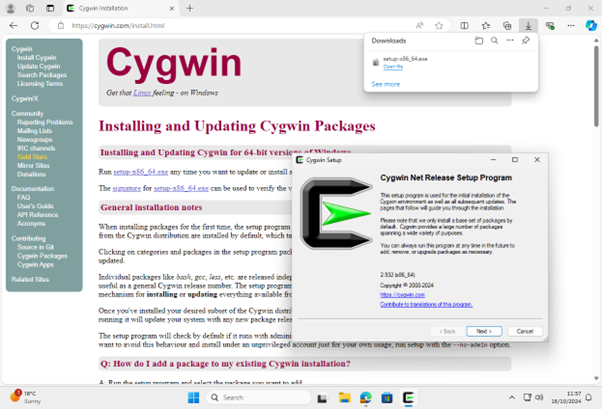
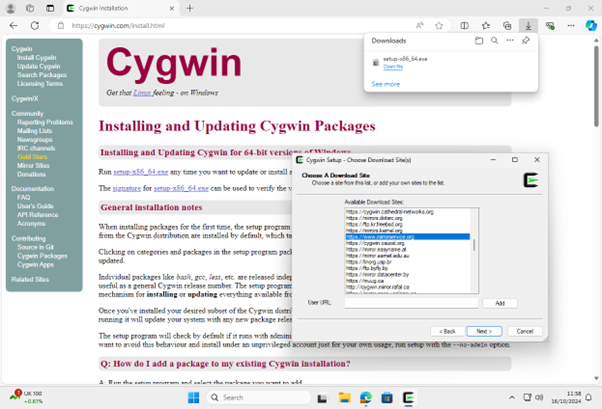
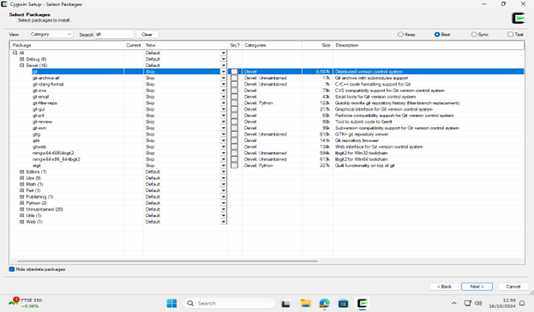
Install Cygwin from https://cygwin.com/ with git.
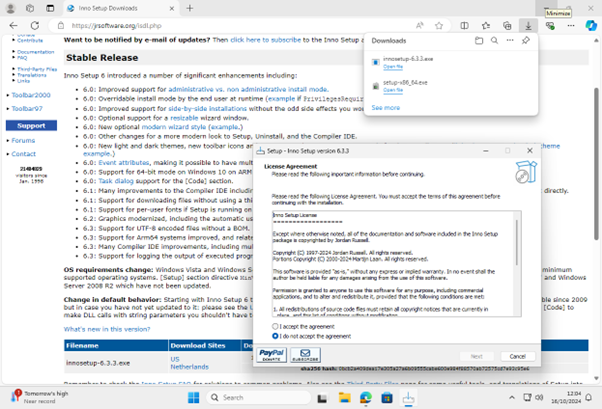
Install Inno Setup from https://jrsoftware.org/isinfo.php.
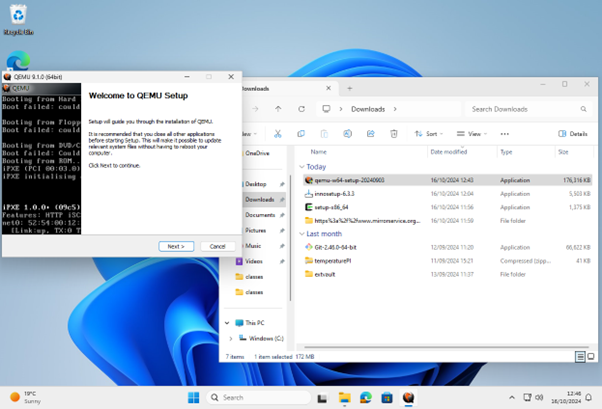
Install QEMU for Windows from https://qemu.weilnetz.de/w64/.
Clone my repository https://github.com/tjcw/screensavers.git under cygwin.
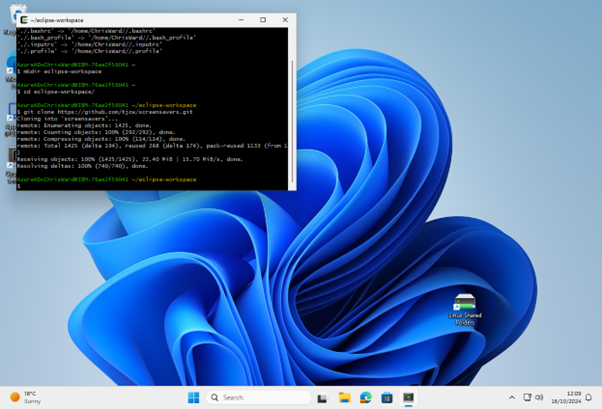
Clone the https://github.com/tjcw/screensavers.git repository under WSL2 into the ~/eclipse-workspace/ directory.
$ mkdir ~/eclipse-workspace;cd ~/eclipse-workspace; git clone https://github.com/tjcw/screensavers.gitInstall
live-buildunder WSL2.$ sudo apt install live-build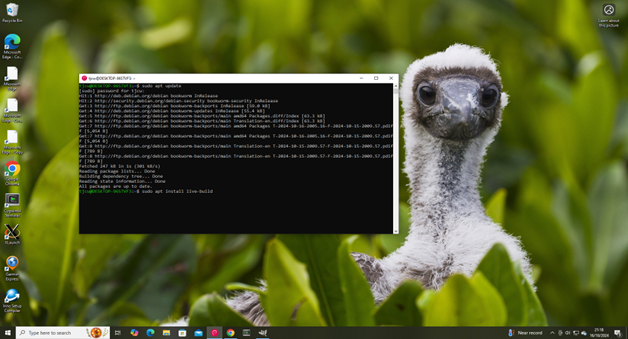
tjcw@DESKTOP-96STVF3 ~ $ cd eclipse-workspace/ tjcw@DESKTOP-96STVF3 ~/eclipse-workspace $ cd screensavers/ tjcw@DESKTOP-96STVF3 ~/eclipse-workspace/screensavers $ cd packaging/ tjcw@DESKTOP-96STVF3 ~/eclipse-workspace/screensavers/packaging $ mkdir qemu tjcw@DESKTOP-96STVF3 ~/eclipse-workspace/screensavers/packaging $ cp -r "/cygdrive/c/Program Files/qemu/." qemu tjcw@DESKTOP-96STVF3 ~/eclipse-workspace/screensavers/packaging $ ./package-qemu-open.sh >fr2-open.iss tjcw@DESKTOP-96STVF3 ~/eclipse-workspace/screensavers/packaging $Customize the selection of software to go in the isos (WSL2 commands). There are approximately 65000 packages available in Debian Linux. I chose a few thousand packages for each of the two screensavers, one with an educational theme and one with an open source games theme.
tjcw@DESKTOP-96STVF3:~/lb$ vi ~/eclipse-workspace/screensavers/lb-package-lists/freeduc-bookworm.list.chroot tjcw@DESKTOP-96STVF3:~/lb$ vi ~/eclipse-workspace/screensavers/lb-package-lists/gk-bookworm.list.chrootInstall an SVG editor (here Inkscape from the Microsoft Store) and edit the SVG files you want to use for boot splash and wallpaper.
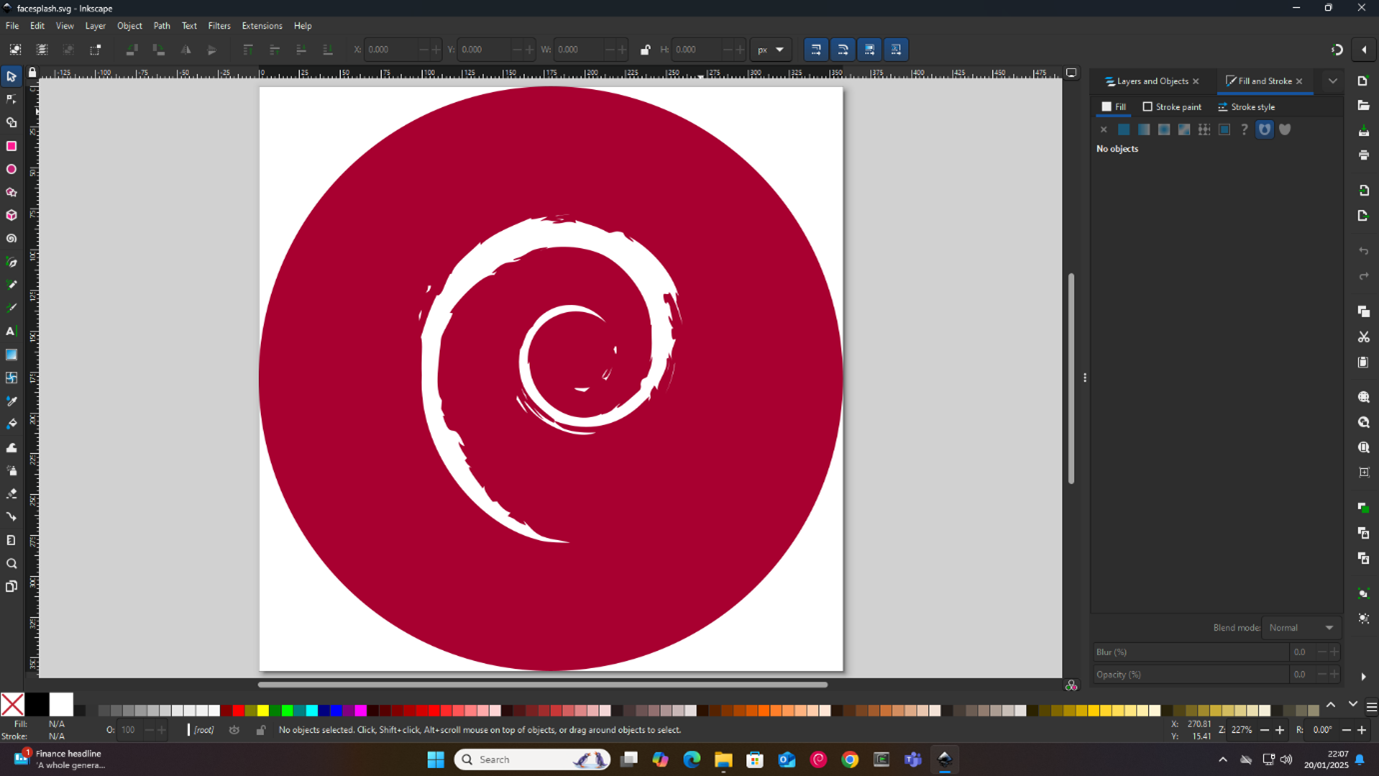
Copy the SVG files to be used as boot splash screen and wallpaper.
tjcw@DESKTOP-96STVF3:~/eclipse-workspace/screensavers$ cp splash.svg svgs/splash.svg tjcw@DESKTOP-96STVF3:~/eclipse-workspace/screensavers$ cp wallpaper.svg content/common-files/home/user/face- Run build-both under WSL2 to generate the isos.
tjcw@DESKTOP-96STVF3:~/lb$ sudo ~/eclipse-workspace/screensavers/bin/build-both Set up the installation script for Inno Setup (Cygwin commands).
Run Inno Setup to create the installers.
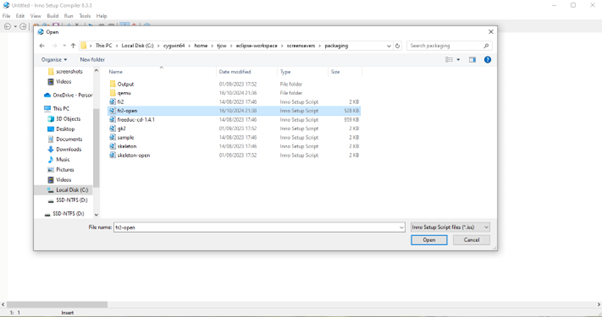
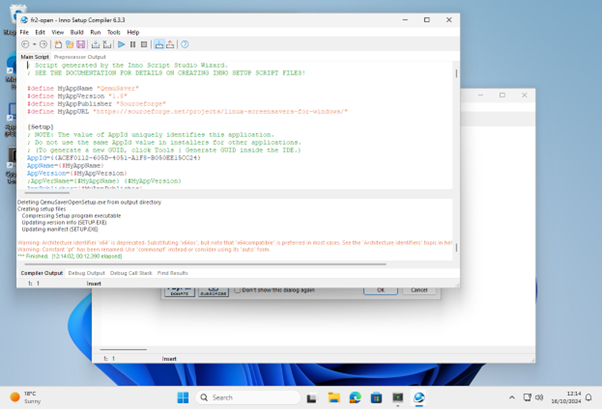
After opening the ‘fr2.iss’ file, click Build --> Compile.
Transfer the installers and ‘Qemu for Windows’ to WSL2.
Set up the extracted files by running the
setup_assemblycommand.tjcw@DESKTOP-96STVF3:~/eclipse-workspace/screensavers/bin$ cat setup_assembly #!/bin/bash -x mkdir -p ~/assembly/QemuSaverOpen/unzip/extras ~/assembly/GamesKnoppix2/unzip/extras mv ~/eclipse-workspace/screensavers/packaging/qemu ~/assembly/QemuSaverOpen/unzip/ cp ~/eclipse-workspace/screensavers/packaging/Output/QemuSaverOpenSetup.exe ~/assembly/QemuSaverOpen/unzip/ cp ~/eclipse-workspace/screensavers/packaging/fr2.scr ~/assembly/QemuSaverOpen/unzip/extras/ ln ~/lb/isos/freeduc-bookworm.iso ~/assembly/QemuSaverOpen/unzip/extras/fr2.iso cp ~/eclipse-workspace/screensavers/packaging/Output/GamesKnoppix2Setup.exe ~/assembly/GamesKnoppix2/unzip/ cp ~/eclipse-workspace/screensavers/packaging/gk2.scr ~/assembly/GamesKnoppix2/unzip/extras/ ln ~/lb/isos/gk-bookworm.iso ~/assembly/GamesKnoppix2/unzip/extras/gk2.iso tjcw@DESKTOP-96STVF3:~/eclipse-workspace/screensavers/bin$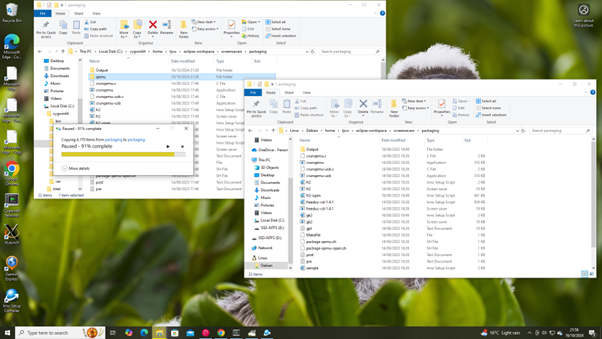
Compress the ISO files, the installers, and ‘QEMU for Windows’
Transfer the ZIP files from WSL2 to Windows.
Test
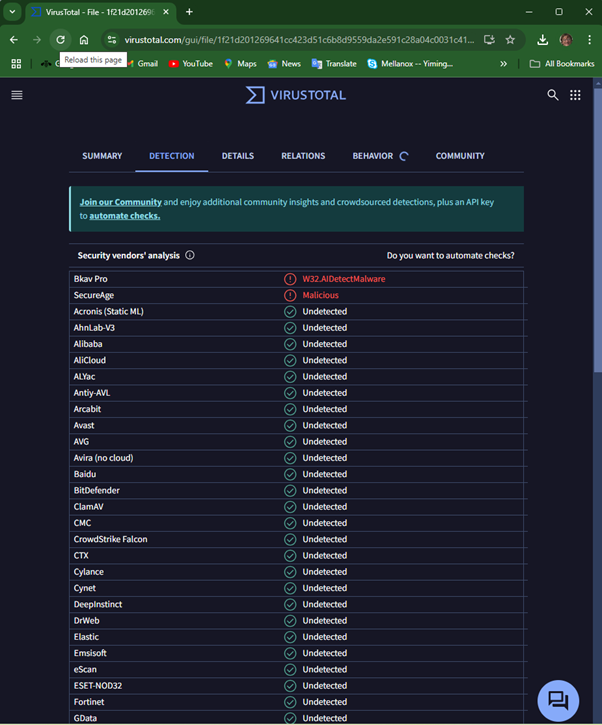
Extract each ZIP file and run the installer executable files. Sometimes the installers are detected as malware, but they are not malware. So, if necessary, add the QemuSaverOpen and GamesKnoppix2 directories to the exclusion list.
Go to screensaver settings and select fr2 or gk2.
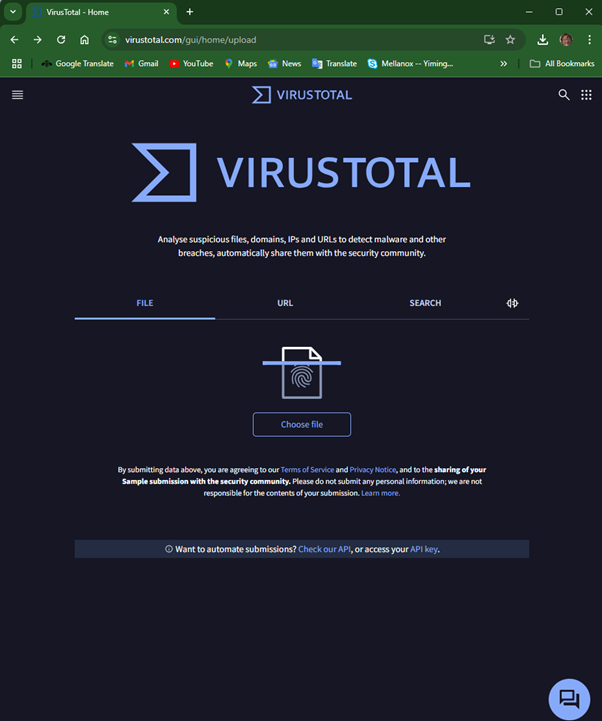
If you want, you can gain confidence that the installers aren’t malware by uploading them to https://virustotal.com
Source code
Optionally, run the ~/eclipse-workspace/bin/fetch_source command to fetch the source code for all the components. You will need the source code if you propose to distribute the screensavers, as recipients may ask you for it. The fetch_source command downloads more than 100 GB of data, which may stress the available internet connection.
#!/bin/bash
# Fetch the qemu source
git clone https://repo.or.cz/qemu/ar7.git
# Fetch the inno setup source
git clone https://github.com/jrsoftware/issrc.git
# Fetch the rufus source
git clone https://github.com/pbatard/rufus.git
# Fetch the Debian source
iso_dir=http://cdimage.debian.org/debian-cd/current/source/iso-dvd
wget ${iso_dir}/SHA512SUMS
while read sha512 name
do
  wget ${iso_dir}/${name}
done <SHA512SUMS
# Check the checksums
sha512sum -c SHA512SUMS#!/bin/bash
# Fetch the qemu source
git clone https://repo.or.cz/qemu/ar7.git
# Fetch the inno setup source
git clone https://github.com/jrsoftware/issrc.git
# Fetch the rufus source
git clone https://github.com/pbatard/rufus.git
# Fetch the Debian source
iso_dir=http://cdimage.debian.org/debian-cd/current/source/iso-dvd
wget ${iso_dir}/SHA512SUMS
while read sha512 name
do
  wget ${iso_dir}/${name}
done <SHA512SUMS
# Check the checksums
sha512sum -c SHA512SUMS
Summary
This tutorial explained how to build Linux as a screen saver for Microsoft Windows systems, with your logo integrated. Now all you need to do is distribute to your potential customers as an aid to developing your business.
Bibliography
My first publication about running Linux as a Windows screensaver: https://www.researchgate.net/publication/272094609_Linux_screensaver_for_Windows
An updated publication about running Linux as a Windows screensaver: https://www.linux.com/news/linux-as-a-screensaver-for-windows-the-gift-of-open-source-games-and-sboms-for-the-holidays/
Location on SourceForge where the screensavers are available for download: https://sourceforge.net/projects/linux-screensavers-for-windows/files/release1/ https://sourceforge.net/projects/linux-screensavers-for-windows/files/release3/