
About cookies on this site Our websites require some cookies to function properly (required). In addition, other cookies may be used with your consent to analyze site usage, improve the user experience and for advertising. For more information, please review your options. By visiting our website, you agree to our processing of information as described in IBM’sprivacy statement. To provide a smooth navigation, your cookie preferences will be shared across the IBM web domains listed here.
Tutorial
Handle remote tool calling with Model Context Protocol
Open source protocol lets you connect AI agents to your data
If you’re building AI agents, you’ve likely heard of Model Context Protocol (MCP). This open source protocol, created by Anthropic as an open standard, is quickly being adopted by many tech companies as a way to connect AI agents to your data.
In this tutorial, you’ll learn how to set up your first MCP server using TypeScript. We’ll also use watsonx.ai flows engine to build tools from your own data sources that can connect to an MCP host, such as Claude Desktop. By the end, you’ll be ready to build and connect your own (remote) tools to an MCP application!
Note: You can find the source code for this tutorial on GitHub.
About Model Context Protocol
The Model Context Protocol (MCP) is an open source standard designed to simplify the way AI agents interact with various tools and data sources. By using MCP, you get a standardized way to integrate APIs, databases, and even custom code into AI applications.
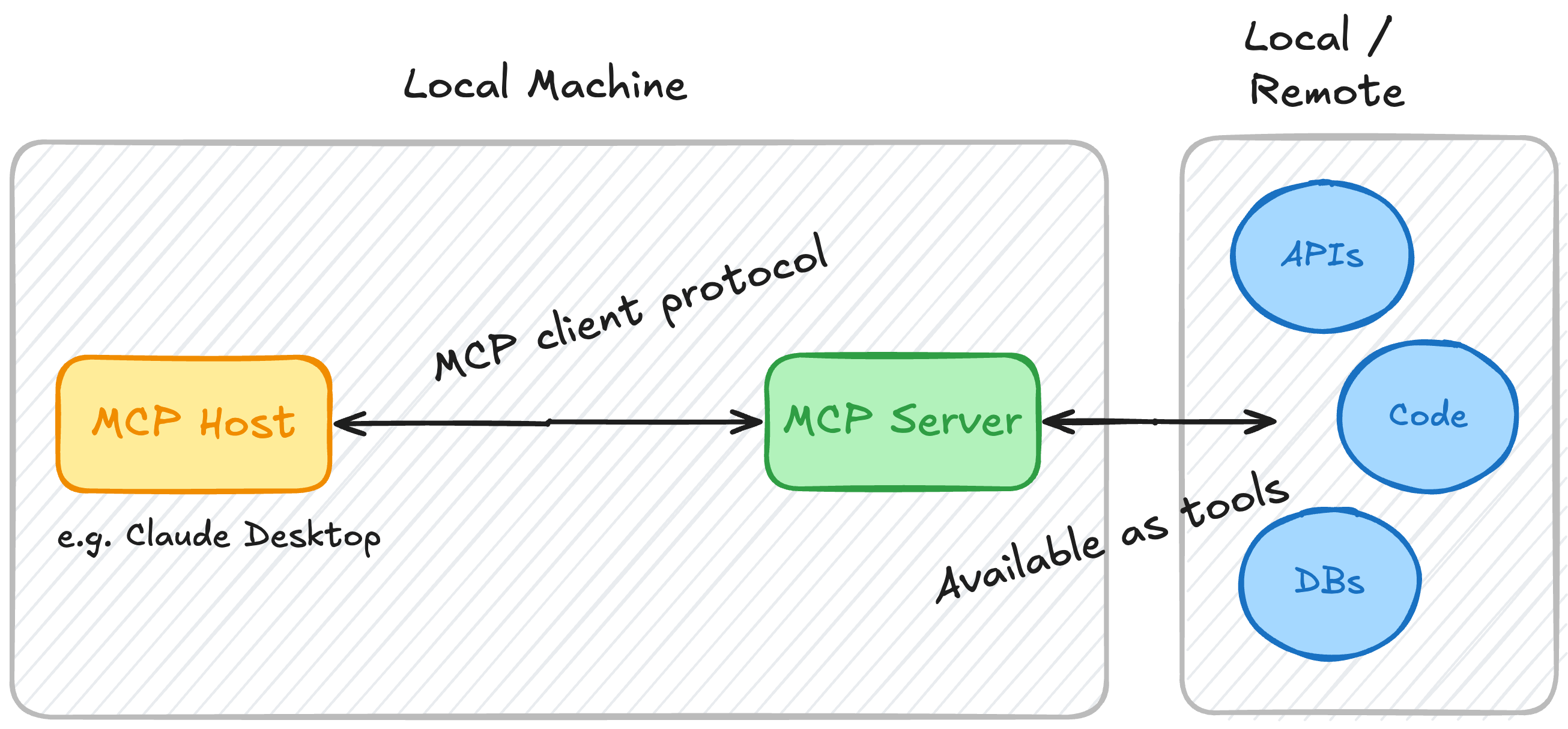
MCP is built around three core components:
MCP servers MCP servers act as bridges between your data sources and AI agents. They expose APIs, databases, or custom code as tools (or resources) that an MCP host can use. Servers can be built using their Python or TypeScript SDKs, making it flexible for developers to work with their preferred language.
MCP clients Clients are the agents or applications that leverage the MCP protocol to access the tools and data provided by MCP servers. Just like MCP servers, MCP clients can be developed using Python or TypeScript SDKs.
MCP hosts MCP hosts handle communication between the servers and client, for example, in the form of a chat application or IDE. Popular hosts include Claude Desktop, Zed, and Sourcegraph Cody. See MCP: Example clients for the complete list of supported hosts/clients.
MCP simplifies and standardizes the process of connecting AI agents to tools, making it easier to build robust, scalable AI solutions. In the next section, you'll learn how to build your first MCP server using the TypeScript SDK.
Setting up an MCP server
In this section, we’ll walk through building an MCP server using the TypeScript SDK. For testing, we’ll use Claude Desktop as the host to interact with the server and its tools. The example below uses a tool to add two numbers; in the follow-up section, we'll use remote tools (such as a REST API) from watsonx.ai Flows Engine.
Step 1: Install dependencies
Start by creating a new project directory and initializing a new package.json file. Then, add the required dependencies for building an MCP server with TypeScript. Make sure your project includes the necessary configuration files, such as package.json and tsconfig.json.
Create the project directory and navigate to it:
mkdir mcp-server
 cd mcp-server
Copy and paste the following code into a new
package.jsonfile:{ "name": "mcp-server", "version": "0.1.0", "description": "A Model Context Protocol server example", "private": true, "type": "module", "bin": { "mcp-server": "./build/index.js" }, "files": [ "build" ], "scripts": { "build": "tsc && node -e \"require('fs').chmodSync('build/index.js', '755')\"", "prepare": "npm run build", "watch": "tsc --watch", "inspector": "npx @modelcontextprotocol/inspector build/index.js" }, "dependencies": { "@modelcontextprotocol/sdk": "0.6.0" }, "devDependencies": { "@types/node": "^20.11.24", "typescript": "^5.3.3" } }Set up the
tsconfig.jsonfile:{ "compilerOptions": { "target": "ES2022", "module": "Node16", "moduleResolution": "Node16", "outDir": "./build", "rootDir": "./src", "strict": true, "esModuleInterop": true, "skipLibCheck": true, "forceConsistentCasingInFileNames": true }, "include": ["src/**/*"], "exclude": ["node_modules"] }Install the dependencies by running:
npm install
Step 2: Add the MCP server configuration:
Create the src/index.ts file and add the following code to define the server’s basic configuration, such as the name of the server:
import { Server } from "@modelcontextprotocol/sdk/server/index.js";
import { StdioServerTransport } from "@modelcontextprotocol/sdk/server/stdio.js";
import {
  CallToolRequestSchema,
  ErrorCode,
  ListToolsRequestSchema,
  McpError,
} from "@modelcontextprotocol/sdk/types.js";

const server = new Server({
  name: "wxflows-mcp-server",
  version: "1.0.0",
}, {
  capabilities: {
    tools: {}
  }
});
Step 3: Define and add tools
After adding the code for the MCP server configuration, you'll define a tool schema and add its functionality. For example, you can create a tool to calculate the sum of two numbers:
server.setRequestHandler(ListToolsRequestSchema, async () => { return { tools: [{ name: "calculate_sum", description: "Add two numbers together", inputSchema: { type: "object", properties: { a: { type: "number" }, b: { type: "number" } }, required: ["a", "b"] } }] }; }); server.setRequestHandler(CallToolRequestSchema, async (request) => { if (request.params.name === "calculate_sum") { const { a, b } = request.params.arguments; return { toolResult: a + b }; } throw new McpError(ErrorCode.ToolNotFound, "Tool not found"); });When the tools and methods to execute tools are added, add the following to the bottom of the
src/index.tsfile:const transport = new StdioServerTransport(); await server.connect(transport);
Step 4: Build the MCP server
The MCP server now needs to be built, which you can do by running the following command in the project directory:
npm run build
This will generate a JavaScript bundle that you'll need to link to your MCP host (in this case, Claude Desktop).
Step 5: Link the MCP server to a host
In this example we're using Claude Desktop as the MCP client/host, to link your MCP server you'll need to add it to the configuration file for Claude Desktop.
{
  "mcpServers": {
    "wxflows-server": {
      "command": "node",
      "args": ["/path/to/wxflows-mcp-server/build/index.js"]
    }
  }
}
The configuration above is in a file called claude_desktop_config.json, which you can find in ~/Library/Application Support/Claude/claude_desktop_config.json on MacOS and %APPDATA%/Claude/claude_desktop_config.json on Windows.
Step 6: Use the tools in a MCP client/host
Once everything is set up, download and install Claude Desktop. In Claude Desktop, click the "tools" icon in the text box to view the available tools and their descriptions, including those provided by your MCP server.
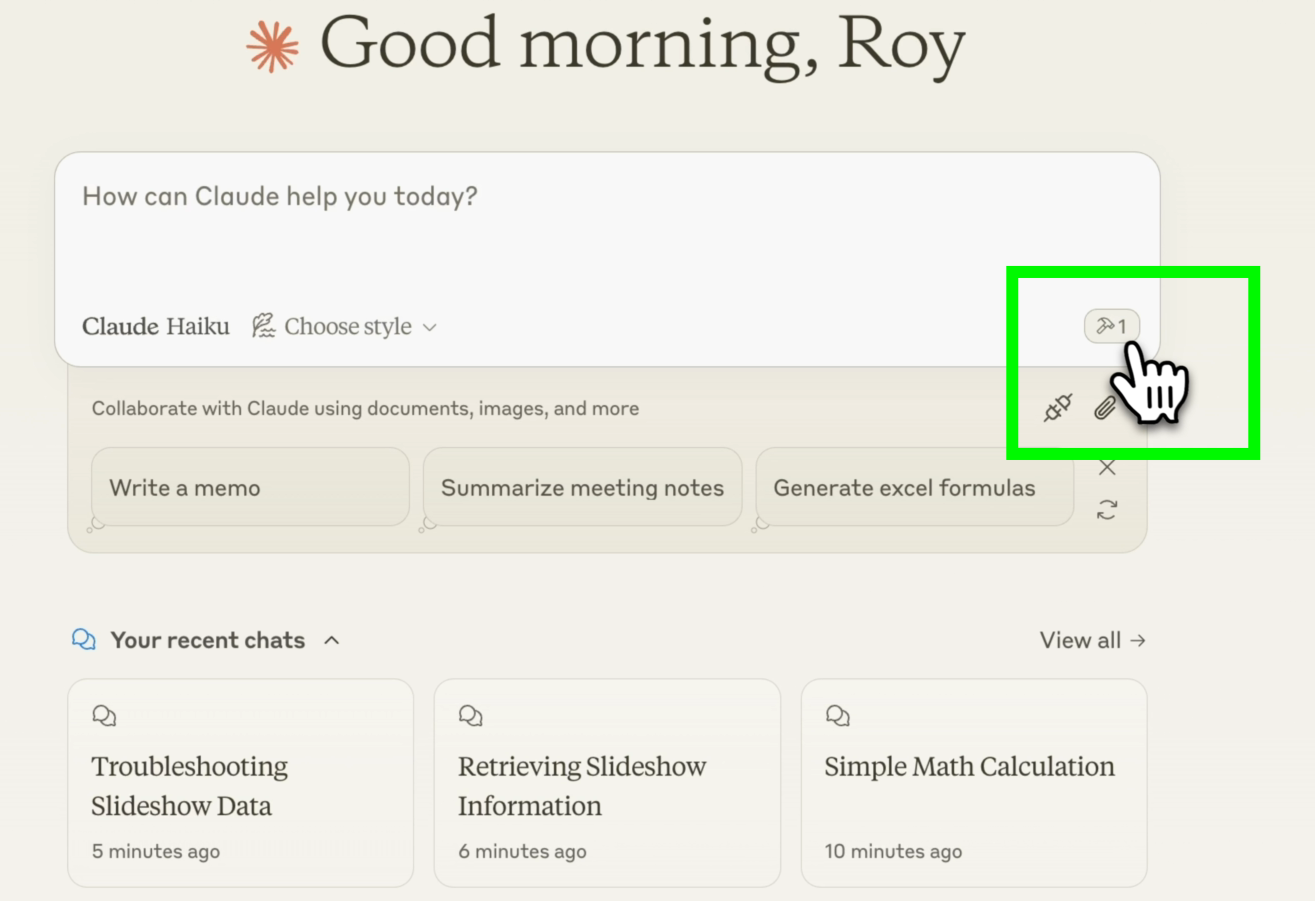
To test the
calculate_sumtool, ask a question such as:What is the sum of 9999 + 1?
When prompted, grant access for Claude to call the tool. This ensures secure interactions through a process called human-in-the-loop.
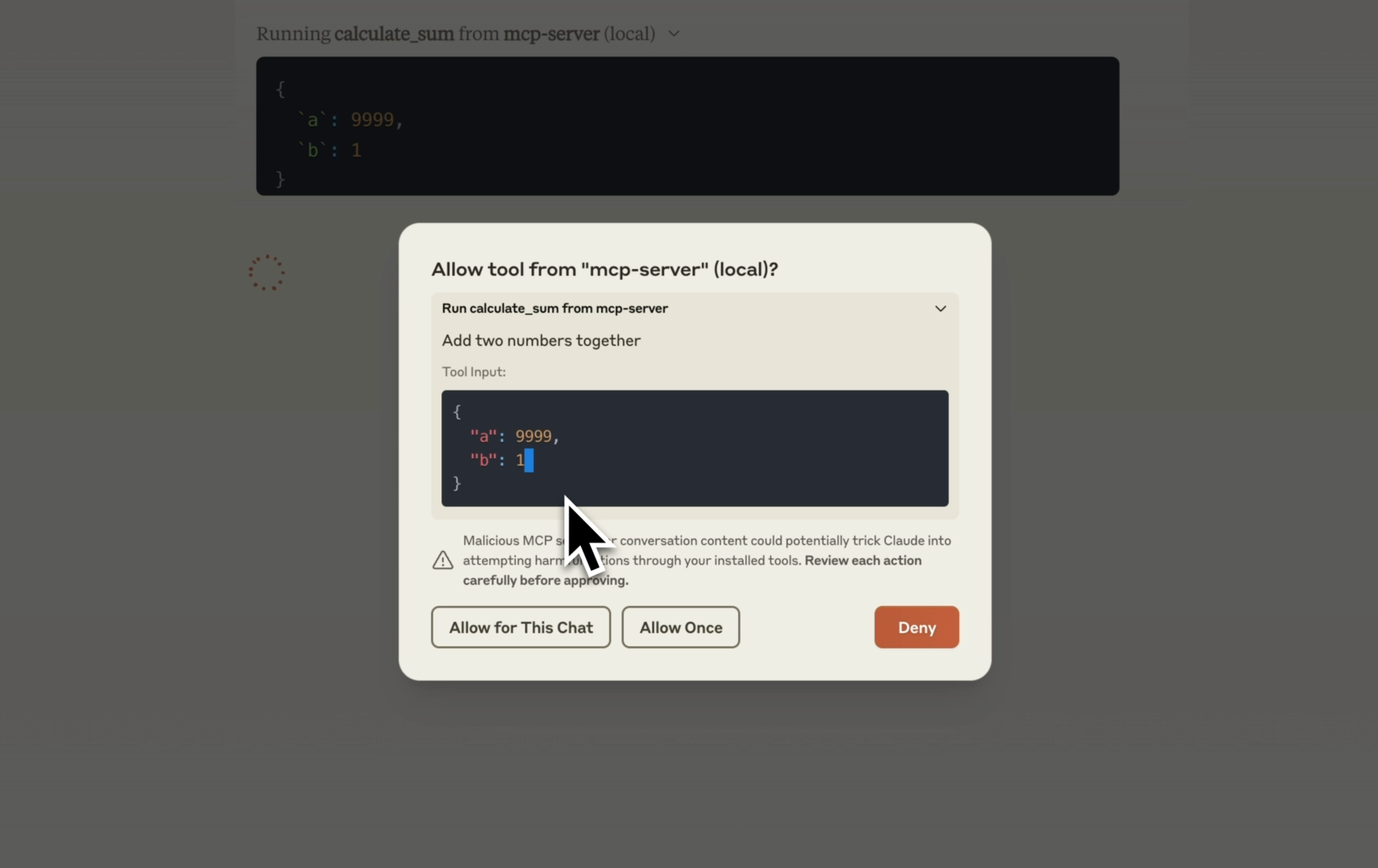
If approved, Claude will use the tool to calculate the sum and display the result (
10000).
By following these steps, you’ve successfully built and integrated your first MCP server with tools into Claude Desktop. In the next section, we'll add dynamic tools built with watsonx.ai Flows Engine.
Connect watsonx.ai Flows Engine to MCP
MCP provides a protocol to handle tool calling but doesn't support the creation and hosting of tools. With watsonx.ai Flows Engine (wxflows), you can turn any data source into a tool, or pick tools from a collection of pre-built community tools. Flows Engine is a tool platform developed at IBM that will help you create specialized tools for AI assistants and agents.
Step 1: Install wxflows CLI
Begin by installing the wxflows CLI tool for either Node.js or Python - we'll use the Node.js version in this tutorial. To install the CLI, you will need to create a free account for watsonx.ai Flows Engine. You can find installation instructions on the wxflows installation page.
After installing, make sure to login to the CLI.
Step 2: Create a new project
You can use the wxflows CLI to create a new project, by running the following command in a new directory:
wxflows init --endpoint=api/mcp-example
You should now have a wxflows.config.json file with a reference to an endpoint named api/mcp-example.
Step 3: Import tools
In the directory you created above, you can now import the tools you want to use in the MCP client. For the purpose of this tutorial we'll import the Google books and Wikipedia tools, but you can use any of the tools listed on this page. Or build your own tools from your data sources such as REST APIs, GraphQL or Databases.
To import the Google books tool:
wxflows import tool https://raw.githubusercontent.com/IBM/wxflows/refs/heads/main/tools/google_books.zip
Then, import the Wikipedia tool:
wxflows import tool https://raw.githubusercontent.com/IBM/wxflows/refs/heads/main/tools/wikipedia.zip
Running the above commands will create several .graphql files in your project directory, where the file tools.graphql contains the tool definitions for both tools. In this configuration file you can find:
- The endpoint the tools will be deployed to (
api/examples-mcp-server). - Definitions for the
google_booksandwikipediatools with their descriptons.
You can make changes to the tool name or description, or use the values generated while importing the tools.
Step 3: Deploy the tools endpoint
You can deploy this tool configuration to a watsonx.ai Flows Engine endpoint by running:
wxflows deploy
This command deploys the endpoint and tool definitions that you can link to the MCP server using the wxflows SDK. The endpoint that the tools will be available from is printed in your terminal. You also need your API key; to get your API key, run this command:
wxflows whoami --apikey
Both the endpoint and API key are needed in the next step.
Step 4: Set up environment variables
Create a new file called .env and add your credentials:
# run the command `wxflows whoami --apikey`
WXFLOWS_APIKEY=

# endpoint shows in your terminal after running `wxflows deploy`
WXFLOWS_ENDPOINT=
Ensure the credentials are correct to allow the tools to authenticate and interact with external services.
Step 5: Connect the MCP server to wxflows
In the MCP server project, you need to install the wxflows SDK and the
dotenvlibrary from npm:npm i @wxflows/sdk@betaNote: Make sure to install the beta version of the SDK. The
dotenvlibrary is needed to use environment variables in the project.Once installed, open the
src/index.tsfile. In this file you need to import the wxflows SDK anddotenv, plus set up the connection to your endpoint:// ... import wxflows from '@wxflows/sdk' import * as dotenv from 'dotenv'; dotenv.config(); const server = new Server({ name: "wxflows-server", version: "1.0.0", }, { capabilities: { tools: {} } }); const toolClient = new wxflows({ endpoint: process.env.WXFLOWS_ENDPOINT || '', apikey: process.env.WXFLOWS_APIKEY || '', });
Step 6: Define and add tools
Instead of defining the tools in the MCP server code, we'll use the tool definitions from watsonx.ai Flows Engine that are loaded via the SDK:
// Define available tools server.setRequestHandler(ListToolsRequestSchema, async () => { const tools = await toolClient.tools; if (tools.length > 0) { const mcpTools = tools.map( ({ function: { name, description, parameters } }) => ({ name, description: `${description}. Use the provided GraphQL schema: ${JSON.stringify( parameters )}. Don't use a field subselection on the query when the response type is JSON, don't encode any of the input parameters and use single quotes whenever possible when constructing the GraphQL query.`, inputSchema: parameters, }) ); return { tools: mcpTools }; } return { tools: [] }; });The execution of the tools will also be handled through the SDK, which will send a request to your wxflows endpoint with the tool call information:
// Handle tool execution
 server.setRequestHandler(CallToolRequestSchema, async (request) => {
   if (request.params.name) {
     const { query }: any = request.params.arguments;

     try {
       const toolResult = await toolClient.execGraphQL(query);

       return {
         toolResult,
       };
     } catch (e) {
       throw new McpError(
         ErrorCode.InternalError,
         `wxflows error: ${
           e instanceof Error ? e.message : "something went wrong"
         }`
       );
     }
   }
   throw new Error("Tool not found");
 });
Step 7: Build the MCP server
The MCP server needs to be rebuilt by running the following command:
npm run buildWe'll also need to update the configuration file for Claude Desktop so that it includes the environment variables for your wxflows endpoint:
{
   "mcpServers": {
     "wxflows-mcp-server": {
       "command": "node",
       "args": ["/path/to/wxflows-mcp-server/build/index.js"],
         "env": {
         "WXFLOWS_APIKEY": "YOUR_WXFLOWS_APIKEY",
         "WXFLOWS_ENDPOINT": "YOUR_WXFLOWS_ENDPOINT"
       }
     }
   }
 }
Step 8: Test the new tools
Open Claude Desktop and check that the new tools from the wxflows-mcp-server are listed. If you don't see the new tools listed, close and reopen the window. You can now test the google_books and wikipedia tools through Claude Desktop.
For example, you can ask the question:
What do you know about the book Escape by James Patterson?
The LLM will need to call the google_books tool to retrieve additional information from your wxflows endpoint, as you can see in the following screen:
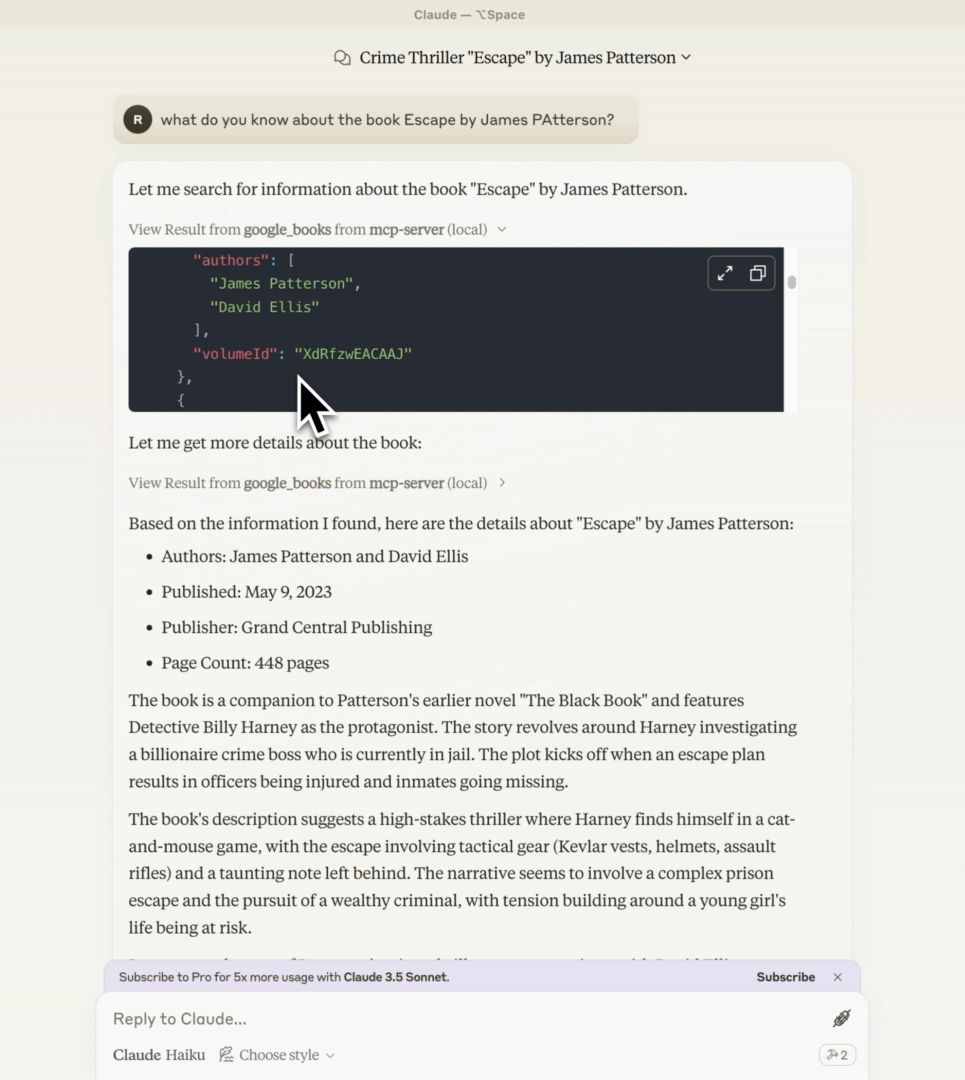
Try asking different questions related to books or other popular media to see the MCP server in action. Based on your question, the MCP client/host will decide which tool (or combination of tools) to call.
Summary and next steps
This tutorial showed you how to get started with Model Context Protocol (MCP), a new open-source way to connect AI agents to your data. You’ve learned how to set up your first MCP server using TypeScript and how to use watsonx.ai Flows Engine to turn your data sources into tools. These tools can connect to an MCP host, like Claude Desktop, making it easier for your AI to interact with your data. You now know how to build and link your own tools to MCP applications!
Note that you can find the source code for this tutorial on GitHub.
Check out the following resources to continue your watsonx.ai Flows Engine journey:
- watsonx.ai Flows Engine playlist
- IBM Developer: Generative AI hub
- IBM watsonx.ai Flows Engine product page
Also, explore the MCP tools provided by IBM, which include reusable components and reference implementations that you can adapt for your own projects.
We're curious to hear what you're building! Make sure to join our Discord community and let us know.