
About cookies on this site Our websites require some cookies to function properly (required). In addition, other cookies may be used with your consent to analyze site usage, improve the user experience and for advertising. for more information, please review your options. By visiting our website, you agree to our processing of information as described in IBM’sprivacy statement. To provide a smooth navigation, your cookie preferences will be shared across the IBM web domains listed here.
Tutorial
Build a Site Reliability Agent (SRA) for Red Hat OpenShift with watsonx Orchestrate
Connect watsonx Orchestrate to a Kubernetes cluster using the Model Context Protocol (MCP) and build a natural-language SRA assistant
On this page
In this tutorial, you’ll learn how to connect IBM watsonx Orchestrate to a Kubernetes or Red Hat OpenShift cluster using the open Model Context Protocol (MCP) and the open‑source Kubernetes MCP server. You will deploy the Kubernetes MCP server to your cluster, expose it securely, and register it as an MCP tool inside watsonx Orchestrate. Then, you will build a Site Reliability agent (SRA) that is capable of inspecting pods, namespaces, events, and logs through natural‑language commands.
Architecture
The following figure shows the architecture of our site reliability agent.
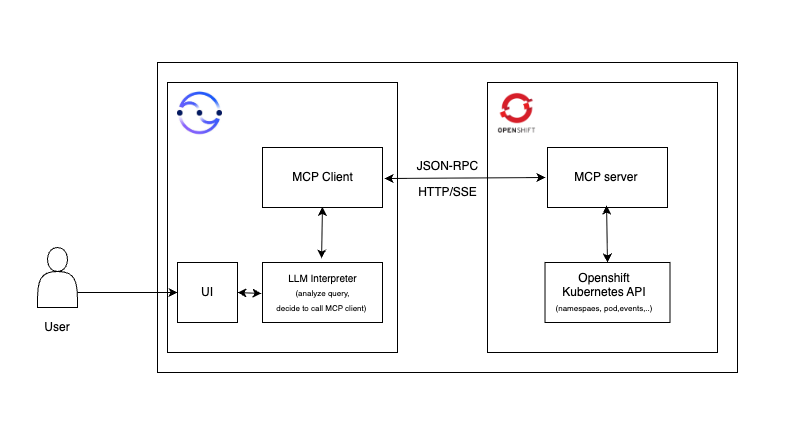
- The user sends a request to a watsonx Orchestrate agent.
- The agent interprets the request using an LLM and identifies the need for cluster information.
- The agent calls a tool that acts as an MCP client.
- The MCP client invokes the MCP server.
- The MCP server talks to the Openshift Kubernetes API and returns structured data via JSON-RPC.
- The agent interprets the results and responds in natural language.
Prerequisites
- A watsonx Orchestrate instance using the trial version of watsonx Orchestrate.
- A Kubernetes or OpenShift cluster.
- Basic Kubernetes knowledge (pods, deployments, events).
- RBAC permissions in the cluster.
While this tutorial uses Red Hat OpenShift, the same approach works on Kubernetes clusters with equivalent tools.
Steps
- Deploy the Kubernetes MCP Server.
- Create an OpenShift MCP tool in watsonx Orchestrate.
- Test the agent.
Step 1. Deploy the Kubernetes MCP Server
In this step, you authenticate your CLI session so that you can deploy the Kubernetes MCP Server and apply configurations inside the cluster.
find your API Token and cluster link. Login into the Openshift web Console, and then click your “username” in top-right corner and select Copy login command.
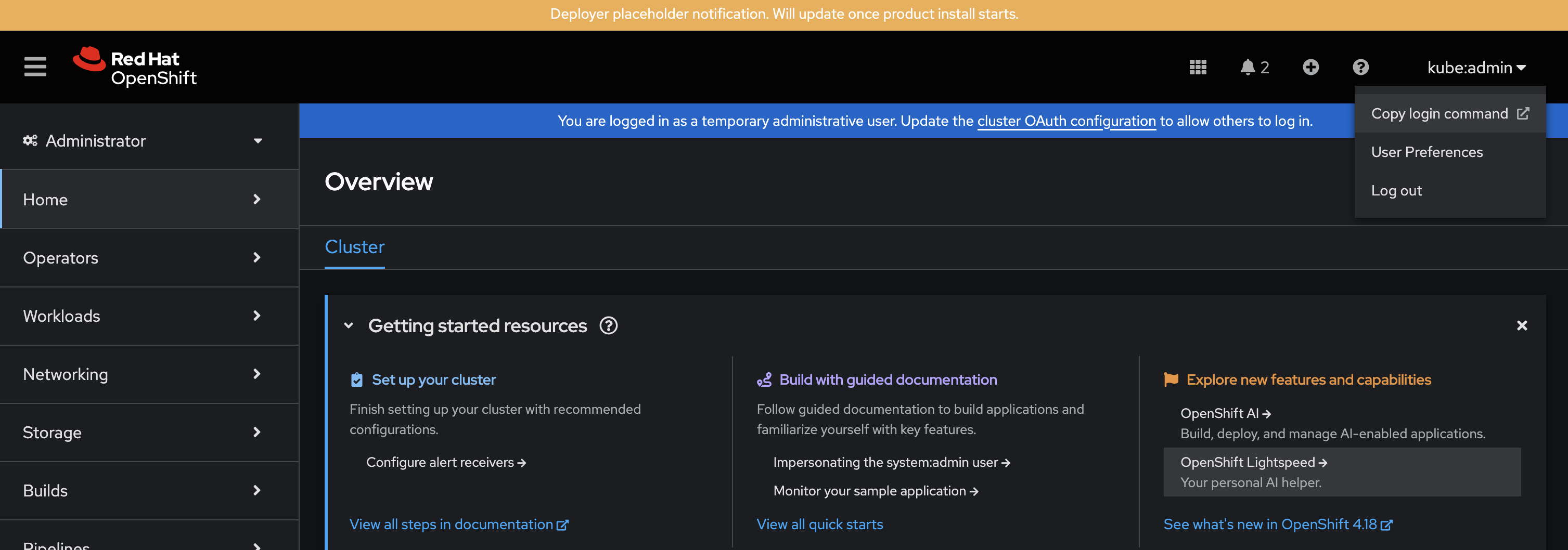
This displays your token and cluster link:
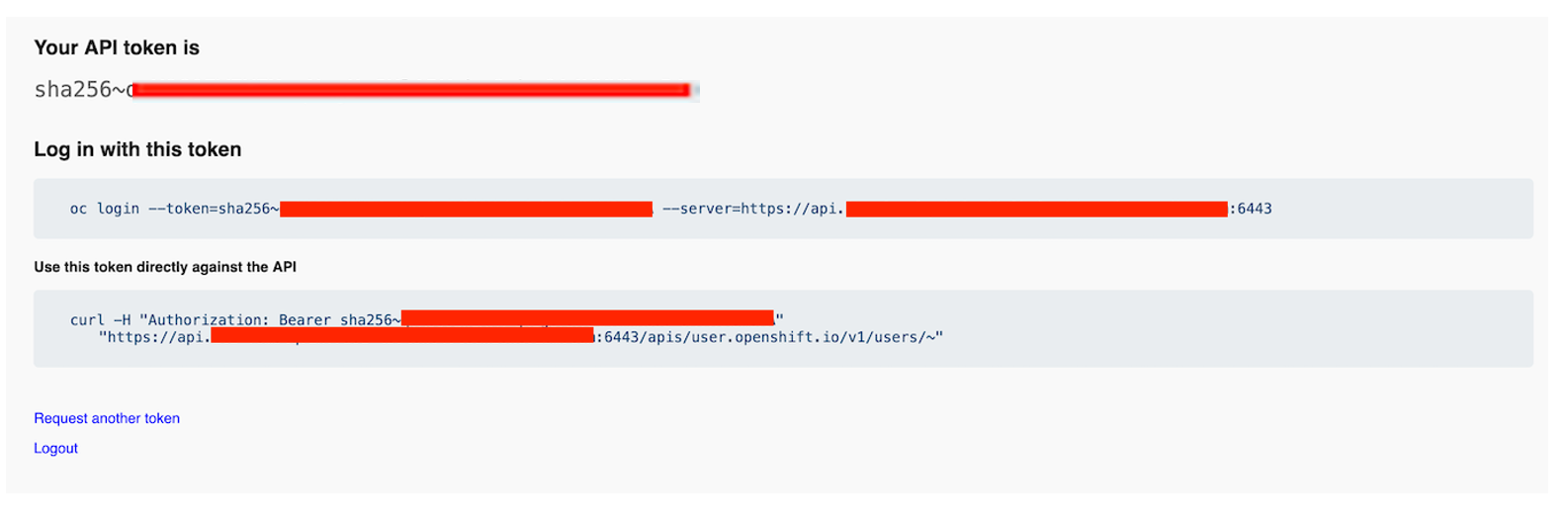
Log into your OpenShift cluster using the copied token and server URL:
oc login --token=<token> --server=<http://URL_link>Clone the Site Reliability Agent (SRA) GitHub repository, which contains all required
.yamltemplates that are used to configure RBAC and deploy the MCP server on OpenShift through the terminal.git clone https://github.com/IBM/Site-reliability-agent-SRA.gitCreate a namespace with RBAC to give the agent the required permissions accessing the cluster.
first, create a dedicated workspace where the MCP server will run:
oc create namespace openshift-mcpThen, grant the MCP Server controlled access (read pods, logs, nodes, events, and so on) so it can answer agent queries.
oc apply -f mcp-k8s-clusterrole.yamlfinally, bind the role to the service account, ensuring that the MCP server has the correct permissions to use the cluster API.
oc apply -f mcp-k8s-clusterrole-binding.yamlDeploy the Kubernetes MCP Server.
first, clone this source code to create the MCP server container image.
git clone https://github.com/containers/kubernetes-mcp-server.gitChange to the
kubernetes-mcp-serverdirectory. Then, build the MCP server container image inside the cluster using OpenShift's internal build service. Themcp_build_image.yamlfile defines an OpenShiftBuildConfigthat points to the MCP server repository and produces the container image inside the cluster.oc apply -f mcp_build_image.yamlNext, create the Deployment, Service, and Route making the MCP Server accessible to watsonx Orchestrate.
oc apply -f mcp-server-deploy.yamlThe MCP Server deployment in OpenShift is running successfully with its pod active.
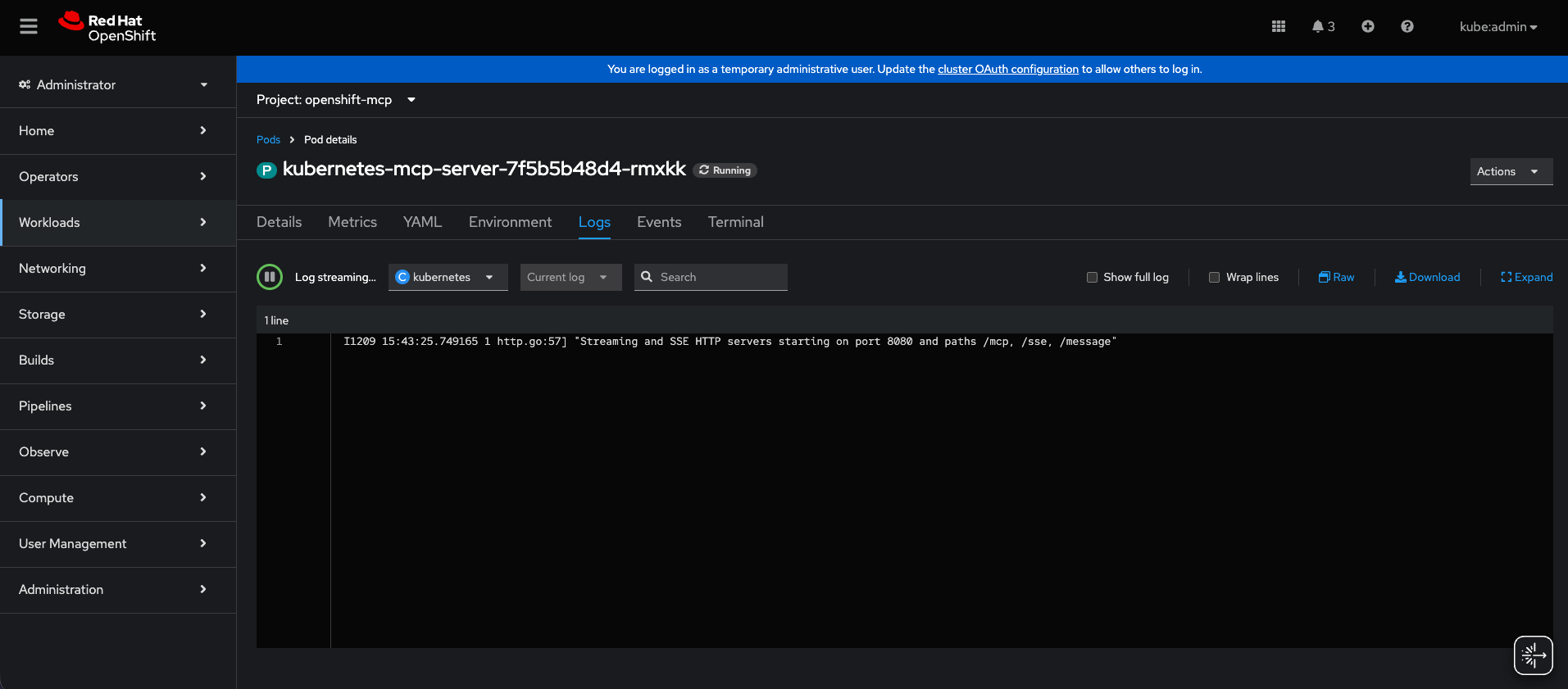
The Route for the MCP Server is:
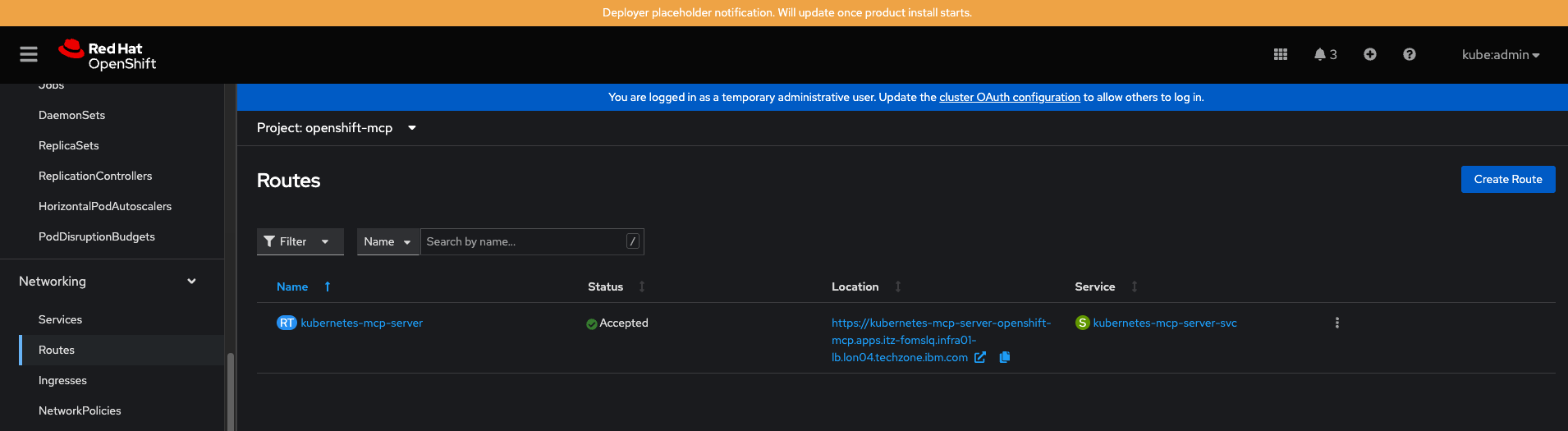
Next, expose the kubernetes-mcp-server Deployment as a Service.
oc expose deployment kubernetes-mcp-server --name=kubernetes-mcp-server-svc --port=8080 --target-port=8080Then, expose that Service as a Route so watsonx Orchestrate can call it.
oc expose service kubernetes-mcp-server-svc --name=kubernetes-mcp-serverfinally, get the OpenShift API token and then get the
Host/Postwhich will be used later to connect watsonx Orchestrate to MCP Server.oc get route
Step 2. Create an OpenShift MCP tool in watsonx Orchestrate
In this step, you build a site reliability agent that integrates with the Openshift cluster through an MCP tool in watsonx Orchestrate.
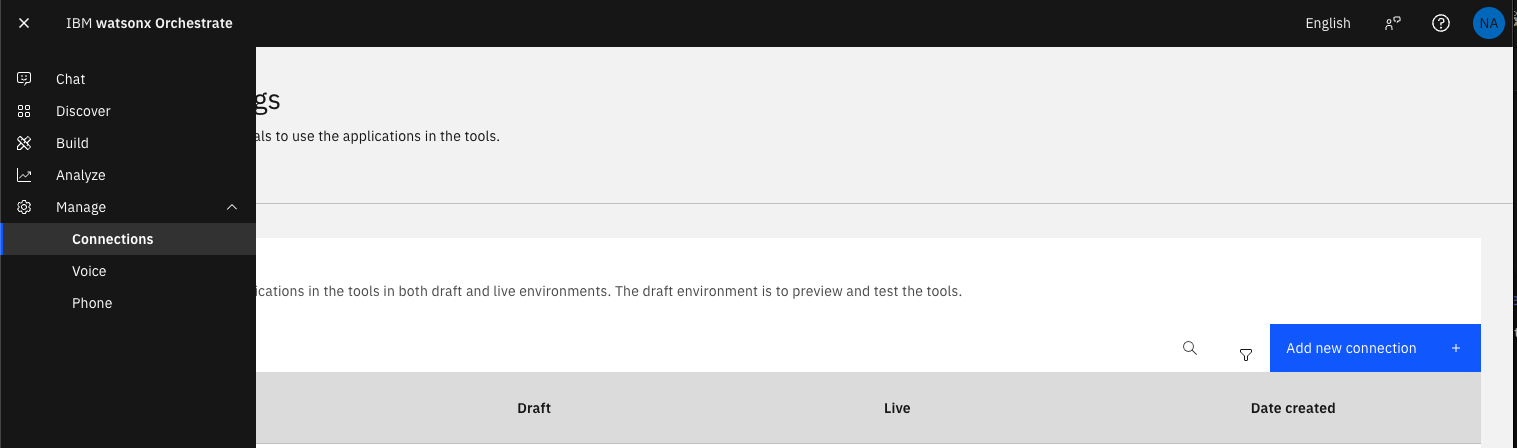
In watsonx Orchestrate, select Manage and then Connections. Then, click Add new connection to create a connection to the OpenShift MCP Server using the API token and server URL that you obtained in the previous step.
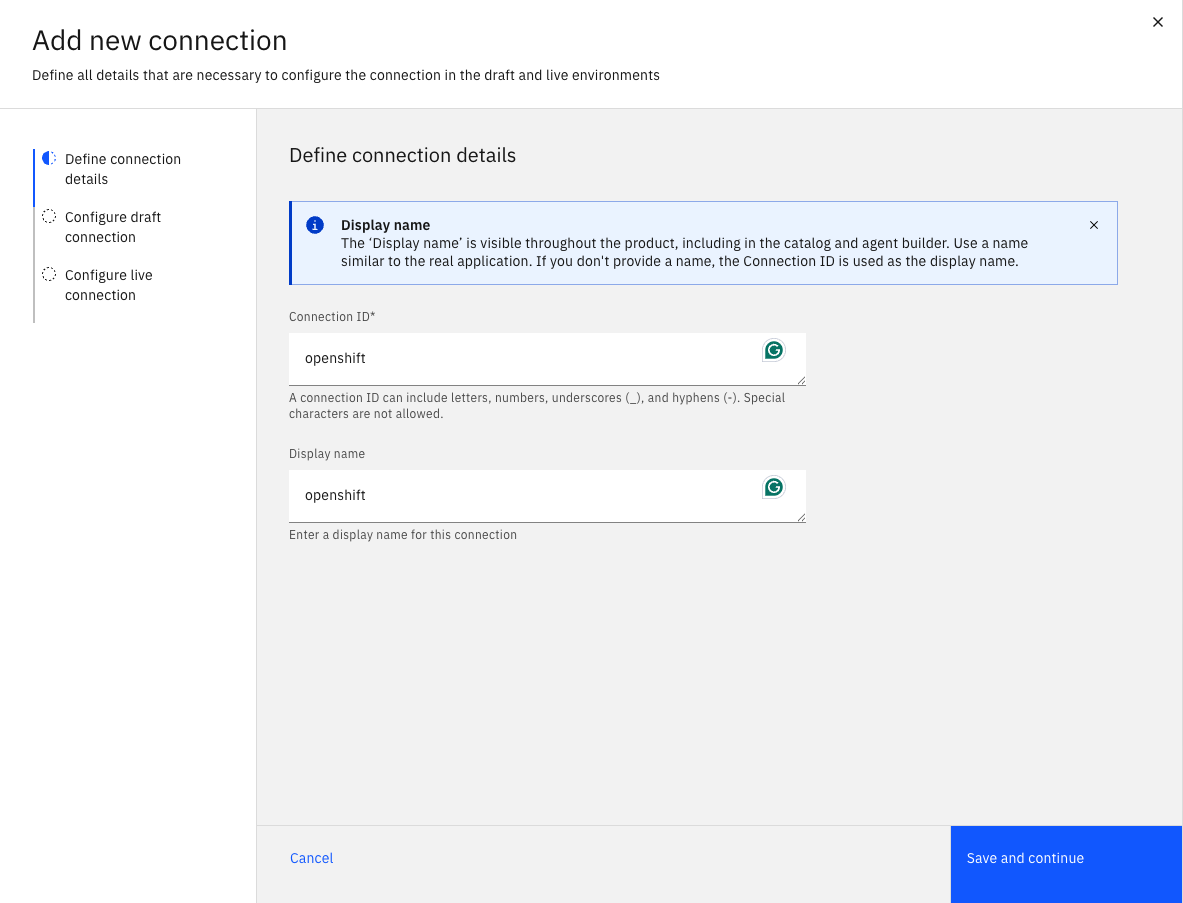
Add your Connection ID, and then click Save and continue.
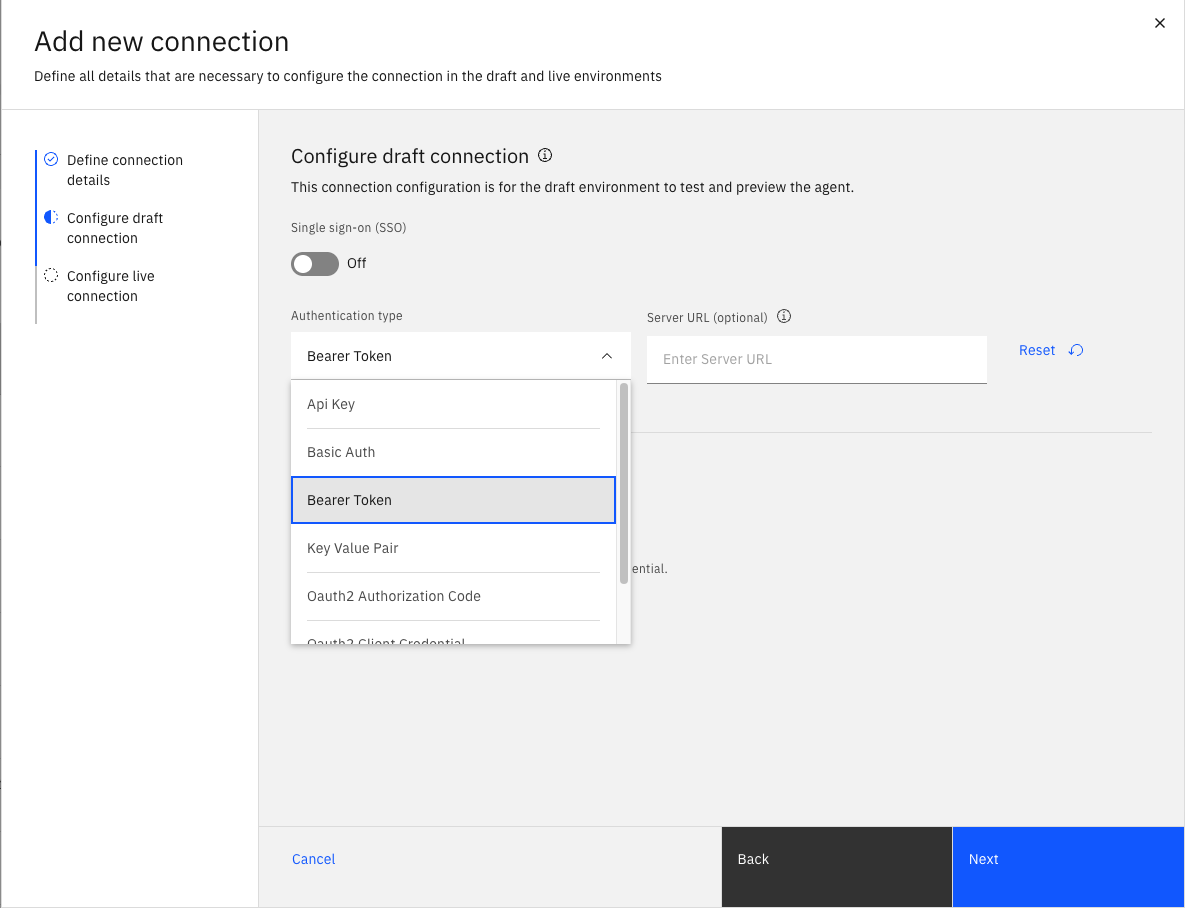
Select Bearer Token as the authentication method and enter the Server URL. You will be guided through two similar pages—repeat the same step using individual credentials for the draft and live connections.
The Connection settings page shows an OpenShift MCP Server connection successfully configured using Bearer Token authentication for both draft and live environments.
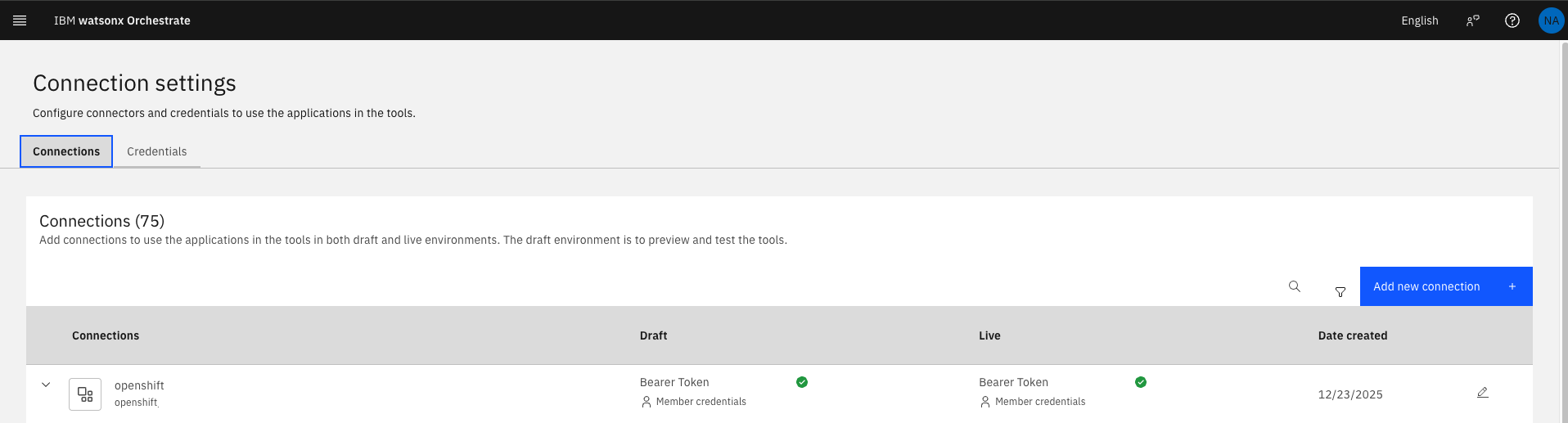
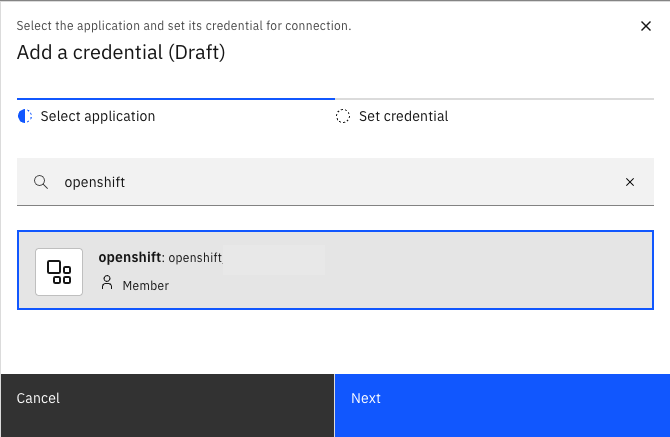
After creating the connection, select credentials for both the draft and live environments, and then click Add credential.
Select the connection created in the previous step, then click Next to continue.
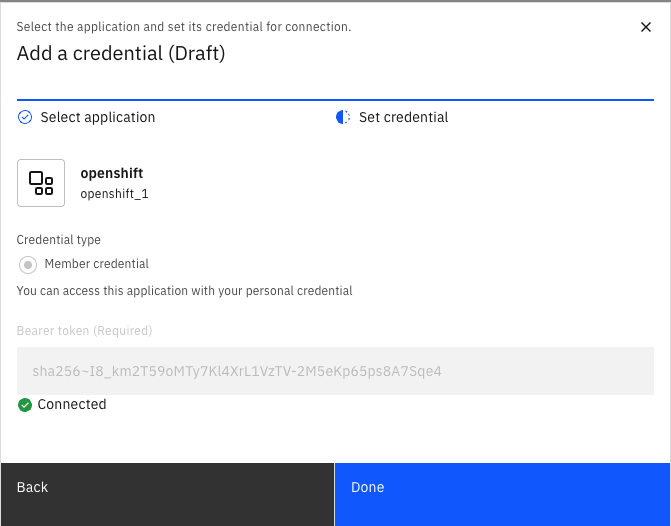
Enter the required Bearer Token (API token), click Connect, and then click Done.
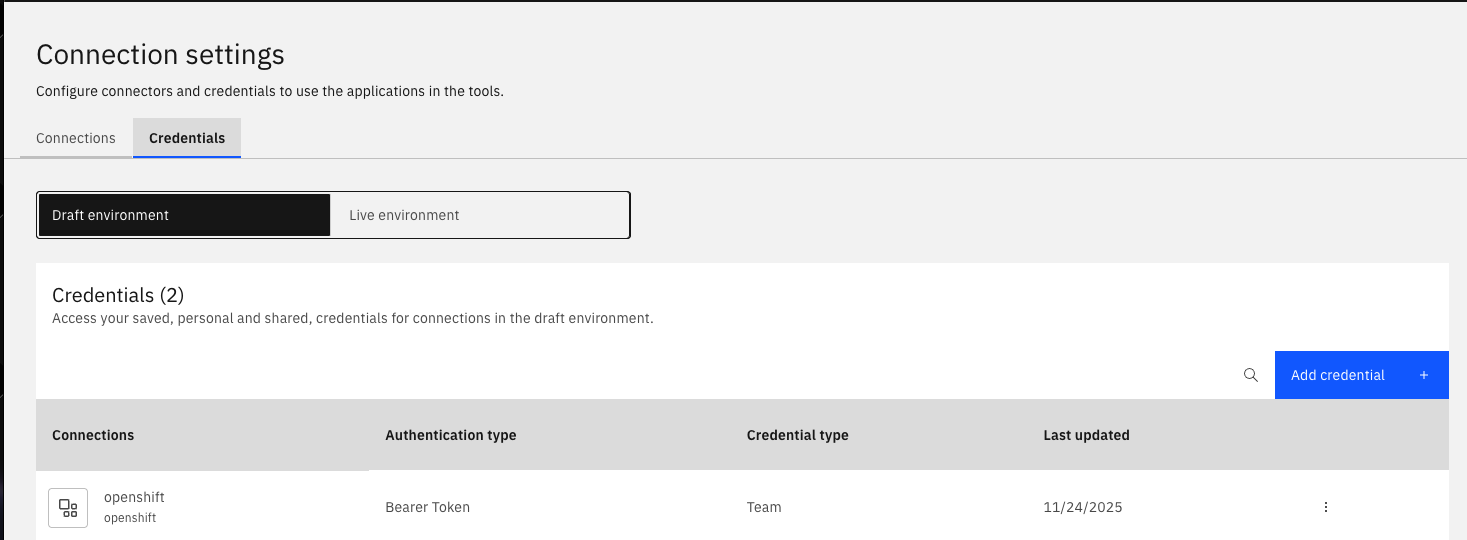
The Credentials tab in watsonx Orchestrate shows the OpenShift connection that is successfully configured in the draft environment using Bearer Token authentication. You can repeat this for the live environment when ready.
from the menu, click Build, then select Create agent to begin setting up a new AI agent.

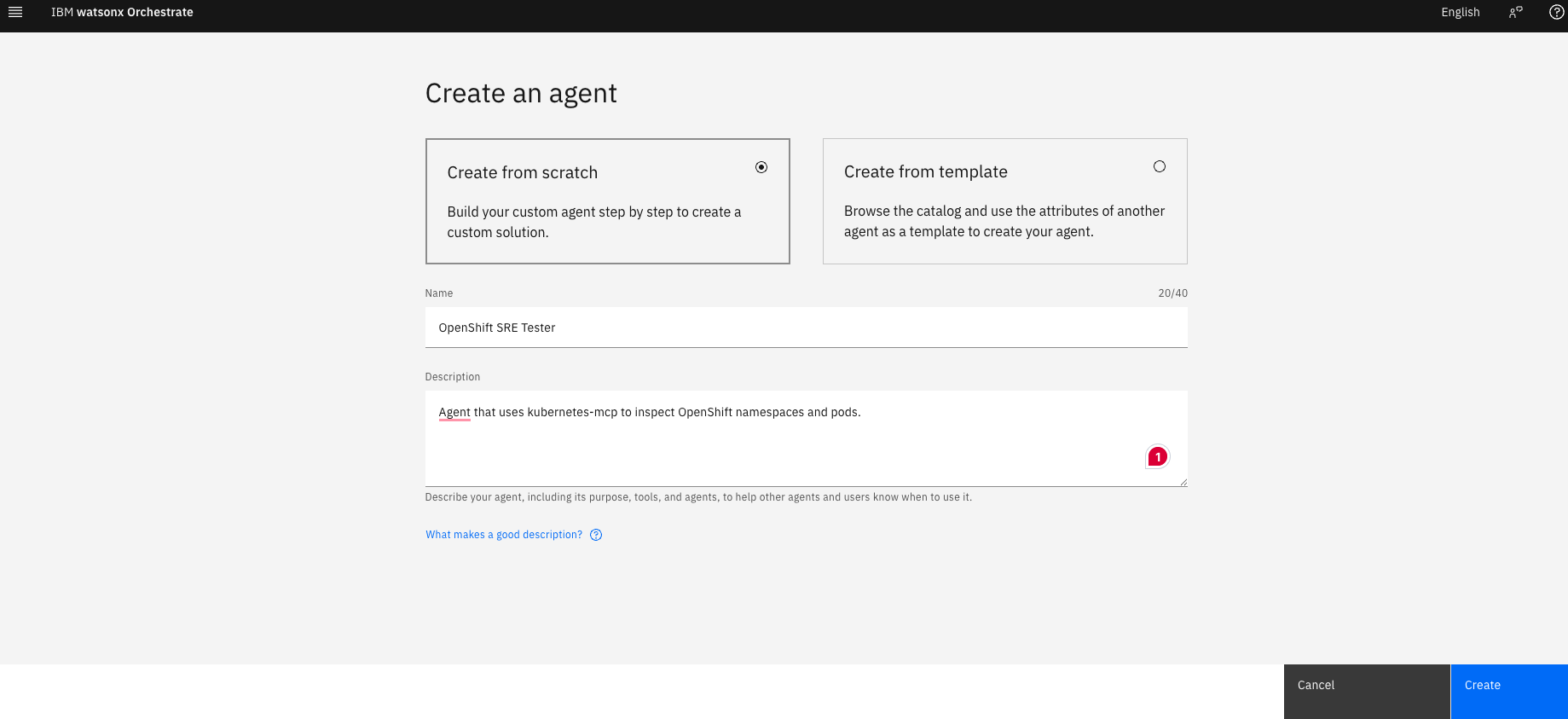
Select Create from scratch to build your SRA that will use the OpenShift MCP tool. Add a Name and Description.
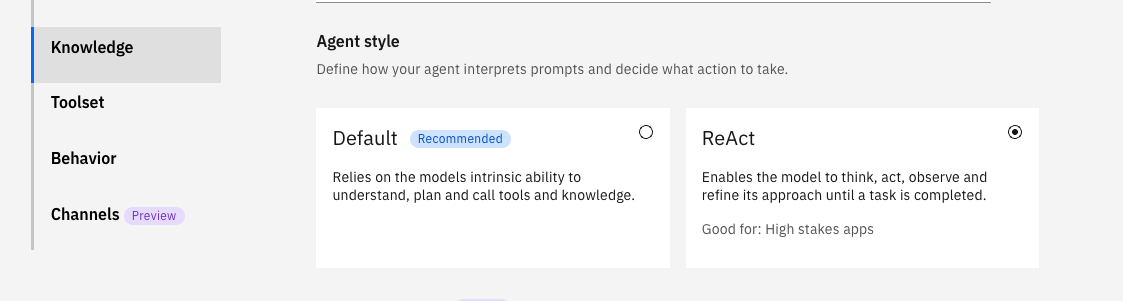
for the Agent style in Knowledge, select ReAct.
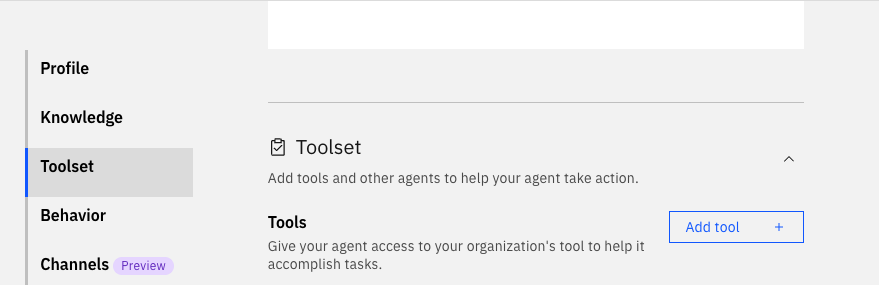
In the Toolset section, click Add a tool in Watsonx Orchestrate.
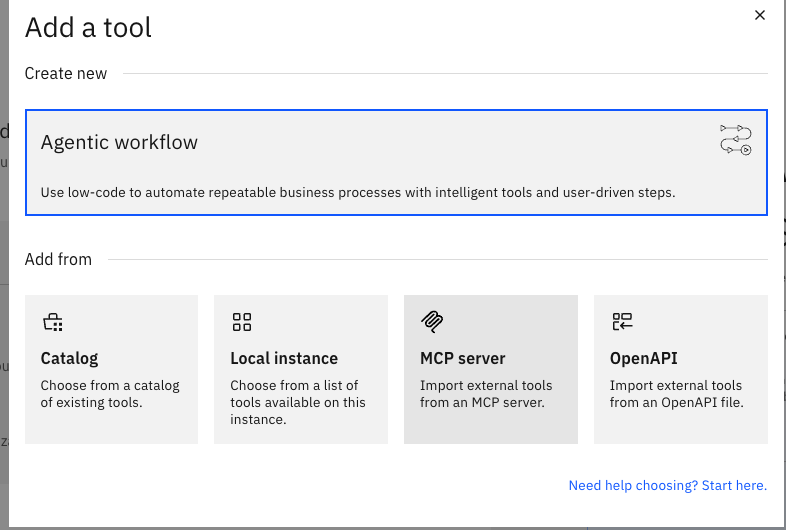
Select MCP server to add the OpenShift MCP tool to your SRA.
Click Add MCP server, and then select Local MCP server.
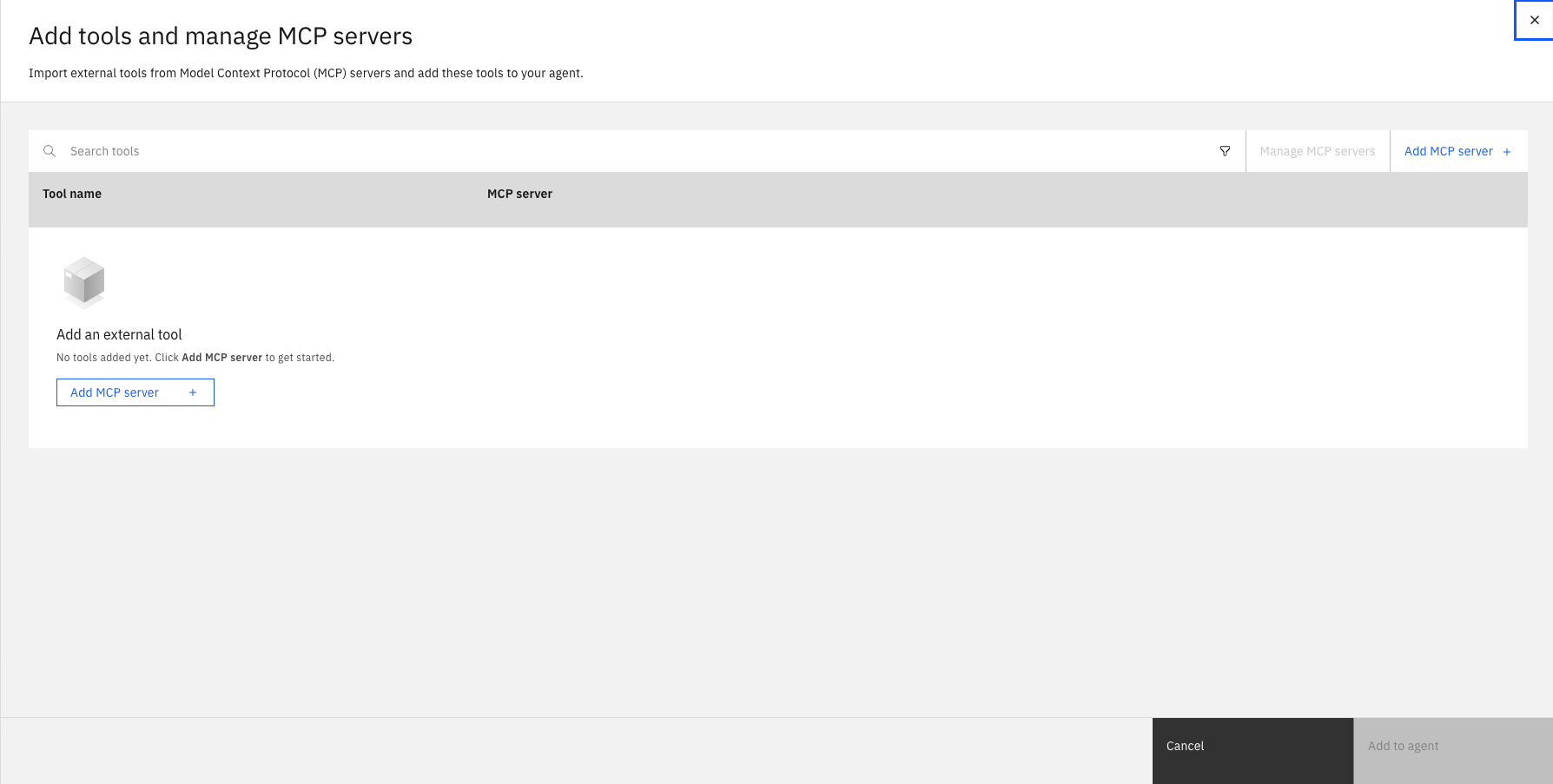
Import the MCP Server tools using installing command
uvx mcp-proxy https://<cluster_url>/sse. Use the Route URL from Step 1 as the cluster_url.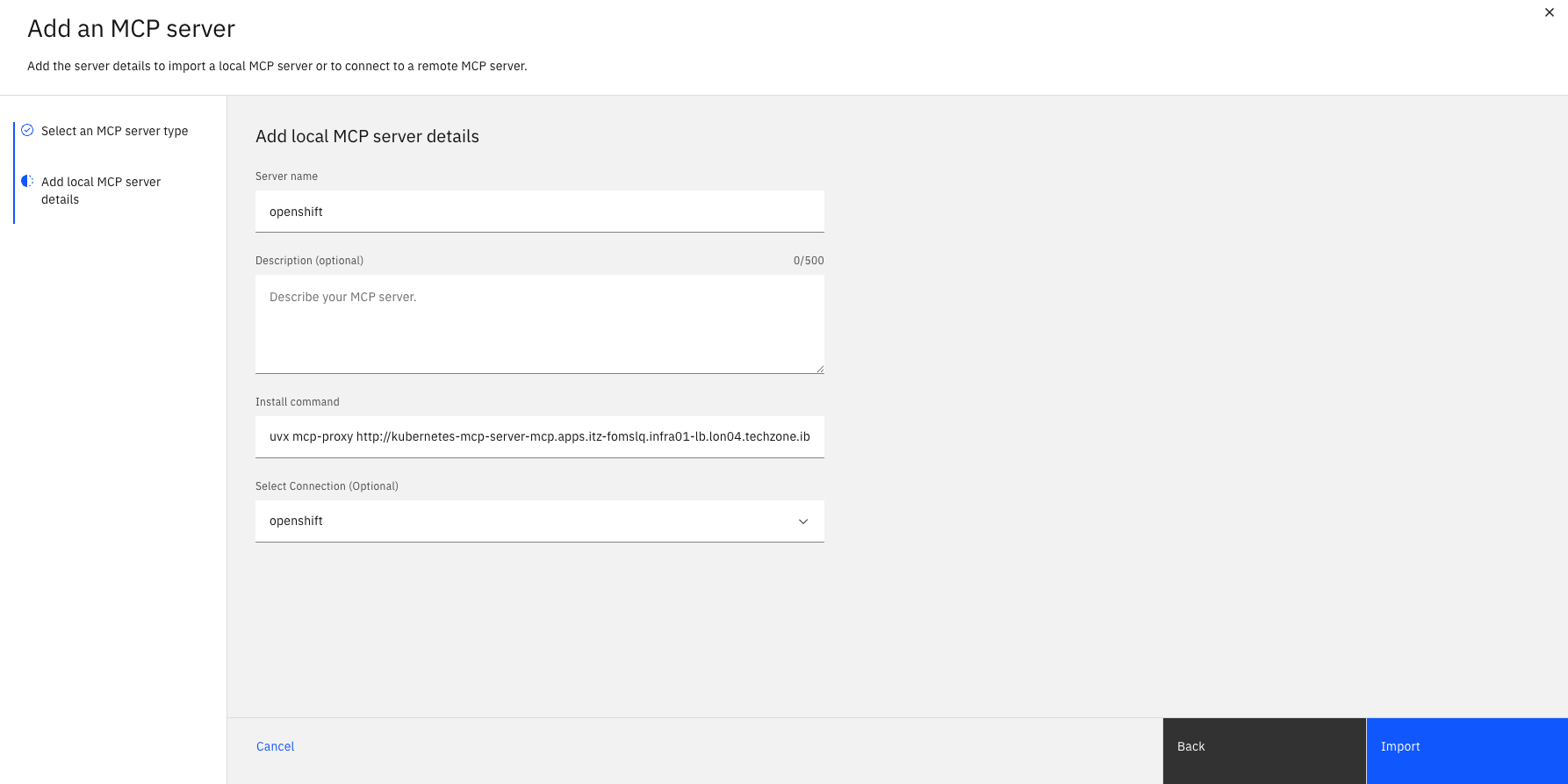
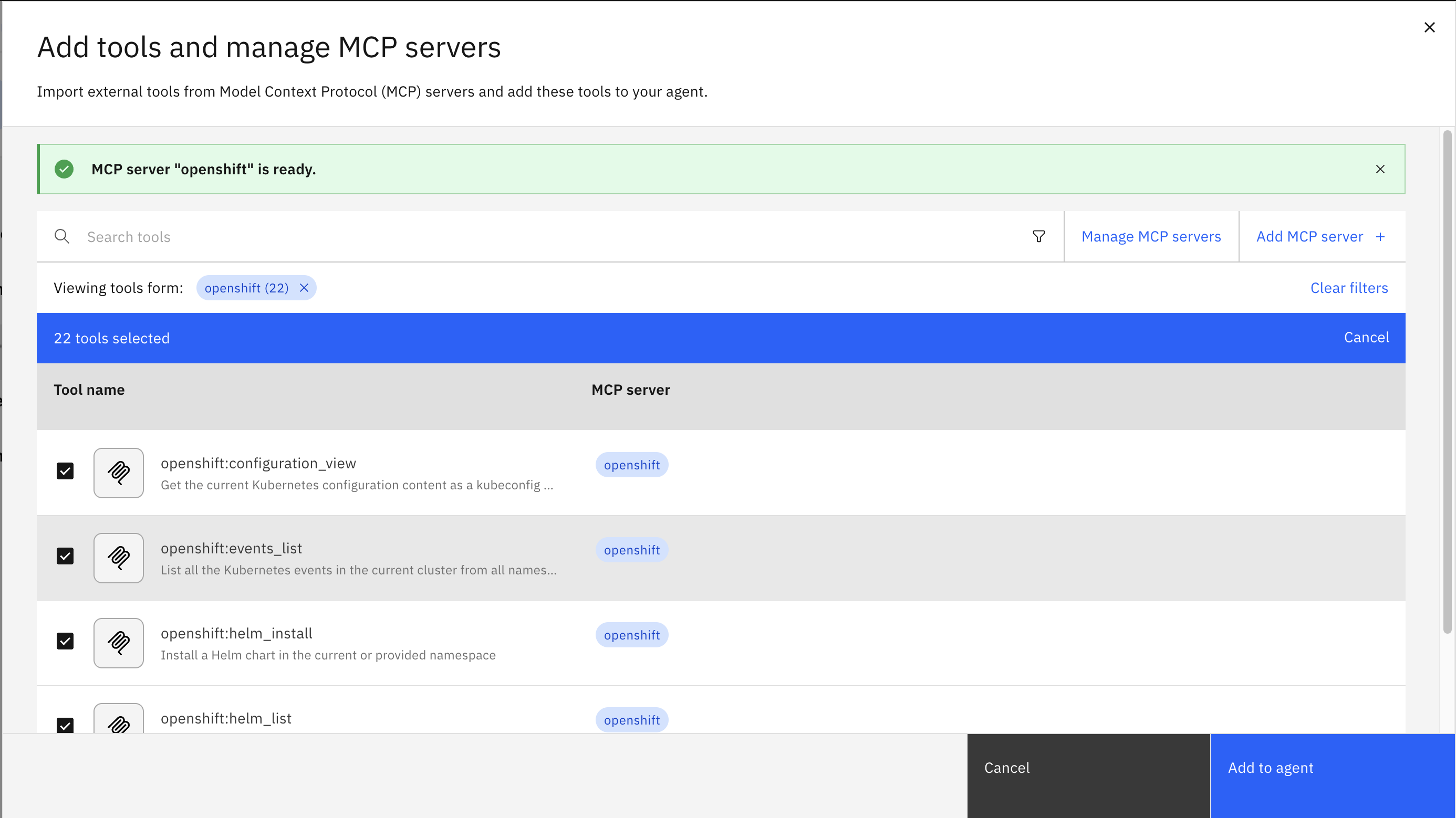
Select all 22 MCP tools that are required for the SRA to query the OpenShift cluster, and then click Add to agent.
Type the following in the Behavior prompt:
You are an OpenShift SRA assistant.
Use tools to list namespaces, pods, events, and logs.
Always explain briefly what you are doing before showing the result.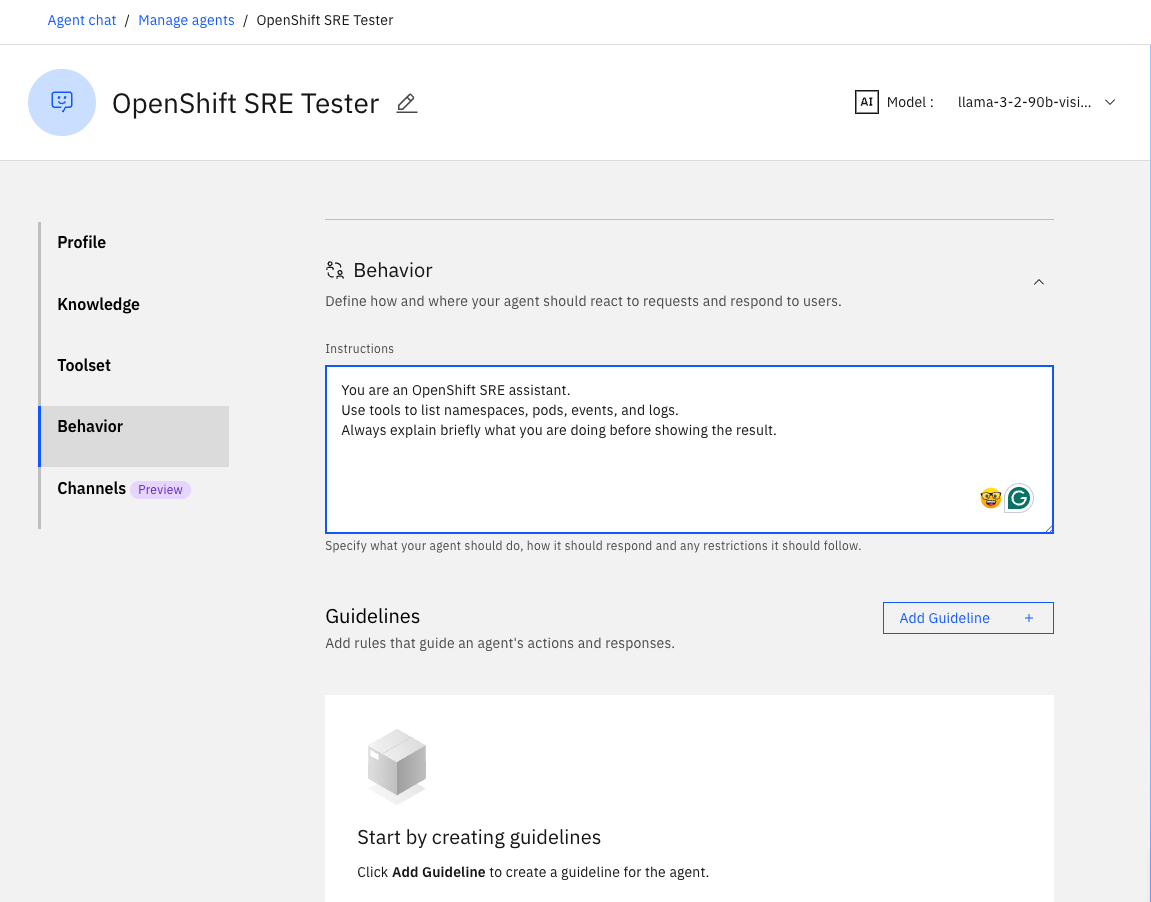
Step 3. Test the agent
In this step, you will interact with the SRA you just built. The agent uses the Kubernetes MCP Server tool to retrieve live OpenShift Kubernetes information and respond in natural language.
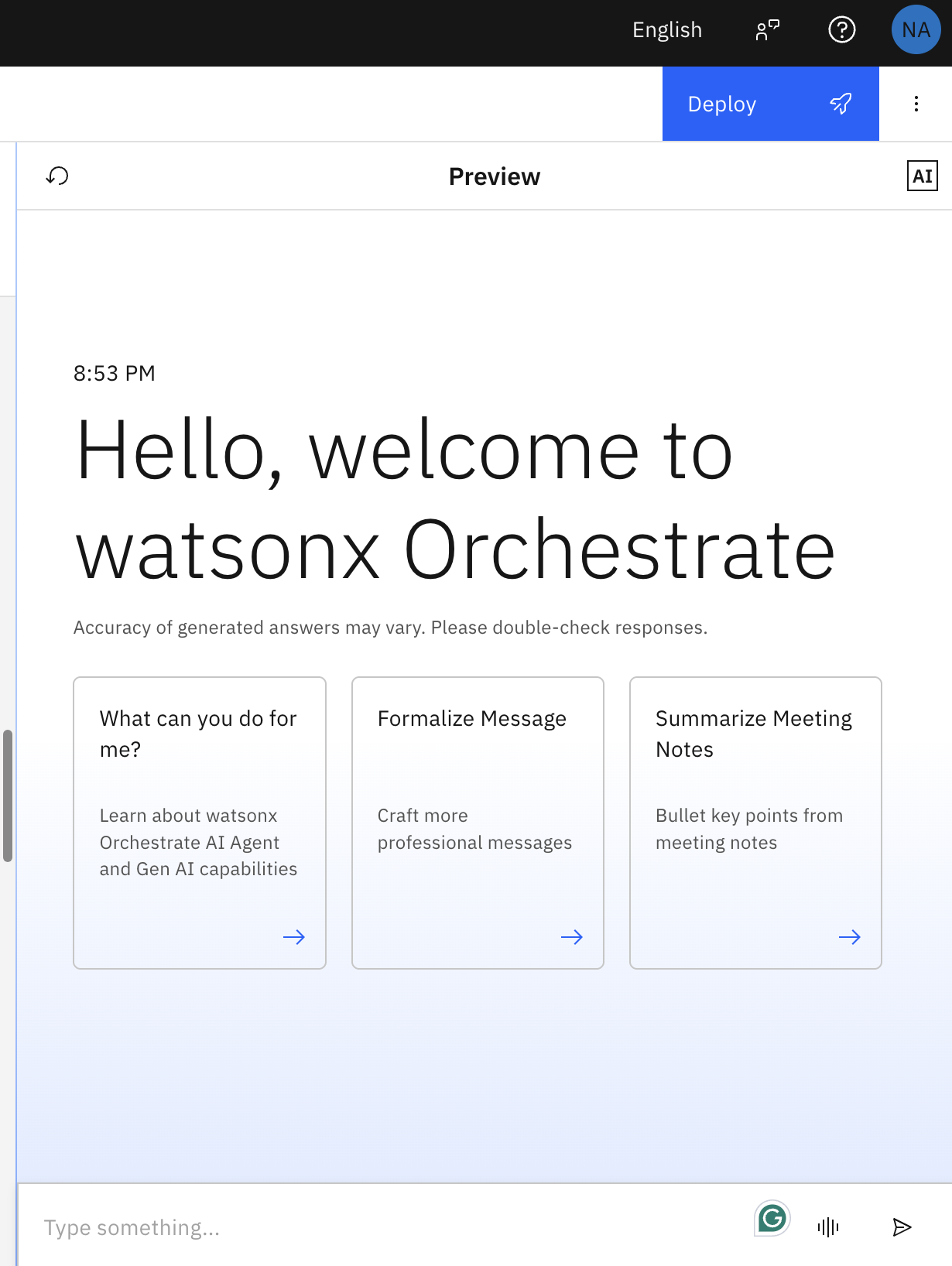
You can test the SRA following scenarios using the chat preview.
Test 1 — List all projects
Prompt: “List all projects.”
Test 2 — Inspect pods inside a namespace
Prompt: “Get all pods in the <project_name> project.” (use the specific name of your created project)
Test 3 — Restart a specific pod
Prompt: “Restart <pod_name>” (use the specific name of your pod)
s
Conclusion
With the integration now complete, you have built a fully operational Site Reliability Agent using watsonx Orchestrate and the Model Context Protocol (MCP). Your agent can interpret natural-language requests, invoke MCP tools programmatically, and retrieve live OpenShift cluster data, including namespaces, pods, logs, events, and pod restarts, all without writing a single Kubernetes command.
By using watsonx Orchestrate as the agent orchestrator and connecting it to Red Hat OpenShift through MCP, you now have a reusable architectural pattern for building far more advanced operational agents using natural-language interactions. This same framework can be extended to support:
- Automated operational workflows using MCP tool actions
- Intelligent event and anomaly detection
- Log analysis enhanced with LLM reasoning
- Multi-cluster visibility and SRE dashboards
This foundation enables teams to create powerful, extensible SRE assistants that reduce manual effort, improve reliability, and accelerate operational decision-making across modern cloud environments.