
About cookies on this site Our websites require some cookies to function properly (required). In addition, other cookies may be used with your consent to analyze site usage, improve the user experience and for advertising. For more information, please review your options. By visiting our website, you agree to our processing of information as described in IBM’sprivacy statement. To provide a smooth navigation, your cookie preferences will be shared across the IBM web domains listed here.
Tutorial
Connecting to MCP tools with watsonx Orchestrate
A hands-on guide for creating MCP tools and consuming them with watsonx Orchestrate Agent Development Kit
Large Language Models (LLMs) act as the reasoning core in AI agents. They are best at interpreting instructions, planning steps, and adapting to context, but LLMs alone are not designed for precise or reliable execution in many task categories. For example, an AI agent might need to pull live data from an API, query a private database, process a file, interact with enterprise systems like Salesforce or SAP, or perform exact mathematical calculations. These types of tasks are where correctness, up-to-date results, or security matter more than linguistic prediction. In these cases, the AI agent should call a trusted tool to handle the work.
The Model Context Protocol (MCP) provides a standardized, open way for LLMs to discover, describe, and call external tools safely. Instead of custom integrations for each model or app, MCP defines a clear protocol for tool registration, input/output formats, and secure communication. Using MCP means your tools, like a factorial calculator, can be reused across different agent frameworks without rewriting code for each one. It also enforces structured data exchange, making tool calls more reliable and easier to maintain, test, and audit.
In this step-by-step tutorial, you will learn how to create MCP tools on watsonx Orchestrate and build agents that consume these MCP tools. After completing this tutorial, you will have the skills to author your own MCP tools and integrate them into agents for flexible, secure, and reusable automation.
Using MCP in an AI agent architecture
Consider these different scenarios for when to use LLMs alone, when to use LLM with tools, and when to use MCP.
Use only an LLM in these cases:
- Natural language understanding and summarization
- Creative writing, brainstorming, or idea generation
- High-level reasoning tasks that do not require precise data or external execution.
For example, use only an LLM when you need to draft an email, summarize a report, or generate marketing copy.
Use MCP when you want your tools to work across multiple LLM providers without rewriting integrations and when enterprise-grade workflows require auditing, logging, and structured data exchange. MCP ensures a consistent and secure interface for tool calls across projects, agents, or departments.
For example, use MCP to build a
customer credit score checkerMCP tool that works in both a customer service agent and a financial risk assessment agent, regardless of the agent provider used watsonx Orchestrate, CrewAI, or others.
Architecture
The architecture of our sample application illustrates how watsonx Orchestrate agents combine the reasoning capabilities of LLMs with the precision, security, and interoperability of MCP tools.
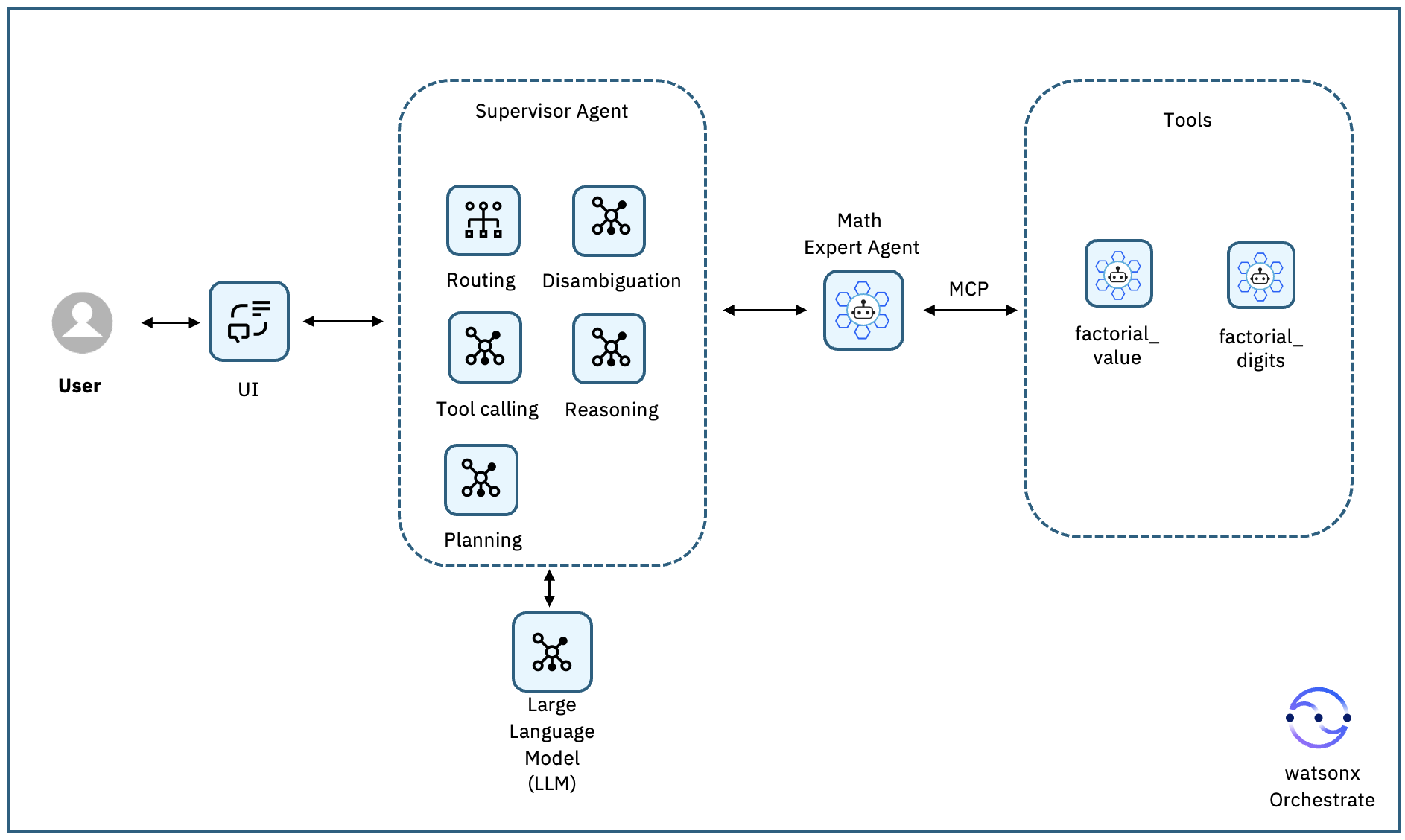
The user interacts with the user interface (UI), providing their query in natural language. These requests are sent to the Supervisor Agent, which uses an LLM for tasks such as interpreting instructions, reasoning through the problem, planning the next steps, and deciding whether a tool call is necessary.
When the Supervisor Agent determines that precise mathematical execution is needed, it triggers the Math Expert Agent that communicates with its tools through MCP. MCP acts as a universal connector, enabling the agent to discover and call tools in a standardized, structured, and reusable way. In this tutorial, these tools are factorial_value (to return the exact value of n!) and factorial_digits (to return the number of digits in n!).
Let’s look at an example of our sample agent architecture:
- A user asks through the UI: “How many digits are there in a factorial of 10000?”
- The Supervisor Agent processes the request with the LLM and it identifies that the request is related to Math Expert Agent, and delegates the request to that agent.
- The Math Expert Agent does the reasoning and recognizes that it requires a level of precision beyond what the LLM can reliably provide.
- The Math Expert Agent uses the factorial_digits MCP tool, which calculates the factorial using its shared helper function, and then returns only the count of digits rather than the full value, since the complete number would be far too large to display.
- The Supervisor Agent then returns the result to the UI, ensuring the response is accurate, fast, and free from LLM-generated errors.
By adopting MCP, the same tools can be reused across multiple agents and workflows without rewriting integrations for each LLM or platform. This makes the architecture highly scalable, easier to maintain, and adaptable to both experimental and production-grade enterprise use cases.
Prerequisites
This tutorial assumes you have a running local environment of watsonx Agent Development Kit (ADK). Check out the getting started with ADK tutorial if you don’t have an active instance. This tutorial has been tested on watsonx Orchestrate ADK version 1.8.1.
Additionally, you need this software installed:
- Python version 3.11. It should work with later versions, but this tutorial has been tested with Python 3.11.
- Node.js installed. This tutorial has been tested with v23.7.0.
- Your favorite IDE for editing Python code, such as Visual Studio Code.
Steps
Step 1. Create MCP Server
In this step, you are going to create an MCP Server using FastMCP. FastMCP is a lightweight, open-source Python framework that makes it quick and simple to build servers that use MCP.
You are going to create two mathematical tools that can be discovered and called by any MCP-enabled client. In this case, the MCP tools will be hosted and called within watsonx Orchestrate (which you set up in subsequent steps of this tutorial).
The first tool,factorial_value, calculates and returns the exact value of n! (the factorial of a given non-negative integer). The second tool, factorial_digits, returns only the number of decimal digits in n!, which is useful when the factorial is too large to display in full. Both tools share a common helper function to compute the factorial, ensuring accuracy and avoiding duplicated logic, while FastMCP handles the MCP protocol details, so the focus stays on the core math functionality.
Create a new directory called
agents/mcp-toolsand navigate to it.mkdir -p agents/mcp-tools cd agents/mcp-toolsOpen your favorite IDE, to start editing the code. The following uses Visual Studio Code, feel free to use your favorite IDE.
code .Create a file named
main.pyto store your MCP server details. In yourmain.pyfile, import FastMCP to create an MCP server named "math-tools-mcp" and import Python’s math module for factorial calculations. Also raise Python’s safety limit for converting very large integers to strings (set_int_max_str_digits) so the MCP server can handle huge factorial results without errors.from mcp.server.fastmcp import FastMCP # Import FastMCP to create MCP server import math # Import Python's math module for factorial calculation import sys # Create the MCP server instance and give it a name mcp = FastMCP("math-tools-mcp") # Uplift Python's big-int to string safety cap if hasattr(sys, "set_int_max_str_digits"): sys.set_int_max_str_digits(1000000)Create a python helper function
compute_factorialthat calculates n! (factorial of n) and returns it as an integer. It first validates that n is a non-negative integer, then uses Python’s built-inmath.factorialto perform the calculation.# ----------------------------------- # Helper function (not a tool) # ------------------------------------ def compute_factorial(n: int) -> int: """ Return n! as an integer. This is a shared helper for both MCP tools below. """ # Check that n is a non-negative integer if not isinstance(n, int) or n < 0: raise ValueError("n must be a non-negative integer") # Use Python's built-in factorial function return math.factorial(n)Use FastMCP to register a tool named
factorial_valuethat can be discovered and called by any MCP-enabled client, such as MCP Inspector or watsonx Orchestrate. When called, it returns the exact value of n!. It uses the sharedcompute_factorialhelper function to perform the calculation after receiving the input n.# ---------------------------- # MCP Tool 1: factorial_value # ---------------------------- @mcp.tool("factorial_value") async def factorial_value(n: int) -> int: """ Return the exact value of n! (factorial of n). Example: factorial_value(5) -> 120 """ # Use the helper function to compute the factorial return compute_factorial(n)Similarily, register a tool named
factorial_digits. When called, it returns how many digits are there in the value ofn!. It uses the sharedcompute_factorialhelper function to perform the calculation and then gets the length of it using python.# ---------------------------- # MCP Tool 2: factorial_digits # ---------------------------- @mcp.tool("factorial_digits") async def factorial_digits(n: int) -> int: """ Return the number of digits in n! (factorial of n). Example: factorial_digits(5) -> 3 """ # Get the factorial using the same helper function fact_value = compute_factorial(n) # Convert to string and count how many characters (digits) it has return len(str(fact_value))Start the MCP server. Calling
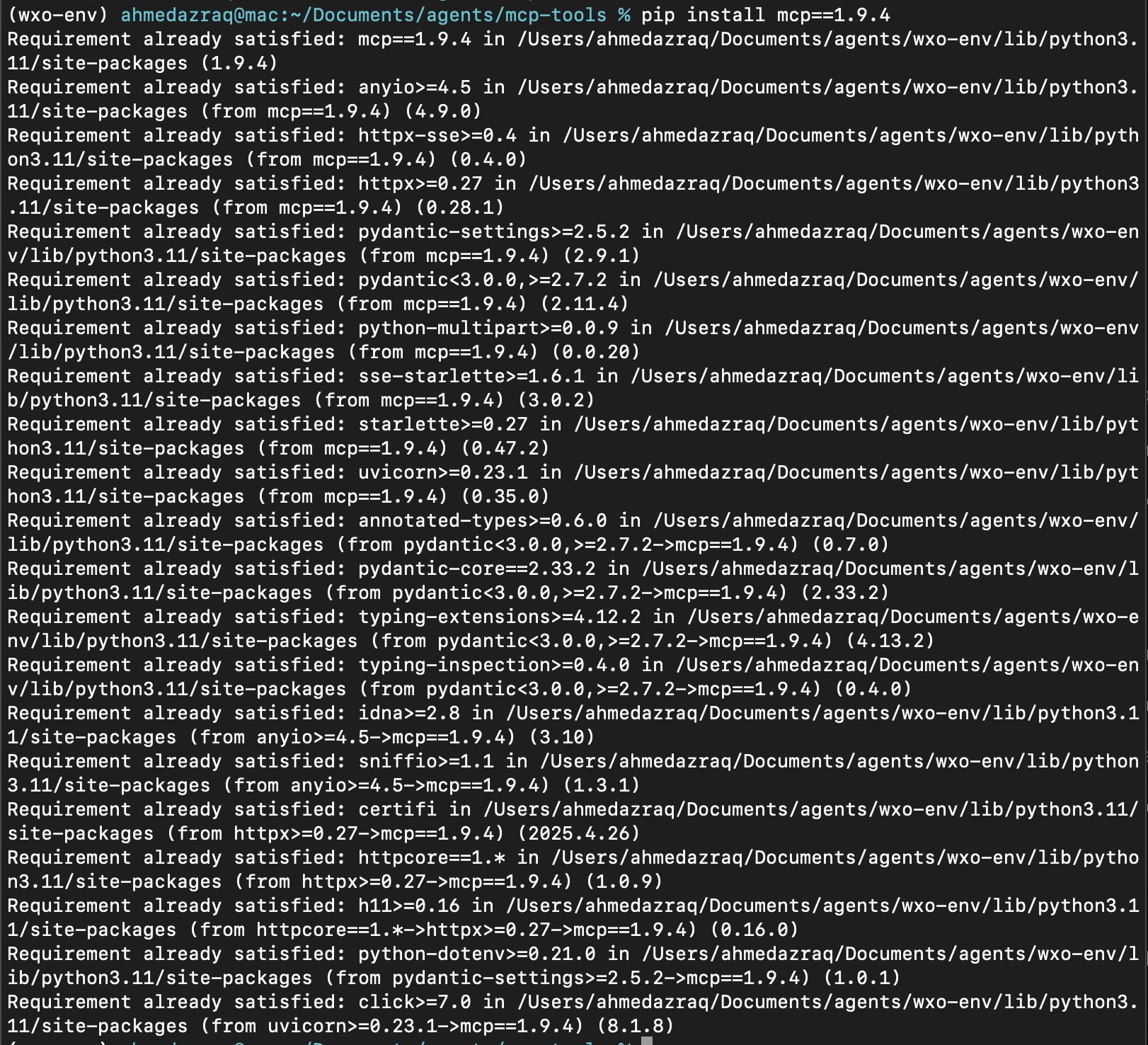
mcp.run()launches the FastMCP server so the registered tools can be discovered and invoked by MCP-enabled clients, such as watsonx Orchestrate, MCP Inspector, or even an LLM.# -------------------------------- # Start MCP server if run directly # -------------------------------- if __name__ == "__main__": # Start the MCP server so the MCP tools can be called by watsonx Orchestrate or any LLM. mcp.run()Go to the terminal and install the FastMCP server using PIP (Python’s package manager) to download and install version 1.9.4 of the mcp Python package. The tutorial has been tested with this specific version, but feel free to try the latest.
pip install mcp==1.9.4
Step 2. Test the MCP tools locally
In this step, you are going to test the MCP tools locally using MCP Inspector.
MCP Inspector is an open-source, browser-based client for MCP, originally bootstrapped by Anthropic as part of their work to connect to external tools in a standardized way. It provides a visual interface where developers can connect to an MCP server, view all registered tools, resources, and prompts, send test requests with custom inputs, and inspect the structured JSON responses.
By running MCP Inspector locally, you can quickly validate that the tools like factorial_value or factorial_digits are properly registered, functioning correctly, and handling errors as expected before connecting them to watsonx Orchestrate.
This is an optional step but recommended to ensure that the tools function correctly before connecting them to an agent.
Download and launch the latest version of MCP Inspector in your browser. This lets you connect to your MCP server, explore its tools, send test inputs, and see the outputs instantly.
npx @modelcontextprotocol/inspector@latest
In MCP Inspector, in Command write
python3and in Arguments writemain.pyreferring to your python file that includes your MCP server details. Click Connect.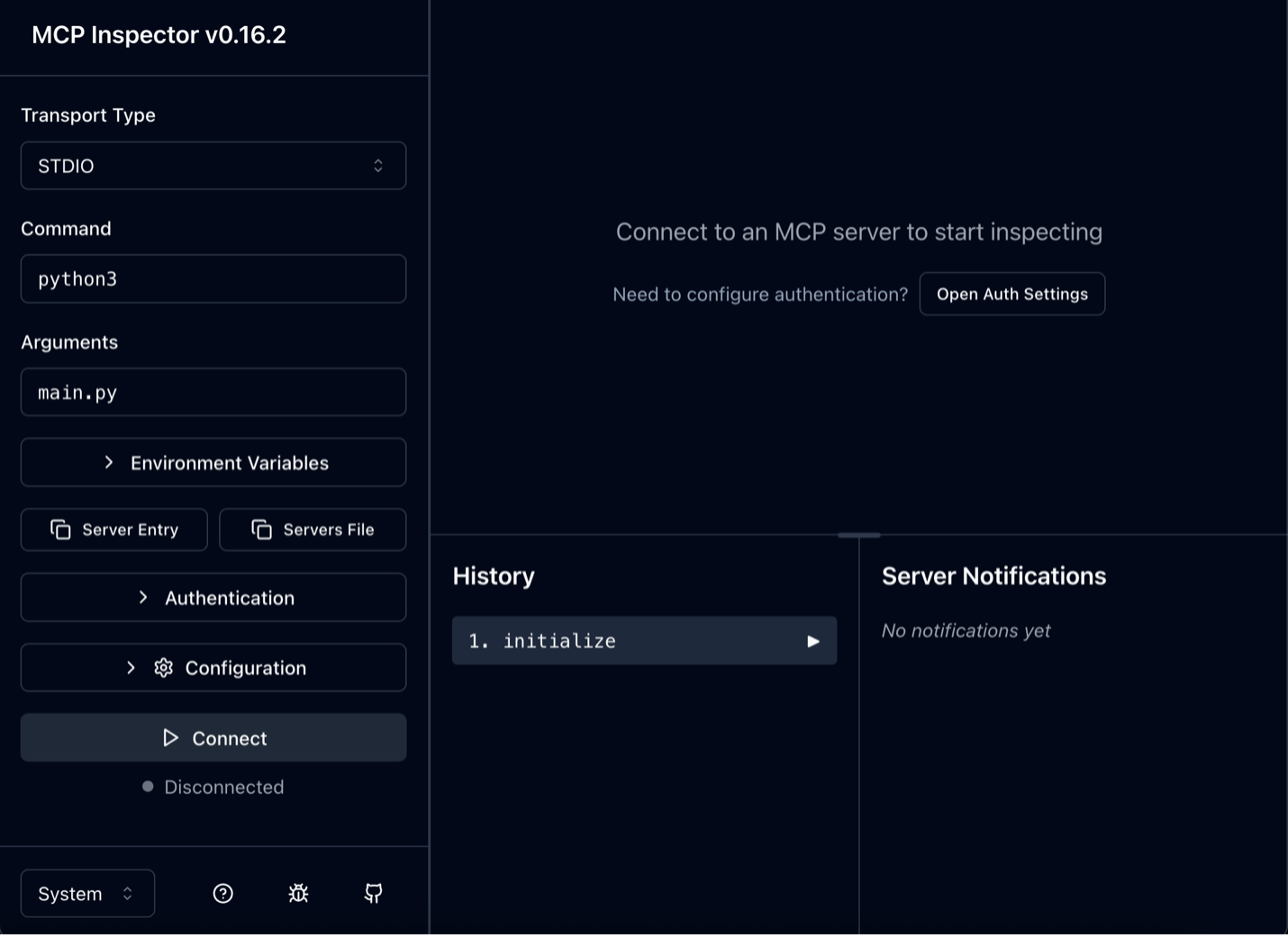
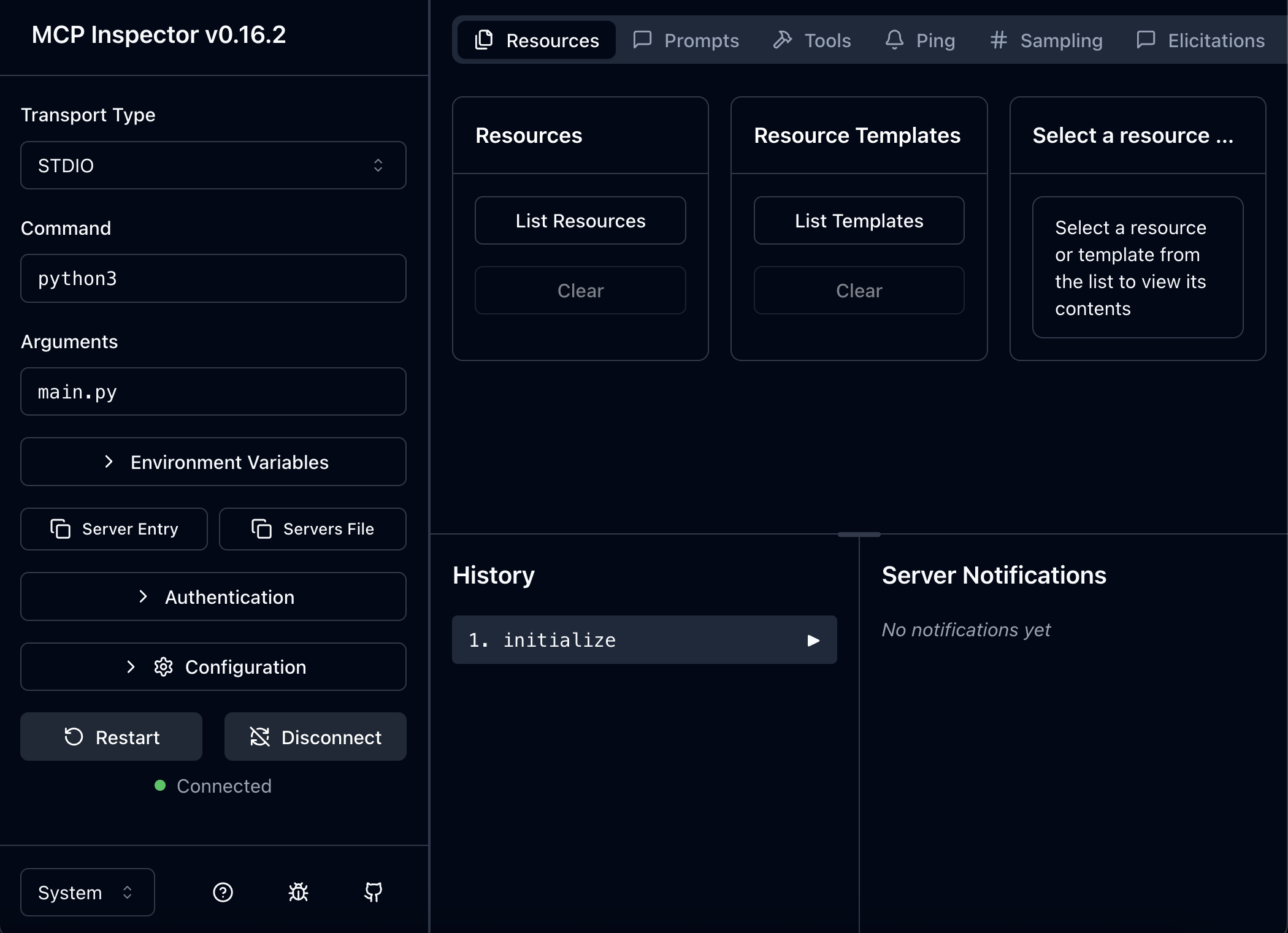
Your server should show as Green Connected as shown in the below screenshot.
Click Tools, then List Tools, then
factorial_valuetool, then specify a value of 10, and then click Run Tool.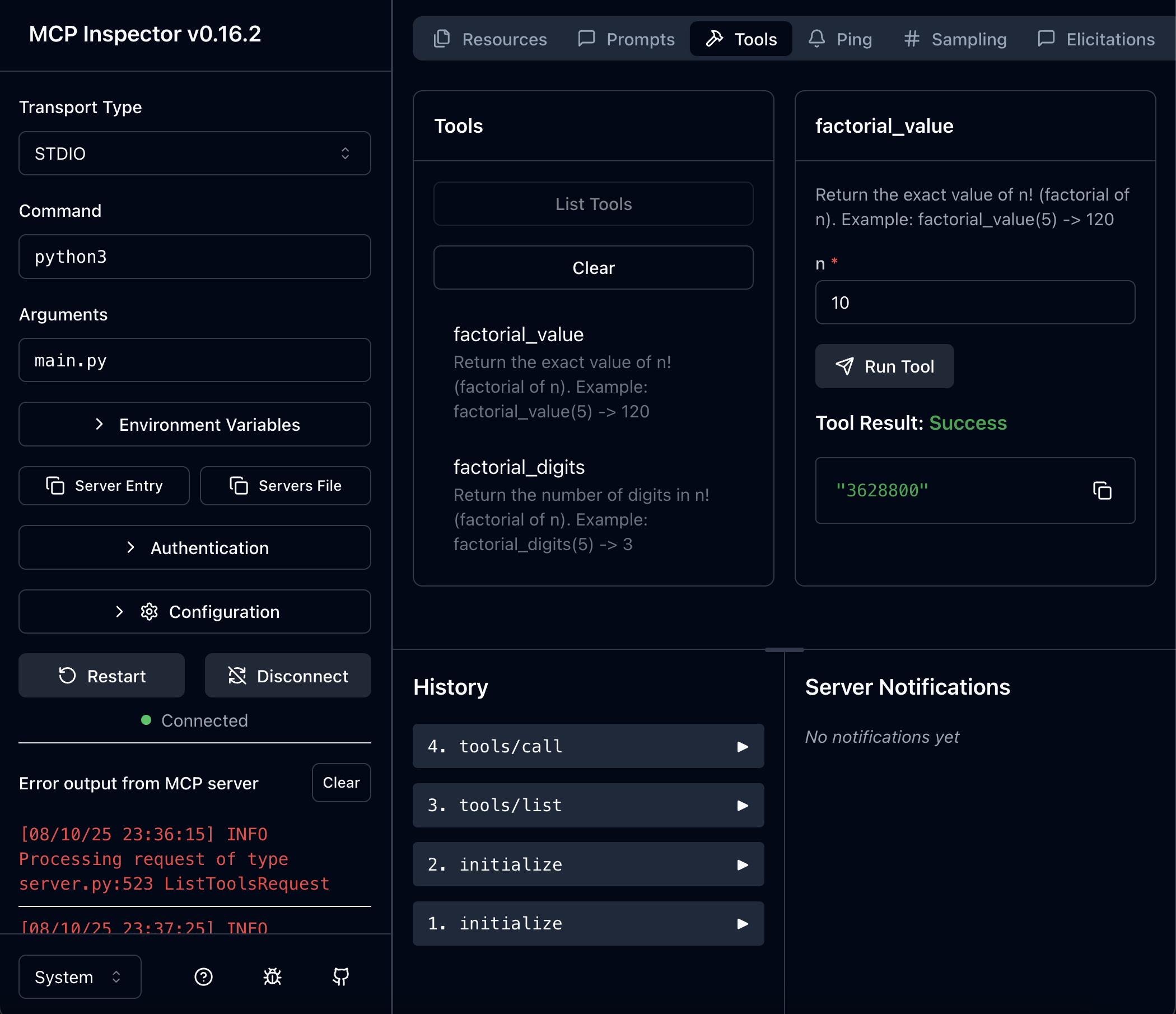
Similiarly, test the
factorial_digittool.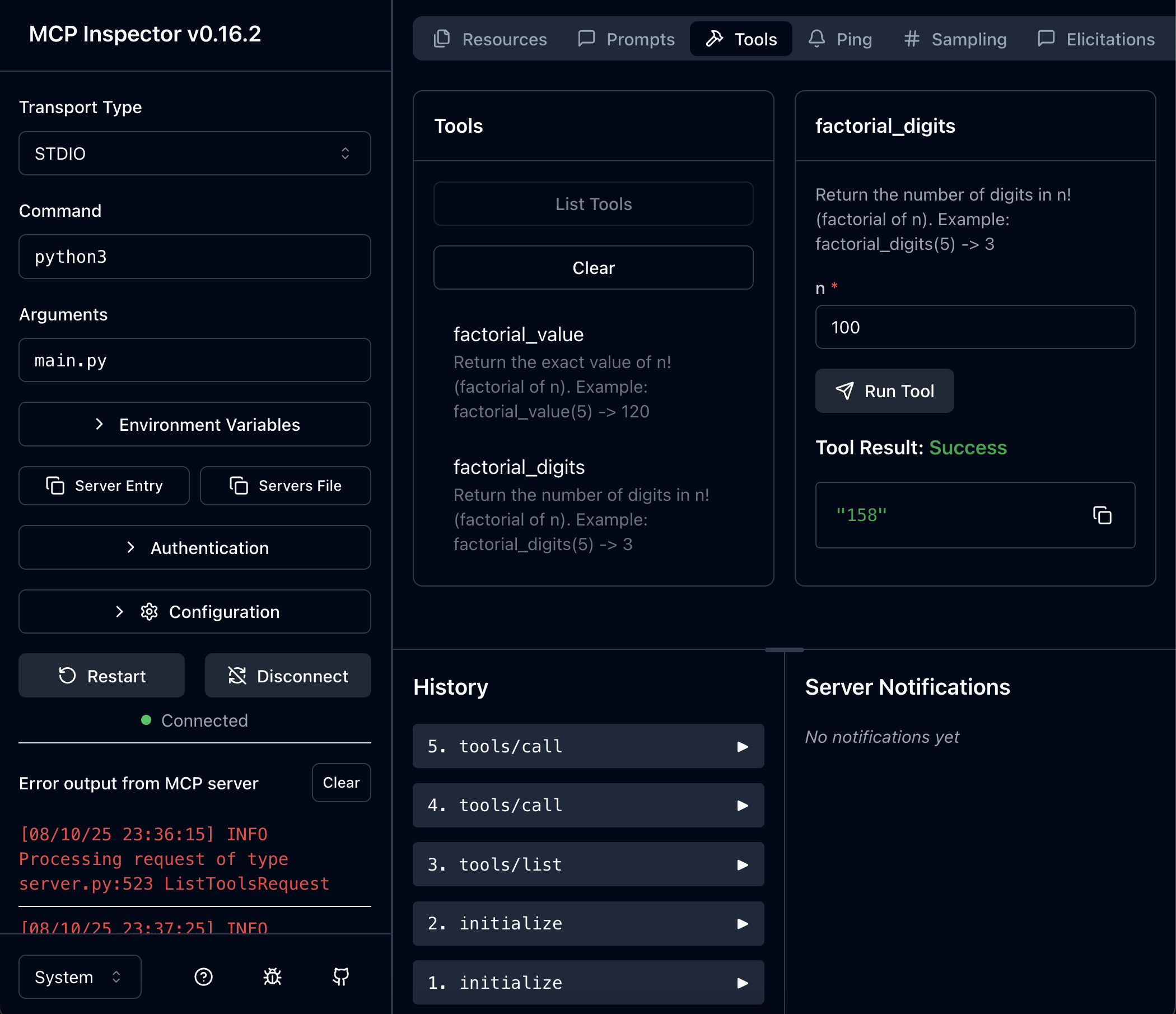
Close the MCP Inspector. Go back to the terminal, and press Ctrl+C.
Step 3. Import the MCP tools into watsonx Orchestrate
In this step, you import the MCP tools into watsonx Orchestrate using the watsonx Orchestrate Agent Development Kit (ADK).
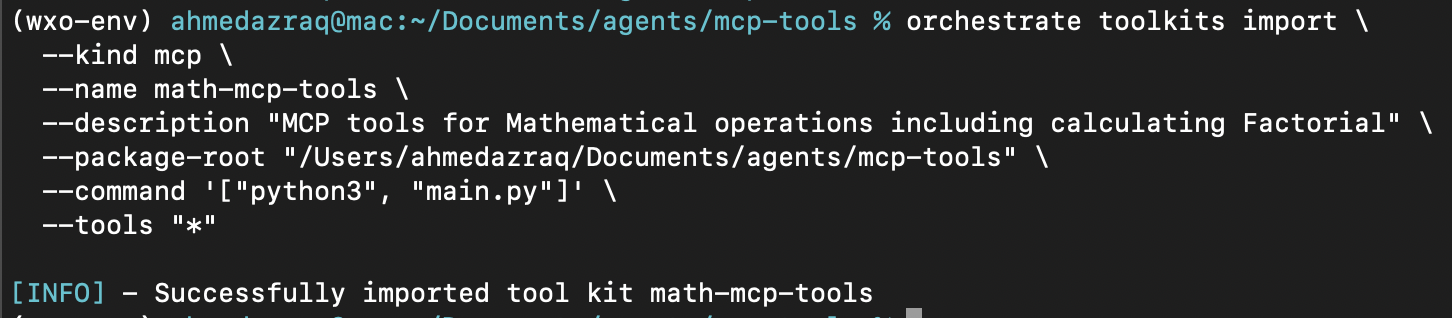
You are going to use orchestrate toolkits import to import the MCP tools into your watsonx Orchestrate instance.
orchestrate toolkits add \
  --kind mcp \
  --name math-mcp-tools \
  --description "MCP tools for Mathematical operations including calculating Factorial" \
  --package-root "/Users/ahmedazraq/Documents/agents/mcp-tools" \
  --command '["python3", "main.py"]' \
  --tools "*"
The orchestrate toolkits command arguments are:
- Kind: MCP as the tools being imported are MCP compliant.
- Name: You give a name for this group of MCP tools such as
math-mcp-tools. - Description: Description for these MCP tools.
- Package-root: The absolute path of the location of the Python file including the MCP tools code. Important: Make sure to replace the absolute path with your own.
- Command: Python command to run the MCP server.
- Tools: Specifying an asterisk (*) imports all the tools in the python file.
Step 4. Create an agent using watsonx Orchestrate that consumes MCP tools
In this step, you are going to create an agent in watsonx Orchestrate that consumes the MCP tools you imported in the previous step.
Launch watsonx Orchestrate locally using the ADK. This opens a browser session with watsonx Orchestrate.
orchestrate chat startClick Create new agent to access the Agent Builder.
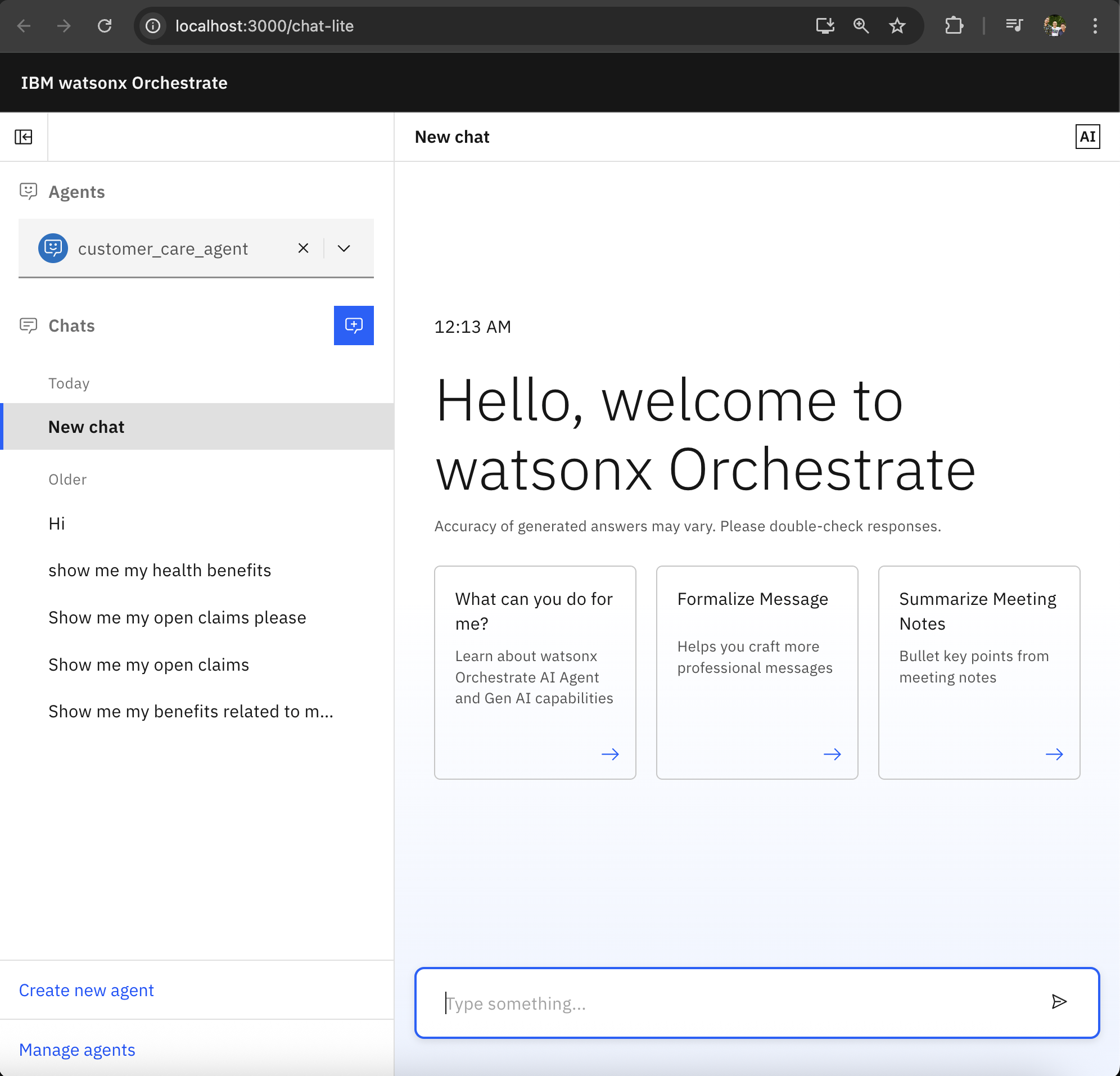
Fill the name and description of the agent as follows. The description is not optional, as it outlines the scope of the agent and makes it easy for other agents and users to know when to interact with this agent. Then, click Create.
- Name: Math Expert Agent
Description: This agent provides precise math calculations that go beyond what large language models can do on their own. It can return the exact value of a factorial or tell you how many digits it contains, even for very large numbers.

Go to the Toolset section, and then click Add tool to add the MCP tools imported on the previous steps.
- Click Add from local instance.
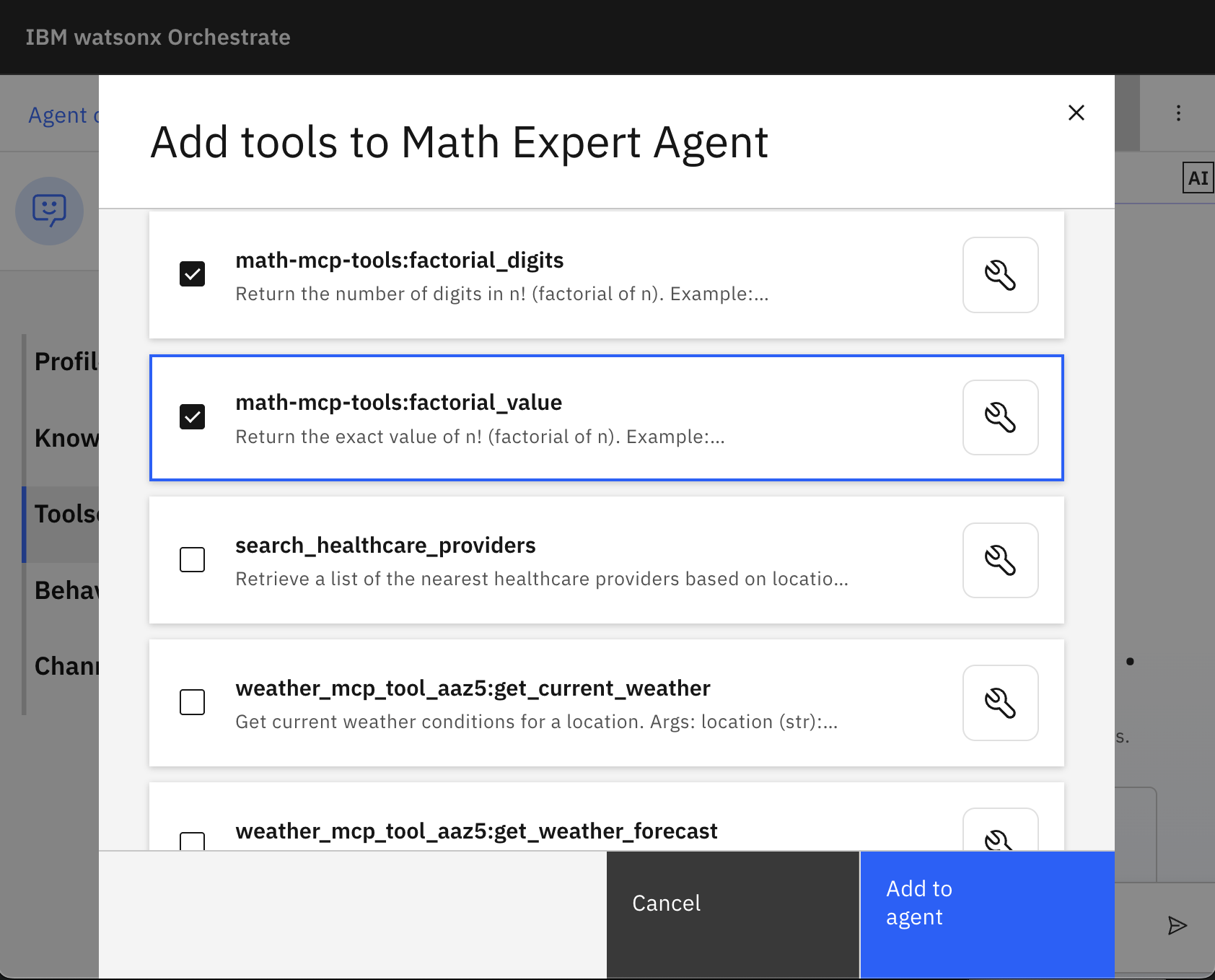
Select the two MCP tools you created earlier for factorial calculations, and then click Add to agent.
Go to the Behavior section to define how the agent should react to requests and respond to usesrs. Write the following in the Behavior section:
For reasoning or English-language tasks, depend on the LLM’s own capabilities to provide answers directly. For factorial-related math queries, such as calculating the exact value or determining the number of digits, call the MCP tools to ensure precision and handle very large numbers that the LLM may struggle with.
 - Use tool math-mcp-tools:factorial_value to return the exact value of 𝑛! (factorial n)
 - Use tool math-mcp-tools:factorial_digits to return the number of decimal digits in 𝑛! (digits in factorial n)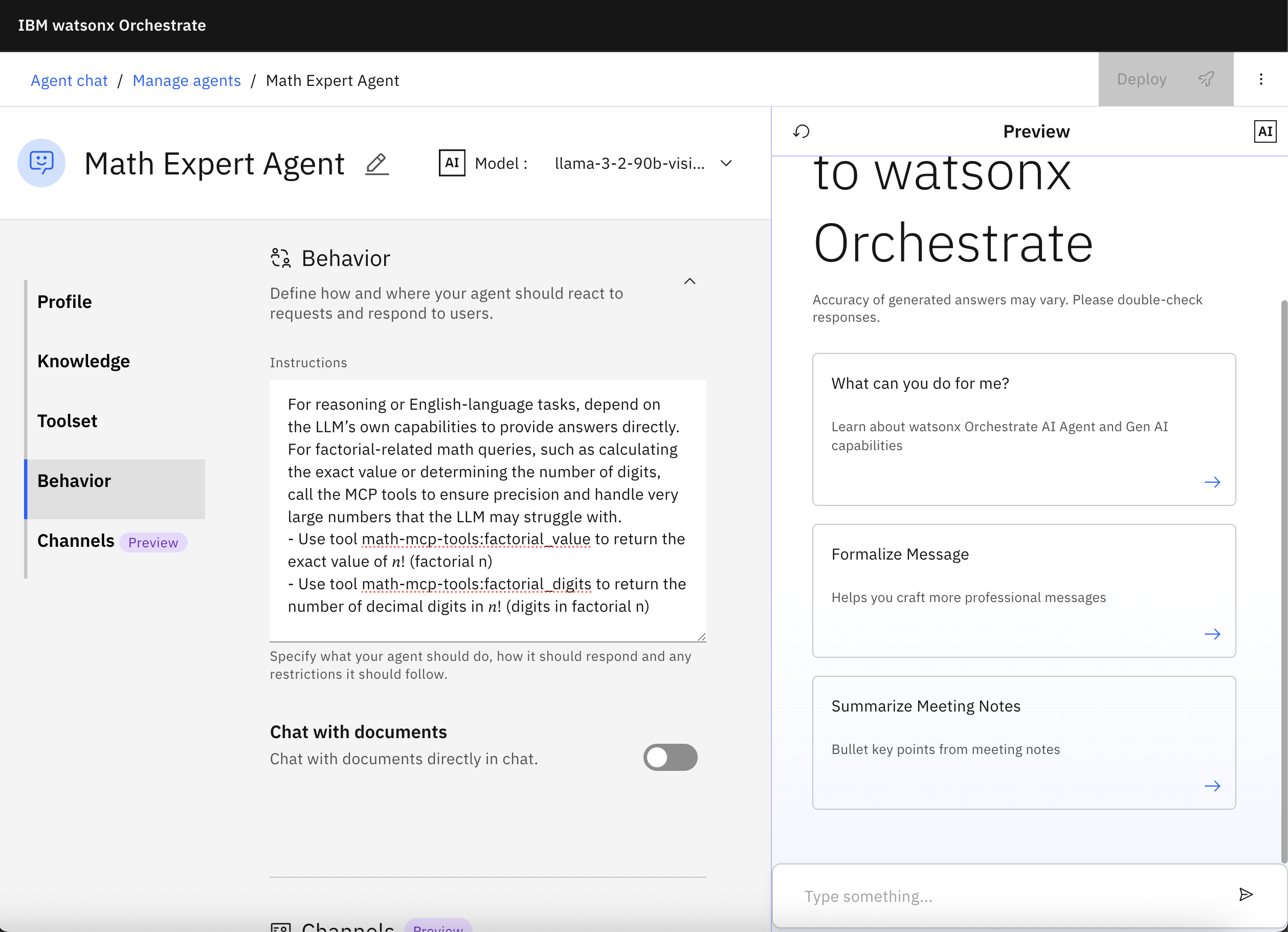
Step 5. Test the agent
Next, you are going to the test the agent calling the different MCP tools. You can test either from the Preview right pane or through selecting the agent in the watsonx Orchestrate home page and then chatting with it.
In the Preview right pane, write this inquiry:
What is the result of factorial six, and how many digits are there, put that into a table. Also for the second row, put how many digits are there in factorial ten thousand.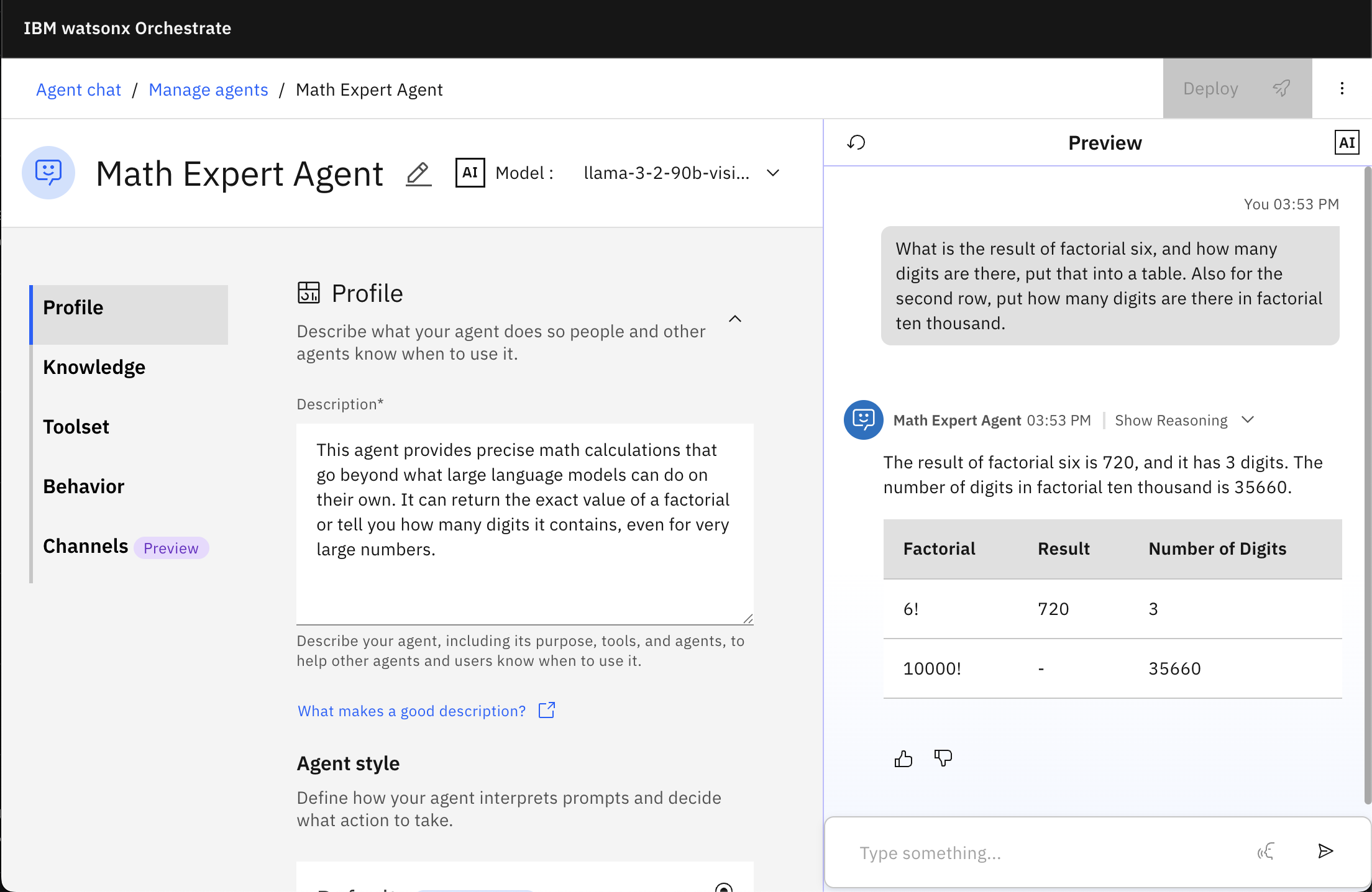
Click Show Reasoning to see that the agent called the MCP tool
factorial_valueonce for 6!, the MCP toolsfactorial_digitstwice for 6! and 10,000!, and it used its LLMllama-3-2-90b-vision-instructfor the reasoning and converting to table format.
Summary and next steps
In this tutorial, you built a complete example showing how watsonx Orchestrate can combine the reasoning power of LLMs with the precision and reliability of MCP tools. Starting from the simple idea of calculating factorials accurately, you created an MCP server, tested it locally, and then connected it to a watsonx Orchestrate agent. Along the way, you learned how the LLM decides when to handle a request directly and when to call a tool for exact results. For example, when computing the number of digits in the factorial of 10000 (10000!), you have seen that the MCP tool can return an exact answer, while the LLM alone might guess or hallucinate because it predicts text rather than executes math. Tools let you delegate that computation to real code running in a trusted environment, ensuring accuracy, consistency, and repeatability. This also allows you to work with data or logic that the LLM was never trained on, without exposing that data directly to the model’s memory
This approach demonstrates the flexibility of MCP. The same MCP tools developed here can be reused in other agents, connected to different LLMs, or integrated into enterprise workflows without rewriting the logic. By separating reasoning from execution, agents remain both capable and trustworthy.
As you move forward, consider expanding on this foundation by:
- Adding new tools to the MCP server, such as data lookups, API calls, or file processing.
- Using MCP logging and structured data to track tool usage and troubleshoot issues.
- Deploying the agent in a shared or production environment so others can benefit from it.
- Exploring the MCP tools provided by IBM, which include reusable components and reference implementations that you can adapt for your own projects.
- Experimenting with running the same tools through different LLMs to compare responses and performance.
By applying these capabilities across your projects, you can streamline workflows, improve precision, and create scalable, reusable automation while maintaining control over your architecture and data.
Stay tuned for an additional tutorial to connect your MCP tools to the MCP Gateway. The MCP Gateway acts as a registry, proxy, and unified endpoint for MCP servers, so your tools can be discovered and called by multiple agents and LLMs without code changes.
Acknowledgments
This tutorial was produced as part of the IBM Open Innovation Community initiative: Agentic AI (AI for Developers and Ecosystem).
The authors deeply appreciate the support of Michele Corbin for the guidance and expertise on reviewing and contributing to this tutorial.