
About cookies on this site Our websites require some cookies to function properly (required). In addition, other cookies may be used with your consent to analyze site usage, improve the user experience and for advertising. For more information, please review your options. By visiting our website, you agree to our processing of information as described in IBM’sprivacy statement. To provide a smooth navigation, your cookie preferences will be shared across the IBM web domains listed here.
Tutorial
Implement location-based access control with IBM MaaS360 dual-layer geo-fencing
Learn how to configure IBM MaaS360 dual-layer geo-fencing to enforce automated, location-based access controls for mobile devices, enabling secure workforce mobility, policy-driven compliance, and real-time enforcement across facility and country boundaries
On this page
Corporate mobile devices are increasingly used outside traditional office boundaries, including production sites, branch offices, remote work locations, and during international travel. Without location-based controls, access to sensitive corporate applications remains unrestricted, increasing the risk of data exposure and compliance violations.
The organization needs location-based access controls tailored to different user roles:
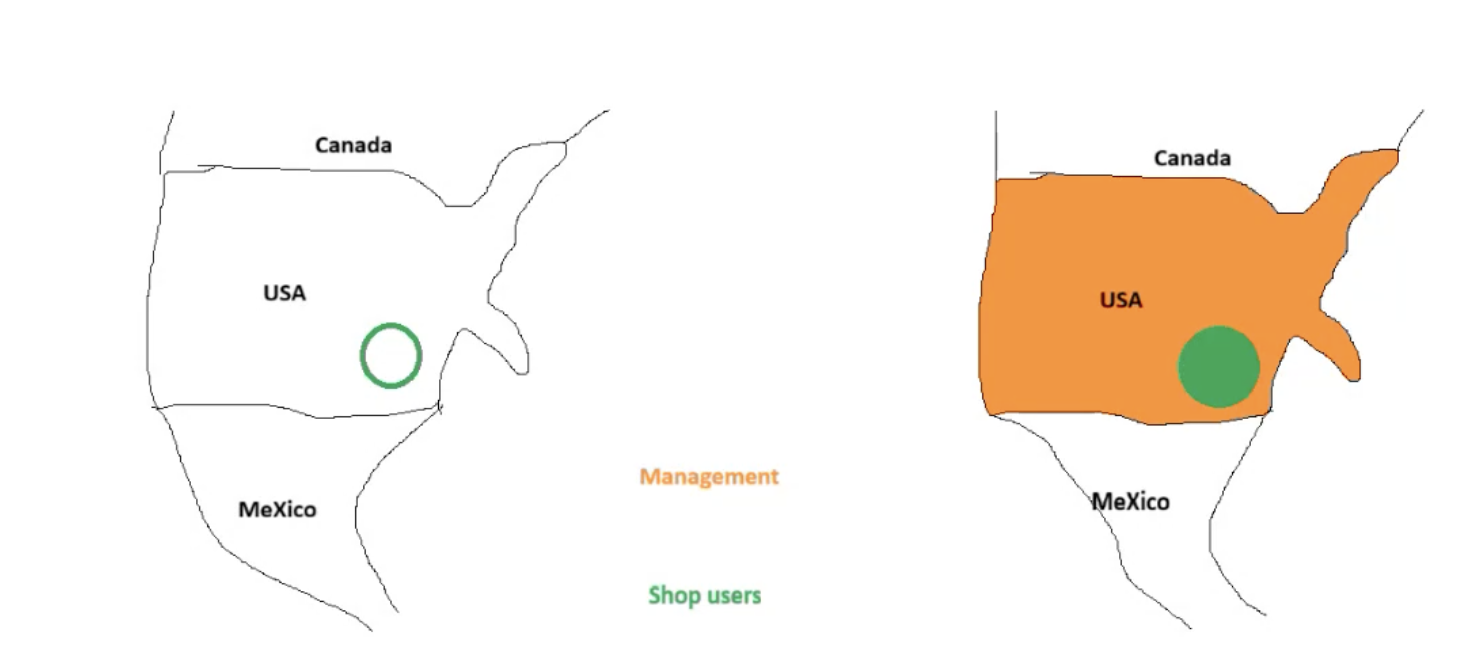
- Production or shop-floor users Access to manufacturing applications is allowed only when devices are within the Texas facility campus. Access is automatically restricted when devices leave the campus.
- Management or mobile executives Access to corporate applications is permitted anywhere within the United States. Access is automatically blocked when devices leave the country.
Key challenges
- Traditional device compliance controls do not enforce location-based restrictions.
- Manually disabling access during user travel is impractical, slow, and error-prone.
- Missing geolocation enforcement weakens security and compliance, especially in regulated environments.
Solution overview
IBM MaaS360 geo-fencing enables organizations to enforce two layers of geographic control:
- Micro-Fence: A micro-fence for a specific facility campus. For example, around the Texas headquarters campus.
- Macro-Fence: A macro-fence for a broader region. For example, a country-level geo-fence covering the United States.
In this tutorial scenario, a manufacturing enterprise that is headquartered in Texas restricts production-floor users to the Texas campus, allows management users to access applications anywhere within the United States, and automatically blocks access when devices leave the country.
When a managed device exits either boundary, MaaS360 automatically triggers compliance rules to enforce policy actions such as switching to kiosk mode, locking the device, or disabling corporate applications. All location events are logged for audit and reporting. Enforcement is applied based on user role and device platform, ensuring consistent control across iOS and Android devices.
Architecture of dual-layer geo-fencing feature for MaaS360
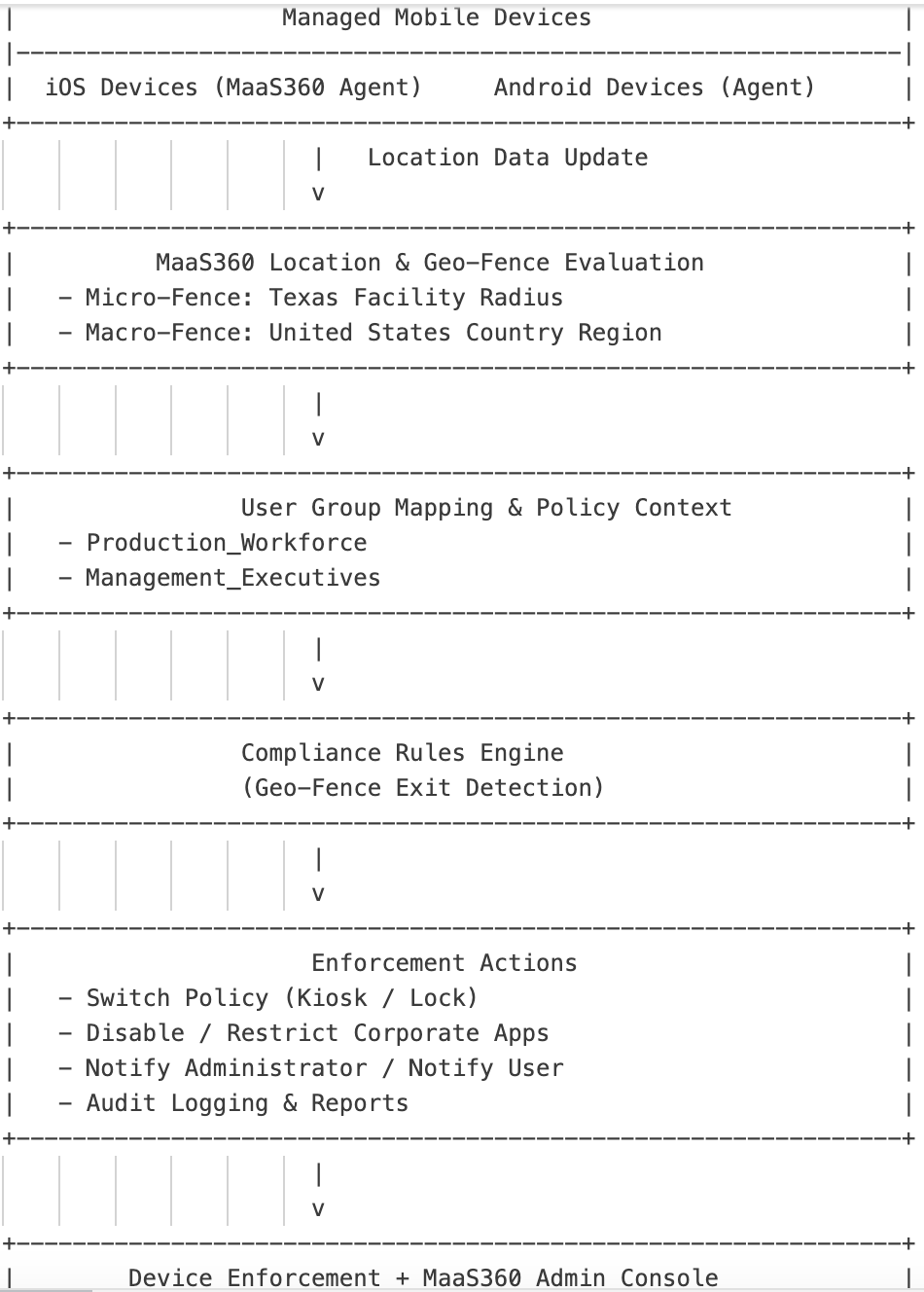
Figure. Task flow diagram
This deployment follows a policy-driven flow:
- Devices enrolled in MaaS360 report location data through the MaaS360 agent.
- Administrators configure two geo-fences: a campus-level micro-fence and a US country-level macro-fence.
- User groups such as
Production_WorkforceandManagement_Executivesare created and mapped to device policies and compliance rules. - Compliance rules monitor devices as they exit defined geo-fences and trigger enforcement based on user group and device platform.
- Enforcement actions include changing device policy, locking the device, disabling corporate applications, sending notifications, and logging events for audit purposes.
Prerequisites
- An active IBM MaaS360 Cloud tenant with administrator access.
- iOS and or Android devices that are enrolled in MaaS360 with the MaaS360 agent installed and
Location Servicesenabled - Location permission set to
Always allowfor the MaaS360 agent. - User groups that are created for the required personas such as
Production_WorkforceandManagement_Executives. - Latitude and longitude coordinates or a physical address for the Texas facility campus.
- MaaS360 licensing enabled for Locations, Policies, Compliance, and Geo-Fencing features.
Steps
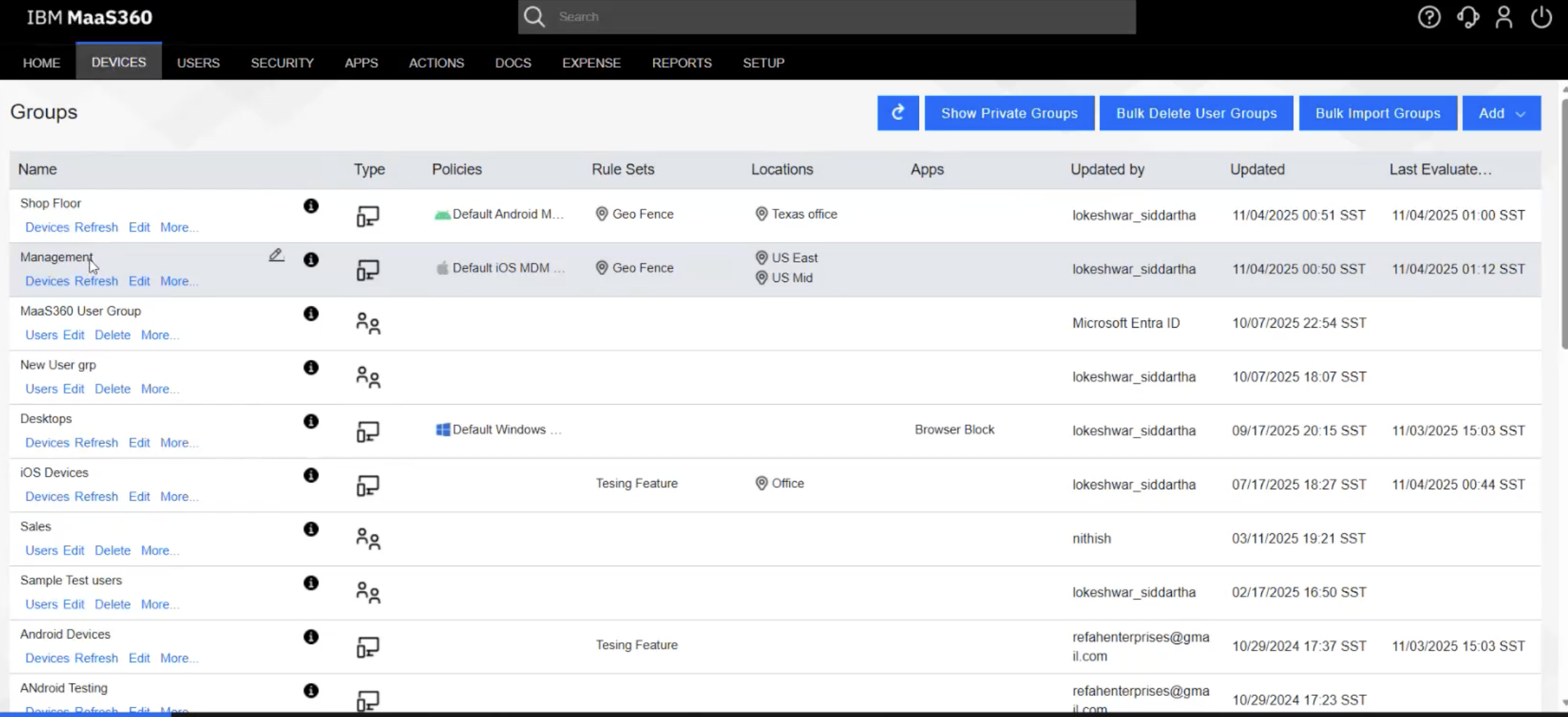
Step 1. Create user groups
Navigate to Devices → Groups → Create Group and create the following groups:
Production_Workforcefor production and shop-floor users.Management_Executivesfor management and mobile users.
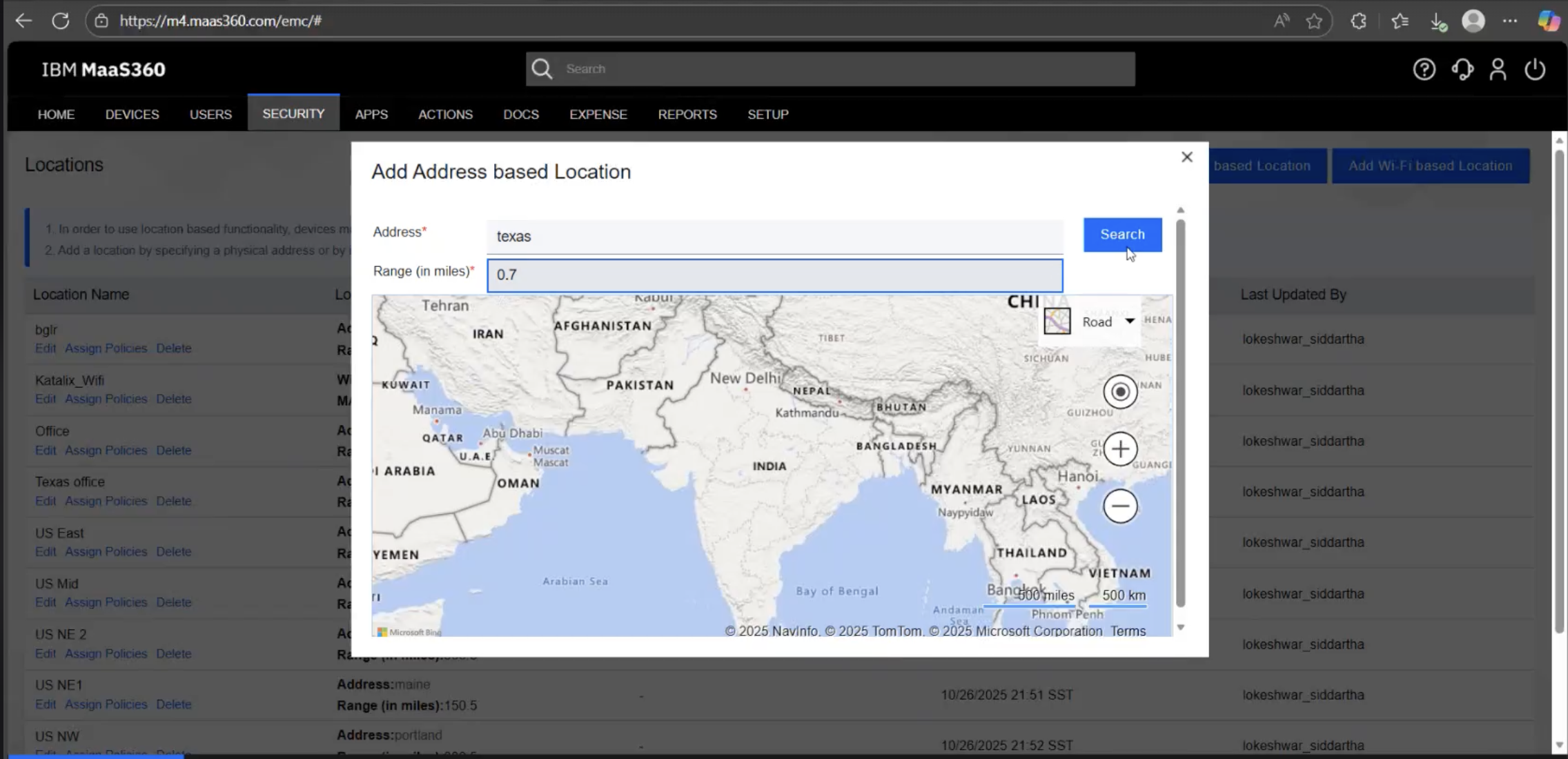
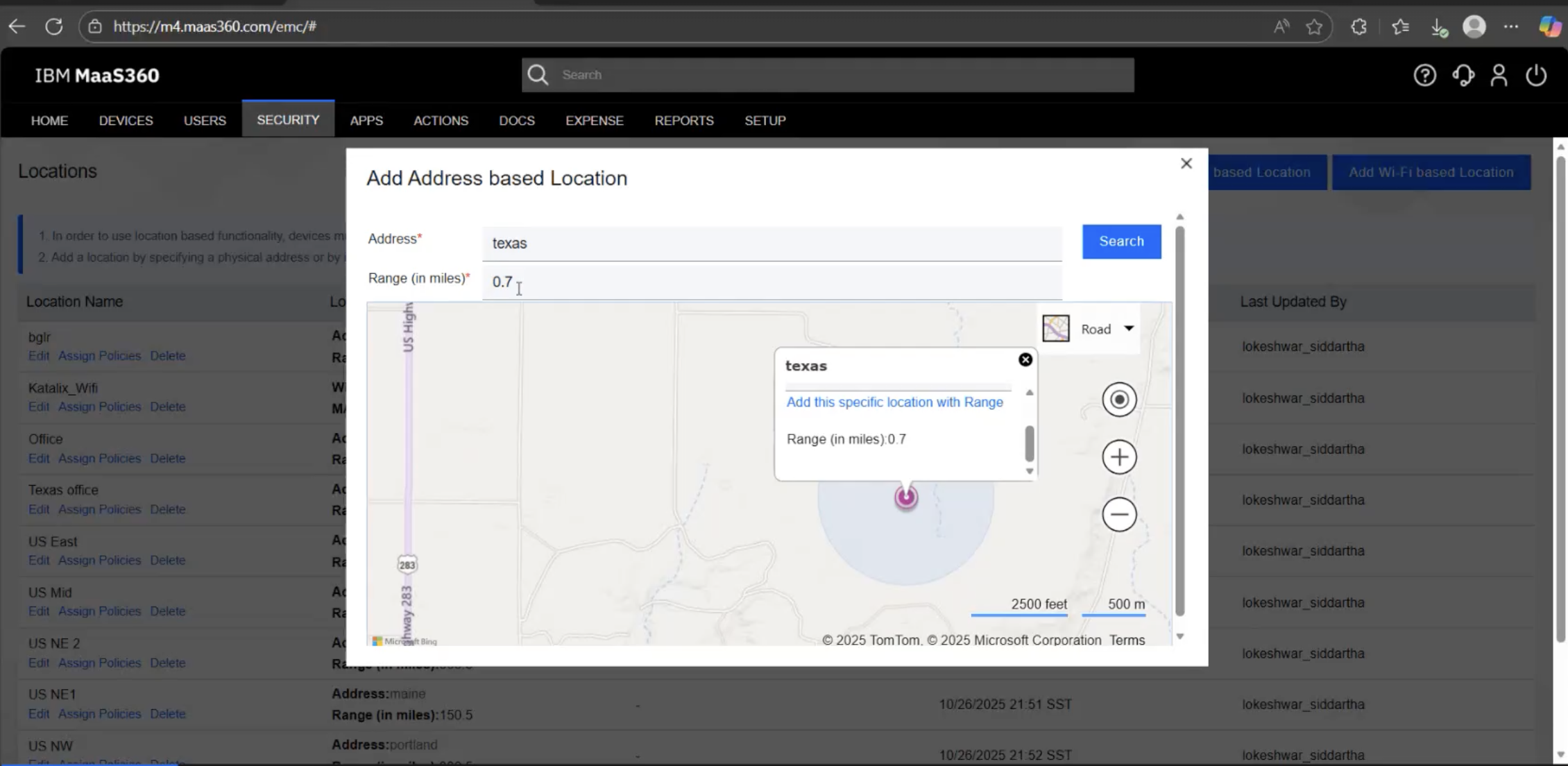
Step 2. Define geo-fence locations
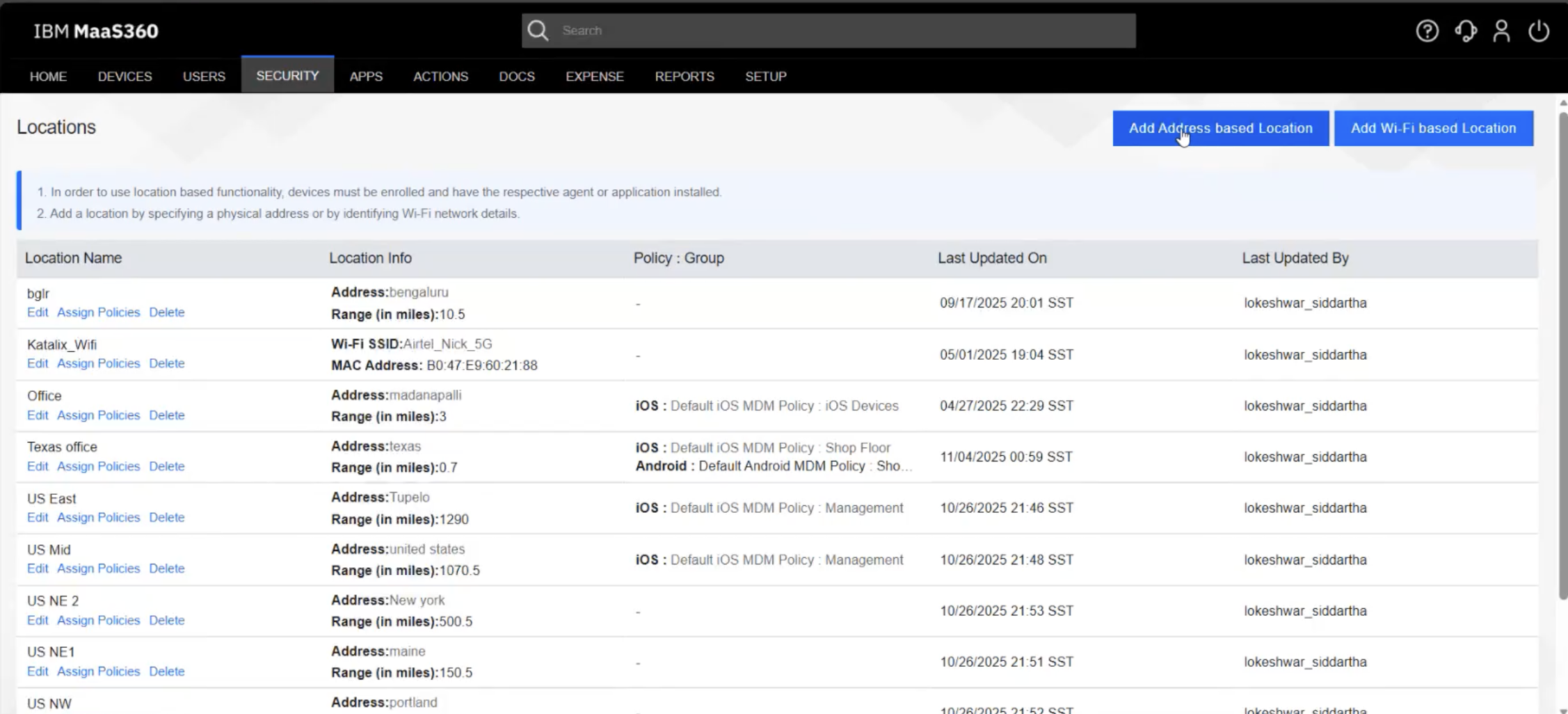
Navigate to Security → Locations → Add.
Micro-fence (Campus facility)
- Name: Texas_Campus_Fence
- Type: Geo-Fence Radius
- Enter the facility’s latitude, longitude, or address, set an appropriate radius (for example, 500 m)
- Save the location
Macro-fence (Country region)
- Name: US_Region_Fence
- Type: Country Region
- Select: United States
- Save the location
Step 3. Configure device policies
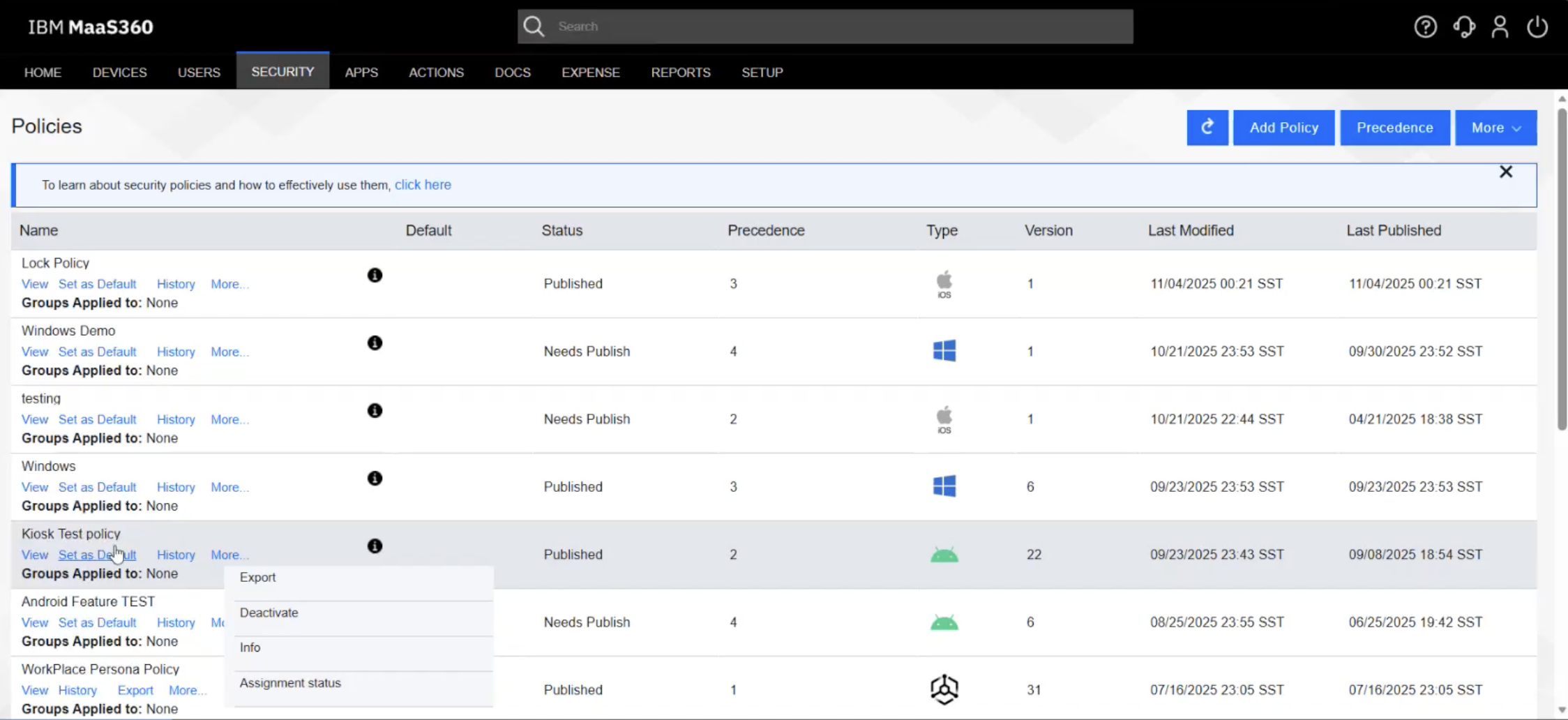
Navigate to Security → Policies and configure policies for each platform and user group.
Android
- Create or edit a policy with the device mode set to Kiosk.
- Configure the policy to apply when the device exits the assigned location.
- Assign the policy to the appropriate user groups.
iOS
- Create or edit a policy with the device mode set to Lock Mode.
- Configure enforcement when the device exits the assigned location.
- Assign the policy to the appropriate user groups.
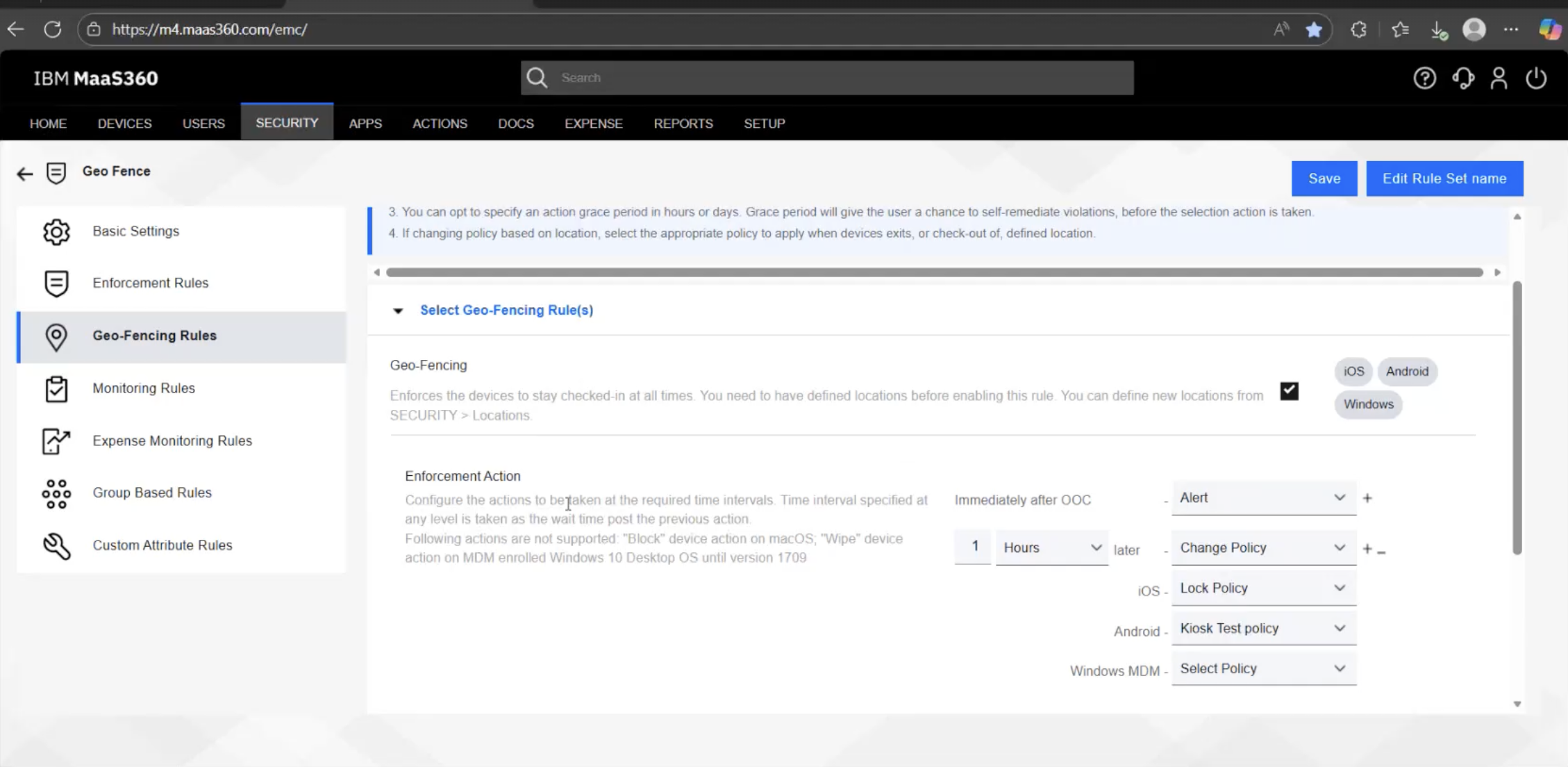
Step 4. Create compliance rules
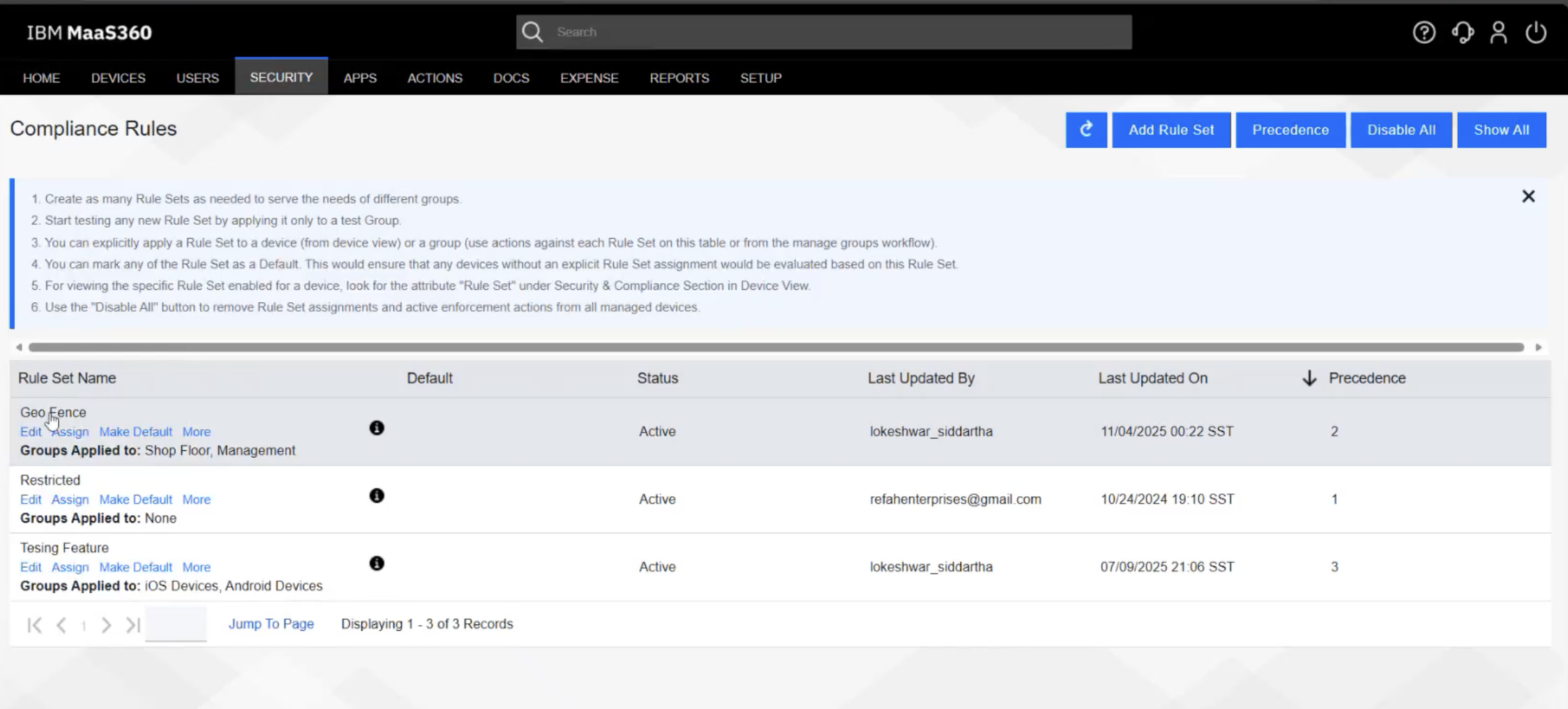
Navigate to Security → Compliance Rules → New Rule Set and configure the following:
- Apply the rule set to both user groups, with enforcement actions based on group assignment
- In the Geo-Fencing section, set the condition to Device exits location and select the required geo-fence.
- Configure enforcement actions such as
Change Policy,Lock Device,Notify User, andNotify Administrator. - Save and publish the rule set.
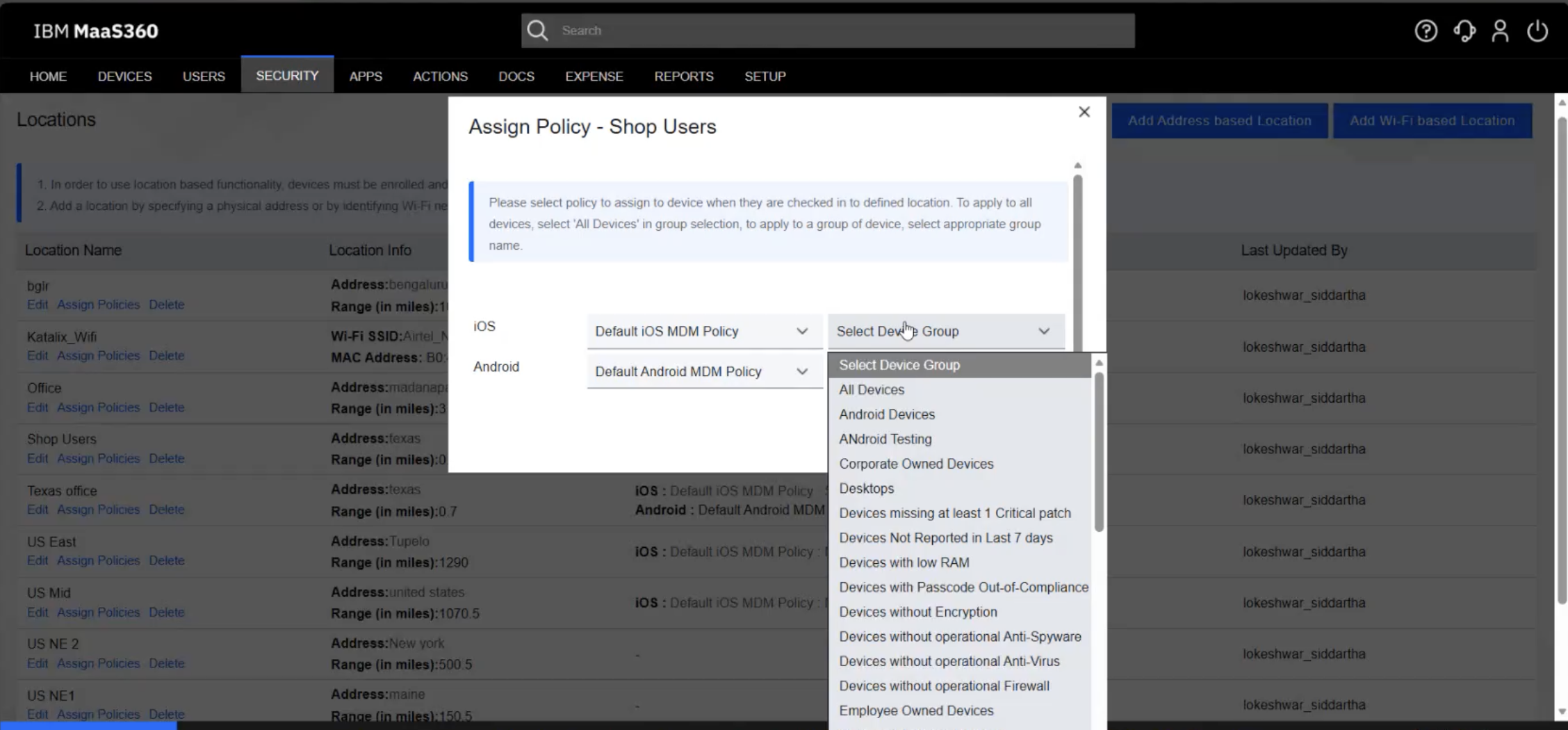
Step 5. Assign groups, policies, and locations
Map each user group to the correct device policies and ensure the appropriate geo-fence locations are linked to the compliance rules.
Step 6. Validate enforcement
Test the configuration to confirm geo-fencing works as expected:
- Verify that
Production_Workforcedevices have full access while inside the campus. - Simulate a device exiting the
Texas_Campus_Fenceand confirm it enters Kiosk mode on Android or is locked on iOS. - Simulate a management device leaving the US boundary and confirm that access is restricted.
- Review compliance logs and device status in the MaaS360 portal.
Challenges and considerations
- Location accuracy: Geo-fencing relies on GPS or wifi data, which may be less accurate indoors.
- Connectivity: Devices must periodically connect to the MaaS360 portal for policy enforcement.
- Offline enforcement: For Android devices, ensure offline geo-fencing is supported and configured if devices go offline.
- User and policy mapping: Incorrect group or policy assignments can lead to unintended enforcement.
- Privacy and permissions: The MaaS360 agent must have location permissions set to Always allow, and users should be informed of location tracking for compliance.
Benefits
- Stronger data protection: Allows access only from trusted and approved locations.
- Simplified compliance: Supports regulatory requirements that depend on physical access controls.
- Improved operational control: Applies different security policies for fixed and mobile users.
- Seamless integration: Integrates with IBM Security Verify for unified access management.
- Automated enforcement: Reduces manual effort through policy-driven automation.
Demo video
The following demo takes you through the steps to set up dual-layer geo-fencing features for MaaS360:
Summary
IBM MaaS360 dual-layer geo-fencing enables real-time, automated, location-based access control for enterprise mobile devices. By combining facility-level micro-fencing with regional macro-fencing, organizations can protect sensitive resources while supporting workforce mobility.
This approach delivers a zero-touch, location-aware security model that scales across sites, supports remote work and travel, and strengthens overall security, compliance, and governance.
Next steps
- Learn more about MaaS360 geo-fencing in the IBM MaaS360 documentation.
- Explore conditional access integration with IBM Security Verify.
- Review MaaS360 policy and compliance rule options in the IBM Documentation.
- Take MaaS360 courses through the IBM Security Learning Academy.