
About cookies on this site Our websites require some cookies to function properly (required). In addition, other cookies may be used with your consent to analyze site usage, improve the user experience and for advertising. For more information, please review your options. By visiting our website, you agree to our processing of information as described in IBM’sprivacy statement. To provide a smooth navigation, your cookie preferences will be shared across the IBM web domains listed here.
Article
Keep your Java applications current and secure with effortless upgrades
Liberty’s Zero Migration Architecture requires zero code and configuration changes to upgrade versions
If you are involved in DevOps, you know that software upgrades come with a mixed bag of emotions. On the plus side, upgrades can provide:
- New and exciting features that can enhance your application
- Important fixes to solve security issues and vulnerabilities
- “Peace of mind” in that keeping current means you are not accumulating technical debt
But, upgrades can also lead to fear and dread. For developers, they are most concerned with:
- What breaking changes are going to be introduced and how will they be handled?
- What new tests will need to be created?
- How many bugs will be generated and who will work on them?
From an Operations perspective, the worries include:
- Are there enough tests to ensure overall quality assurance?
- How much resources and time in the schedule needs to be carved out to handle this?
- How long will the application need to be off-line?
Well, both Open Liberty and WebSphere Liberty (built on the same open source Open Liberty project) use an approach that should ease your mind and give you the confidence to upgrade effortlessly. How is this possible? Liberty’s Zero Migration Architecture, that’s how.
Zero Migration Architecture
Zero Migration means that you can upgrade with zero code and configuration changes. Yes, that's correct: zero code and configuration changes. Liberty goes to great lengths to ensure that if your code runs on an older version, it is guaranteed to run, as is, on a newer version.
Liberty is able to accomplish this due to its composable architecture, where users only configure the features they need for their applications. This allows you to build your applications with the assurance that these features will not change in their APIs and behaviors and will always remain available in newer version of Liberty. For example, take a look at the following code snippet from the application configuration file:
<features>jaxrs-2.1</features>
In this case, the application requires that version 2.1 of JAX-RS (Java API for RESTful Web Services) be used. This means that version 2.1 will always remain unchanged and available for use, even when version 2.2 is released. And this capability doesn't just apply to sequential releases; it works as well over a wide range of releases.
Continuous Delivery Policy
Liberty’s Continuous Delivery (CD) policy ensures that a new Liberty release is made every 4 weeks. Coupled with Zero Migration, this enables you to implement a continuous delivery environment for your applications. By continuously upgrading, the process becomes very routine, less intrusive, and easier to digest. It also offers developers and operators predictability and options to pick an upgrade schedule that works best for them. And, skipping a release does not introduce additional migration work.
If we compare continuous delivery (CD) to the typical once-a-year "major" release from most software providers, these major releases often take weeks of effort to integrate, tweak, and test before deploying. Or, you decide its just too risky and push it off until the next release!
The end result is that with Liberty's Zero Migration Architecture, coupled with Continuous Delivery, you effortlessly get all the benefits of upgrades without any of the downside. By the way, this capability of Liberty sets it apart from most, if not all, Java runtimes.
How exactly does the Continuous Delivery policy work?
The following diagram provides more details on how CD works. This diagram shows the once-every-4-weeks delivery schedule for 2023. As you can see in the table, the policy is that all CD releases are supported for 5 years.
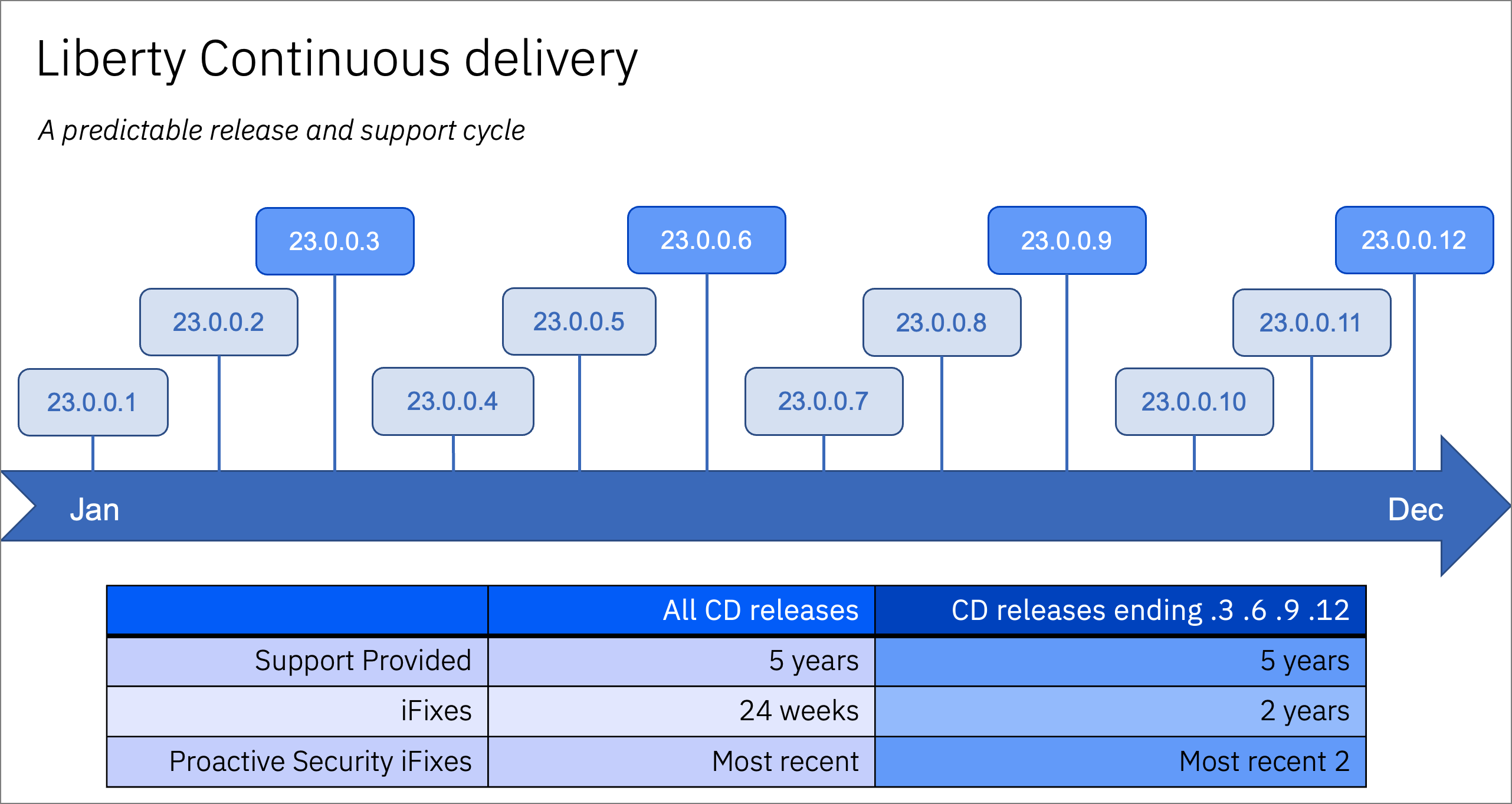
“iFixes” refer to fixes in a newer release of Liberty that a customer has requested be implemented in a previous release. If the request is granted, the fix will be implemented but will be limited to CD releases that are less than 2 years old.
Any “Proactive Security fix” will be created and made available for the most recent CD release, as well as the 2 previous major quarterly releases (indicated in the dark blue boxes, 23.0.0.3 for example).
The following diagram depicts the typical strategies that can be used for adopting Liberty updates.
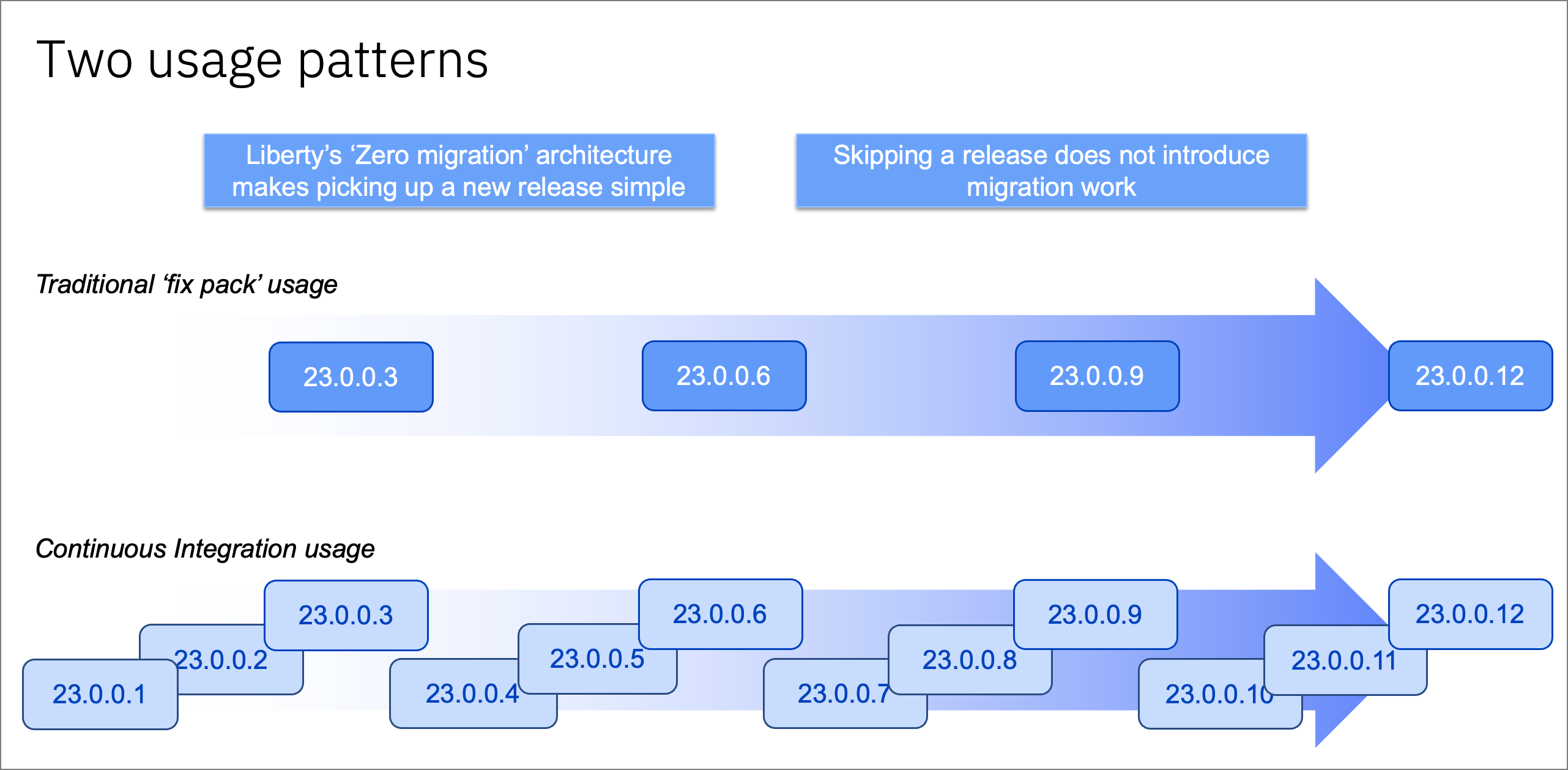
The first pattern is a more traditional approach, only upgrading on the “major” releases made every quarter.
The second pattern is a “continuous integration” (CI) approach, which ensures you are always current, with all of the latest security fixes. Staying current eliminates the need to request an “iFix” to patch up older releases.
Demonstrating Zero Migration in action
To show how this works in real life, let's start with a sample Java application. For this demo, we will be using an old enterprise application called "Plants by WebSphere".
Looking at the GitHub repo, you will see that no code changes have been made in over 4 years.

Here are the steps I used to conduct the test:
- Clone and download the application from GitHub.
- Create environment variables needed to run the application on Open Liberty.
- Build the application using Java 8.
- Download Open Liberty version 18.0.0.2 (dated June 2018).
- Set up the default Open Liberty server.
- Run the application on Open Liberty 18.0.0.2.
- Download and upgrade to Open Liberty version 23.0.0.12 (dated December 2023).
- Run the application on Open Liberty 23.0.0.12.
Step 1. Clone and download the application from GitHub
Clone the GitHub repository to my local directory ~/demos/zero-migration. In this case I am using the ol-javaee8 branch.
$ cd ~/demos/zero-migration
$ git clone https://github.com/rhagarty/sample.plantsbywebsphere.git -b main-ol-javaee8
Step 2. Create environment variables needed to run the application on Open Liberty
To run the application, I will need to download Java 8 and maven. I will also need to set some environment variables for building and running the application.
$ echo $JAVA_HOME
/Library/Java/JavaVirtualMachines/ibm-semeru-open-8.jdk/Contents/Home
$ echo $OL_USER_DIR
/Users/rhagarty/demos/zero-migration
$ echo $WORKING_PATH
/Users/rhagarty/demos/zero-migration
Step 3. Build the application using Java 8
Use Maven to execute the build:
$ cd $WORKING_PATH/sample.plantsbywebsphere/
$ mvn clean package
Step 4. Download Open Liberty version 18.0.0.2 (released June 2018)
Use curl to download Open Liberty from the release download page:
$ cd $WORKING_PATH
$ curl https://public.dhe.ibm.com/ibmdl/export/pub/software/openliberty/runtime/release/2018-06-19_0502/openliberty-javaee8-18.0.0.2.zip -o openliberty-javaee8-18.0.0.2.zip
Then unzip the contents into the current directory:
$ unzip openliberty-javaee8-18.0.0.2.zip -d ol-18.0.0.2
Step 5. Set up the default Open Liberty server
First, change directories:
$ cd $WORKING_PATH/ol-18.0.0.2/wlp/bin
Then, use the Open Liberty script to set up our default server instance that will run the application:
$ ./server create
Server defaultServer created.
Copy the application war and config file into the appropriate directory of the server instance:
$ cp $WORKING_PATH/sample.plantsbywebsphere/target/PlantsByWebSphere.war OL_USER_DIR/servers/defaultServer/apps
$ cp $WORKING_PATH/sample.plantsbywebsphere/src/main/liberty/config/server.xml OL_USER_DIR/servers/defaultServer
Download and install the Apache Derby relational database needed by the application:
$ mkdir $OL_USER_DIR/servers/defaultServer/lib
$ curl https://repo1.maven.org/maven2/org/apache/derby/derby/10.11.1.1/derby-10.11.1.1.jar -o WLP_USER_DIR/servers/defaultServer/lib/derby-10.11.1.1.jar
Our root directory should now contain these files:
$ Ls -al $WORKING_PATH
drwxr-xr-x   3 rhagarty  staff   96 Jan  5 14:18 ol-18.0.0.2
drwxr-xr-x  15 rhagarty  staff  480 Jan  7 18:39 sample.plantsbywebsphere
drwxr-x--T   6 rhagarty  staff  192 Jan  5 14:21 servers
Step 6. Run the application on Open Liberty version 18.0.0.2
First, change directories:
$ cd $WORKING_PATH/ol-18.0.0.2/wlp/bin
Then, verify that we are pointing to version 18:
$ ./productInfo version
Product name: Open Liberty
Product version: 18.0.0.2
Product edition: Open
Now, start the Open Liberty server:
$ ./server start
Starting server defaultServer.
Server defaultServer started with process ID 91228.
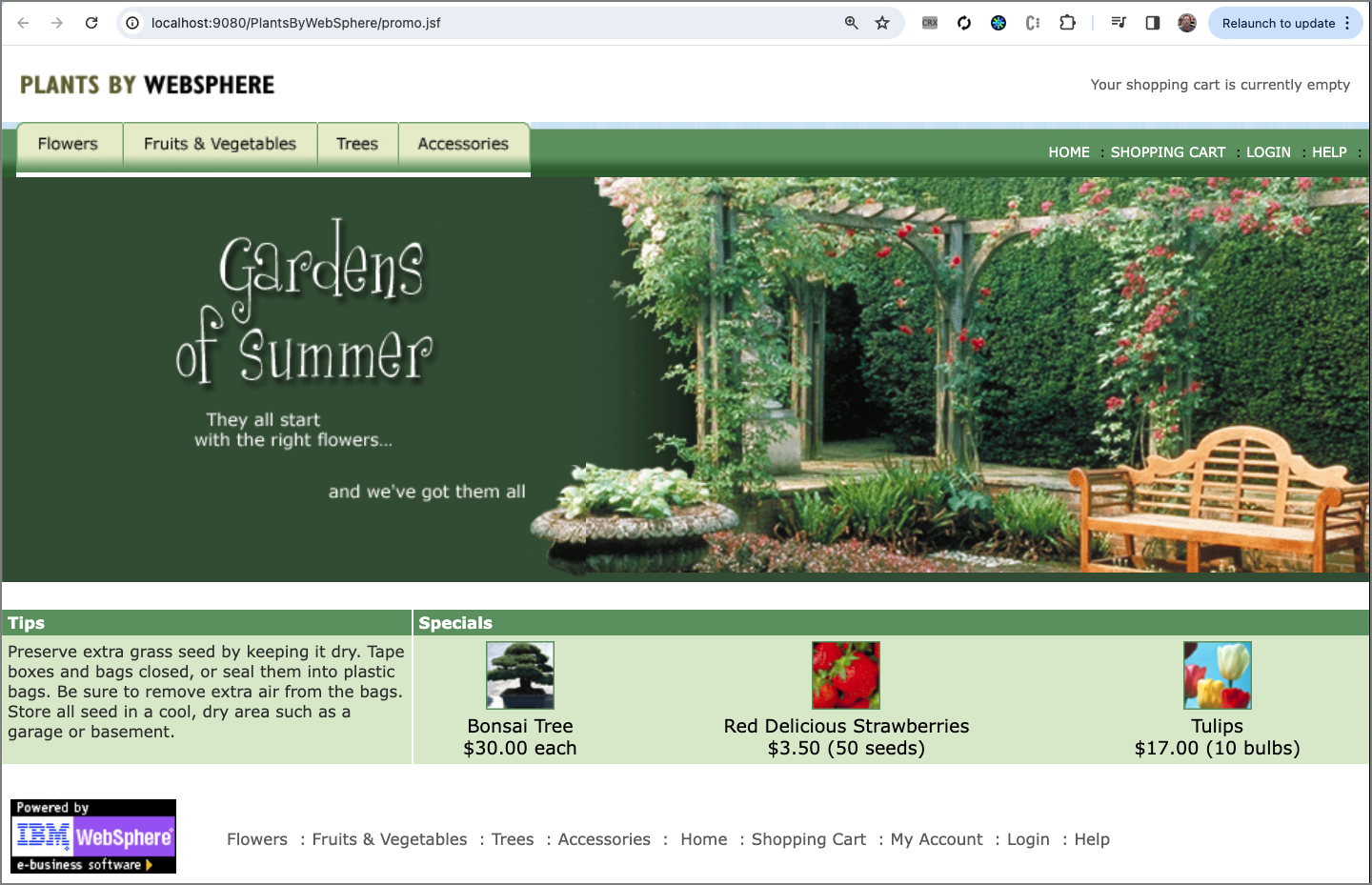
Now we can point our browser to the application home page at http://localhost:9080/PlantsByWebShpere and see that the Plants by Websphere application is running.
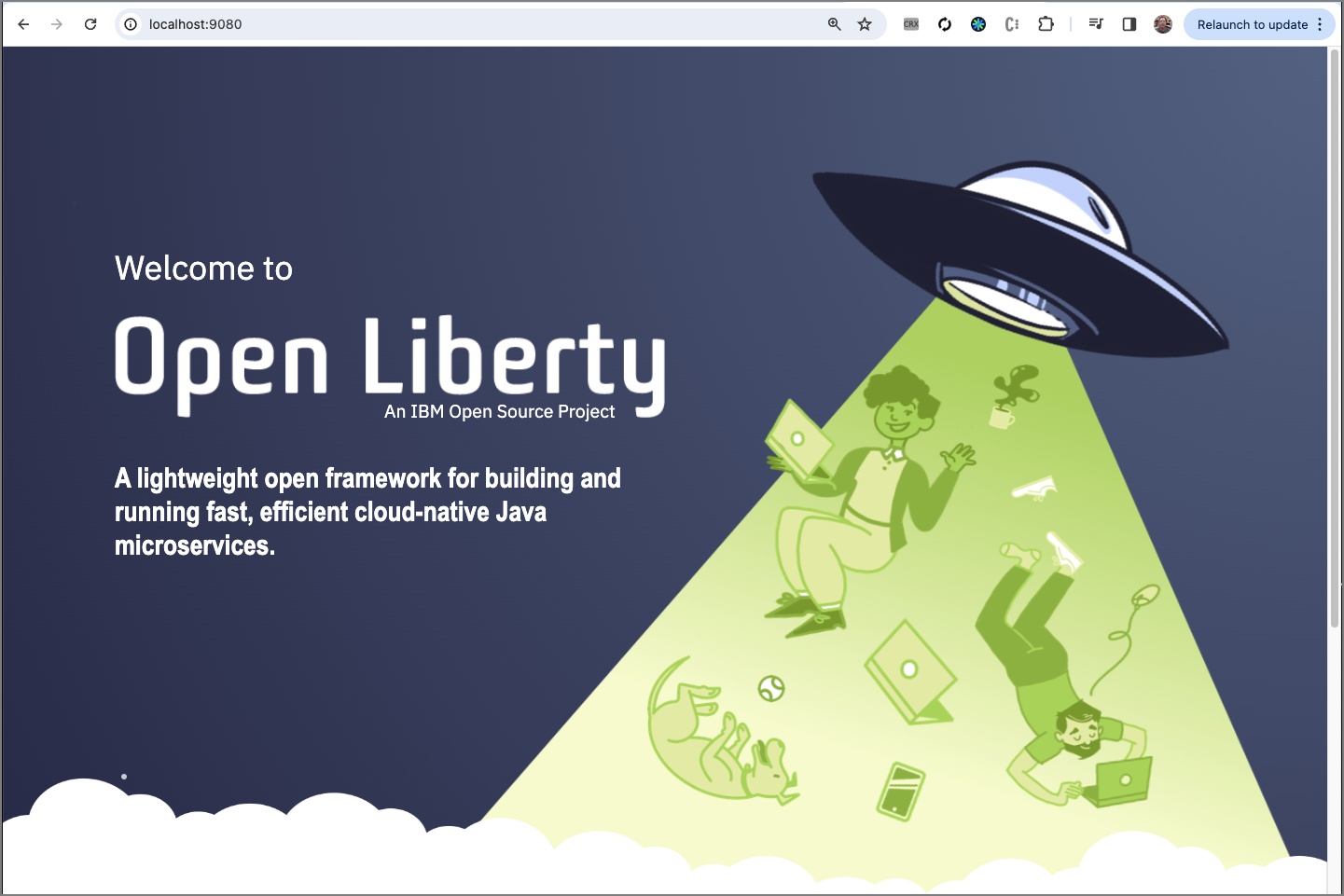
You can verify Open Liberty 18.0.0.2 is running by pointing your browser to the Open Liberty localhost port 9080.
Step 7. Download and upgrade to Open Liberty version 23.0.0.12 (released December 2023)
First, change directories:
$ cd $WORKING_PATH
Use curl to download Open Liberty from the Open Liberty release download page:
$ curl https://public.dhe.ibm.com/ibmdl/export/pub/software/openliberty/runtime/release/23.0.0.12/openliberty-javaee8-23.0.0.12.zip -o openliberty-javaee8-23.0.0.12.zip
Then, unzip the contents:
$ unzip openliberty-javaee8-23.0.0.12.zip -d ol-23.0.0.12
Our root directory should now contain these files:
$ Ls -al $WORKING_PATH
drwxr-xr-x   3 rhagarty  staff   96 Jan  5 14:18 ol-18.0.0.2
drwxr-xr-x   3 rhagarty  staff   96 Jan  5 14:18 ol-23.0.0.12
drwxr-xr-x  15 rhagarty  staff  480 Jan  7 18:39 sample.plantsbywebsphere
drwxr-x--T   6 rhagarty  staff  192 Jan  5 14:21 servers
Step 8. Run the application on Open Liberty version 23.0.0.12
First, change directories:
$ cd $WORKING_PATH/ol-18.0.0.2/wlp/bin
Without making any code or configuration changes, lets just stop the current Open Liberty 18 server and restart on Open Liberty 23:
$ ./server stop
Stopping server defaultServer.
Server defaultServer stopped.
Change directories to point to our new server version:
$ cd $WORKING_PATH/ol-23.0.0.12/wlp/bin
Verify we are pointing to version 23:
$ ./productInfo version
Product name: Open Liberty
Product version: 23.0.0.12
Product edition: Open
Restart the Open Liberty server:
$ ./server start
Starting server defaultServer.
Server defaultServer started with process ID 91964.
The application works as advertised!
As you can see from the Open Liberty release website, there were over 60 releases between versions 18.0.0.2 and 23.0.0.12!
Here is a screenshot of the checkout page:
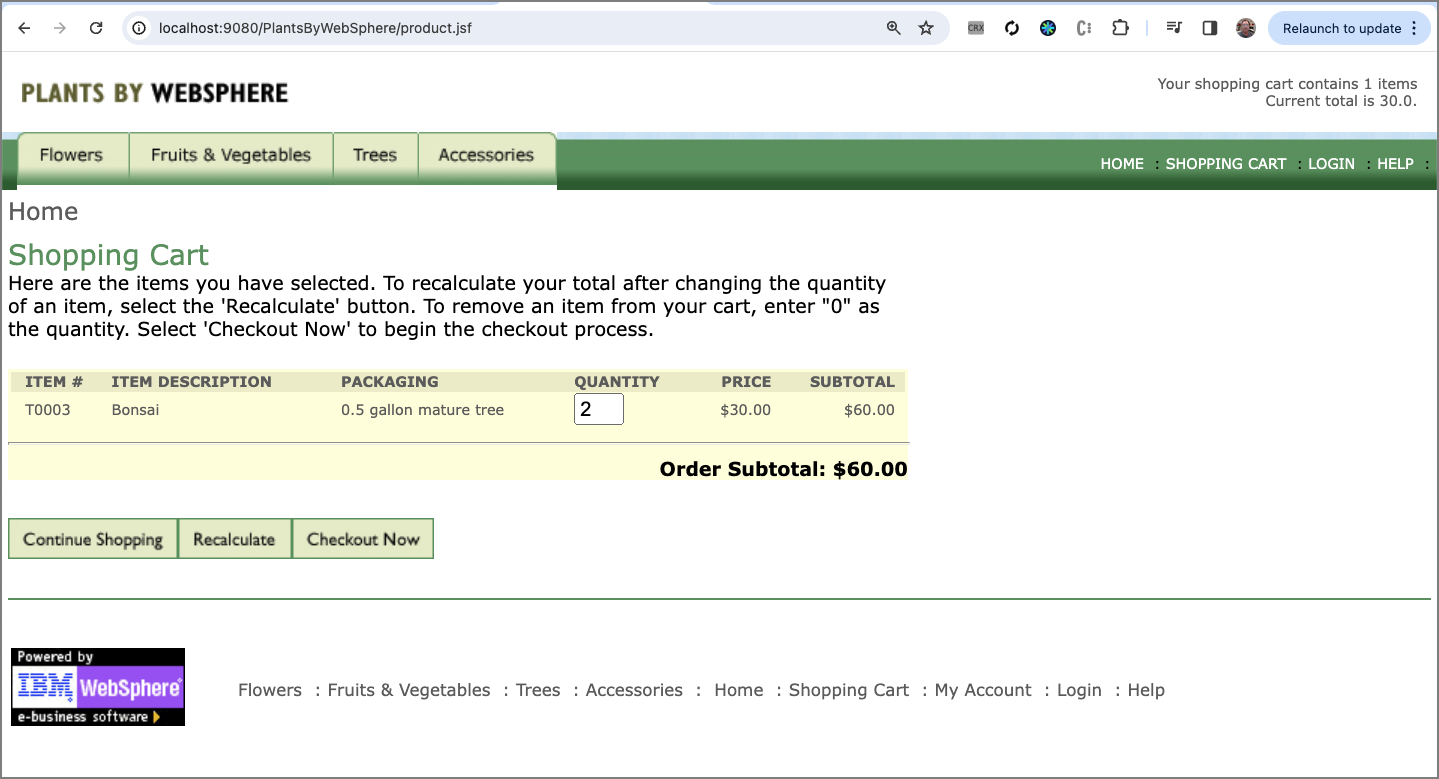
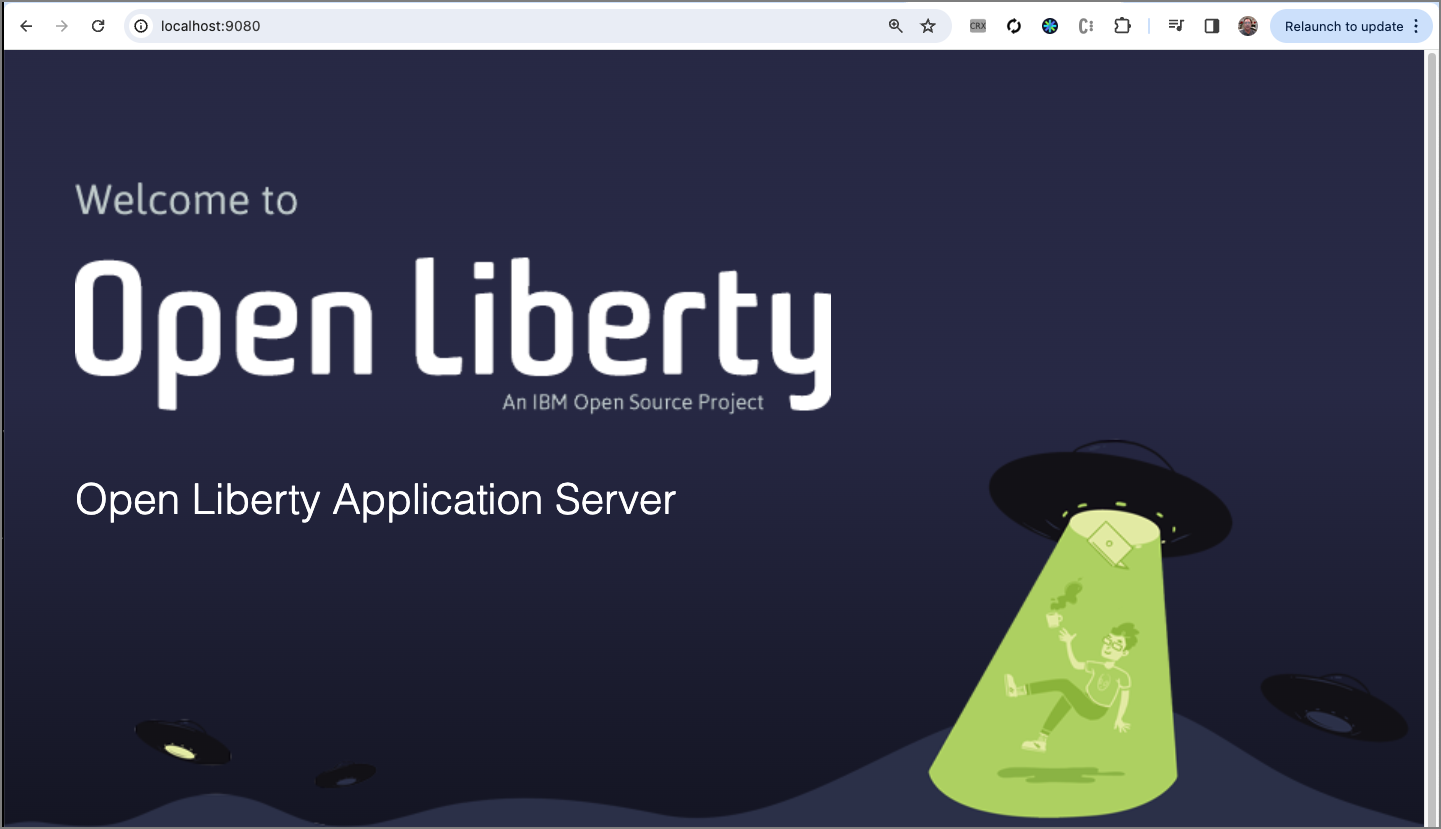
Again, you can verify Open Liberty 23.0.0.12 is running by pointing your browser to the Open Liberty localhost port 9080. (While it would be nice if the screen would display the version, you can see it is definitely different).
Summary and next steps
Software upgrades have traditionally been a major source of stress to all those involved in DevOps, including developers, testers, architects, and business owners. They struggle in weighing the benefits of staying current with the latest security fixes and feature upgrades against the added pressure of finding time in the schedule to handle the required effort to test, fix, and verify. And, of course, the ultimate fear of finding a major breaking change!
Liberty’s Zero Migration Architecture takes all the anxiety out of this decision by allowing you to effortlessly upgrade without any code or configuration changes. Liberty’s Continuous Delivery policy ensures a new release every 4 weeks, making the process easy to plan for, predictable and routine. Together they make it easier to stay current, which is optimal for any deployment, and especially true when running in a CI/CD (continous integration and delivery) environment.
To learn more about Open Liberty, visit OpenLiberty.io. Check out the Guides section which provides a cloud-hosted environment to learn how to build real world Open Liberty applications.