
About cookies on this site Our websites require some cookies to function properly (required). In addition, other cookies may be used with your consent to analyze site usage, improve the user experience and for advertising. For more information, please review your options. By visiting our website, you agree to our processing of information as described in IBM’sprivacy statement. To provide a smooth navigation, your cookie preferences will be shared across the IBM web domains listed here.
Tutorial
Get an IBM MQ queue for development running on Google Cloud
Configure your queue for app connections
To see how IBM MQ works, you will be guided through creating and configuring a queue manager (server).
After completing the tutorial, you will be able to send messages to and retrieve messages from an IBM MQ queue.
You can download, install, and run IBM MQ queue manager (server) in a variety of ways:
- In a container or Red Hat OpenShift Container Platform.
- In the IBM Cloud, AWS (or AWS using Ansible or AWS using Terraform), Microsoft Azure, or Google Cloud (this tutorial).
- On various operating systems: Linux/Ubuntu or Windows. For macOS, use MQ on Containers.
After completing this tutorial, you will have a queue manager deployed in a Google Kubernetes Engine ready for an application to connect. This tutorial was created using a Free Trial account, meaning it will not cost you to run this tutorial.
In this tutorial, we will deploy an IBM MQ queue manager on a Google Kubernetes Engine. This tutorial makes use of Google Console. We will then access the MQ Console and fire a couple of REST calls via the MQ Swagger page to demonstrate that IBM MQ on Google Cloud is running successfully.
Learning objectives
After completing this tutorial, you will understand:
- IBM MQ queue managers
- IBM MQ queues
- The IBM MQ console
Prerequisites
- A Google Cloud Account
- Helm version 3
- Kubectl
- The Google Cloud CLI. Make sure that you initialize the gcloud CLI.
- Git
Steps
Step 1. Enable Google Kubernetes Engine
In this tutorial we will use the Google Kubernetes Engine to deploy MQ.
Log in to Google Cloud.
From the top menu bar, in the top right, select Console. This will open the Google Cloud Platform console.
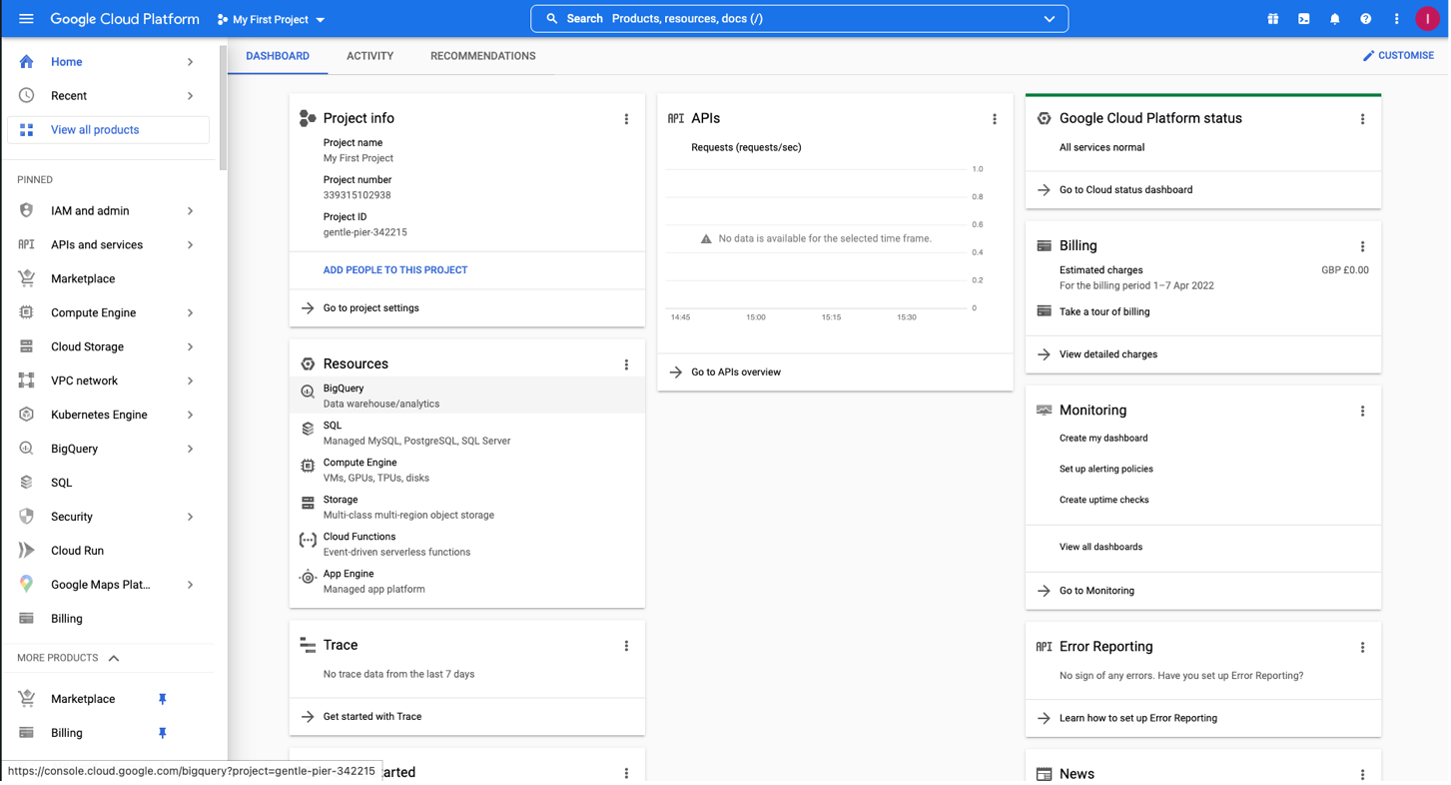
The Google Kubernetes Engine allows users to deploy, manage, and scale containerized applications. The clusters in the Google Kubernetes Engine incorporate the mechanisms provided by Kubernetes to interact with your cluster.
From the left menu in the Google Cloud Console, under the Pinned section, select Kubernetes Engine. The Kubernetes cluster where we will deploy an IBM MQ container will appear here.
Before we create our first cluster on Google Kubernetes Engine, we need to enable Google Kubernetes Engine within your account. Open a command line and run:
gcloud services enable container.googleapis.com
No output is given after executing this command.
Step 2. Install IBM MQ
To install IBM MQ on Google Kubernetes Engine on Google Cloud, we will clone a GitHub repository that contains a helm chart to deploy an IBM MQ container.
You will clone the repository onto your own machine using a terminal. Open a new terminal or a command prompt.
Navigate to a new directory within your command line and run this command:
git clone https://github.com/ibm-messaging/mq-helm.git
Step 3. Create a Google Kubernetes Engine cluster
We are now ready to create our cluster. In your terminal or command prompt, change the directory within our cloned mq-helm repository to /samples/GoogleKubernetesEngine/deploy.
To create the MQ Kubernetes cluster, run the command:
./createGKECluster.sh mqcluster europe-west2 europe-west2-a,europe-west2-b,europe-west2-c
This deploys your cluster in the Google Cloud region "europe-west2" and in the regional zones of "europe-west-2-a/b/c." You can change the region and zones by substituting your values in the correct places. Available values can be found in the Google Regions and zones documentation.
Your output something be similar to this:

You can check if your cluster is running by looking at the Kubernetes Clusters section on the Google Cloud Console that we opened earlier. It will look something like this:

Step 4. Create and start a queue manager in Google Kubernetes Engine
Now that we have created our Kubernetes cluster, we will deploy the following resources for IBM MQ:
- Config map: Defines the MQ resources such as queues and channels to pre-configure the queue manager on startup
- Secret: A public and private key to be used by the queue manager to secure the communication
- LoadBalancerService: Exposes the MQ web console and data ports on the Internet allowing access
- IBM MQ helm chart: Deploys an IBM MQ queue manager into a Kubernetes environment
The install.sh script takes care of deploying these resources for us. Back in the terminal run:
Windows:
bash install.sh
Mac/Linux:
./install.sh
Let's check if our queue manager is running. First, let's exec into our pod secureapphelm-ibm-mq-0 by typing the following command onto our terminal:
kubectl exec -it secureapphelm-ibm-mq-0 -- /bin/bash
When you see bash-4.4$ appear, type in the following:
dspmq
If you see this output, that means your queue manager is successfully running!

Don't worry if you see “Running elsewhere” this means one of the other two containers is the active instance. If there was an issue with the queue manager, Kubernetes would automatically restart the containers.
Step 5. Use REST to put and get messages
Next, we will use the MQ Messaging REST API to put and get a message. You will need the LoadBalancer's IP address.
To retrieve our LoadBalancer's IP address, type the following on your terminal:
kubectl get services
You should see output similar to this:

You can view the Swagger page for the messaging API by opening a browser and going to this URL: https://{IP_address}:9443/ibm/api/explorer/#/messaging, where IP address corresponds to the External IP for the LoadBalancer.
When prompted enter app as the user and passw0rd as the password.

Click on the v3 POST entry to expand it.

Enter the following values into the entry fields.
- For qmgrName, enter
secureapphelm - For qName, enter
DEV.QUEUE.1 - For the content type, select
text/plain - For ibm-mq-rest-csrf-token, enter any unique value

Scroll down to the bottom of the page and click the Try it out! button.
A response code of 201 indicates that the message was posted successfully.
To get the message expand click to expand the V3 DELETE entry.
To get the message, click on the v3 DELETE entry to expand it.

Step 6. Use the MQ console
In this step we are going to check if you can access the MQ console. To do this, open a browser and go to this URL, https://{IP_address}:9443, where IP address corresponds to your load balancer IP address, which we looked up in the previous step.
If you are successfully redirected to the login screen of MQ console, congratulations! You should see an output similar to the one below.

You can now use the IBM MQ console to interact with your queue manager deployed on your Google Kubernetes Engine cluster.
Inside the console, you can view and edit all of your MQ objects, as well as create others. You can also set permissions for different users and objects. A full MQ Console tour is available in this IBM Docs article, but we'll go over some basic actions here.
Select Manage to open a list of queue managers. You can create or manage them from here. Selecting a queue manager, such as QM1, will display the queues and other objects associated with this queue manager, like the image below.

From here, click Create to create your own queues. You can also see the messages on existing queues by selecting an individual queue, as shown below:

You can put a message onto this queue clicking Create on this page, which here means "create a new message". The Application data field contains the message contents. Clicking Create puts your message onto the queue.

Now, we've set up the MQ Console, which will help us to manage and visualize our messaging system.
Summary and next steps
Congratulations! In this tutorial, you learned how to deploy IBM MQ queue manager on Google Cloud using the Google Kubernetes Engine. To do this, you first created a Google Kubernetes Engine, and then deployed the resources for the IBM MQ queue manager.
You were able to access the MQ console to demonstrate your queue manager working on Google Cloud. Finally, you used the MQ REST swagger page to send and receive messages.
You should now understand how you can deploy IBM MQ queue manager on the Google Kubernetes Engine.
When you start developing your own client applications to connect to the queue manager, you'll follow these steps:
- Configure the connection to the queue manager.
- Open a queue.
- Put or Get a message on/from the queue.
- Close the connection to the queue manager.
This process demonstrates the point-to-point style of messaging. Applications that put messages act as producers. Applications that get messages act as consumers.
In IBM MQ, the queue manager is effectively the server part of the system, and applications that connect to it are clients.
Usually it is the administrators that look after the MQ server where all the MQ objects are defined and the routing of messages happens. Client applications are created by developers and IBM MQ provides client libraries that developers must include in their applications. These libraries, also called MQ clients, address and use the MQ objects that admins have set up on the MQ server side. In more complex scenarios, the MQ libraries do most of the heavy messaging work for you, so you just have to learn how to use them.
Configuration is needed on both the server and the client sides for the messaging to work.
When you first start developing MQ client applications, it helps to have access to your own queue manager and a queue, for testing your client application against. Installing IBM MQ in the cloud gives you access to a queue manager and many options for configuring MQ objects as you begin developing your client application.