
About cookies on this site Our websites require some cookies to function properly (required). In addition, other cookies may be used with your consent to analyze site usage, improve the user experience and for advertising. For more information, please review your options. By visiting our website, you agree to our processing of information as described in IBM’sprivacy statement. To provide a smooth navigation, your cookie preferences will be shared across the IBM web domains listed here.
Tutorial
Deploy IBM MAS Application Configuration on Red Hat OpenShift
Learn how to install, configure, and access the IBM MAS Application Configuration on Red Hat OpenShift for managing MAS settings
To get started with the IBM Maximo Application Suite (MAS) Application Configuration, you need to deploy its Docker image so that you can connect, publish, and review changes in IBM MAS.
While you can install the maf-tool locally by using Podman or Docker, this tutorial shows how to run the IBM MAS Application Configuration image directly on Red Hat OpenShift without setting up Docker or Podman on your local system.
This tutorial provides step-by-step instructions for installing and configuring the IBM MAS Application Configuration for Red Hat OpenShift.
Steps
Step 1. Deploy the container image
In the Red Hat OpenShift Developer view, create a new project named
<project-name>. Go to<project-name>, then click +Add and select Container images.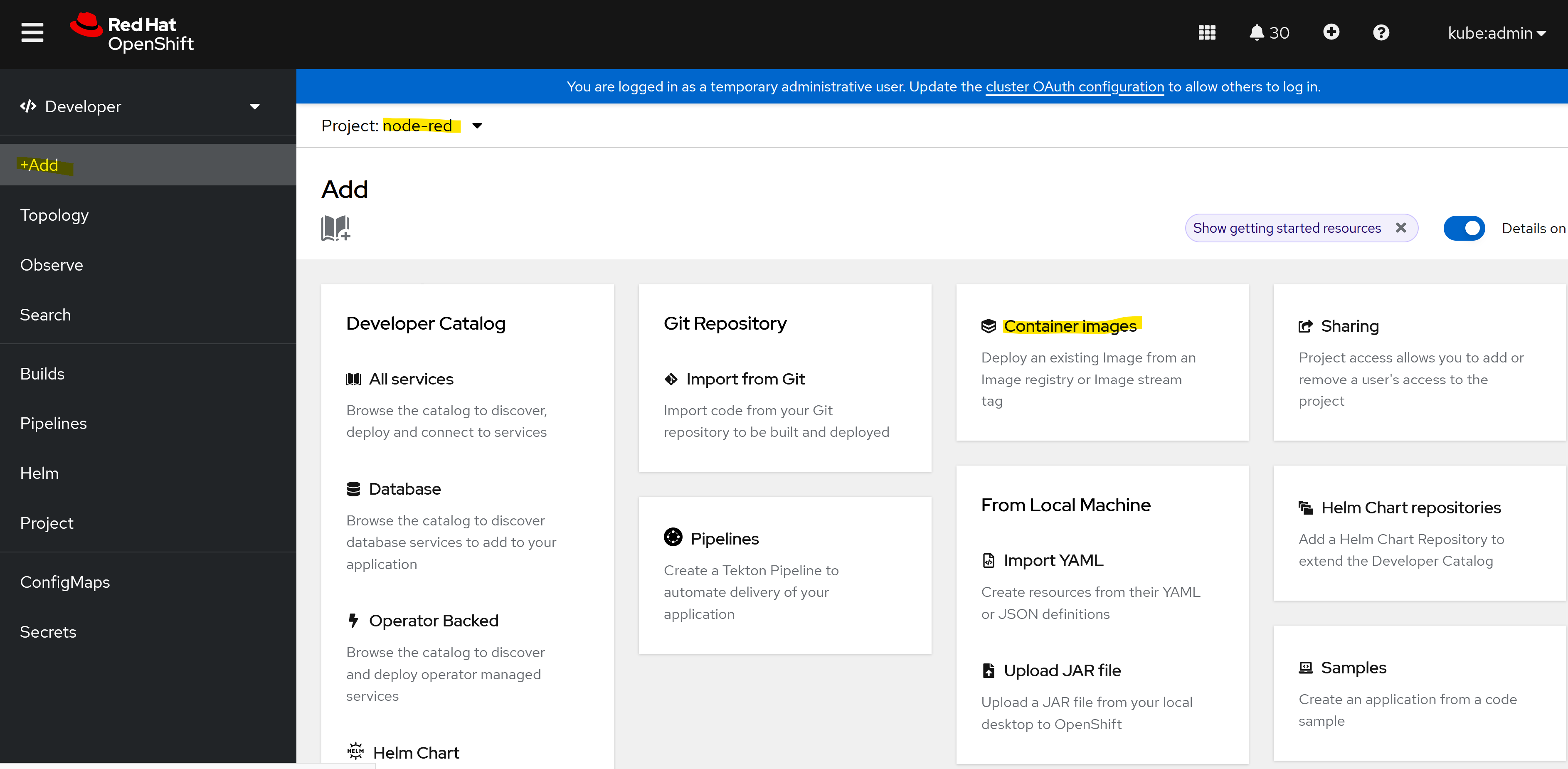
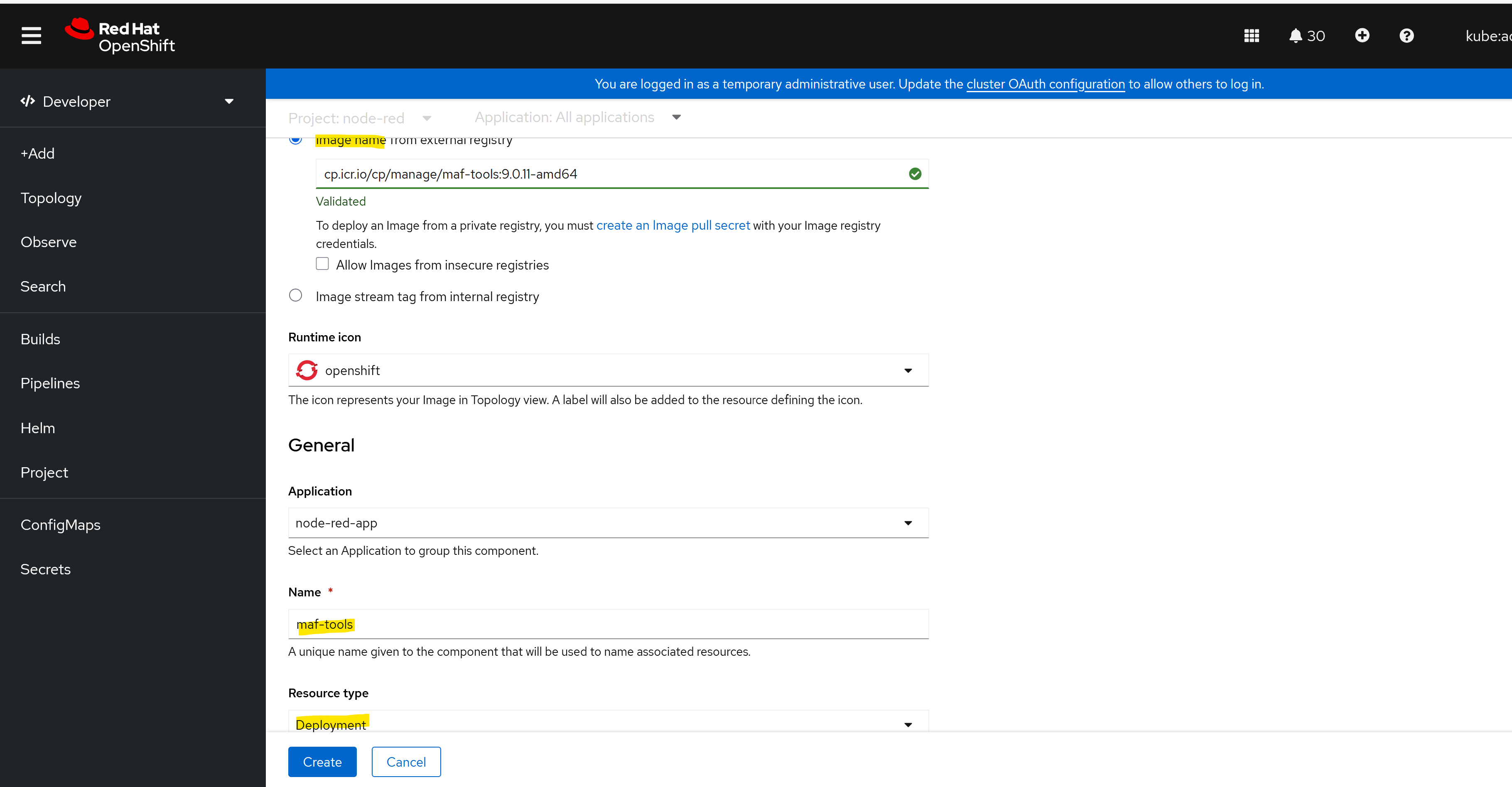
Add the following details by using the
maf-toolDocker image for your required version:- Image name: maf-tool image registry
- Name: maf-tools
- Resource type: Deployment
Target port: 3001
Step 2. Create a PVC
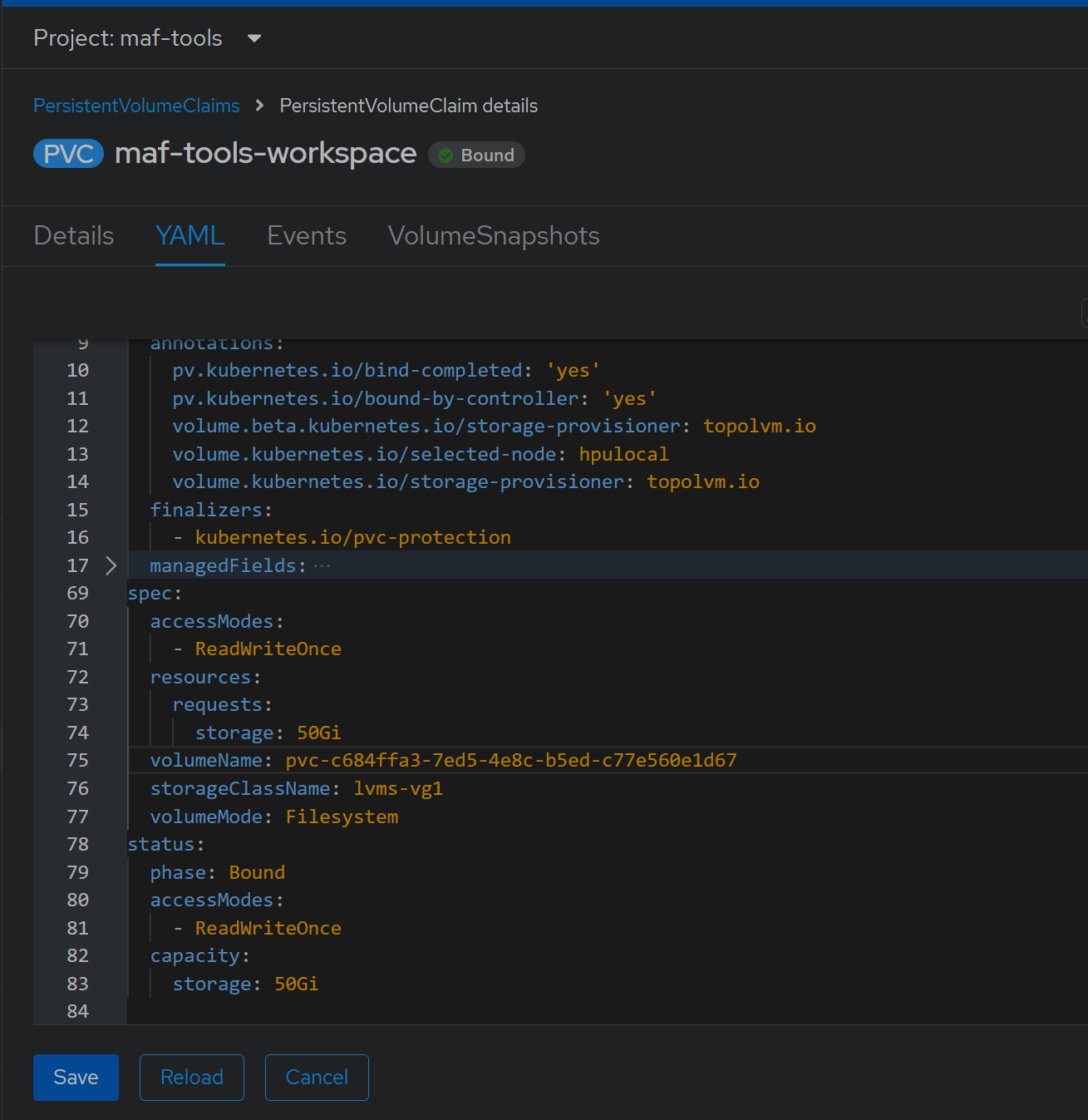
Go to Storage > Persistent Volume Claims and create a new PVC with the required details.
Step 3. Update deployment details for maf-tools
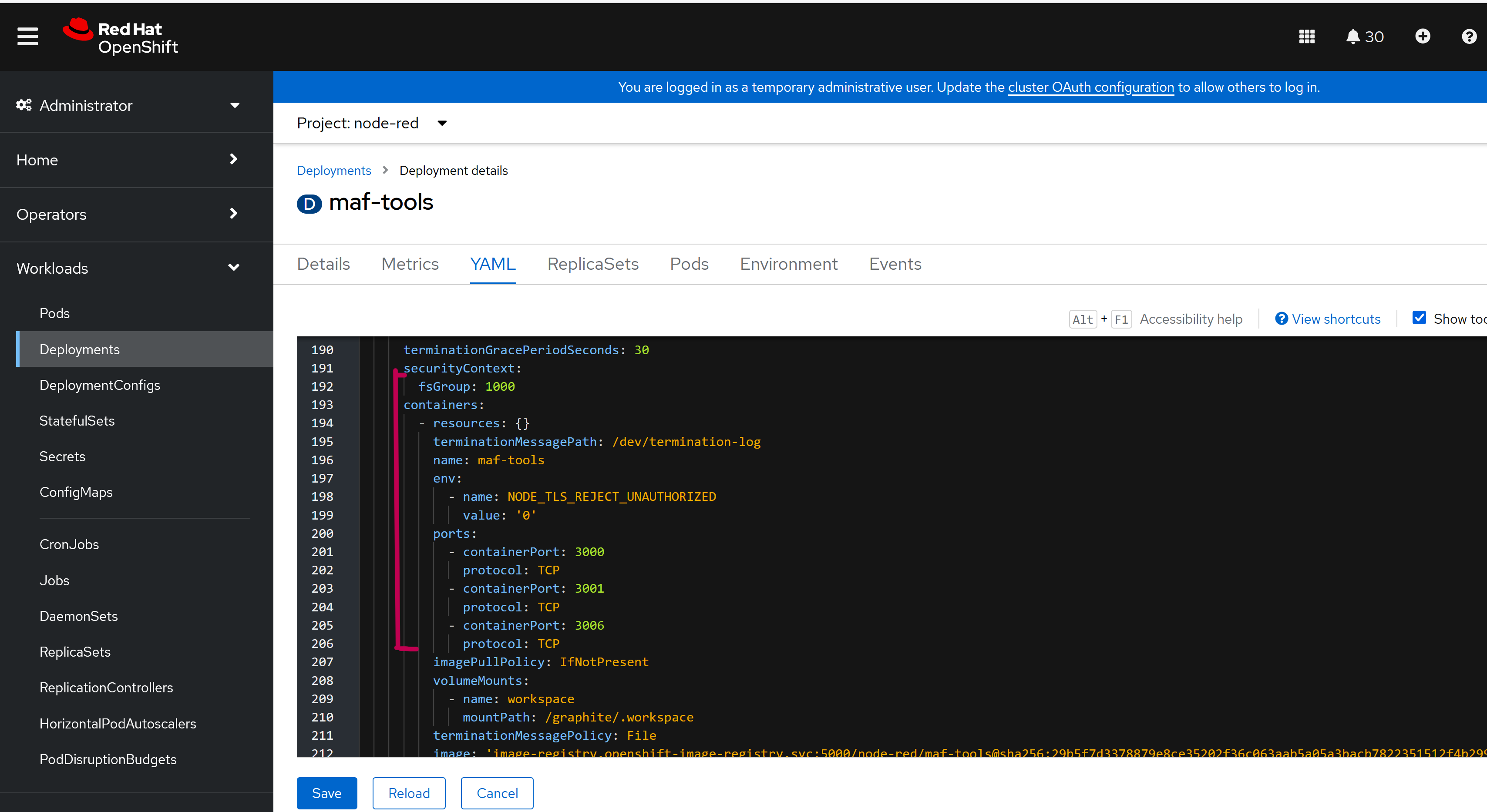
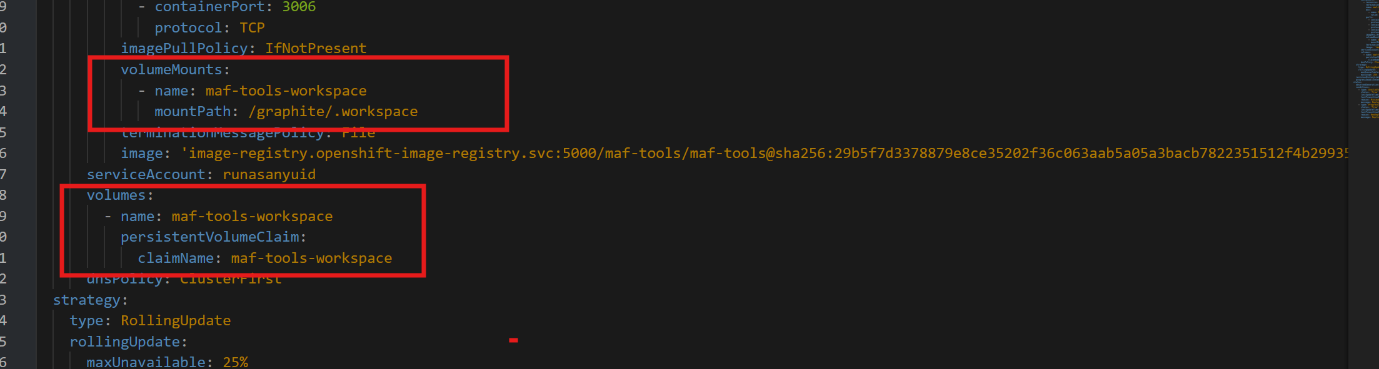
In the Red Hat OpenShift Administrator view, go to Workloads > Deployments and update the maf-tools deployment with the required environment variables and port details.
env:
            - name: NODE_TLS_REJECT_UNAUTHORIZED
              value: '0'
          ports:
            - containerPort: 3000
              protocol: TCP
            - containerPort: 3001
              protocol: TCP
            - containerPort: 3006
              protocol: TCP
volumeMounts:
            - name: workspace
              mountPath: /graphite/.workspace
   volumes:
        - name: workspace
          persistentVolumeClaim:
            claimName: maf-tools-workspace
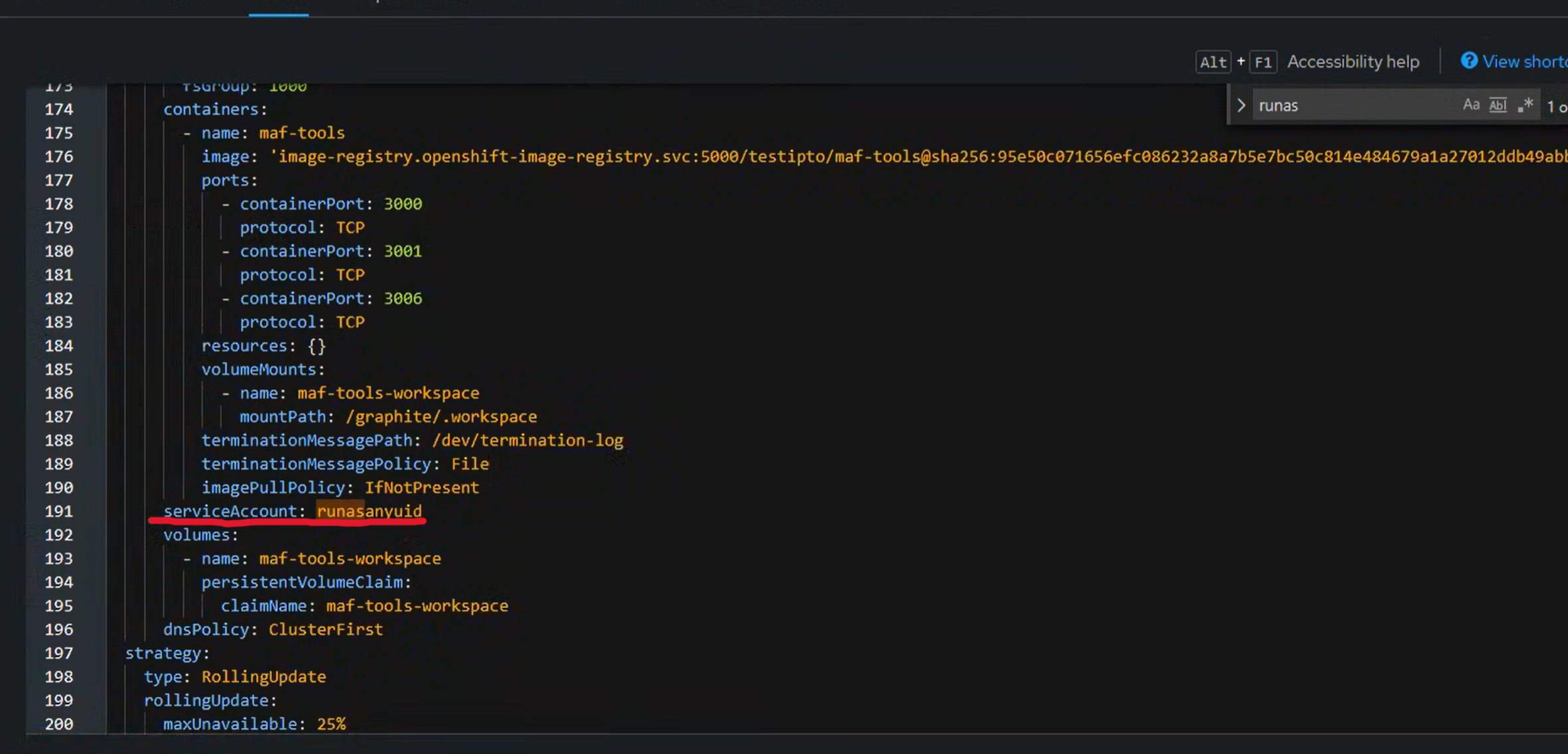
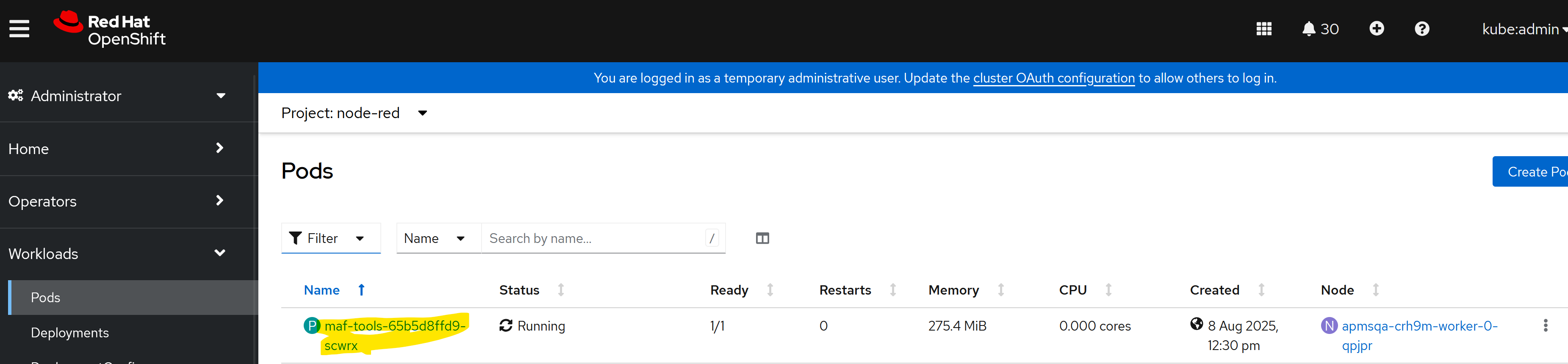
The pod restarts automatically.
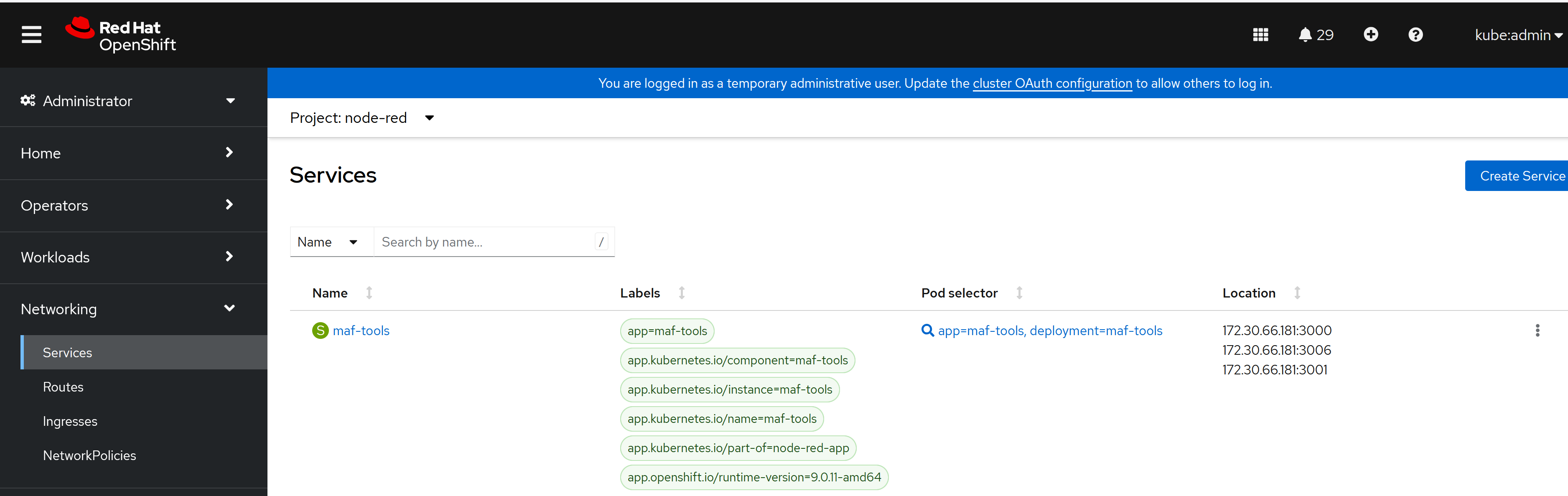
A service is created under Networking > Services.
Step 4. Create a route
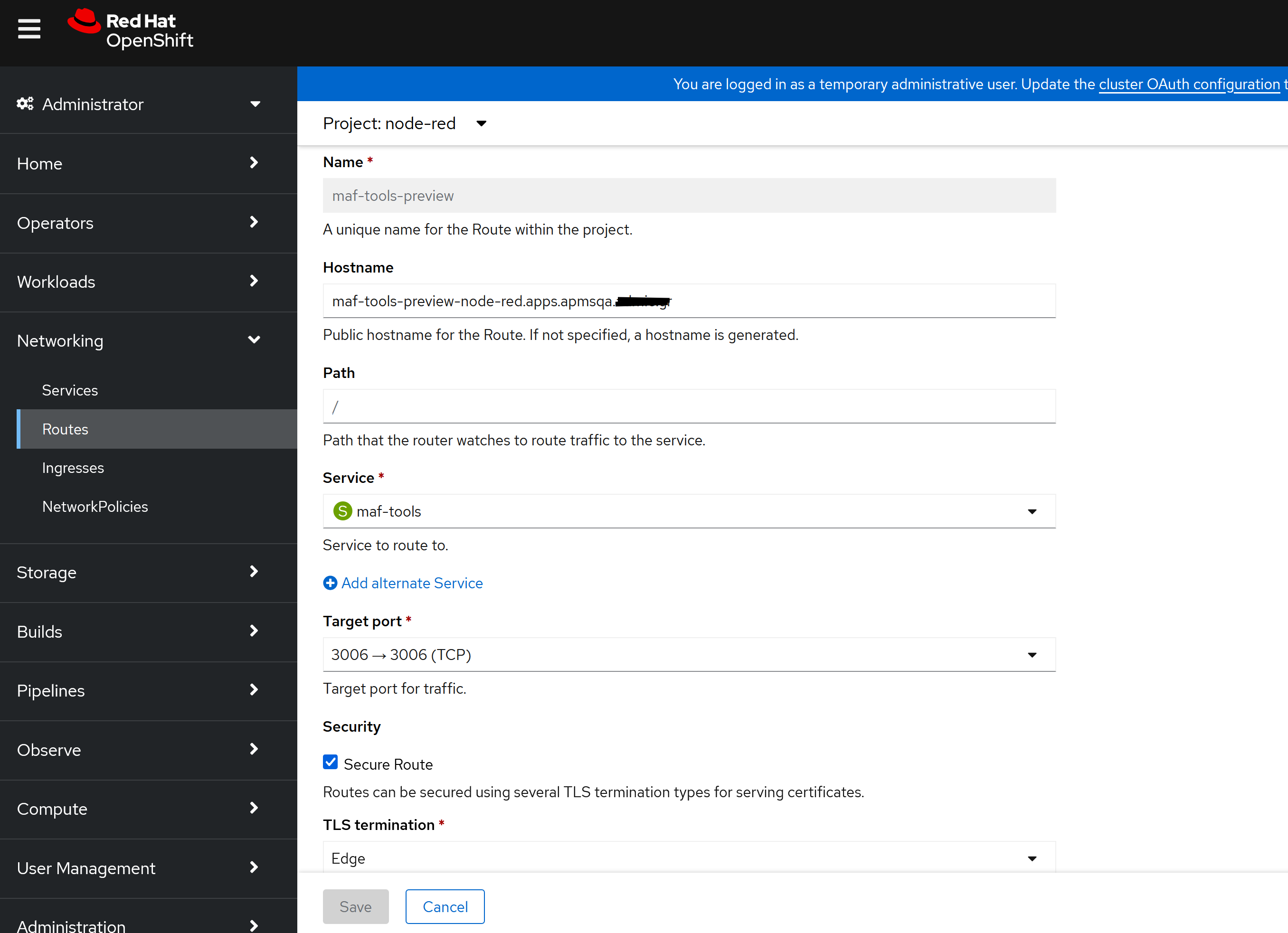
Go to Networking > Routes, click Create Route, and enter the following details:
- Hostname:
maf-tools-preview-node-red.apps.*** - Service: maf-tools
- Target port: 3006 → 3006 (TCP)
- Secure route: True
- TLS termination: Edge
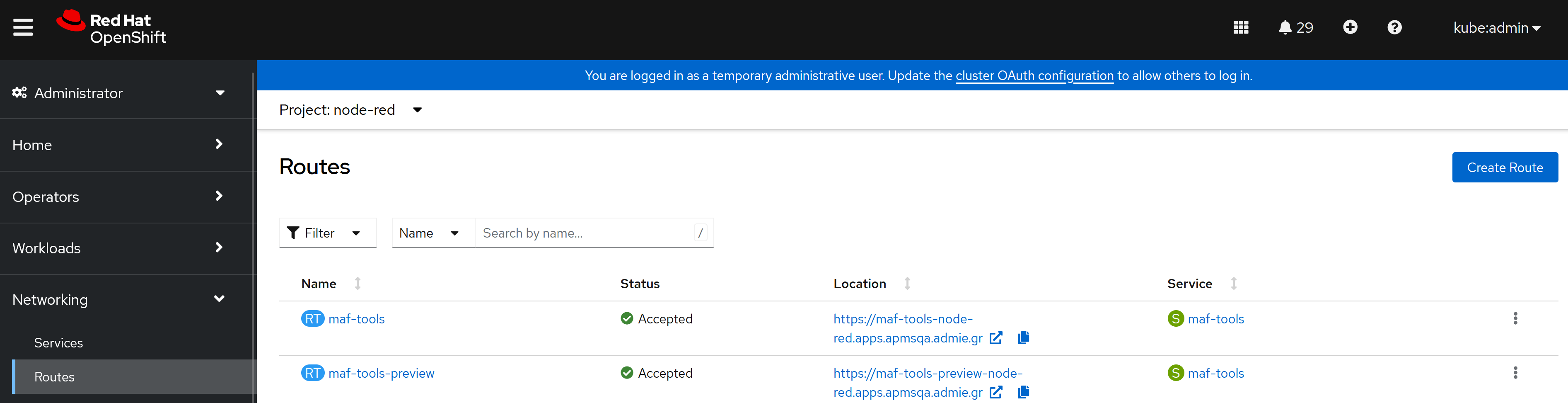
Step 5. Access the IBM Application Configuration
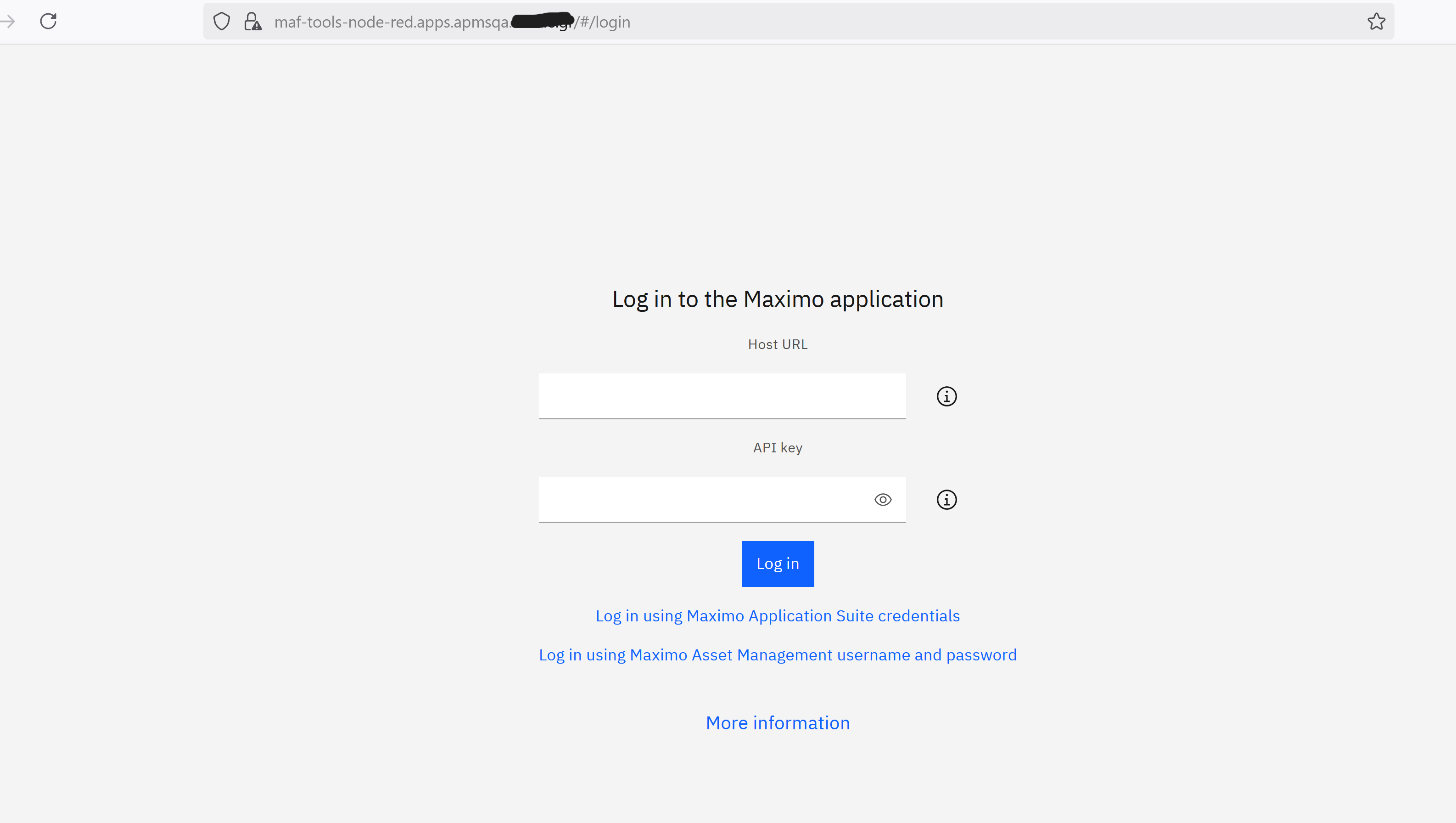
Copy the route URL, open it in a browser, and log in using your username and API key.
You can make changes to the application and publish them.
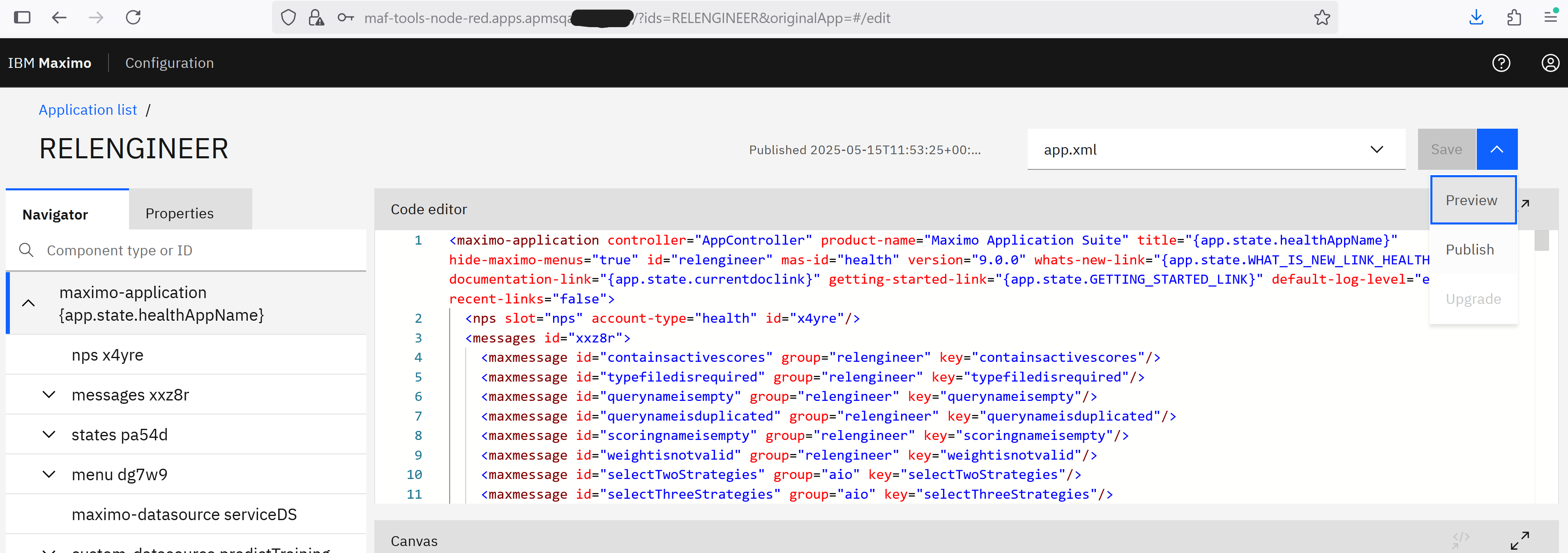
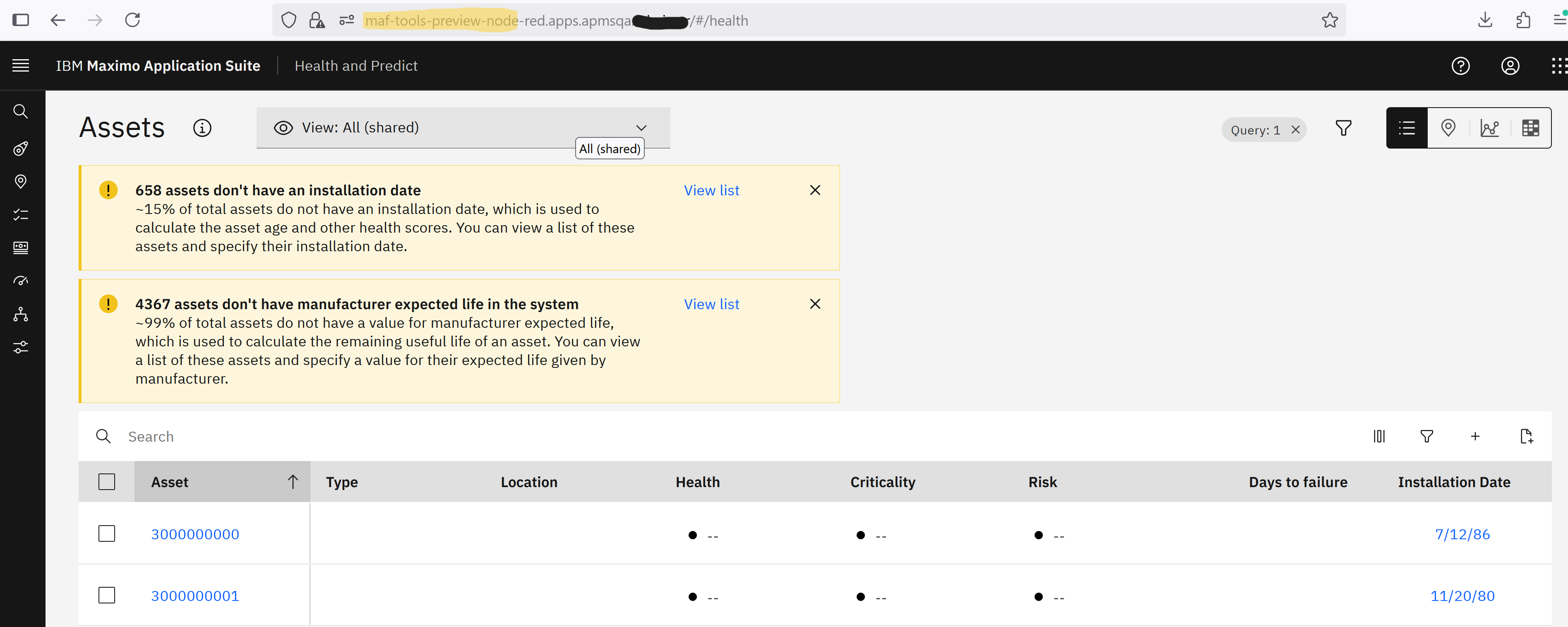
After the preview page loads, click the maf-tools-preview route URL to open the application preview page.
Summary
This tutorial explained how to deploy the IBM MAS Application Configuration on Red Hat OpenShift. It guided you through creating a project, deploying the container image, and setting up persistent storage. You also learned how to configure deployment settings, create a route, and access the application.