
About cookies on this site Our websites require some cookies to function properly (required). In addition, other cookies may be used with your consent to analyze site usage, improve the user experience and for advertising. For more information, please review your options. By visiting our website, you agree to our processing of information as described in IBM’sprivacy statement. To provide a smooth navigation, your cookie preferences will be shared across the IBM web domains listed here.
Tutorial
Write and run your first IBM MQ Jakarta application
Develop a point-to-point Jakarta app
Jakarta Messaging (formerly known as Java Message Service or JMS) is a standard API that defines how Java applications can access and interact with enterprise messaging systems. It provides a common way for Java programs to create, send, receive, and read messages. Messaging service providers, such as IBM MQ, implement the Jakarta Messaging API to allow Jakarta-based client applications to communicate with their messaging service.
Since version 9.3.0, IBM MQ has included support for Jakarta Messaging 3.0. Jakarta Messaging 3.0 is functionally equivalent to JMS 2.0, but there are some differences in naming. The official name for version 3.0 is Jakarta Messaging rather than Java Message Service, and the package and constant names are prefixed with jakarta rather than javax. You can read more about these changes in the IBM MQ Documentation pages. The IBM MQ JAKARTA samples are available in the mq-dev-patterns repository.
In this tutorial, you'll put and get a message from a queue. You’ll be using the JAKARTA API to connect to your messaging provider, which in this case is IBM MQ.
Prerequisites
Java Software Development Kit (JDK), Version 11, to develop and run applications.
IBM MQ Queue Manager:
- To connect the application to a Queue Manager in IBM Cloud, you need to follow the steps in the tutorial "Get an IBM MQ queue for development in IBM Cloud."
- To connect the application to a Queue Manger running in a local container, you need to follow the steps in the tutorial "Get an IBM MQ queue for development in Container."
Developing a point-to-point app with JAKARTA and IBM MQ
Your application will be able to do these things:
- Connect to the queue manager
- Open a queue
- Put a message
- Get a message
- Close the queue
- Disconnect from the queue manager
We assume that these MQ objects are set up on the MQ server that you are connecting to:
- Queue manager QM1
- Queue DEV.QUEUE.1
- Channel DEV.APP.SVRCONN (For IBM Cloud users: Channel CLOUD.APP.SVRCONN)
- Port 1414 (For IBM Cloud users: refer to the
connection_infofile downloaded)
If you are using your own objects, you'll need to adjust these names accordingly. Or, you can go to a tutorial in the Ready, Set, Connect series to get started.
If you’ve already worked through a Ready, Set, Connect tutorial, your queue manager should already be configured correctly. If not, you'll need to set up authorization on the queue manager to accept connection from the application through a named channel and the application has to be authorized to put and get messages to and from the queue.
If you already have a JAKARTA application, but you want some help with performance or debugging, review this article.
Set up your environment
In this first step, we walk you through installing and setting up the prerequisites. The following instructions assume Windows users are working with a PowerShell command prompt unless otherwise stated.
Create a directory to save the files needed for the sample, for example in your home directory.
mkdir MQClient cd MQClientFrom the
MQClientfolder, download the latest IBM MQ Jakarta client jar file by usingcurl.curl -o com.ibm.mq.jakarta.client-9.4.2.0.jar https://repo1.maven.org/maven2/com/ibm/mq/com.ibm.mq.jakarta.client/9.4.2.0/com.ibm.mq.jakarta.client-9.4.2.0.jarFrom the
MQClientfolder, download the JAKARTA API file by usingcurl.curl -o jakarta.jms-api-3.1.0.jar https://repo1.maven.org/maven2/jakarta/jms/jakarta.jms-api/3.1.0/jakarta.jms-api-3.1.0.jarFrom the
MQClientfolder, download the JSON.jarfile by usingcurl.curl -o json-20250107.jar https://repo1.maven.org/maven2/org/json/json/20250107/json-20250107.jar
Downloading the point-to-point JAKARTA sample application
Let's get the sample from GitHub, save it on your local machine, and look through some of the key JAKARTA constructs and where you can add the host, port, channel, and queue details so that your sample can connect to the queue manager.
In your
MQClientdirectory, create the following directory structure:com/ibm/mq/samples/jakarta.On Windows:
md com\ibm\mq\samples\jakarta cd com\ibm\mq\samples\jakartaOn Linux or Mac:
mkdir -p com/ibm/mq/samples/jakarta cd com/ibm/mq/samples/jakartaFrom the
MQClient/com/ibm/mq/samples/jakartadirectory, download the JakartaPutGet.java sample from GitHub by usingcurl:curl -o JakartaPutGet.java https://raw.githubusercontent.com/ibm-messaging/mq-dev-samples/master/gettingStarted/jms/com/ibm/mq/samples/jakarta/JakartaPutGet.javaEdit the Java file you downloaded. Replace the host, port, and app password variables to match your queue manager configuration. The CHANNEL will be DEV.APP.SVRCONN.
For IBM Cloud users, you can find your hostname and port in the Connection Information file, called "connection_info". It will contain your host name and port number (under Listener port). Your APP_PASSWORD is the API key that you generated when you created your application username. The CHANNEL will be CLOUD.APP.SVRCONN.
// Create variables for the connection to MQ
 private static final String HOST = "_YOUR_HOSTNAME_"; // Host name or IP address
 private static final int PORT = _YOUR_PORT_; // Listener port for your queue manager
 private static final String CHANNEL = "_DEV_OR_CLOUD_.APP.SVRCONN"; // Channel name
 private static final String QMGR = "QM1"; // Queue manager name
 private static final String APP_USER = "app"; // User name that application uses to connect to MQ
 private static final String APP_PASSWORD = "_APP_PASSWORD_"; // Password that the application uses to connect to MQ
 private static final String QUEUE_NAME = "DEV.QUEUE.1"; // Queue that the application uses to put and get messages to and from
Additional Step for IBM Cloud
If you are running your IBM MQ queue manager in IBM Cloud, you need to also complete these steps to enable a TLS connection with the queue manager hosted on the public cloud:
Edit the JakartaPutGet.java file. Uncomment the following line, and then save the file.
//cf.setStringProperty(WMQConstants.WMQ_SSL_CIPHER_SUITE, "*TLS12");
This line is required because the Queue Manager on the cloud is TLS-enabled, and its certificate is signed by a trusted certificate authority. Uncommenting this line allows the application and the Queue Manager to negotiate and select an appropriate cipher specification (cipherSpec) for the secure connection.
You should now be able to compile your application and run it.
Change your working directory back to the MQClient.
Compile and run your JAKARTA application
This is where you’ll finally connect your application to the queue manager and put and get messages to and from the queue.
To compile the sample, go to your MQClient directory.
Use javac to compile your application.
From the
MQClientdirectory, usejavacto compile your application.On Windows:
javac -cp .\com.ibm.mq.jakarta.client-9.4.2.0.jar;.\jakarta.jms-api-3.1.0.jar;.\json-20250107.jar com\ibm\mq\samples\jakarta\JakartaPutGet.javaOn Windows PowerShell:
javac -cp ‘.\com.ibm.mq.jakarta.client-9.4.2.0.jar;.\jakarta.jms-api-3.1.0.jar;.\json-20250107.jar’ .\com\ibm\mq\samples\jakarta\JakartaPutGet.javaOn Linux or Mac:
javac -cp ./com.ibm.mq.jakarta.client-9.4.2.0.jar:./jakarta.jms-api-3.1.0.jar:./json-20250107.jar com/ibm/mq/samples/jakarta/JakartaPutGet.javaTo confirm that the sample is compiled, run one of these commands. You should now see a
.classfile accompanying the.javafile.On Windows, run the
dircommand:dir com\ibm\mq\samples\jakarta\On Linux or Mac, run the
lscommand:ls -l com/ibm/mq/samples/jakarta/You should now see a
.classfile accompanying the.javafile:
Run your application.
On Windows:
java -cp .\com.ibm.mq.jakarta.client-9.4.2.0.jar;.\jakarta.jms-api-3.1.0.jar;.\json-20250107.jar;. com.ibm.mq.samples.jakarta.JakartaPutGetOn Windows PowerShell:
java -cp ‘.\com.ibm.mq.jakarta.client-9.4.2.0.jar;.\jakarta.jms-api-3.1.0.jar;.\json-20250107.jar;.’ com.ibm.mq.samples.jakarta.JakartaPutGetOn Linux or Mac:
java -cp ./com.ibm.mq.jakarta.client-9.4.2.0.jar:./jakarta.jms-api-3.1.0.jar:./json-20250107.jar:. com.ibm.mq.samples.jakarta.JakartaPutGetYou should see output like this:

Additional step for MQ on Cloud users
Log into your MQ Web Console. The link is provided in the Connection Information file, called "connection_info".
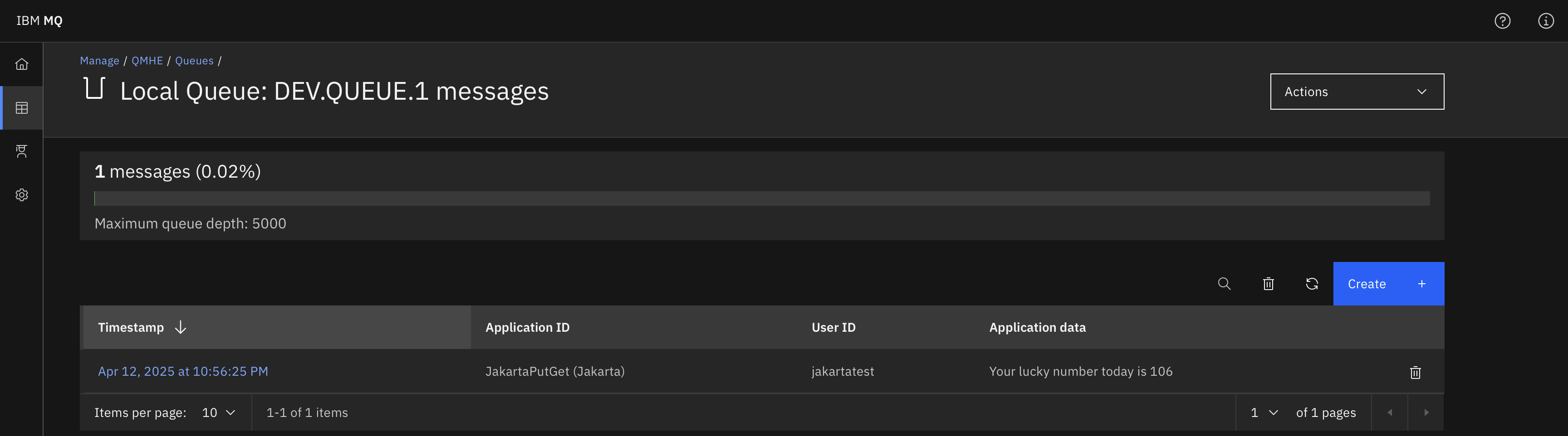
If you click on the message, it will provide you with more information related to it.

Summary
Congratulations! You edited and compiled your first JAKARTA application, sent a message to an IBM MQ queue, and got that message from the queue. You also set up your environment with everything you need to develop with JAKARTA and IBM MQ.
You have a basic understanding of what you’re aiming to hit on the MQ server side with the objects in your JAKARTA application and how JAKARTA helps you achieve that.
If you want to make sure your JAKARTA application is going to perform reliably and well, have a look at this article.